If your laptop fan is always running loud, something is keeping the processor or graphics chip hot, or the fan itself can no longer control its speed. Most cases come down to background software load, dust-clogged vents, or a fan whose bearings are wearing out. A few minutes of checking tells you which one you have.
Here is the honest version of how this works. A laptop fan has no thermostat of its own — it follows temperature sensors in the CPU and GPU, and firmware raises the RPM when those sensors climb. Anything that raises heat, blocks airflow, or breaks the speed control makes the fan spin fast and loud. A constantly running fan is usually a symptom rather than the disease itself.
That matters because the fix depends entirely on which branch you are on. Software load needs a settings change, dust needs cleaning, and worn bearings need a part. Read the diagnosis section first, then skip to the matching fix.
Table of Contents
- 1What Makes a Laptop Fan Run Loud?
- 2How to Tell Whether the Fan Noise Is Normal
- 3Why is my laptop fan always running loud when nothing heavy is open?
- 4Quick Fixes to Try on Mac and Windows
- 5Why Is My Laptop Fan Always Running Loud? Dust, Heat, and Blocked Vents
- 6How to clean vents and fans safely
- 7How to Check for a Failing Fan or Cooling System
- 8How to Fix Fan Problems on Mac and Windows
- 9When to Repair or Replace the Fan
- 10Frequently Asked Questions
- 11Is a loud laptop fan a sign of overheating?
- 12Is it bad for a laptop fan to run constantly?
- 13Is it safe to clean my laptop fan myself?
- 14How can I tell if a laptop fan is going bad?
- 15Can software cause a laptop fan to run constantly?
- 16Why does my laptop fan run loudly only when plugged in?
- 17Conclusion: Start With the Simple Checks
What Makes a Laptop Fan Run Loud?
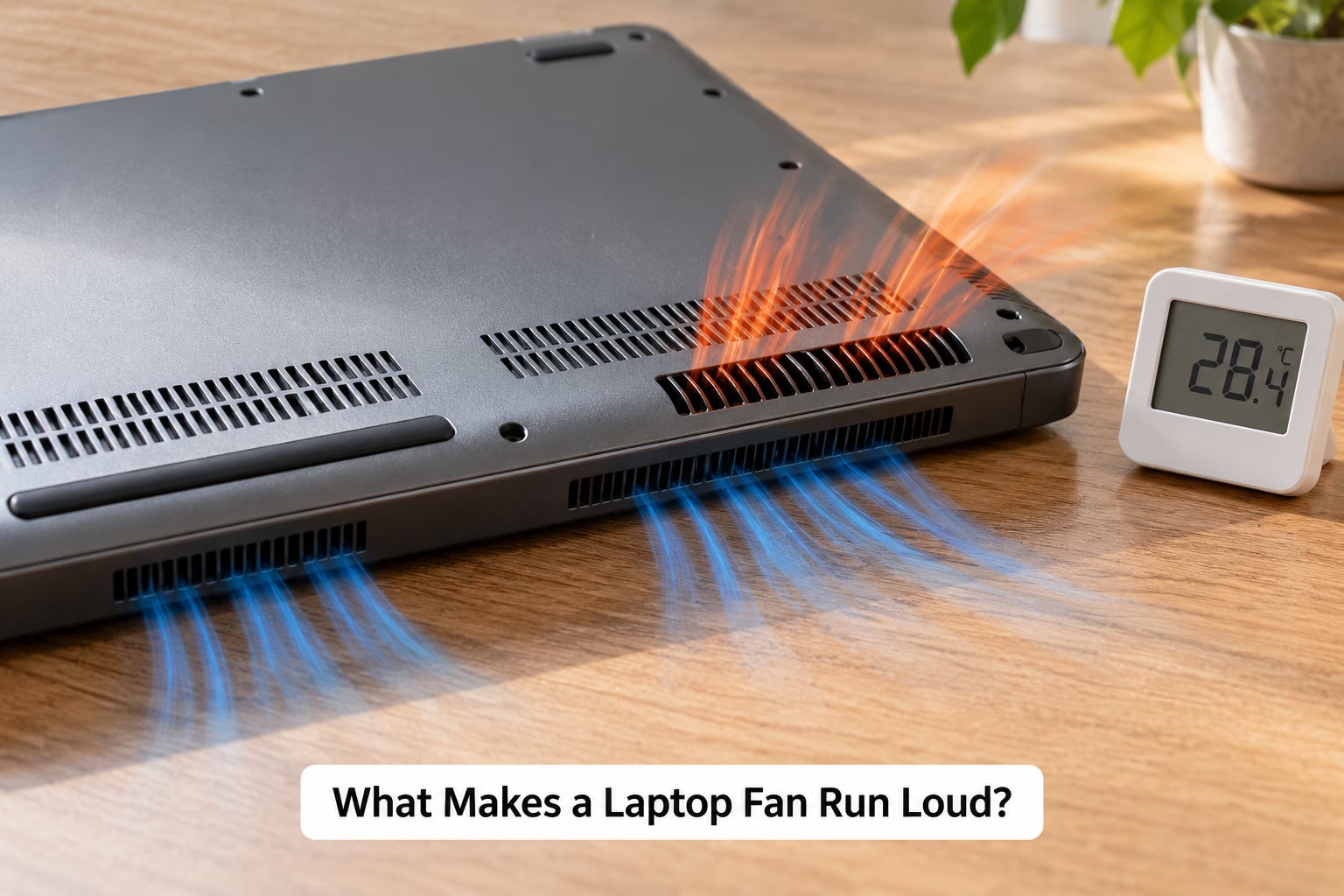
The fan runs loud because it is being told to move more air. Sensors in the processor and graphics chip report heat, the laptop’s firmware compares that reading against a fan curve, and the fan speed rises to pull air through the heatsink fins. A healthy fan is loudest during heavy work and near silent when idle.
Common triggers include launching a demanding app, dozens of browser tabs, video calls with the camera on, video editing, and games. Chrome, Slack and antivirus scans all spike CPU usage briefly, and the fan answers within seconds.
Other causes are physical. Dust packed into the fan blades and heatsink fins chokes airflow, so the fan has to spin faster to move the same air. Thermal paste that has dried out on a laptop two or three years old transfers heat poorly, which raises internal temperatures. A worn fan bearing adds a rattle or grinding note on top of the normal hum.
Blockage is common and underrated. Sitting on a bed, cushion or lap closes the intake vents, and a laptop in a warm room cannot dump heat into already-warm air. That alone can push a fan to high speed with no software load at all.
A fan that never changes speed, even when the machine is nearly idle, points somewhere else. On some laptops the fan’s PWM speed-control pin loses contact, the fan only ever sees full power, and it runs at maximum constantly regardless of temperature.
How to Tell Whether the Fan Noise Is Normal
Five minutes of observation separates normal behavior from a fault. Watch what the fan does at idle, during web browsing, during video playback, and under a real workload. Short bursts right after you open a demanding app are normal. Continuous loud noise with nothing open, repeated slowdowns, heat near the keyboard, or unexpected shutdowns are not.
A hot laptop is telling you something different from a loud but cool one. Use the table below as your first filter.
| What you notice | Most likely cause | Where to start |
|---|---|---|
| Loud, and the laptop feels hot or slows down under load | Real heat — blocked vents, dust, heavy background load | Clear the vents, then check background processes |
| Loud, but the laptop stays cool | Fan hardware or a stuck speed-control signal, not a heat problem | Listen for pitch changes and check airflow at the exhaust |
| Loud or rattling for the first ten minutes after a cold start, then quiet | Worn fan bearings | Plan a fan replacement rather than cleaning |
| Loud only during games, exports or video calls | Normal high-load behavior | Change the power mode, not the hardware |
| Grinding, scraping or squealing instead of a hum | Damaged bearing or a fan hitting the chassis | Stop heavy use and arrange service |
| Loud on a bed or lap, quieter on a desk | Blocked intake vents | Move to a hard flat surface |
| Fan still spinning after the laptop is fully off | Not a fan at all — a light, USB charger or an internal light | Unplug the charger and check again |
Why is my laptop fan always running loud when nothing heavy is open?
Usually because something is quietly using processor time in the background, even though no window shows it. Four things account for most of it: startup programs that launch with the machine, antivirus or indexing scans, dozens of browser tabs and extensions, and one heavy app that never fully closes. A few machines also carry unwanted mining software, which shows up as steady load with no visible cause.
The pattern differs by system. On a Mac, look at the CPU column in Activity Monitor; on Windows, sort Task Manager by the same column. If the top entry sits near 30% or more while you are doing nothing, you have found the reason.
A caution about temperature readings. Browser-based temperature widgets and third-party overlays often report a number unrelated to what your actual sensors read. For real values use a monitoring tool such as HWMonitor or Core Temp on Windows, or the built-in thermal readout on a Mac. As a rough guide, a healthy laptop sits under 50C idle, stays under 85C on the CPU during heavy load, and under 83C on the graphics chip.
Quick Fixes to Try on Mac and Windows
Work through these in order. The first four take a couple of minutes and solve the majority of complaints, including most of the “fan jumps to full speed for no reason” reports on Windows 11 machines.
- Save your work and restart. A restart clears stuck processes and stops any update or search index that started quietly in the background.
- Move the laptop to a hard, flat surface. Beds, cushions and your lap close the intake vents.
- Close what you are not using, including browser tabs you forgot were open. Extensions run in the background too.
- Change the power mode. On Windows 11 go to Settings, System, Power & battery, Power mode and choose Best power efficiency. Then open Control Panel, Hardware and Sound, Power Options, Change plan settings, Advanced power settings, and set Processor performance boost mode to Efficient instead of Aggressive. That single change has quieted brand new laptops that were otherwise fine at idle.
- On a Mac, plug in and open System Settings, Battery, then turn Low Power Mode on. Also check Energy Saver options and close any app using CPU in the Activity Monitor.
On a managed school or work laptop, Task Manager and Activity Monitor are often restricted and power settings are locked by policy. If you cannot open them or change the plan, that is your IT department’s setting, not a fault in the machine.
Disable startup programs while you are in the same area. On Windows, open Task Manager, choose the Startup apps tab, and switch off anything you did not choose to install. On a Mac, System Settings, General, Login Items shows the list.
Why Is My Laptop Fan Always Running Loud? Dust, Heat, and Blocked Vents
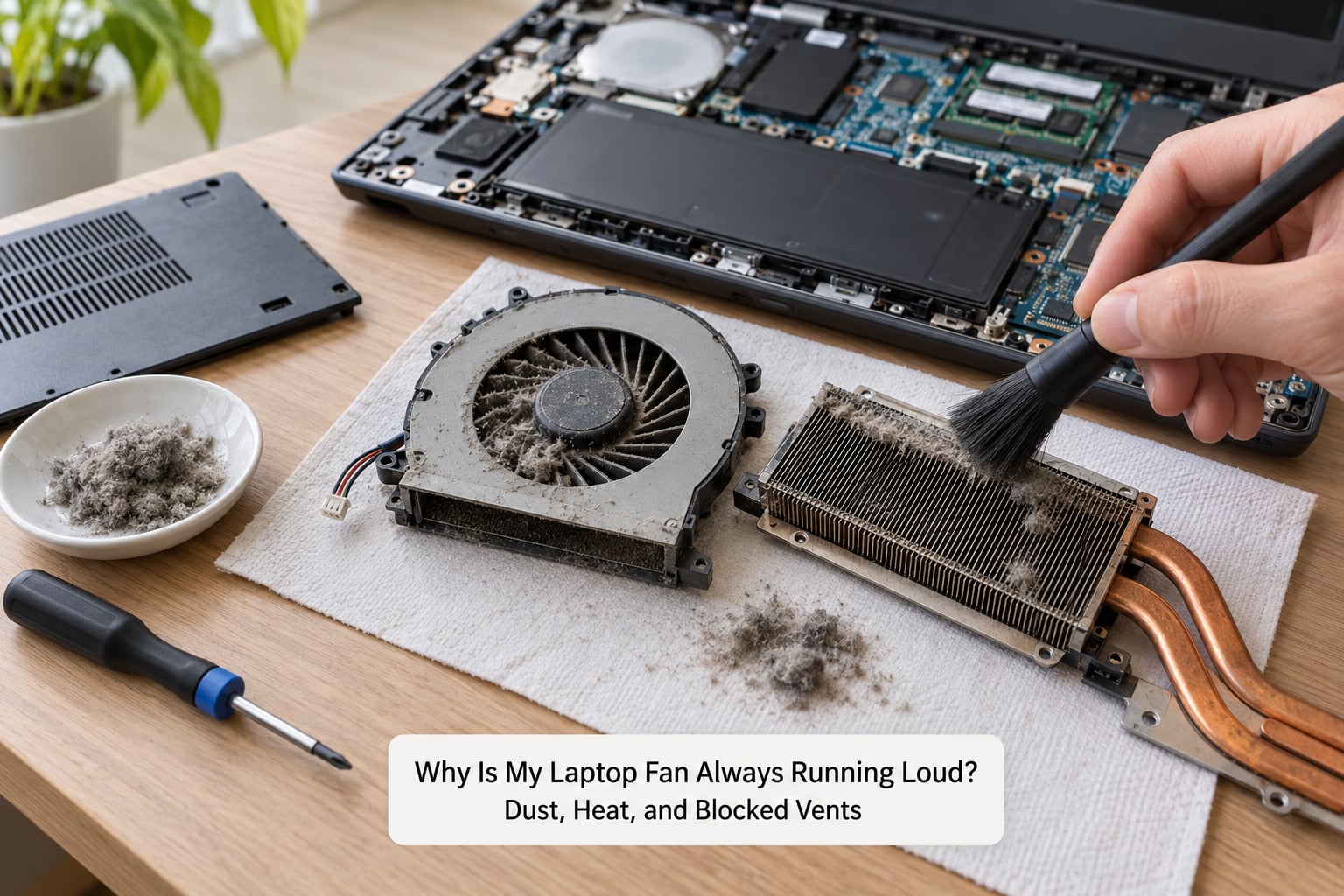
Dust is the quiet explanation for a fan that has grown louder over two or three years without any change in workload. The fan pulls air through the heatsink fins continuously, and that airflow carries fine dust in with it. The layer builds up, the fins clog, and the fan spins faster to compensate for the reduced cooling.
Blocked vents look similar but are faster to fix. The intake is usually along the bottom edge or the back hinge. Bedding, a couch cushion, a lap, or even a tight desk drawer can seal it. A closed laptop bag does the same thing during a commute, and repeated heat cycles bake the dust into the fins more firmly.
How to clean vents and fans safely
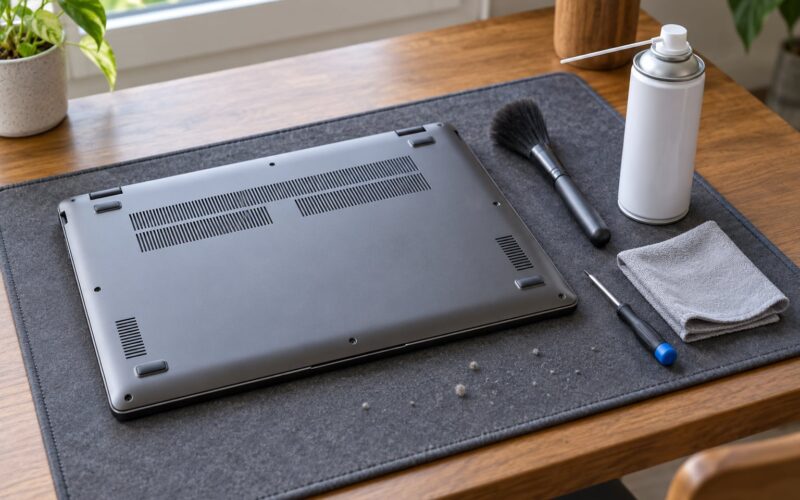
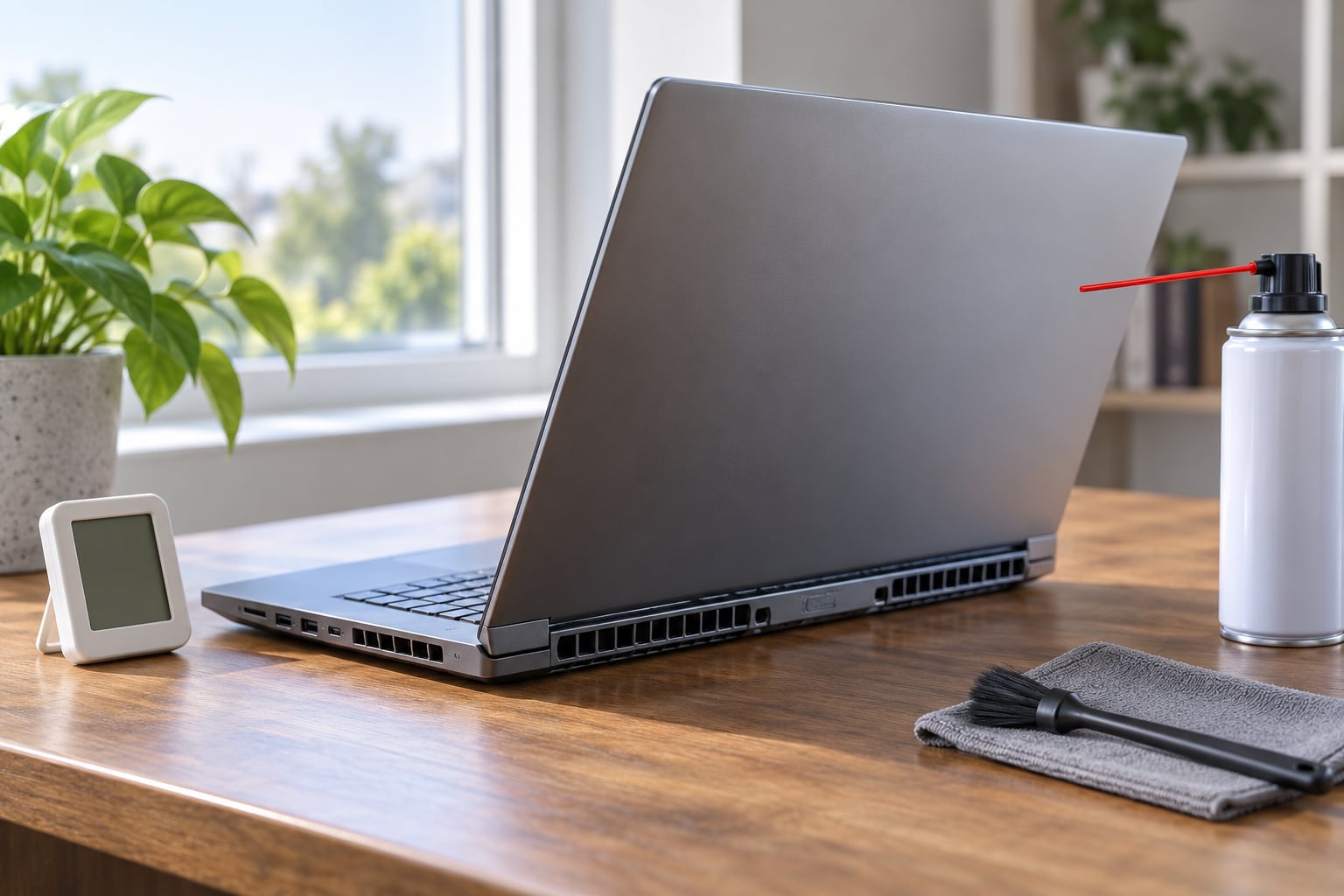
You can clear a lot of loose dust without opening anything. Shut the laptop down completely, unplug the charger, and let it cool. Hold it so the vents face downward and blow short bursts of compressed air through them. A soft, clean brush loosens dust clinging to fan blades and grille openings. Work in short passes and keep the can upright.
Skip the vacuum. It can generate static that harms electronics, and laptop fans are built to spin very fast at the moment they start. Never push a swab, screwdriver or anything else into a spinning fan; if the blades are obstructed the motor can be damaged instantly.
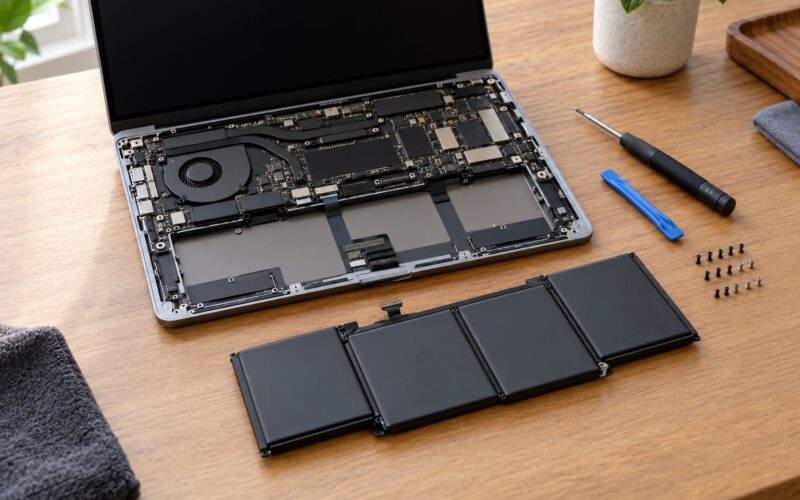
Opening the chassis is a different matter. On most laptops it voids the warranty, and ribbon cables and connectors are easy to tear. If your machine is still under warranty, let an authorised service centre handle internal cleaning.
Be realistic about compressed air. It clears the grille and the accessible fan, but a heatsink packed solid on the inside needs a technician who can open the machine, clean the fins and repaste the processor. That is the most common reason a careful clean seems to change nothing.
How to Check for a Failing Fan or Cooling System
A fan that is failing sounds different from a fan doing its job. A healthy ramp is a smooth rise in pitch as load increases. A failing fan adds a rattle at start-up, a dry grinding note, a scraping sound, or a high squeal that changes as the blades pass the chassis.
Here is how to check. Shut down and restart, then listen during the first minute. Rattling that appears cold and fades as the machine warms up is the classic worn-bearing pattern, and the same noise returns every time after the laptop has been shut down for hours. That repeatability is the giveaway.
Next, feel the exhaust. Hold a hand a few centimetres from the vent while the machine is under load. Weak or warm airflow means the fan is moving less air than it should, which points at blocked fins or a weak motor rather than a heat problem.
Finally, watch for the failure modes. A fan that stops unexpectedly, runs in bursts and then goes silent for no reason, or stays pinned at full speed with a light workload is not normal. A fan that is loud but cool points to a broken speed-control connection rather than heat, because the machine has no reason to demand cooling.
On a gaming laptop with two fans, compare them at the same moment. One spinning noticeably faster than the other at the same temperature is a desync that the manufacturer’s own control utility can display for you.
How to Fix Fan Problems on Mac and Windows
Once you know whether the problem is software or hardware, the fixes are much shorter than people expect. Software-side fixes are free and take an afternoon; hardware-side fixes need a technician and sometimes a part.
Install the operating system updates and the graphics driver from the manufacturer’s support site. Performance management updates do sometimes change fan behaviour on newer machines.
Run the built-in hardware diagnostics. On Windows 11, hold Win plus the S key to open Quick Help, then choose the option to run the best available diagnostic for this device. On a Mac, shut down, press and hold the power button until Startup Options appear, then Command-D to run diagnostics.
Check for known battery or firmware issues using the manufacturer’s own support tools, and note any recall for your exact model. A swollen battery presses against the chassis and raises internal temperature on its own, and the fan reacts as if the processor were loaded.
If you want more control, the BIOS or UEFI setup screen usually carries a hardware monitor with live temperatures and sometimes a fan curve editor. Treat this as an advanced option. Raising idle fan speeds does not fix a heat problem and lowering them below what the machine needs can cause thermal throttling, instability or shutdown.
Brand utilities give you a safer version of that control: Lenovo Legion Toolkit and Lenovo Vantage, HP OMEN Gaming Hub, Dell and Alienware Command Center, ASUS Armoury Crate, and MSI Center. Each one shows CPU and GPU temperature and fan speed and lets you pick a quiet or balanced profile.
Undervolting is worth knowing about and worth doing carefully. It lowers the processor voltage, which means less heat for the fan to remove. Getting it wrong causes instability and reboots, and the tools involved are vendor-specific.
One honest caveat: resetting Windows settings, a clean profile, or a new power plan will not repair a mechanical fault. If the noise is metallic, the fan is not moving, or the machine gets too hot to touch comfortably, settings changes are wasted effort.
When to Repair or Replace the Fan
Book service when the fan runs at full speed at idle with no load, when the laptop overheats during light work, when it shuts down or sleeps unexpectedly, or when the case shows a swollen battery or visible damage. Add a drop or an incorrect previous opening to that list. Back up your files first — heat-related shutdowns can arrive without warning.
A technician will typically inspect the fan and its bearings, the heatsink and fin stack, the thermal paste, the heatsink mounting pressure, the battery, and the internal ducting that directs air across the components. On many laptops a full repaste plus a new fan is the sensible repair rather than a single part swap.
Repair usually makes sense when the cost sits well under half the value of a comparable replacement machine, when the rest of the laptop is still good, and when the screen, keyboard and battery are all in reasonable shape. Replacing the whole laptop makes more sense when several of those fail together, which is common on machines already four or five years old.
Cooling pads deserve a realistic expectation. They move air across the underside, which helps a little, but they cannot clean a packed heatsink or replace dried paste. They are a comfort measure, not a repair.
Frequently Asked Questions
Is a loud laptop fan a sign of overheating?
Often, but not always. If the laptop also feels hot near the keyboard, slows down during normal work, or shuts down unexpectedly, the fan is responding to real heat and you have a cooling problem to solve. If it is loud while the machine stays cool, the cause is more likely a worn bearing or a fan that has lost speed control, and changing power settings will not help. Check the temperature before assuming either way.
Is it bad for a laptop fan to run constantly?
Constant running is not harmful in itself, and modern laptops are built for it. What matters is the temperature behind it. Sustained CPU temperatures above roughly 85C or graphics temperatures above 83C cause thermal throttling, which slows performance and shortens battery and component life over time. A fan that runs constantly while the machine stays cool is usually a hardware warning rather than a heat warning, and it should be looked at.
Is it safe to clean my laptop fan myself?
Blowing compressed air through the vents from outside is safe if the machine is off, unplugged and cool. Do not vacuum, do not push anything into a spinning fan, and do not open the chassis unless you have the correct service guide, because most laptops use ribbon cables and easy-to-break connectors and the warranty may be voided. Internal cleaning and repasting are better left to a technician.
How can I tell if a laptop fan is going bad?
Listen for a rattle or grinding note that appears when the machine is cold and fades once it warms up, then returns after a long shutdown. That pattern points to worn bearings. Also check for weak airflow at the exhaust, a fan that stops or runs intermittently, and a fan pinned at full speed with a light workload. A healthy fan rises smoothly in pitch with load and is near silent at idle.
Can software cause a laptop fan to run constantly?
Yes, and it is the easiest cause to rule out. Background indexing, antivirus scans, browser extensions, dozens of open tabs, a stuck application, and unwanted mining software all hold the processor busy. Sort Task Manager by CPU on Windows or check the CPU column in Activity Monitor on a Mac. If the top process stays high while you are doing nothing, close or disable it before touching the hardware.
Why does my laptop fan run loudly only when plugged in?
Charging adds heat, and many laptops raise their performance ceiling while connected so they can charge faster and sustain workloads. The extra power draw nudges internal temperatures up, so the firmware asks for more airflow. Test by unplugging and watching the fan for a minute or two. If the noise disappears on battery, it is a power and heat budget issue rather than a failing fan.
Conclusion: Start With the Simple Checks
Why is my laptop fan always running loud? In most cases the answer is one of three things: background software holding the processor busy, a cooling path blocked by dust, soft surfaces or a warm room, or a fan whose bearings or speed control are failing. The first two take an afternoon and cost nothing. The third needs a part.
Save your work, restart, move the laptop onto a hard flat surface, sort Task Manager by CPU, and switch the processor boost mode to Efficient. Then clean the vents with short bursts of compressed air and test again. If the noise is still there at idle, or the machine is shutting down from heat, back up your files and arrange manufacturer-authorised service rather than buying tools you will not use.