If your phone, tablet or laptop charges only when you hold the cable at an angle, or not at all, the fix is usually simpler than it looks. To fix a charging port that is not working, start by ruling out the cable and adapter, then clear compacted pocket lint from the connector with a plastic pick and a short puff of compressed air. Most ports are clogged rather than broken, and the whole cleaning job takes about ten minutes with no tools beyond a toothpick.
Occasionally the port really is damaged, and there is no home fix for a bent connector or a torn charging flex. This guide covers both ends of that line: what you can safely do at your desk, and the exact point where opening the device stops being worth it. The steps work across phones, tablets and laptops, and I have noted where each one differs.
Table of Contents
- 1What You Need
- 2Step-by-Step: How to Fix a Charging Port That Is Not Working
- 31. Check Whether the Device Is Receiving Power
- 42. Clean the Charging Port Safely
- 53. Restart and Check the Charging Settings
- 64. Test Another Cable and Charging Adapter
- 75. Inspect the Port for Physical Damage
- 86. Repair or Replace the Charging Port
- 9Liquid and moisture damage: how long to wait before charging
- 10If it worked before cleaning and stopped after
- 11Device-specific notes
- 12How to charge your device with a broken charging port
- 13Common Mistakes
- 14Frequently Asked Questions
- 15Can I clean a charging port with compressed air?
- 16Why is my device not charging even though the cable works on another device?
- 17Can I use a different charger or charging cable for my device?
- 18Is wireless charging a good workaround for a broken charging port?
- 19What does it mean if the charging port feels loose or gets hot?
- 20Should I repair or replace a charging port myself?
- 21Conclusion
What You Need
You need very little. Most charging port problems are solved with items most households already have, plus one or two cheap additions if you want a proper clean.
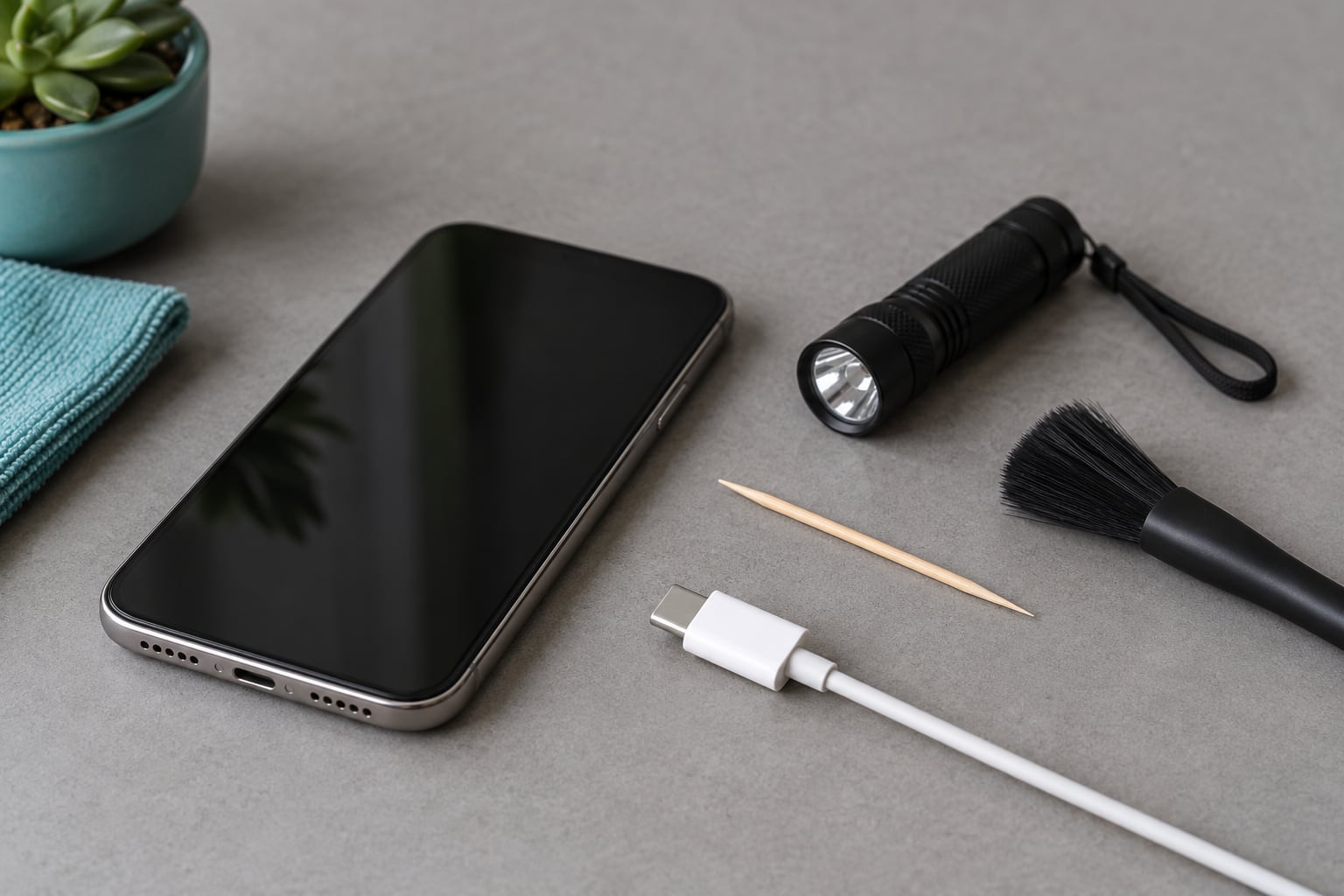
- A flashlight or phone torch to look inside the connector. A penlight works well because you can hold it at an angle.
- A wooden toothpick or plastic SIM-ejector-style pick for hooking compacted lint out of the sides.
- A soft brush, an old toothbrush works, for sweeping dust off the port edges and speaker openings.
- Compressed air in a can for clearing loose dust once the mat is lifted. Short puffs, held upright.
- A second charging cable and adapter, ideally ones you know work on another device.
- Isopropyl alcohol at 90% or higher if the port has liquid residue or visible corrosion.
None of that requires opening the device. Screwdrivers, spudgers and opening picks only come into play at the repair stage, and by that point you are committed to finishing the job properly.
| Safe to use | Never to use |
|---|---|
| Wooden toothpick | Paper clips |
| Plastic pick or SIM tray tool | Needles, pins, sewing tools |
| Soft nylon or natural-bristle brush | Metal scraping blades, razors |
| Can of compressed air, upright | Your mouth — saliva and moisture damage the contacts |
| 90% or higher isopropyl alcohol on a soft cloth | Water, household cleaners, abrasive toothpaste |
The reason metal is on the wrong side of that list is not superstition. A metal object can bridge the contact pins inside the connector and short the charging circuit, and on a lithium battery that means an unexpected shutdown, a swollen cell, or a repair bill that dwarfs the port. If you have read advice online telling you to use a paper clip, ignore it.
Step-by-Step: How to Fix a Charging Port That Is Not Working
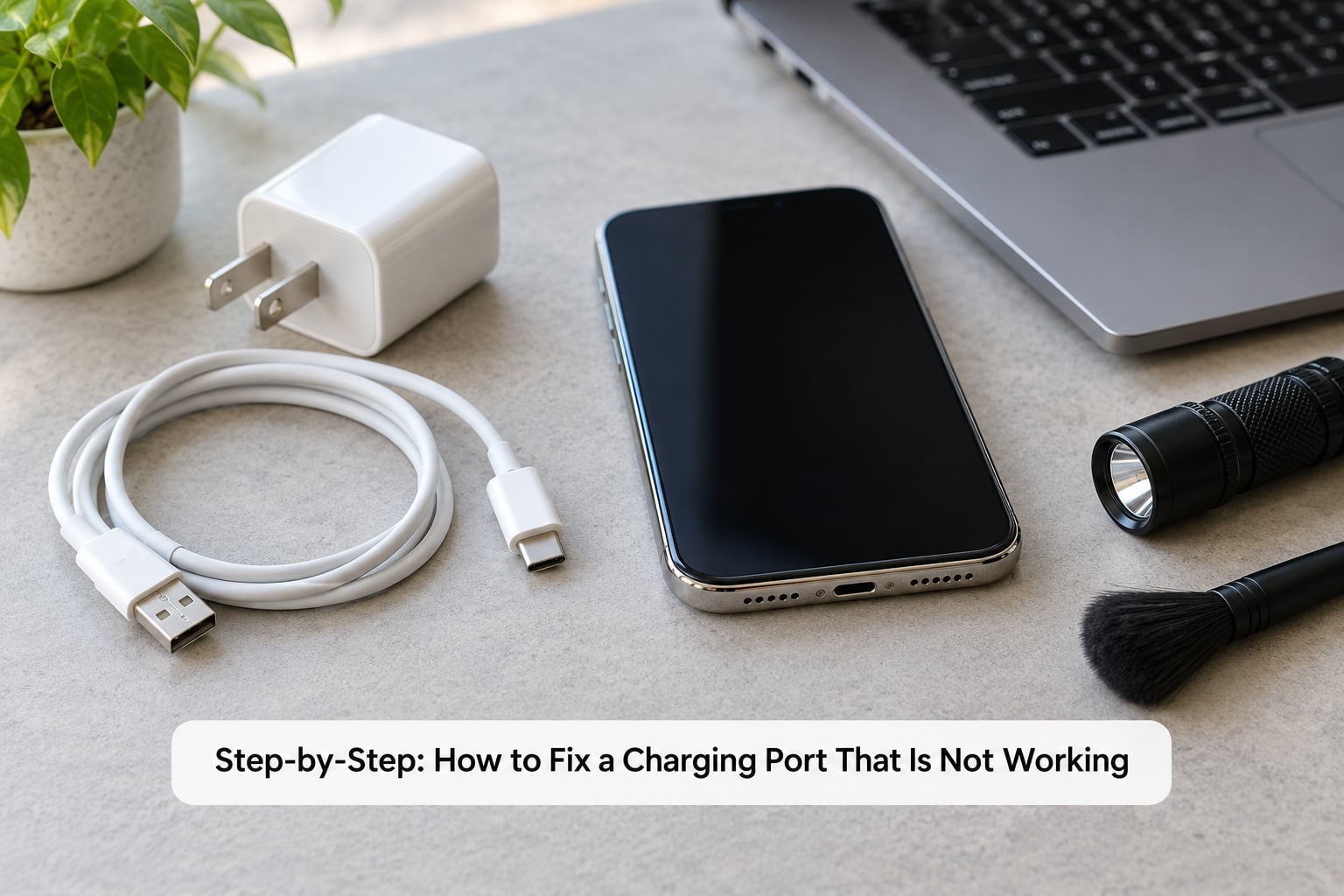
Work through these in order and stop at the first one that restores charging. Each step takes a couple of minutes, and each one eliminates a cause that would otherwise send you to a repair shop unnecessarily.
1. Check Whether the Device Is Receiving Power
Before touching the port, confirm that power is reaching the device at all. Plug the charger into a different wall outlet, and if you have a second outlet that you know works for other things, try that one too.
Then look for the obvious signs of power arriving: a charging icon in the status bar, an LED on the cable or adapter, a click of the plug seating, or a battery percentage that moves once you leave it for two minutes. On a laptop, check whether any charge or power LED lights at all. If nothing lights up, the fault is upstream of the port.
Some ports charge but do not carry data. If your computer recognises the cable but will not sync, or a phone charges from the cable but will not connect to a PC, the port is alive and you are looking at a data path problem rather than a dead connector. Note that distinction, because it points at a different repair.
2. Clean the Charging Port Safely
Turn the device off first. Working on a powered port raises the chance of a short, and on a phone that means you cannot easily see what went wrong afterwards.
Shine the flashlight in and look carefully. What you are hunting for is a felt-like mat of pocket lint, usually grey or beige and packed into the corners and the back wall of the connector. This is the single most common cause of a port that appears broken, and it builds up in a few months because fabric fibres snag on the entry lip of the connector.
Once you can see what you are dealing with, insert the wooden toothpick or plastic pick at a shallow angle, hook the mat, and pull it out in one slow movement. Go around the inside walls in a few passes. Users on r/samsunggalaxy and r/fixit describe this exact routine, gently hooking and pulling packed lint from the sides and the bottom of the port, as the thing that brought their charging back.
Move the toothpick in, hook, and pull straight out. Do not scrub back and forth with the tip inside the connector, because that is how you bend a pin or scratch the contacts.
Switch off the can of compressed air, hold it upright about an inch from the port, and give two or three short puffs. That clears the loose dust that the pick loosened. Keep the can upright the whole time, and do not shake it hard first — propellant leaving in a liquid blob can coat the contacts.
Finally, sweep the outside of the connector with the soft brush so lint already on the phone or case does not migrate straight back in.
3. Restart and Check the Charging Settings
Plug it back in and give it a minute. If nothing happens, do a full restart: shut the device completely down, wait thirty seconds, then power it on and plug in while it is starting.
A full restart clears stuck charging controllers, and some devices need to be plugged in before they wake. On Windows laptops, check whether a firmware or BIOS update is pending, since USB-C port behaviour changes across updates. On MacBooks, leave the machine on the charger for a few minutes with the screen off, because the machine may not draw current while asleep and that can look like a dead port.
Some devices expose charging settings worth a look. Phones and tablets show charging limit or battery protection options that pause charging when a threshold is reached, so if your battery percentage sits at exactly 80 percent and never moves, the port is fine and you have found your answer.
4. Test Another Cable and Charging Adapter
Swap the cable and the adapter out one at a time. Cables fail far more often than ports, usually from fraying right at the connector barrel where the strain relief is, which is invisible unless you look at it closely.
Flex the cable gently near both ends while it is plugged in. If charging starts and stops as you move it, the wire is broken inside the insulation. Check the plug itself for a bent or pushed-in pin, and check the adapter for scorch marks, a loose socket, or a smell of burnt plastic. If you can feel a rough spot on the plug metal, stop using that cable.
Also test the case. A thick case, or one with a raised lip around the port, can stop the cable from seating fully, and the result looks identical to a dead connector. Take the case off and try again before concluding anything about the port.
This step matters because a shop that jumps straight to a port quote, without asking whether you have tried a different cable, is not doing a proper diagnosis. The same forum readers report shops quoting a full device swap when a cable swap or a clean would have done it.
5. Inspect the Port for Physical Damage
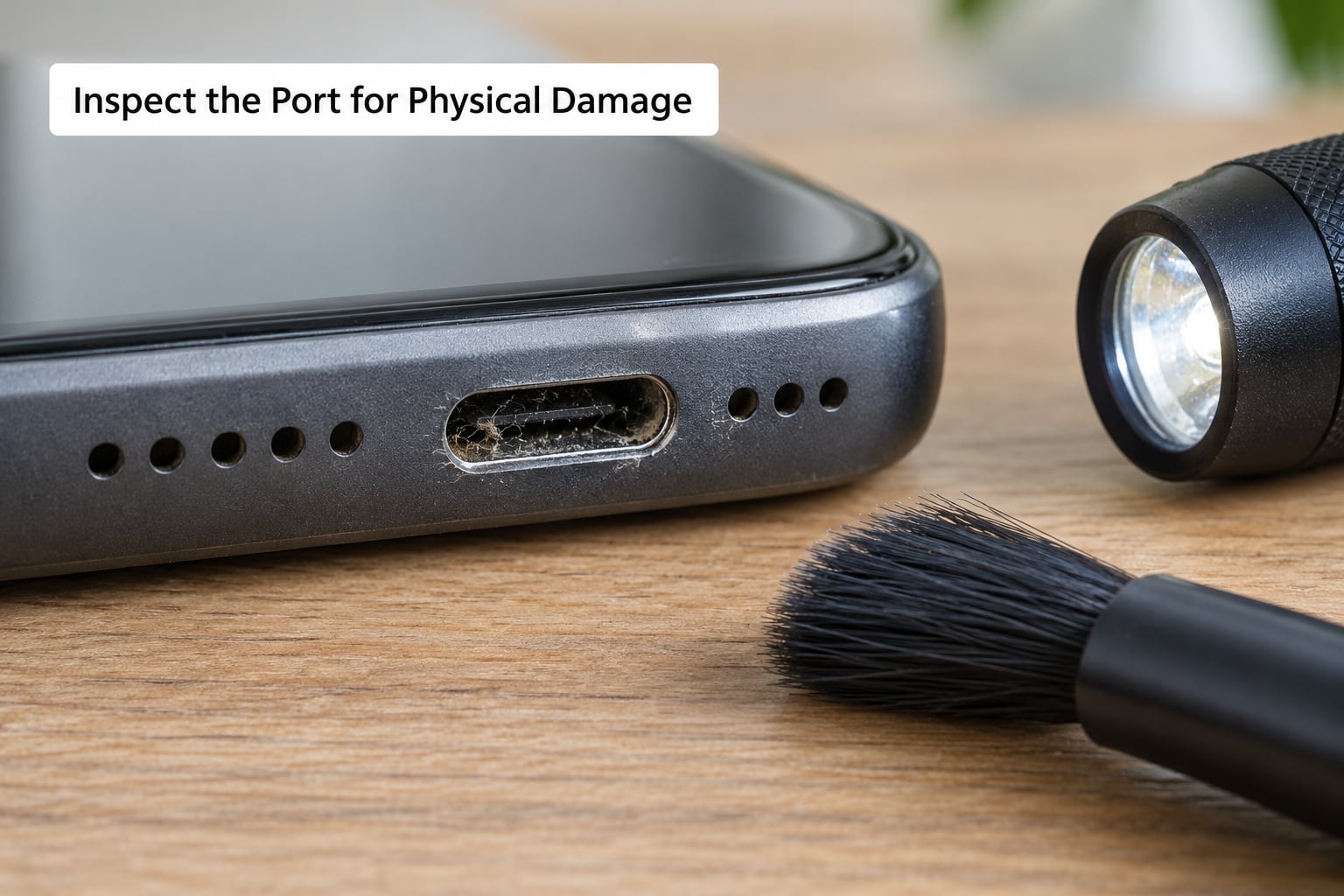
With the flashlight held at a low angle, check the shape of the opening. A healthy connector looks even and symmetric. A port that has visible tilt, an opening wider on one side, or a connector that rocks when you gently touch the cable points to a damaged housing or a lifted solder joint.
On USB-C ports look for a centre tongue with pins on both faces. Bent pins on that tongue are common on phones that have been dropped on the connector end, and they can look like a debris problem at first. Lightning connectors on iPhones will also sit visibly higher than the case if the flex has lifted, and the cable will feel like it has extra play in it.
Note whether the cable charges only in one orientation. A USB-C plug that works flipped but not upright points at one side of the connector being blocked or bent. A connector that charges but drops as soon as you move it points at a loose port or a cracked solder joint. Corrosion from liquid shows up as white, green or crusty deposits on the pins, sometimes with a rough feel.
Check the device for swelling or unusual warmth around the port area. Heat at the connector, a battery that looks raised on the screen, or a device too hot to hold are stop signals. Power it off, do not charge it, and do not keep testing it.
6. Repair or Replace the Charging Port
If the port is clean, the cable and adapter are fine, the case is off, and it still fails, the fault is inside the device. From there there are three real outcomes, and only a technician can tell you which one you are facing.
Contact restoration or a modular port swap. On many phones the connector sits on its own small board, often called the charging flex or sub-board, held by a handful of screws. Replacing that assembly is straightforward for a repair shop and takes under an hour on most models.
Board-level microsoldering. On laptops and some phones the port is soldered directly to the mainboard. Repair then means removing the old connector under a microscope with hot air and building new solder joints on the board, and where the damage reaches the board pads or traces rather than the connector itself, those pads have to be rebuilt too. iFixit contributors describe exactly this point as the moment a job stops being DIY, since the port itself is a cheap part while the labour and risk are the real cost.
Manufacturer service. For a device still under warranty, go through the maker, since opening it yourself ends that cover in most cases. Be aware that manufacturer service often means a whole-unit exchange rather than a port replacement, so ask specifically whether a port-level repair is available before you hand the device over.
Two things to weigh before any opening. First, replacing the port usually means the seals are broken, so the device may lose its water resistance rating unless the technician replaces the gaskets and reseals it. Second, opening modern phones and laptops means separating adhesive and back glass, and a cracked back panel is a common way to turn a port repair into a much more expensive job.
Liquid and moisture damage: how long to wait before charging
If the port stopped working after water, or your device shows a moisture warning, the connector pins may be corroded rather than blocked. Do not charge it. Charging a wet port is the fastest way to turn a recoverable moisture event into a dead charging circuit.
Turn the device off, stand it with the port facing down, and give it at least 24 hours before you try anything. 48 hours is safer if the liquid was salty, since salt leaves residue that keeps conducting after the water itself has gone. Do not use rice, do not use a hair dryer, and do not put it in an oven. If the warning persists after two full days, the next step is a technician cleaning the corrosion off the pins and checking them under magnification.
If it worked before cleaning and stopped after
Cleaning that breaks charging usually means you did too much, not too little. Three things commonly cause it.
- A bent pin. A forceful jab dislodged a pin out of alignment or pushed it back. The port will look intact but a connector will not seat.
- Liquid you pushed deeper. Scraping can drive moisture or sugar residue further into the connector, where it keeps shorting the contacts.
- Damage to the connector tongue. On USB-C, levering against the centre tongue can crack the plastic holding the pins.
Look at the port under light again. If you cannot see a visible break and the device does not smell of burnt electronics, give it a full day with no cable attached before panicking, then test with a known-good cable. If it is still dead after that, the cleaning likely revealed damage that was already there, and it needs a technician to inspect the pins.
Device-specific notes
iPhone and Lightning. The connector is a shallow tray at the bottom of the phone, so lint builds visibly along the back wall. AirPods and cases that sit against the port make it worse. In iOS, a charging accessory that has been recognised can also sit on a screen saying it is not supported; that is a software symptom, not a port fault, and it clears after a restart or an update.
Android and USB-C. The oval connector collects debris in the centre tongue, and the pin layout is easier to damage than it looks. Many flagship models include a built-in cleaning tool in the settings, often under Battery or Device care, which spins a pin inside the port. That is the safest first step on those models.
Laptops. Two different problems arrive here. A barrel-style DC jack is a hole that collects dust and can just need cleaning. A USB-C port soldered to the motherboard is a board-level job, and laptops cost more to repair because the labour is higher and the parts are less modular. Check whether the laptop charges with any cable movement before assuming the port, and note that some laptops will not charge at all while closed, which confuses people more than anything else in this list.
How to charge your device with a broken charging port
You do not have to go without power while you sort this out.
- Wireless charging. If your model has it, this is the cleanest workaround and it bypasses the connector entirely. It is slower, and it needs a charging pad or a compatible case with the coil built in.
- A power bank. Charge the bank over USB from another device or a laptop port, then use it to top up your phone. This works on any dead port because the cable is only in the power bank.
- A second device or a laptop port. Borrow a cable for an hour, or charge from a laptop that is on mains power, so you are not left at low battery while you troubleshoot.
- Use the data path where there is one. If the port still transfers data but will not charge, you can keep files moving and defer the charging problem.
None of these fix anything, and all of them are worth having lined up before the battery gets low enough to make the troubleshooting rushed.
Common Mistakes
- Using a paper clip, needle or SIM tool. This is the most common piece of dangerous advice online, and it can short the contacts. Use wood or plastic.
- Blowing into the port. You are introducing moisture straight onto live contacts. Use compressed air instead, upright and in short puffs.
- Skipping the case test. A thick case with a raised lip prevents the cable seating, which looks identical to a dead port. It costs nothing to remove the case.
- Forcing a loose connector. If the cable has to be pushed in to work, stop. That behaviour points at a loose port or cracked solder joint, and forcing it can take the connector off the board.
- Charging a wet port. If the device got wet or shows a moisture warning, wait. Charging through moisture causes corrosion and permanent damage.
- Ignoring heat or a swollen battery. A hot port or a lifted screen is a battery problem, not a port problem. Power it off and stop charging it.
- Opening the device without the right tools and the will to finish. Adhesive seals, back glass and proprietary screws make a half-finished opening worse than the original fault.
- Accepting a whole-unit quote without asking. Ask whether the port itself is being replaced, and whether your warranty or insurance covers it. Cleaning is cheap and fast; port replacement is neither.
Frequently Asked Questions
Can I clean a charging port with compressed air?
Yes, and it is one of the safer tools for the job. Hold the can upright, keep it about an inch from the port, and use two or three short puffs after you have lifted out any packed lint. Do not shake the can hard first, do not invert it, and do not spray the liquid propellant onto the contacts.
Why is my device not charging even though the cable works on another device?
A cable that works elsewhere only rules out the cable. The remaining causes are the adapter or outlet, a case blocking the connector, lint packed into the port, a bent pin, or a damaged charging flex. Clean the port and test with the case off before assuming hardware failure.
Can I use a different charger or charging cable for my device?
Yes, as long as it meets the device’s requirements for connector type and power delivery. USB-C cables and chargers are not interchangeable in capability even when the plug fits, so match the wattage the device expects. A weak or incorrect charger can look like a dead port when the port itself is fine.
Is wireless charging a good workaround for a broken charging port?
It is a practical short-term option on any device that supports it, because the charging coil sits behind the back panel and never touches the connector. Expect slower charging than a wired connection, and factor in that a damaged port still needs repair eventually, since wireless charging will not be a long-term answer for a failing device.
What does it mean if the charging port feels loose or gets hot?
A loose port usually means a cracked solder joint or a lifted connector, and heat at the plug can mean resistance from a dirty or corroded contact. Stop using it and have a technician look. If the device itself gets hot or the screen is lifting, treat it as a battery warning and do not charge it again.
Should I repair or replace a charging port myself?
Cleaning and inspecting the port yourself is safe and worth doing. Replacing the connector is not a DIY job on most devices, because the connector sits behind adhesive and back glass and sometimes needs to be desoldered from the board. Get a technician to quote it, and ask about water resistance resealing before you agree.
Conclusion
Start where almost every case starts: plug a known-good cable into a different outlet, take the case off, and look into the port with a flashlight. If you can see a mat of lint, hook it out with a wooden toothpick and follow with a short puff of compressed air, then retest. That single clean resolves most dead ports.
If it still fails after that, stop poking at it. Worn contacts, a bent pin or a torn charging flex need a technician, and on laptops that usually means board-level work. Until then, a power bank will carry you.