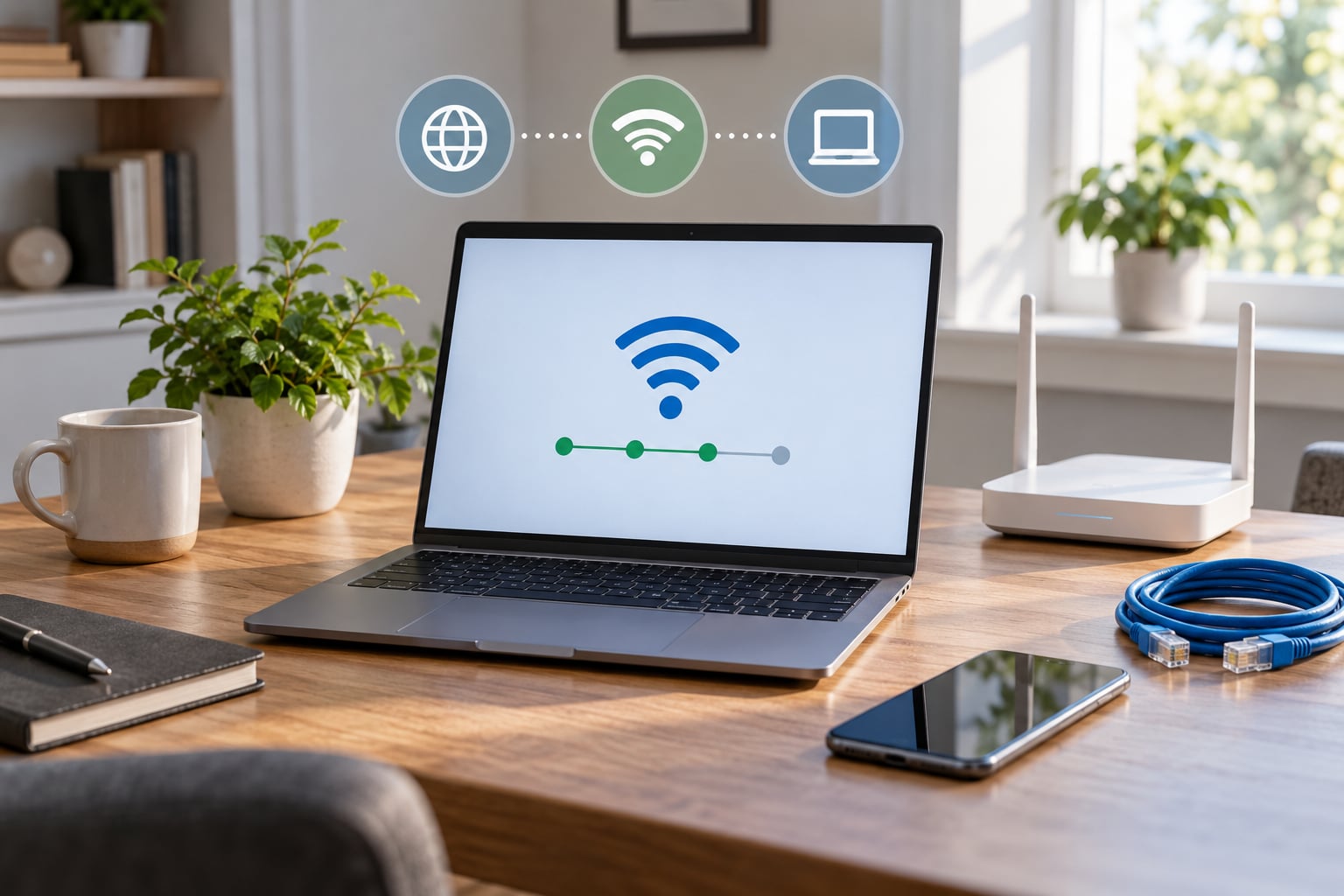
Most “no internet” problems come down to one of four things: the connection is fine but a setting on the device is wrong, the router or modem has stalled, the DNS lookup is failing, or the outage is on the provider’s side. Working through how to troubleshoot no internet connection step by step in that order takes about ten minutes for the first pass and rarely more than half an hour for the full sequence.
The order matters more than the effort. Restarting a laptop when the modem has no signal wastes five minutes and tells you nothing, so start by finding out how many devices are affected.
Table of Contents
- 1What You Need Before You Troubleshoot No Internet Connection
- 2How to Troubleshoot No Internet Connection Step by Step
- 3How to Troubleshoot No Internet Connection Step 1: Confirm the Outage and Check Other Devices
- 4How to Troubleshoot No Internet Connection Step 2: Restart the Device and Network Equipment
- 5How to Troubleshoot No Internet Connection Step 3: Check Wi-Fi or Ethernet Connectivity
- 6How to Troubleshoot No Internet Connection Step 4: Verify Network and Proxy Settings
- 7How to Troubleshoot No Internet Connection Step 5: Check DNS and Test the Connection
- 8How to Troubleshoot No Internet Connection Step 6: Inspect Router, Modem, and ISP Details
- 9How to Troubleshoot No Internet Connection Step 7: Reset Network Settings When Necessary
- 10How to Troubleshoot No Internet Connection Step 8: Contact the ISP or Replace Faulty Equipment
- 11Common Mistakes That Slow Down the Fix
- 12Frequently Asked Questions
- 13Why does my Wi-Fi say connected but no internet?
- 14How do I troubleshoot no internet connection step by step?
- 15Why does the internet work on my phone but not my laptop?
- 16Does resetting network settings delete anything?
- 17Why does my computer keep getting a DHCP server isn’t responding message?
- 18When should I stop troubleshooting and call my ISP?
- 19Conclusion
What You Need Before You Troubleshoot No Internet Connection
Gather four things and the process stays fast:
- The affected device plus a second one — a phone, a tablet, another computer. Two devices turn guesswork into a diagnosis.
- Access to the router, usually the admin page at an address like 192.168.0.1 or 192.168.1.1, printed on the label underneath it. You need the admin password, which on many routers is a short string on the same sticker.
- Your provider account details — account number or login. Support asks for it before they will discuss anything, and looking it up while the line is down wastes ten minutes.
- A note of what changed just before the failure. A power cut, a storm, a Windows update, a new TV joining the network, a new VPN. Most outages have a trigger and the note is where it starts.
A paper and pen help more than they should. Write down what you test and what you saw, because you will otherwise repeat the same step ten minutes later.
How to Troubleshoot No Internet Connection Step by Step
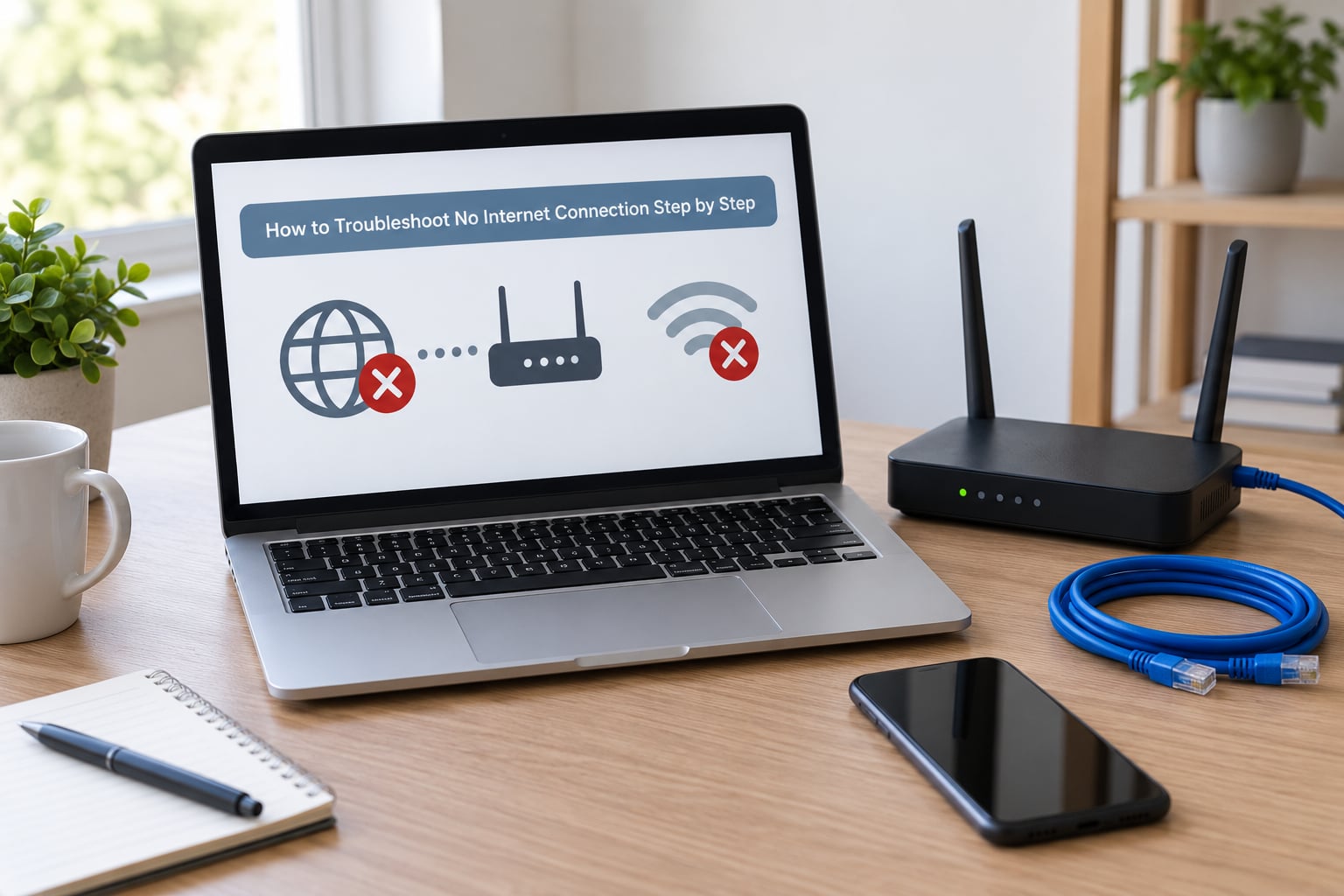
How to Troubleshoot No Internet Connection Step 1: Confirm the Outage and Check Other Devices
Open a browser on the second device and try to load any page. Then check whether it can reach the router at all: on Windows, open Command Prompt and type ping 192.168.1.1; on macOS or Linux, open Terminal and type the same command.
Three outcomes, three different directions:
- Every device fails — the problem is upstream: router, modem, or provider. Jump to step 2, then step 6.
- One device fails, the rest are fine — the fault is on that machine. Skip to step 4 and work through steps 4, 5 and 7 there.
- A page fails but another loads — that is a DNS problem, not an outage. Go straight to step 5.
Also check the provider’s status page or outage map. A quick search on the provider name plus “outage” usually settles it in seconds, and it saves the rest of this guide when the answer is a downed line in your street.
How to Troubleshoot No Internet Connection Step 2: Restart the Device and Network Equipment
Do this in the correct order and give each stage time to finish:
- Shut the computer down or restart it and wait for it to fully load.
- Unplug the modem from power and leave it for 30 seconds. Many modems hold a session with the provider that survives a soft restart; unplugging breaks it.
- Unplug the router too, wait 30 seconds more.
- Plug the modem back in first and wait two to three minutes until its downstream and online lights stop blinking and settle.
- Plug the router in, wait another two minutes for it to sync.
- Restart the phone or tablet last, since it reconnects on its own anyway.
You know this worked when the internet light on the modem turns steady green or white and pages load on a device you had not rebooted. Restarting only the computer is the single most common mistake in this whole process, and it is why so many people end up calling support after an hour.
How to Troubleshoot No Internet Connection Step 3: Check Wi-Fi or Ethernet Connectivity
Connected to Wi-Fi is not the same as having internet, so confirm the link itself is healthy. On Windows 11, the quick settings panel shows the strength bars for the network you are on; macOS puts the Wi-Fi icon in the menu bar; Android shows the signal strength next to the network name. Full bars and no loading pages points at DNS or the line, not the radio.
Confirm you are on your own network and not a neighbour’s open one, or a guest network that has internet access switched off. Guest networks are common in short-term lets and shared offices, and being authorised for the password does not mean they route traffic.
Then run the wired test. Plug an Ethernet cable from the router’s LAN port to the computer and try a page. Ethernet working while Wi-Fi fails means a wireless problem — crowded channel, poor placement, a band the device cannot use. Ethernet failing too means the line or the router, and no amount of Wi-Fi fiddling will help.
Move the router off the floor, away from microwaves and cordless phone bases, and off the back of the television if that is where it lives. Signal drops that come and go across the house are usually placement, not equipment failure.
How to Troubleshoot No Internet Connection Step 4: Verify Network and Proxy Settings
Airplane mode, a VPN, or a leftover proxy setting will block traffic while everything looks connected. Check them on the platform you are using:
- Windows 10 and 11 — Settings, Network and internet, Wi-Fi, then confirm airplane mode is off. For proxies, run
inetcpl.cpl, go to the Connections tab, choose LAN settings, and confirm “Use a proxy server” is unticked. Corporate VPNs live under Settings, Network and internet, VPN. - macOS — System Settings, Network, then the active service. Confirm “Ask for DHCP” is on and no proxy is set under the Details button. If iCloud Private Relay is active, switch it off temporarily for Wi-Fi in System Settings, Apple ID, iCloud, Private Relay.
- Ubuntu Linux — click the network icon in the top bar, check the connection is not turned off, and check Settings, Network, Network proxies for a manual proxy entry.
- iPhone and iPad — Control Center, confirm airplane mode is off, then Settings, Wi-Fi and tap the network name to check proxies are set to off.
- Android — pull down the shade, check airplane mode, then Settings, Network and internet, Private DNS. Setting a private DNS provider here is a common cause of “connected but no internet” on Android.
Menu names shift between versions, so look for the network and proxy settings rather than an exact label. On an unfamiliar version, Settings with a search box for “proxy” or “VPN” is faster than hunting through menus.
How to Troubleshoot No Internet Connection Step 5: Check DNS and Test the Connection
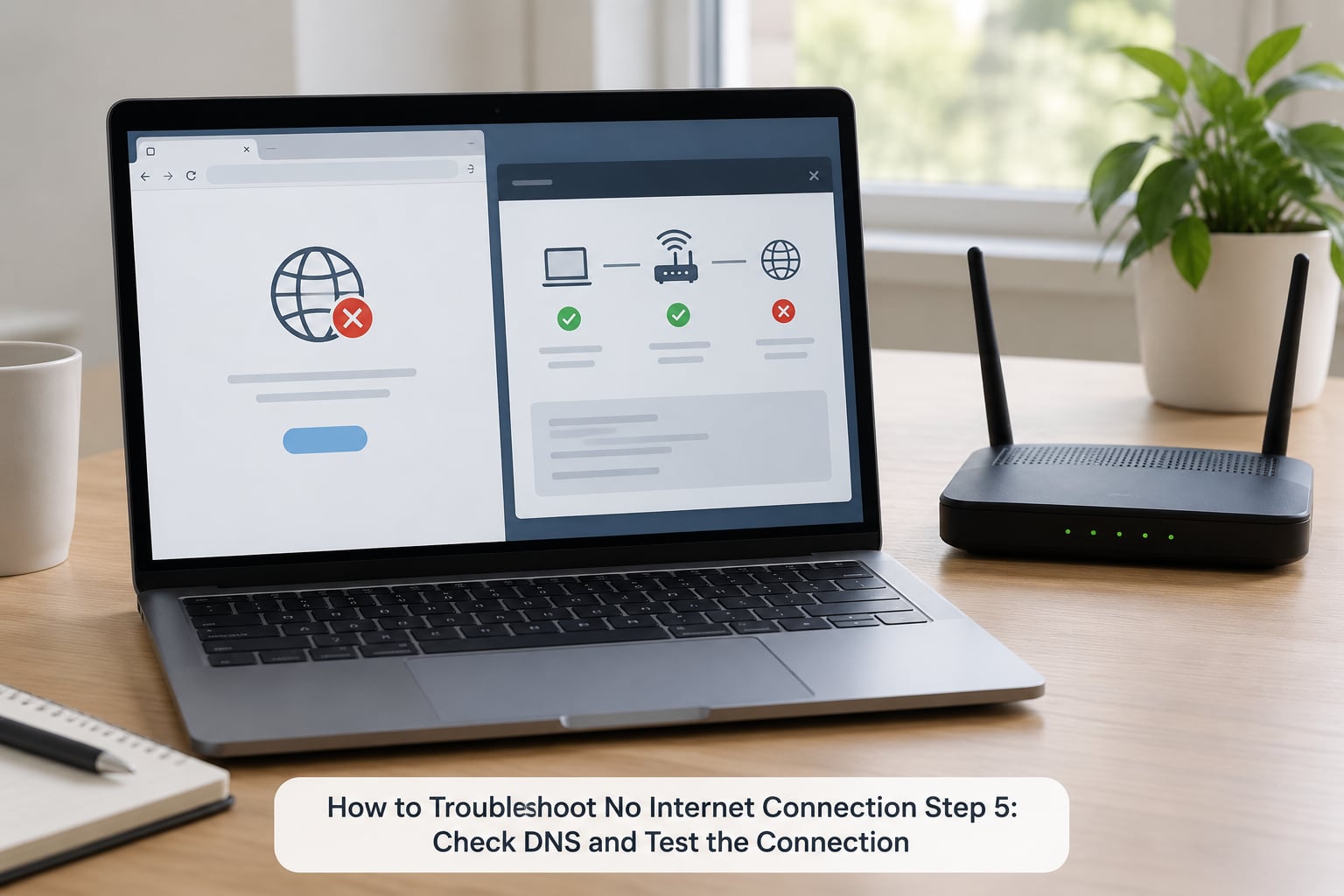
DNS turns a name like a website address into a number your device can reach. When the link to the router works but names fail, DNS is the suspect. Test it by typing an IP address straight into the browser — 1.1.1.1 or 8.8.8.8. If that page loads and ordinary addresses do not, you have found the layer that broke.
Renew the address and clear the cache. On Windows, open Command Prompt as administrator and run:
ipconfig /release
ipconfig /renew
ipconfig /flushdns
On macOS or Linux, open Terminal and run sudo dscacheutil -flushcache; sudo killall -HUP mDNSResponder on macOS, or sudo resolvectl flush-caches on Ubuntu. Then retry the page.
If it still fails, try a public resolver temporarily: 1.1.1.1, 8.8.8.8, or 9.9.9.9. Set it at the router level so it applies to every device, or in your adapter settings on Windows and macOS. If a public resolver works and your provider’s does not, leave the public one in place and tell your provider — a DNS outage on their side produces exactly this symptom across a whole neighbourhood.
Run ping 8.8.8.8 for a plain connectivity check, and tracert 8.8.8.8 when you need to see where traffic stops. Replies mean the path is alive and DNS is the problem. Timeouts on every hop mean the router never handed the connection upstream, which is a step 6 issue.
How to Troubleshoot No Internet Connection Step 6: Inspect Router, Modem, and ISP Details
Read the lights rather than guessing. A steady power light and a blinking or absent internet light means the router has power but no signal from the line. No power light at all, or a light that stays off after a plug-in, points at the power supply. A blinking internet light that never settles means the modem has not completed its handshake with the provider.
Two seconds of useful information can come from the router admin page. Sign in, then open the status or internet section, which reports the connection type, IP address, uptime, and often a line or signal reading. A recent power cut often leaves the connection type set to the wrong mode — DHCP where it should be PPPoE, for instance — and the router will sit there never connecting.
Check the provider side too. Log into your account and confirm the service shows active, no scheduled maintenance is in progress, and your equipment is still recognised. If the account shows suspended, an unpaid bill or an expired promotion explains the whole afternoon.
When the modem’s internet light stays dead after a full power cycle and the account looks healthy, the fault is outside your home. That is the point to stop.
How to Troubleshoot No Internet Connection Step 7: Reset Network Settings When Necessary
A network reset clears a corrupt configuration, and it does delete saved networks, VPN profiles and proxy settings on the device. Read that list before you start, because re-entering ten saved Wi-Fi passwords is the cost people forget.
- Windows 10 and 11 — Settings, Network and internet, Status, then Network reset. The machine restarts automatically, and you reinstall drivers and re-enter Wi-Fi passwords afterwards.
- macOS — deleting network preferences is fiddly and can leave a machine without Wi-Fi at all. Restart first, then add the network fresh from Wi-Fi in the menu bar. Only delete network preference files if a restart and a fresh connection have both failed.
- iPhone and iPad — Settings, General, Transfer or Reset, Reset, Reset Network Settings. This keeps your content and removes only network configuration.
- Android — Settings, System, Reset options, Reset Wi-Fi, mobile and Bluetooth.
Do not factory reset the router yet. A reset wipes the provider login, the Wi-Fi name and password, port forwarding and any parental controls, which can leave a non-technical user with a working internet connection and nothing working except the internet. Reset the router only after you have confirmed the provider side is healthy and have the credentials to set it up again.
If you use a mesh system, reset the main unit first and add the satellites again afterwards. A satellite that stays connected to a router it can no longer reach produces intermittent dropouts that look like signal trouble.
How to Troubleshoot No Internet Connection Step 8: Contact the ISP or Replace Faulty Equipment
Before you call, collect what saves the long hold: your account number, the modem’s MAC address (on the label on the bottom), the modem and router model numbers, the exact light pattern you are seeing, when it started, whether a wired test works, and the results of ipconfig /release and ipconfig /renew.
Describe the fault as what you observed rather than as a conclusion. “The modem’s internet light blinks and never settles after a power cycle, a wired connection gets no pages, and the account shows active” moves the conversation forward. “My internet is broken” starts a script.
Ask what they see on their end. A remote line check, a signal reading at your address, and a check for a provisioned plan on the account all catch problems invisible from inside the house. If they schedule a technician visit, ask for a four-hour window rather than a single arrival slot, and keep the modem powered and reachable until they arrive.
Equipment that is dead after a clean power cycle, a confirmed-good account, and a successful line check is worth replacing. A modem that no longer completes a handshake is common after a power surge, and providers often swap them at a reduced charge or no charge. Keep the old unit until the new one syncs.
Common Mistakes That Slow Down the Fix
- Restarting only the computer. If the modem has no upstream signal, nothing on the computer will change. Power cycle the modem and router first, always in that order.
- Joining the wrong network. An open neighbour’s Wi-Fi or a guest network that has internet access disabled both show as connected. Check the network name matches your router exactly.
- Changing DNS before checking the router. Pointing a device at a public resolver while the router has no line does nothing at all. Confirm the router reaches the internet first.
- Assuming every device is broken. If one phone works, the problem is that laptop. A full factory reset of the router is the wrong tool for a single machine’s driver or proxy problem.
- Running resets over and over. Repeated resets create extra network adapters, and the list in Device Manager grows confusing with entries nobody remembers adding. Do it once, properly, and check the result.
- Leaving the VPN client installed. A VPN that is not running can still hold routing rules and adapters. Uninstall it rather than just disconnecting when it causes trouble.
- Factory resetting the router too early. You lose the provider login and every setting. Confirm the account and line are healthy first, and have the credentials ready.
- Ignoring IPv6 confusion. An IPv6-only address with no IPv4 address on a device usually means DHCP failed, which is an address problem rather than a browsing problem. Renew the address in step 5 before touching anything else.
Frequently Asked Questions
Why does my Wi-Fi say connected but no internet?
Connected to Wi-Fi only means your device has a link to the router. It says nothing about whether the router itself has a working line to your provider. The usual causes are a failed DNS lookup, a VPN or proxy left enabled, a private DNS setting on Android, or the router holding no upstream signal. Ping 1.1.1.1 in a browser to separate the two layers.
How do I troubleshoot no internet connection step by step?
Confirm whether one device or all devices are affected, then power cycle the modem and router in that order. Next check Wi-Fi or a wired Ethernet test, then airplane mode, VPN and proxy settings. After that renew the IP and flush DNS, read the modem and router lights, and only then reset network settings or contact your provider.
Why does the internet work on my phone but not my laptop?
One working device narrows the fault to the laptop, so stop resetting the router. Check airplane mode, forget and reconnect the Wi-Fi network, disable any VPN and proxy, renew the IP address, and update the network driver. On a Mac, forget the network and rejoin it before touching system files, and turn off Private Relay for Wi-Fi while testing.
Does resetting network settings delete anything?
It deletes saved Wi-Fi networks and passwords, VPN and proxy profiles, and cellular settings on that device. It does not delete files, applications, photos or accounts, and it does not erase anything on the router or the provider side. Expect to re-enter saved Wi-Fi passwords afterwards, and do not reset the router itself unless you have the provider login details.
Why does my computer keep getting a DHCP server isn’t responding message?
DHCP is what hands your device an IP address automatically, and the message means the device asked the router for an address and got nothing back. Common causes are a router that has lost its upstream connection, an address conflict after repeated network resets, or a driver that lost contact with the adapter. Power cycle the router, then run ipconfig /release and ipconfig /renew as administrator.
When should I stop troubleshooting and call my ISP?
Call when the modem’s internet light stays dead or blinking after a full power cycle, when a wired Ethernet test also fails, and when your account shows the service active with no maintenance in progress. At that point the fault is on the line, in the street cabinet, or in the provider’s equipment. Have your account number, the modem MAC address and the exact light pattern ready.
Conclusion
Start with the three checks that cost nothing: see whether a second device has internet, check the provider’s status page, and power cycle the modem before the router. That single pass solves the majority of failures. If it does not, work down through the device settings, the Wi-Fi or Ethernet test, and the DNS check in that order, and keep a note of what each test showed.
Once a wired connection fails and the modem’s internet light never settles, the problem has left your house. Gather your account number and the light pattern, then call the provider.