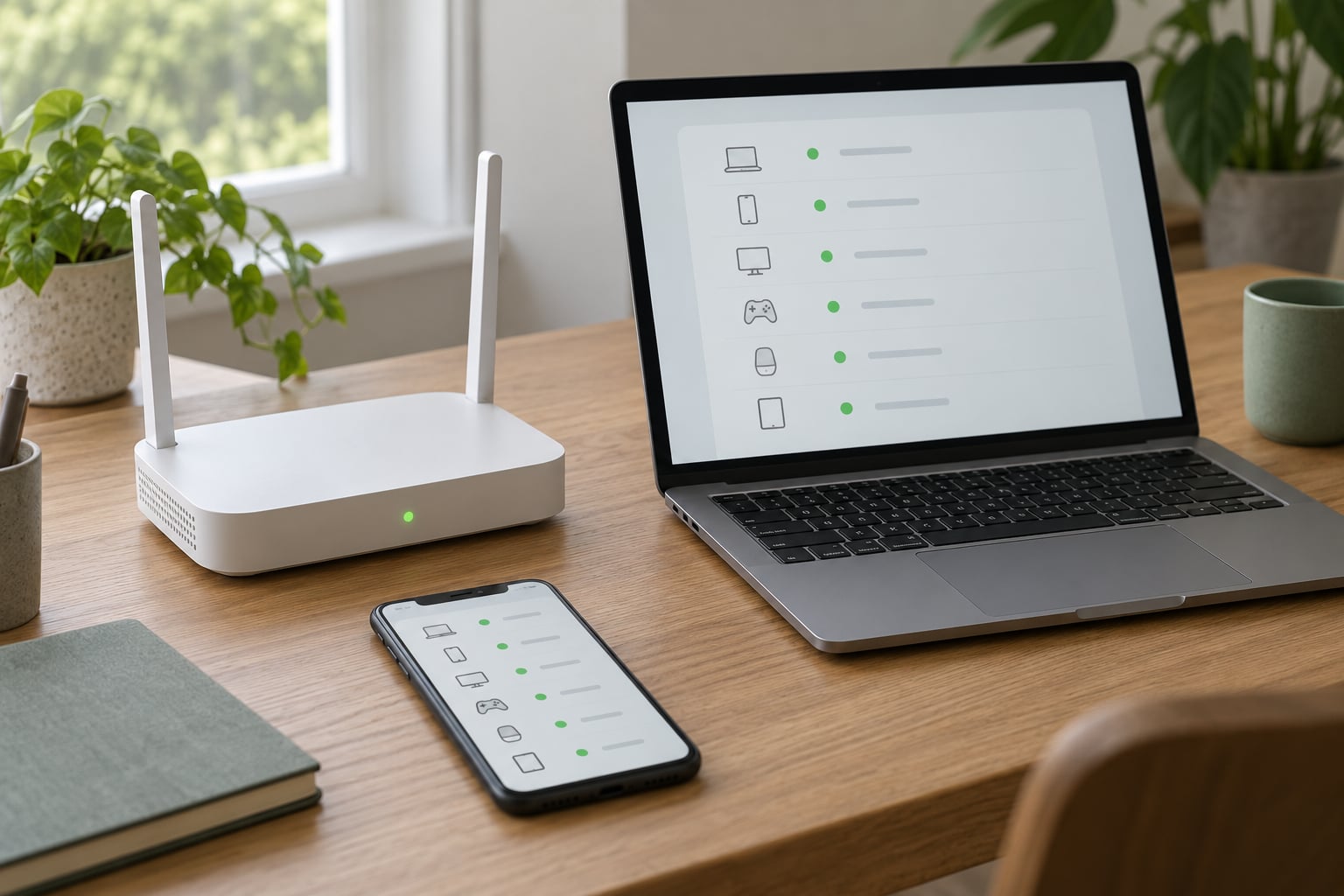
To tell if someone is using your WiFi, open your router’s admin page at 192.168.0.1 or 192.168.1.1, find the connected devices list, and compare every entry against the devices you actually own. A neighbour who guessed your password, a laptop you forgot about, and a hacked router all show up there. The whole check takes about ten minutes.
There’s a wrinkle worth naming early. Most “someone is stealing my internet” cases turn out to be a smart TV, a streaming stick, or a phone that rotates its address. So the goal isn’t to catch a stranger in five minutes. It’s to know which devices belong to you, so the next unknown entry is meaningful.
I’ve spent a lot of time in router admin panels for this site, and the pattern is consistent: the person who finds one unfamiliar name rarely checks a second source before panicking. Two checks, taken slowly, settle almost every case.
Table of Contents
- 1What You Need Before You Start
- 2Step-by-Step: Check the List, Confirm, Then Lock It Down
- 31. Open Your Router’s Connected-Device List
- 42. Compare Device Names and Know How to Tell If Someone Is Using Your Wi-Fi
- 53. Check Router Activity and Connection History
- 64. Disconnect or Pause the Suspicious Device
- 75. Change the Wi-Fi Password and Update Security
- 8Common Mistakes That Point at the Wrong Thing
- 9Frequently Asked Questions
- 10How can I see all devices connected to my Wi-Fi?
- 11Can someone use your Wi-Fi without you knowing?
- 12Can a neighbour mess with my Wi-Fi?
- 13How do I find out who is using my Wi-Fi?
- 14Is it illegal for a neighbour to use my Wi-Fi?
- 15Can someone hack my router remotely?
- 16What to Do First
What You Need Before You Start
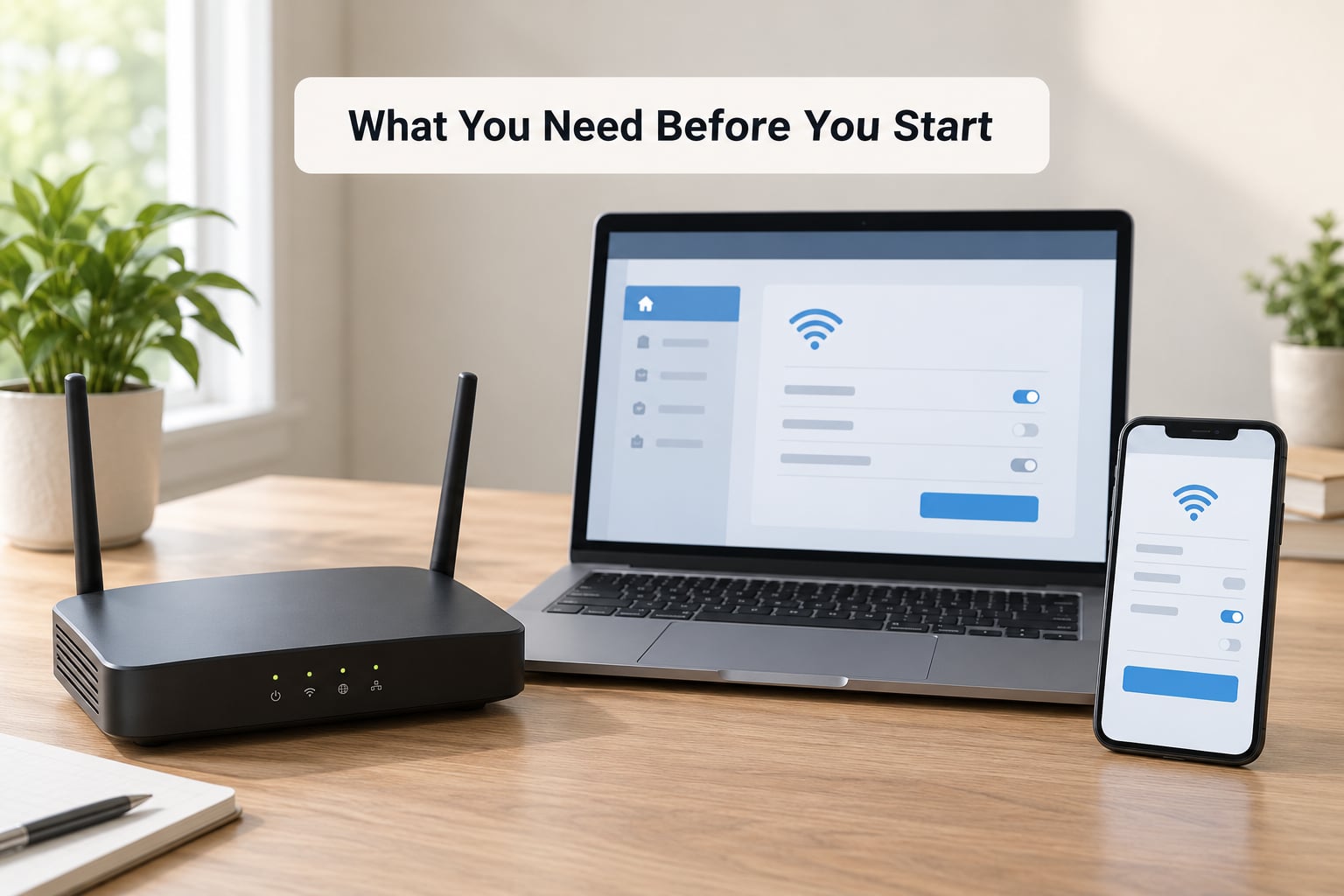
Four things, and most households already own all of them.
- The router itself. Not the app on your phone, the physical box that broadcasts the signal.
- Administrator access. Usually a short password printed on a sticker on the underside or back. If you’ve changed it and forgotten it, that changes the plan, so check the sticker first.
- One device already on the WiFi. A laptop works best, because the router’s admin page needs a full browser.
- A way to record the list. A phone photo of the screen before you change anything. You’ll want a before-and-after comparison when the unfamiliar entry comes back.
That’s it. No app purchase, no scanning service, no technician.
Step-by-Step: Check the List, Confirm, Then Lock It Down
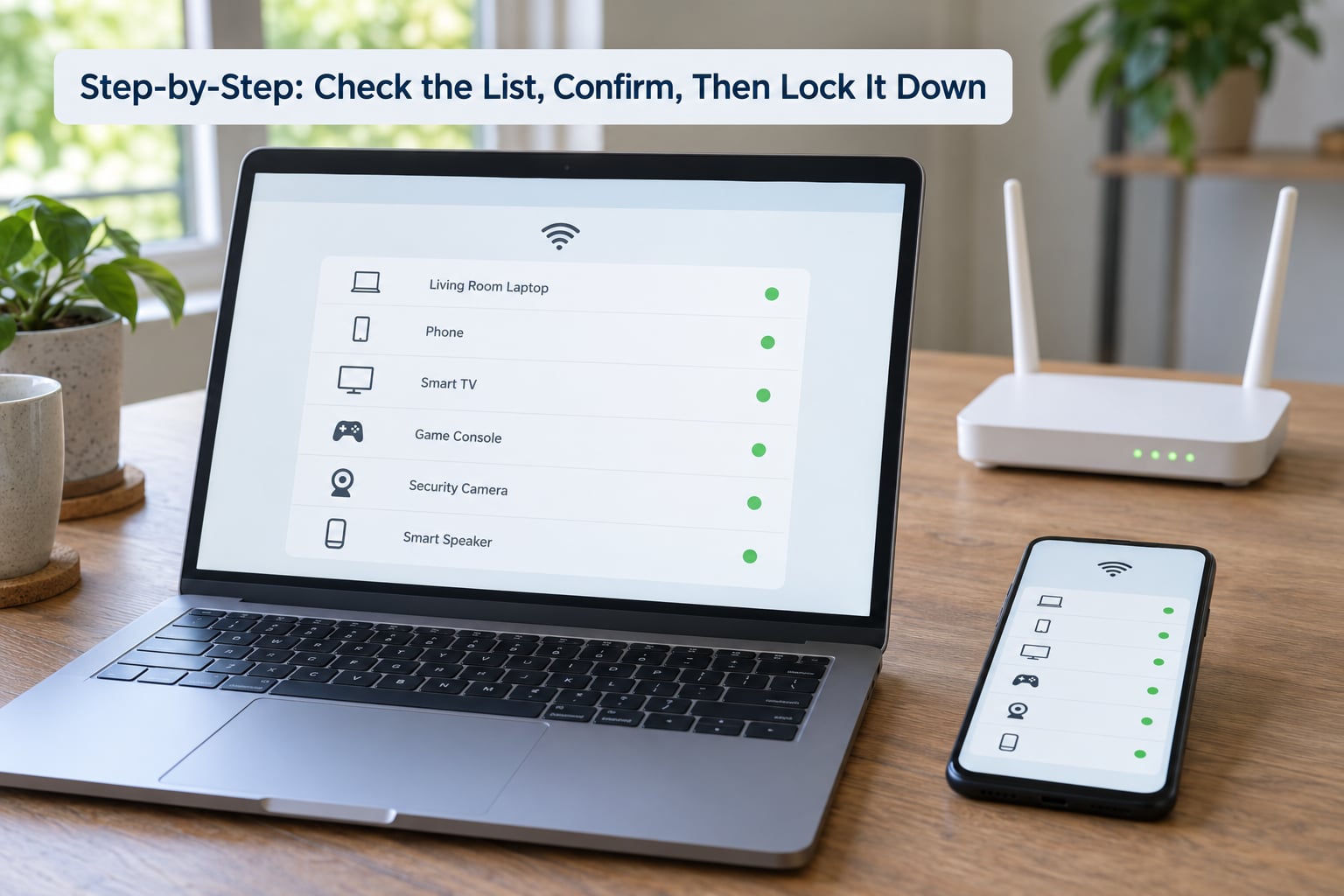
1. Open Your Router’s Connected-Device List
Every home router has a management page, and it almost always lives at 192.168.0.1 or 192.168.1.1. Those two addresses cover most of what ships in homes.
Connect the laptop to the home network first, then type the address into the browser bar and press enter. Don’t type it into a search box. If nothing loads, look on the router sticker for a line labelled something like Router IP, Management URL, or Default Gateway, and use that address instead.
You’ll hit a login page. Enter the administrator username and password from the sticker, which are frequently both set to admin on older hardware. Once you’re in, look for a menu entry with a name like Connected Devices, Attached Devices, Device List, Network Devices, or DHCP Client List. The DHCP client list is just the router’s internal name for every device it has handed an IP address to.
Interface labels vary a lot by brand. Some routers bury the list under Advanced, some under Wireless, some under Network. If you don’t see any of the names above, use the router’s built-in search box, or press Ctrl+F in the browser page. If the router is one supplied by your internet provider, the list is often only in the provider’s app rather than the web page, so check the app before assuming the list is missing.
2. Compare Device Names and Know How to Tell If Someone Is Using Your Wi-Fi
Each row shows a device name, an IP address like 192.168.1.14, and usually a MAC address. The MAC address is the hardware identifier that distinguishes one device from another on the network.
Match the count first. If you own a phone, a laptop, a smart TV, and two speakers, you should see roughly four rows plus anything that connects on its own. Then work down the list name by name.
Two things will trip you up. First, name matching alone is unreliable. Your phone often shows the model name or a random string like iPhone or a hex code, and you can rename entries from most router apps, so an intruder can label their laptop Pixel 7 and sit among your real devices. The MAC address is the harder identifier to fake, though it’s possible.
Second, private MAC randomisation. Modern phones and tablets rotate the address they present, often once per network and sometimes daily. In a router’s history this looks like a new unknown device every few days, which drives people to block addresses that belong to their own phone. If an unfamiliar entry vanished after a few days and roughly matches your phone or laptop, that’s what happened. Check the device’s own settings for a Private Wi-Fi Address toggle, and look for a match with a leading character like a random letter pair.
Smart-home gear is the other big source of strangers. Streaming sticks, televisions, video doorbells, thermostats, robot vacuums, smart plugs, and game consoles all reconnect on a schedule, and many connect even when you never touch them. One forum thread after another on tech support boards turns out the same way: a person blocks an unknown address, and it turns back up as their own television reconnecting at 3 a.m. If a device reappears after you disconnect it, that pattern alone is worth checking before assuming a stranger is involved.
3. Check Router Activity and Connection History
A device list shows who is connected now. To see behaviour, look for traffic figures next to each row, or a per-device usage chart under a heading like Traffic, Bandwidth, or Statistics. Reset the counter, wait an hour or two while you use the network normally, then look again. A row pulling a heavy share of throughput while nothing of yours is awake is real evidence rather than guesswork.
Some routers also keep a connection log under System Log, Log, or Status, which records when a device associated or authenticated with the network. A log entry dated in the middle of the afternoon, on a day when you were at work, is much stronger evidence than a name you don’t recognise.
Community advice on tech support forums converges on the same confirmation trick: unplug the router, and check whether the problem survives. If your connection stays down but the symptom continues on another device’s cellular data, the router isn’t your problem. If everything works fine afterwards, the router or the wireless channel was the issue.
You also want a controlled test, because a slow connection has many causes. ISP throttling, a failing router, and a crowded 2.4GHz channel all mimic an intruder. Run your usual speed test at the same hour for three days, then again after you’ve changed the password and locked things down. A repeatable dip at one specific hour, with an unfamiliar device online at that same hour, is a pattern. A general slowdown is usually not.
4. Disconnect or Pause the Suspicious Device
Most routers let you cut a single device off without disturbing the rest of the network. Look under a heading like Access Control, Client Management, Device Management, or Security, and find a Block, Deny, Ban, or Kick Off control next to the device’s MAC address.
How you tell it worked is simple: the entry disappears from the connected list, or the connected device loses the network entirely. Test it rather than assuming. Load a page on the blocked device and confirm it fails.
Now the honest warning. Blocking by MAC address is a speed bump, not a lock. The address can be changed by anyone who knows what they’re doing, and phone randomisation means a blocked device will simply come back under a different address. Users who block and re-block in a loop are chasing their tails. Treat a block as a way to confirm the device is real and disruptive, not as the fix. The fix is the password change in the next step.
5. Change the Wi-Fi Password and Update Security
Change the wireless password to something long and unique. Twenty characters or more of unrelated words beats a short password with a number at the end every time.
Re-enter the new password on your own devices as you go, or you’ll lock yourself out of the smart TV and the guest room in one evening. Then handle the rest of the settings:
- Set the security mode to WPA3 if the router offers it, or WPA2 if it doesn’t. WEP is broken and WPA is a transitional step; neither is worth using on a home network today.
- Change the administrator password. The sticker default is the same on thousands of units, and this is the credential that controls everything else.
- Turn off WPS. The eight-digit PIN pushed in 2011 still gets used as an entry point.
- Turn off remote management unless you genuinely need to reach the router from outside your home.
- Update the router firmware, then check whether automatic updates are on. Unpatched firmware is one of the few ways someone gets in without any password at all.
- Move guests and strangers to the guest network. A guest network isolates visitors from your computers and cameras, which removes the reason to hand over the main password.
Within a day, the old password stops working and the unfamiliar device loses access. If it reappears on your new network, that is a different problem, and a factory reset followed by a new admin password is the honest next step.
Common Mistakes That Point at the Wrong Thing
Treating an unfamiliar name as proof. Names are cosmetic and easy to change. Judge by behaviour and by whether the device persists, not by what it’s called.
Forgetting that your own devices connect without you. Telemetry, streaming devices, printers, and smart home gear reconnect around the clock. Some people block these in frustration, which is why forums are full of threads about a MAC address that keeps coming back. Make a baseline list first, then watch for changes to it.
Checking the wrong network. Open the WiFi menu on a laptop and confirm you’re attached to your home network and not the coffee shop one you were on earlier. It’s a common mistake with a long history of wasted afternoons.
Changing the password and updating nothing else. A new WiFi password locks out the neighbour. A new administrator password closes the door they were using to hand themselves a fresh key.
Ignoring WPS, firmware, and remote management. These are the settings that matter when nobody has your password at all. People change the WiFi password three times while leaving the eight-digit PIN and an unpatched firmware in place.
Reading too much into slow internet. Speed complaints are the most reported symptom and one of the least conclusive. Firmware, channel congestion, and a provider-side problem all look the same from the couch. Check the device list before you blame a neighbour.
Assuming you can recover last month’s activity. Most routers log only recent events, and plenty log nothing once a device disconnects. If you need a record, take a photo of the list the moment you check it rather than planning to check it later.
Frequently Asked Questions
How can I see all devices connected to my Wi-Fi?
Open a browser on a device already joined to the network and type 192.168.0.1 or 192.168.1.1. Sign in with the administrator credentials on the router sticker, then open Connected Devices, Attached Devices, or DHCP Client List. ISP-supplied routers label this differently, so use your provider’s app if the web page doesn’t show it.
Can someone use your Wi-Fi without you knowing?
Yes. If they guessed the password, were given it, or connected through WPS, they appear in your connected devices list and you get no notification. That list is how you find out. Most people who assume they would feel the difference are surprised, because one streaming session uses a fraction of the bandwidth your household does.
Can a neighbour mess with my Wi-Fi?
They can, if they have the password or sit close enough to reach your signal. What that looks like: an unfamiliar entry on the connected devices list, traffic on a device that isn’t yours, or a network that misbehaves at predictable times. Confirm it on the list first, then change the wireless password and the administrator password.
How do I find out who is using my Wi-Fi?
The connected devices list tells you what is connected, not who is holding the phone. Get as close as the hardware allows: check the hostname, the manufacturer prefix on the MAC address, and per-device traffic figures. If a name is generic and the device belongs to someone nearby, changing your password ends the access without you identifying them.
Is it illegal for a neighbour to use my Wi-Fi?
Rules vary by where you live, and unauthorised access may fall under computer misuse or theft laws, though many cases end up civil. Change the password and the admin password first, keep a dated photo of the device list, and note any pattern of use. If traffic persists after that, contact your internet provider before involving police.
Can someone hack my router remotely?
They can try, and WPS, factory-default administrator passwords, and unpatched firmware are the usual openings. Signs of a compromised router rather than a borrowed password include DNS changes, browser redirects to unfamiliar sites, and settings you never touched. Update firmware, change the admin password, disable remote management, and factory reset if symptoms continue.
What to Do First
Open the connected devices list and take a photo of it. That’s your baseline, and without it every later change is guesswork.
Next, walk down that list and confirm you own every row, including the television and the doorbell. Most of what looks alarming turns out to be your own hardware on a random address. Then compare it against yesterday’s photo: a device that’s new, persistent, and pulling traffic while you’re asleep is worth acting on.
Pause that one device to see what happens, then change both the Wi-Fi password and the router administrator password, turn off WPS and remote management, and update the firmware. Ten minutes now, and the question stops coming back next month.