To name files consistently for easy search, pick four elements — subject, date, document type, version — and always write them in the same order with the same separators. Files named that way sort chronologically on their own, and a single search term returns exactly the group you want.
This takes about 30 minutes to set up and about two seconds per file afterwards. You need nothing you don’t already have: the file manager built into your device does the whole job, and the same pattern works whether you move files between Windows, macOS, Linux, a phone, or cloud storage.
Table of Contents
- 1What You Need
- 2Step-by-Step: How to Name Files Consistently for Easy Search
- 3Choose the Information Your Filenames Need
- 4Pick One Date Format and Use It Everywhere
- 5Use a Predictable Order for Every Filename
- 6Write Names That Remain Readable and Searchable
- 7Add Status and Version Labels Only When Useful
- 8Rename Existing Files in Small, Testable Batches
- 9Check the Results by Searching and Sorting
- 10Document the Pattern for Future Files
- 11Common Mistakes
- 12Frequently Asked Questions
- 13Should file names use spaces or hyphens?
- 14How do I find files after renaming them on Mac or Windows?
- 15Will renaming files break links in Microsoft Office or cloud storage?
- 16What is the best file-naming convention for digital photos?
- 17How do special characters affect file names on Mac, Windows, Linux, and iPhone?
- 18Conclusion: Start With One Naming Pattern
What You Need
No paid tool is required. Everything below runs on the file manager that shipped with your device.
- Windows 10 and 11: File Explorer, opened from the taskbar.
- Current macOS: Finder, opened from the Dock.
- Ubuntu and other GNOME desktops: Files, the built-in manager with the filing-cabin icon.
- iPhone and iPad: the Files app, which has supported batch renaming in recent iOS releases.
Before you change anything, open the folder you want to fix and scroll through it in list view. Look for the three tells of a messy library: names with no date, names ending in a number you cannot explain, and several near-identical copies of the same document.
Step-by-Step: How to Name Files Consistently for Easy Search
Choose the Information Your Filenames Need
Start by listing every field you could possibly include, then cut it down. Most people land on five or six:
- Subject or project — what the file is about
- Date — when it was created, sent, or published
- Document type — invoice, report, photo, export
- Status or version — draft, approved, v03
- A unique identifier — an invoice number or project code
- A person or client name, if more than one exists
The trap is pasting everything available into every name. A 90-character filename is unreadable in a Finder window and gets truncated in a search box, so the extra fields cost you more than they give. Pick the two or three fields you would actually search on.
Pick One Date Format and Use It Everywhere
Use the year-first format, written as 2026-09-18, for every date you put in a filename. That is the ISO 8601 standard, and it sorts correctly because it starts with the biggest unit.
Three formats, same day, three different sort results:
09-18-2026sorts under nine, next to 09-19 and 09-2018-09-2026sorts under eighteen2026-09-18sorts into place by year, then month, then day
Skip the leading zeros and your dates still sort correctly, but 2026-9-8 reads badly next to 2026-10-18. Pad them. Two-digit years are the other trap: 26-09-18 and 99-09-18 have no obvious century.
Worked examples:
- Receipt:
2026-09-18_grocery-receipt.pdf - Photo:
2026-09-18_kitchen-renovation_01.jpg - Draft:
2026-09-18_website-copy_draft-v02.docx - Export:
2026-09-18_sales-report_final.xlsx
Use a Predictable Order for Every Filename
File managers compare names character by character, left to right, and whatever sits first is your primary sort key. So the order matters as much as the contents.
My order is date_subject_type_version, with everything joined by a single underscore:
2026-09-18_kitchen-renovation_invoice_v02.pdf
The date goes first because it is the one field that sorts usefully on its own. Compare that with the name most people actually type, Invoice for kitchen stuff (Sept).pdf — two spaces, capital letters in odd places, a parenthetical, and no field in a known position. It ends up wherever the letter I drops it, which is nowhere useful.
Write Names That Remain Readable and Searchable
Three habits keep names scannable:
- Stick to one capitalisation style. Sentence case, so
Kitchen-Renovationrather thanKITCHEN_RENOVATIONorkitchenRenovation. Windows and macOS ignore case when matching, Linux does not, so mixed case breaks only when you move the folder. - Use one delimiter between fields and a different one inside fields. Underscore between elements, hyphen inside a word.
2026-09-18_kitchen-renovation_invoice_v02.pdfreads at a glance;2026-09-18_kitchen_renovation_invoice_v02.pdfdoes not, because you cannot tell which separator means what. - Avoid spaces where a script or URL will touch the name. In a terminal or a web address, spaces have to be escaped and hyphens never do. If you want hyphens for that reason alone, use them throughout and drop the underscore idea:
2026-09-18-kitchen-renovation-invoice-v02.pdf.
About CamelCase: it is the default in TypeScript and React repos because developers read code all day. For ordinary documents it just makes words run together, so skip it outside source files.
A working template to copy: YYYY-MM-DD_subject_type_vNN.ext.
Add Status and Version Labels Only When Useful
Append a status only when it changes what someone should do with the file. draft, approved, and archived all change behaviour. Adjectives like final and new do not, which is exactly why they multiply into the final_final2_FINAL-v3-actually-use-this.pdf pile that shows up again and again in data-curation and design forums.
Use a zero-padded number instead: v01, v02, v03. Ten files later, v10 still sorts after v09, which v10 would not without the padding.
Keep the version in the name only while the file is in flight. Once it is approved and stored, the filename can drop to 2026-09-18_kitchen-renovation_invoice.pdf and the revision history lives in the document properties or the version history of the tool that produced it.
Rename Existing Files in Small, Testable Batches
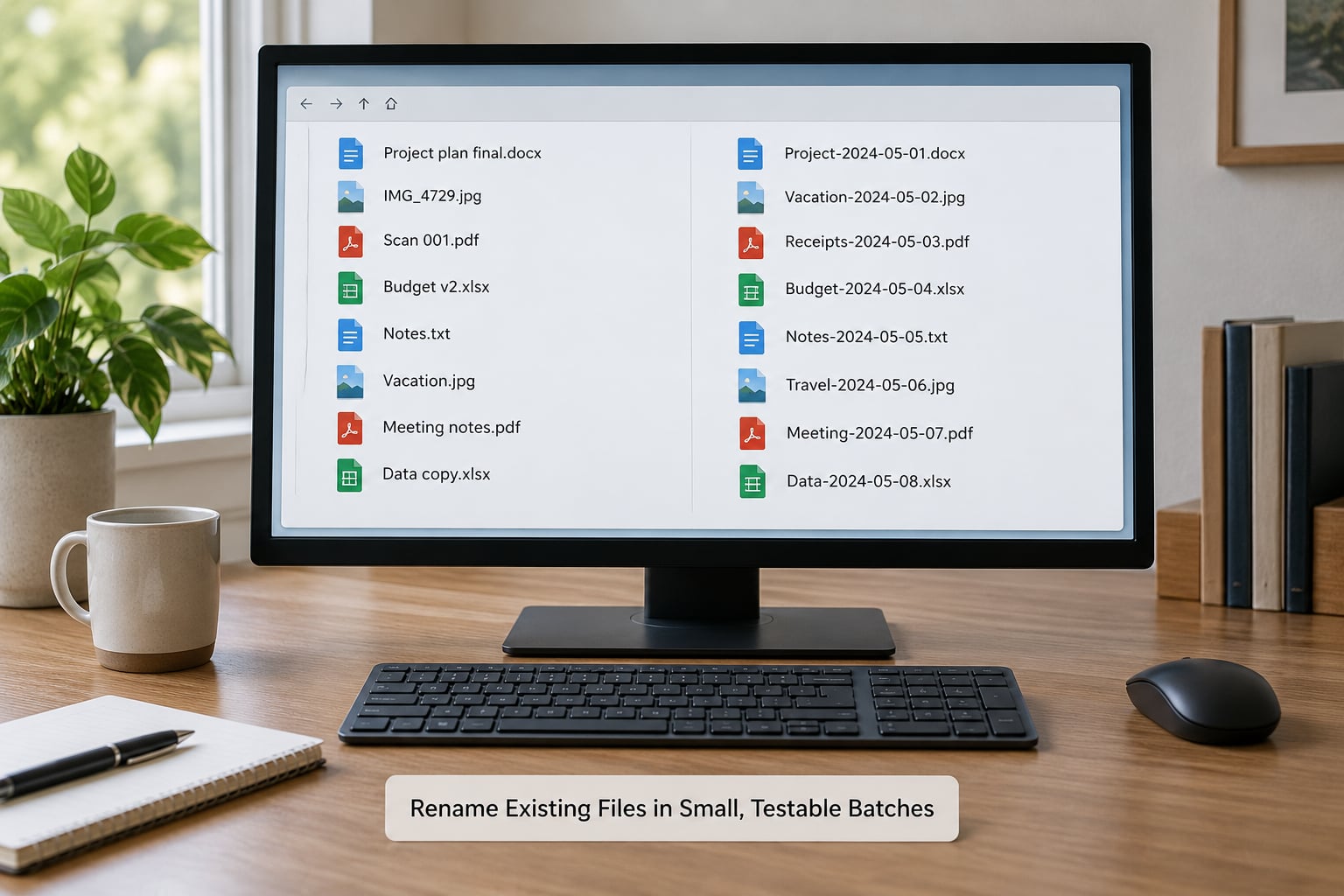
Never rename a whole drive in one go. Copy the folder first, rename ten files, check that they still open and that your searches still find them, then continue.
Windows File Explorer: select the files, press F2, type the new name, and press Enter. Windows puts the selected item number in brackets automatically, so the first becomes Kitchen-Renovation (1).pdf. Click the first file, then Shift-click the last, press F2, and type the shared prefix — Windows numbers the whole selection for you. To replace a word across many names, open the Home tab, click Replace, search for the old word, and leave the replacement box empty.
macOS Finder: select the files and press Return. Tick “Apply to all of the selected items” to append the same phrase to each one, where Finder handles numbering for you. Finder also has a full Replace String option in the action menu’s dropdown, which is the safe way to swap Draft for draft across 200 files.
GNOME Files on Ubuntu: select the files, press F2, and type the new name with a #1 placeholder in it — GNOME substitutes the number per file. Confirm the rename preview in the dialog before you accept it.
iPhone Files app: tap Select, tap the files, then tap the Rename button in the bottom-right. iOS shows a preview of each new name before it commits, so check the first two entries and cancel if the numbering looks wrong.
Before any of it, check what the old names contained. Ampersands, slashes, and quotes break scripts and email attachments; replacing them is the single most useful part of the cleanup.
Check the Results by Searching and Sorting
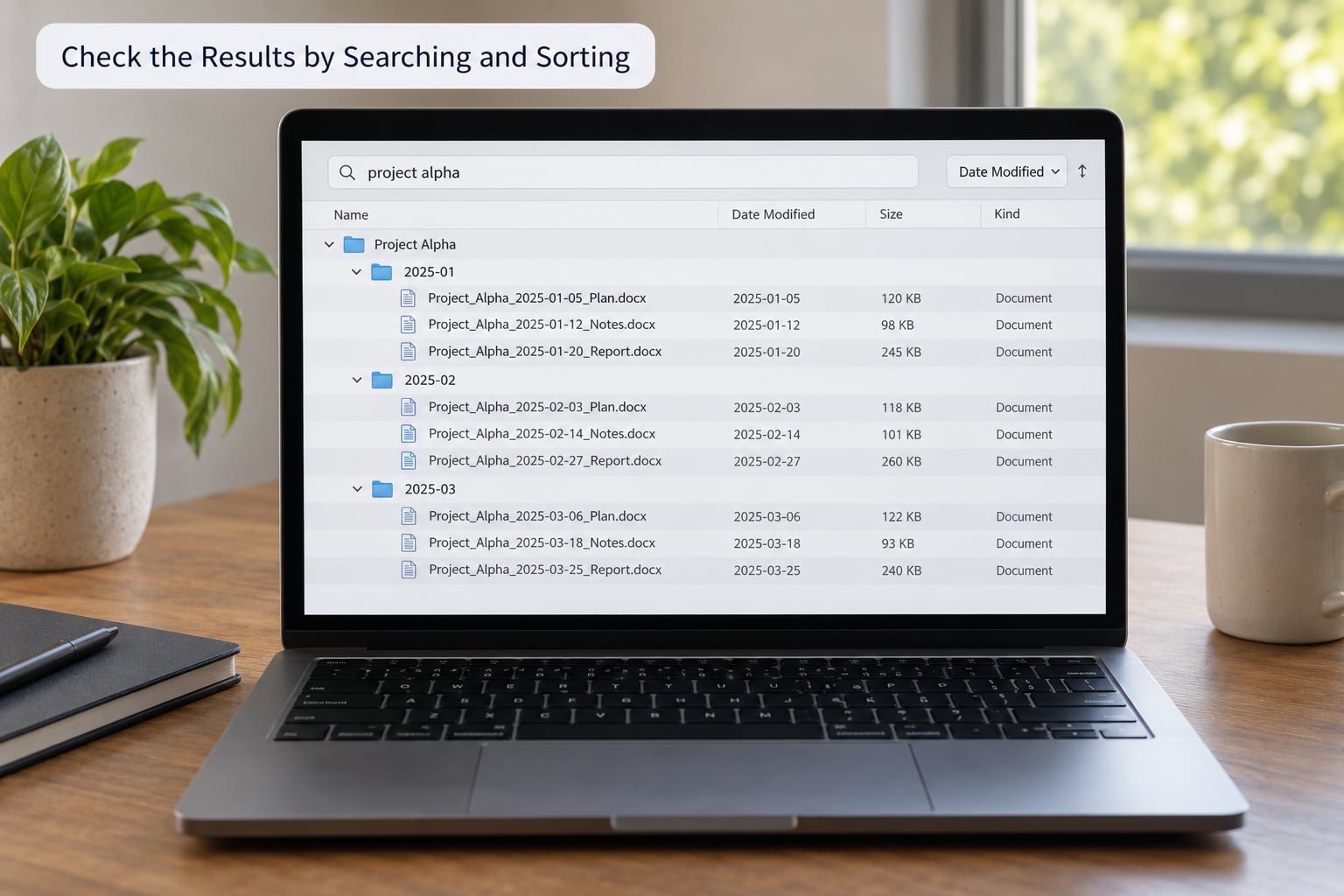
Sorting by name is the honest test. Switch the folder to sort by name and look for three things:
- Files from the same project sitting next to each other
- Dates running in order, newest or oldest depending on where you put them
- No stray
(1)orcopysuffixes from an earlier attempt
Then type a single subject word in the search box. If your pattern works, every match from that project appears and nothing unrelated does. Search matches from the left of the name, which is the reason the date goes first for sort and the subject goes first for words you actually remember.
Open three renamed files and confirm they are intact. On Windows, Ctrl+Z undoes a whole batch rename, so you can back out quickly if the pattern produced something unexpected. One undo, not fifty manual repairs.
Document the Pattern for Future Files
Write the convention on one line and keep it where you will see it: a README in the shared folder, a note in your task app, or a text file next to the archive. One sentence is enough — date, subject, type, version; ISO dates; underscores between elements; hyphens inside words.
Teams that record the pattern in a shared page and onboard new people from it are the ones whose folders stay tidy. Convention that lives only in one person’s head leaves with them.
Where your tools allow it, make the template automatic. Set a template filename in your export or download preferences, and configure your cloud client to save incoming files straight into a dated folder. Then do a short review once a quarter and deal with the duplicates that slip through.
Common Mistakes
- Inconsistent dates. Some files use month-first, others year-first, so sorting scatters them. Fix: convert everything to
YYYY-MM-DDduring the batch rename. - Vague labels.
notes.docx,doc1.pdf, andtemp.xlsxtell you nothing. Fix: add a subject and a type. - Accidental duplicates. Two files with the same name live in different folders, and one gets missed. Fix: include a unique identifier — an invoice or project code — whenever two files could plausibly collide.
- Overlong names. Long paths hit limits on Windows and get truncated in dialogs. Fix: keep the whole name under roughly 60 characters and move the detail into folders.
- Illegal characters. Windows rejects
/ : * ? " < > |outright, and colons break on macOS too. Fix: restrict filenames to letters, numbers, spaces, hyphens, underscores, and dots. - App-generated suffixes. Your phone or editor appends
(1),_edited, or_copyon every save. Fix: strip these in the rename pass and use a version number instead. - Bulk-renaming everything at once. One bad find-and-replace across 4,000 files takes an afternoon to undo. Fix: test on ten, then expand.
Adopt the system gradually. Run the new pattern on the folder you use most, leave everything else alone for now, and expand only once you have found a file by typing one word instead of browsing.
Frequently Asked Questions
Should file names use spaces or hyphens?
Spaces are fine for ordinary desktop use and easier to read. They matter for anything a script, URL, or email attachment touches, because spaces must be escaped or replaced in command lines and become percent codes in web addresses. If your files get shared or processed automatically, use hyphens throughout. If they stay on your own desktop, spaces cost you nothing.
How do I find files after renaming them on Mac or Windows?
Search matches the filename from the left, which is why putting your subject later in the name can make it harder to find. Type one distinctive word from the subject and expect to see that whole project at once. On Windows, search the folder itself in File Explorer; on macOS, open Spotlight with Command-Space and add the folder name to narrow results.
Will renaming files break links in Microsoft Office or cloud storage?
Rarely. Word and Excel update links when a file is renamed from inside the application, and OneDrive and Google Drive resync the new name automatically. Links from other programs, websites, or scripts do not follow, since they store the path as text. Renaming from the file manager while the document is closed is the safest order, and a copy of the folder first costs nothing.
What is the best file-naming convention for digital photos?
Put the date first so your camera dump sorts into shooting order, then the camera or roll, then a short description. For example, 2026-09-18_roll-03_kitchen-renovation_01.jpg. Zero-pad the sequence numbers so 01 through 10 sort correctly, and avoid spaces if you import into editing software that mangles them. Film shooters often add the stock, which adds one more field to the same order.
How do special characters affect file names on Mac, Windows, Linux, and iPhone?
Windows refuses the characters / : * ? “ | and treats them as errors rather than fixing them. macOS blocks : and allows the rest, while Linux allows nearly everything except a forward slash. iPhone Files is strictest in practice, since anything awkward becomes a share-sheet problem. Stick to letters, numbers, spaces, hyphens, underscores, and dots, and all four agree.
Conclusion: Start With One Naming Pattern
The whole system is one line: date, subject, type, version, ISO dates, underscores between elements, hyphens inside words. That is enough to sort a folder correctly and find it again with one word.
Pick the folder you use most this week, copy it, and rename ten files in a test batch. Sort by name, search for one subject word, and open a couple of them. Once that behaves the way you want, extend the same pattern folder by folder — and write the line down where the next person will find it.