Most home Wi-Fi gets broken into through boring defaults: an administrator password nobody changed, WPS still switched on, and firmware from three years ago. Fix those and the overwhelming majority of attacks fail. The whole job takes about 30 minutes and needs no networking experience.
Can a home Wi-Fi network actually be hacked? Yes, but only if a gap exists to walk through. A stranger parked outside usually cannot get past WPA2 or WPA3 encryption without your password, so the realistic threats are someone who knows your password, a device of yours with a weak password, or an old router with a known flaw.
Below is the exact order I would follow, with the real menu labels each brand uses. Work top to bottom and you have a network that a casual attacker cannot touch.
Table of Contents
- 1What You Need
- 2Step-by-Step
- 31. Prepare to Secure Your Home Wifi Network
- 42. Change the Router Administrator Password
- 53. Set a Strong Wi-Fi Network Password
- 64. Enable WPA2 or WPA3 Encryption
- 75. Update the Router Firmware and Wireless Drivers
- 86. Disable WPS and Unnecessary Network Features
- 97. Create a Separate Guest or IoT Network
- 108. Review Connected Devices and Remove Unknown Access
- 119. Perform a Final Security Check
- 12Common Mistakes
- 13Frequently Asked Questions
- 14Is WPA2 still safe for a home Wi-Fi network?
- 15Is WPS safe to leave enabled?
- 16How can I tell if someone is hacking my Wi-Fi?
- 17Do I need a VPN to secure my home Wi-Fi?
- 18What should I do if I think my home Wi-Fi was hacked?
- 19Conclusion
What You Need
Nothing here is exotic, but you do want four things in hand before you open anything.
- The router itself. Usually a black box on a shelf or in a hallway, or a combined modem-router supplied by your internet provider.
- Its administrator credentials. Flip it over and look for a sticker with a username and password, or a management address like 192.168.0.1. Write both down before you change anything.
- A device already connected to the network. A laptop is ideal, and a laptop connected by Ethernet cable makes the whole session far less painful.
- A password manager. You will be generating three new passwords today, and you will not remember any of them.
- Access to the router admin interface from a browser on that connected device.
If your internet provider supplied the router, you may not have full access to every setting. Some gateways lock the menu down or hide it behind a small arrow. If a setting is greyed out, call the provider and ask for the admin login, because they can usually unlock it.
Step-by-Step
1. Prepare to Secure Your Home Wifi Network
Open the admin interface before you change anything, record what is currently set, and work from a wired connection if you can. That last part matters more than it sounds: if a Wi-Fi setting change knocks you off the air, a laptop on Ethernet keeps you connected and you can fix it.
Find the management address on the sticker under the router. It is almost always 192.168.0.1 or 192.168.1.1. Type it into a browser on a device that is already on the network. You will get a login box asking for the admin username and password from the sticker.
Menu names differ by brand, though the same settings hide behind similar words. Here is where each one usually keeps them.
| Router | Wireless and security settings | Password and admin settings |
|---|---|---|
| Netgear | Advanced, then Wireless Settings or Administration | Advanced, then Administration |
| TP-Link | Wireless, then Wireless Security | Advanced, then System Tools |
| ASUS | Wireless Network, then Security tab | Administration System, then Management |
| eero | Settings, then Security | Eero Advanced Settings, then System Settings |
| Google Nest Wifi | Network, then Wi-Fi settings | Network, then Advanced, then Network management |
| ISP gateway | Wireless, then Security, often behind a caret arrow | Advanced, then Administration or Gateway settings |
Take a screenshot of anything you plan to change. If you break something, you can put it back exactly as it was.
2. Change the Router Administrator Password
The admin password is the key to every setting on the device, and the factory default is printed on the sticker and published in long lists online. Change it first, before anything else, because it governs everything you do next.
Look under Administration, System Tools, or Management. Some routers let you change only the password; others let you change the username too, and if yours offers it, change both. Set the username to something non-standard rather than leaving admin.
Generate a long random passphrase in your password manager. Something like 16 characters of mixed words and symbols is plenty, and long beats complicated every time.
How to verify: open a private browser window, log in with the new credentials, then try the old ones. If the factory username and password still work, the change did not save. Look for an Apply or Save button at the bottom of the page and wait for the router to reboot.
3. Set a Strong Wi-Fi Network Password
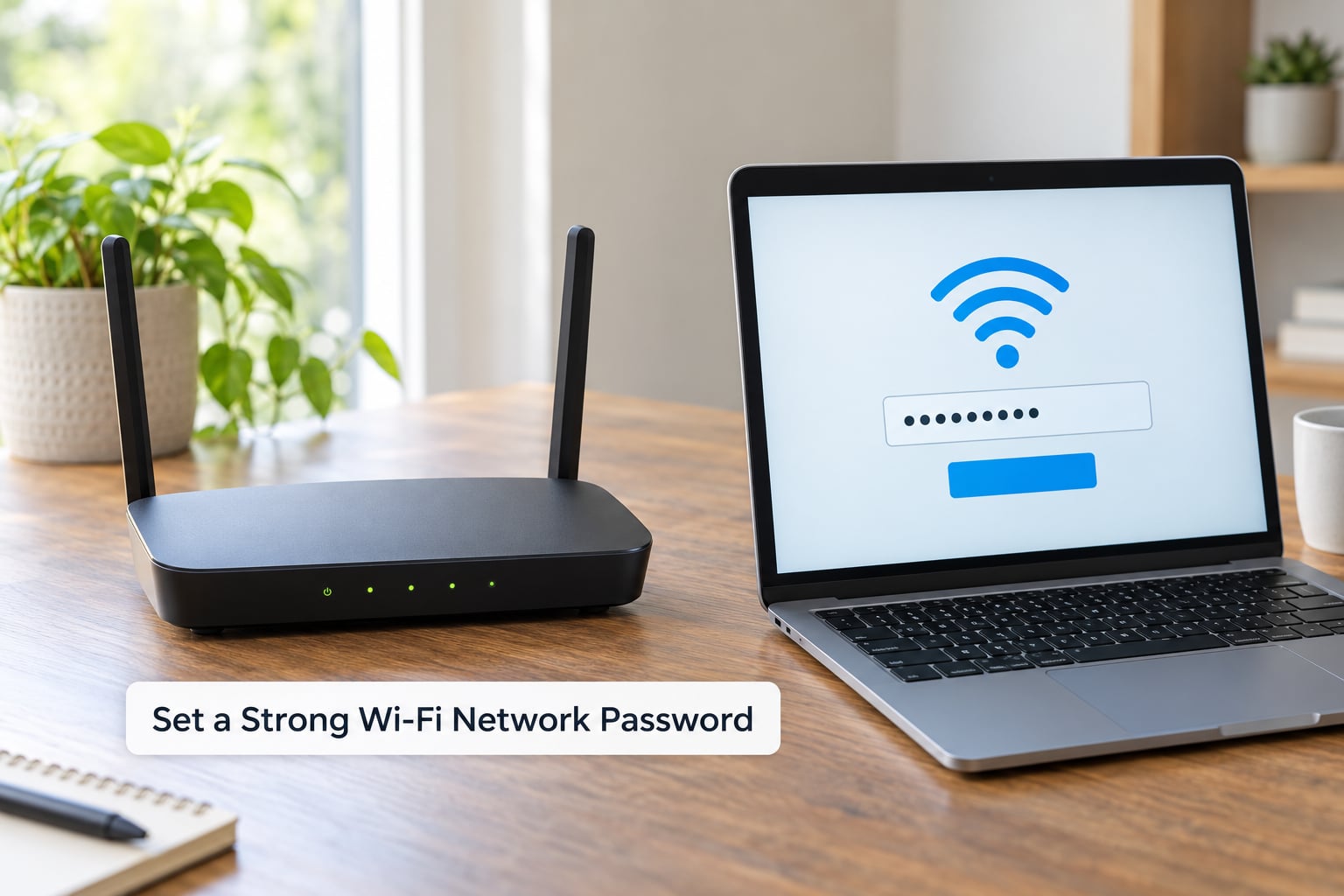
Your Wi-Fi password is the one people share with guests, write on a sticky note, and reuse from another network. All three are problems. Set a fresh 16-character passphrase used by nothing else.
Change it under Wireless Security, Wi-Fi Security, or Security, usually next to the password field that shows your current one as dots. Save, and expect every connected device to drop.
Before you save, know your reconnect plan. Phones rejoin by entering the new password once. Laptop and desktop machines usually rejoin automatically. Smart bulbs, plugs, cameras, TVs and robot vacuums do not, and each one needs to be re-added through its own app, typically by putting the device in pairing mode.
How to verify: forget the network on your phone, then reconnect using the new passphrase. If it works and the old one is rejected, the change is live.
One thing to know: Android has a built-in feature that turns a Wi-Fi network into a QR code so guests can scan and join. Anyone who can photograph that screen, or the image if you shared it, gets your password. Use it for a guest network instead.
4. Enable WPA2 or WPA3 Encryption
Encryption is what keeps a neighbour out. Choose WPA3-Personal if every device supports it, WPA2/WPA3 transition mode if some do not, and plain WPA2-AES as a fallback. Never leave WEP on.
Find the setting called Security Mode, Encryption, or Wi-Fi Security and compare it against this table.
| Standard | Handshake | Crackability | Recommendation |
|---|---|---|---|
| WEP | Shared key | Broken in minutes | Never use. Change it today. |
| WPA | TKIP | Weak | Obsolete. Treat as WEP. |
| WPA2-AES | 4-way, PSK | Hard against a strong passphrase | Acceptable for older hardware |
| WPA3-Personal (SAE) | Simultaneous Authentication of Equals | Strongest available | Use this where devices allow |
| WPA2/WPA3 transition | Both accepted | WPA2 strength on older clients | Best compromise with mixed devices |
Consensus across r/HomeNetworking and security.stackexchange.com is blunt about this: WPA2-AES with a long passphrase, or WPA3, does the overwhelming majority of the work. Everything after this point is smaller margin.
The trouble with WPA3 is old hardware. Smart plugs, bulbs, speakers, security cameras and some printers shipped before 2018 cannot join a WPA3-only network at all. That is exactly what transition mode is for: the router accepts WPA3 from capable devices and WPA2 from the rest.
Choose WPA3-Personal first and see what breaks. If a device that used to work stops connecting, switch the mode to WPA2/WPA3 transition rather than dropping everything back to WPA2.
How to verify: save the setting, let the router reboot, and watch your connected devices. On a phone, the network details screen should name the security type in use.
5. Update the Router Firmware and Wireless Drivers
Routers are sold with known flaws and never fixed unless you tell them to. Firmware updates patch the exact bugs attackers use, which makes this step higher value than most guides admit.
Look under Administration, System Tools, or Advanced for Router Update, Firmware Upgrade, or Check for Updates. Turn on automatic updates if the router offers them, then run the manual check now. Download from the manufacturer’s own support page or the admin panel itself, never a third-party firmware site.
An update takes several minutes and restarts the router. Do it at a time when being offline is not a problem. Some routers show a checkmark and a version number when you return to the update page.
Wireless drivers on your laptop and phone are separate from router firmware and update through the operating system, not the router page.
How to verify: reopen the firmware page. It should now show the current version and no pending update, or a message that you are up to date.
6. Disable WPS and Unnecessary Network Features
Several convenience features are doors left unlocked on purpose. Turn off the ones you do not use.
WPS is the push-button pairing most routers still ship with. It lets any nearby device ask your router to admit it without a password. People on r/networking and community forums describe it as one of the easiest ways to walk onto someone else network. Find it under Wireless Settings or Advanced and set it to Disabled.
UPnP lets apps on your devices ask the router to open ports on the fly. It is convenient and it is a real exposure, because malware uses it without asking you. Turn it off unless you have a specific reason to keep it, such as a game console you have manually configured.
Remote management lets you reach the admin panel from outside your home. Useful for technical users, dangerous for everyone else, and in some cases it is exposed by default. Disable it.
Telnet, SSH and cloud-based management are remote access methods with varying levels of protection. Telnet sends credentials in clear text. Turn off anything you do not use by name.
Leave the built-in hardware firewall enabled. It is on by default and it blocks unsolicited inbound traffic. Check the settings if you want to be sure.
How to verify: reopen each menu after saving and confirm the setting reads Disabled or Off. A warning here is worth taking seriously: if a service you rely on stops working, turn the specific feature back on rather than leaving the whole set open.
7. Create a Separate Guest or IoT Network
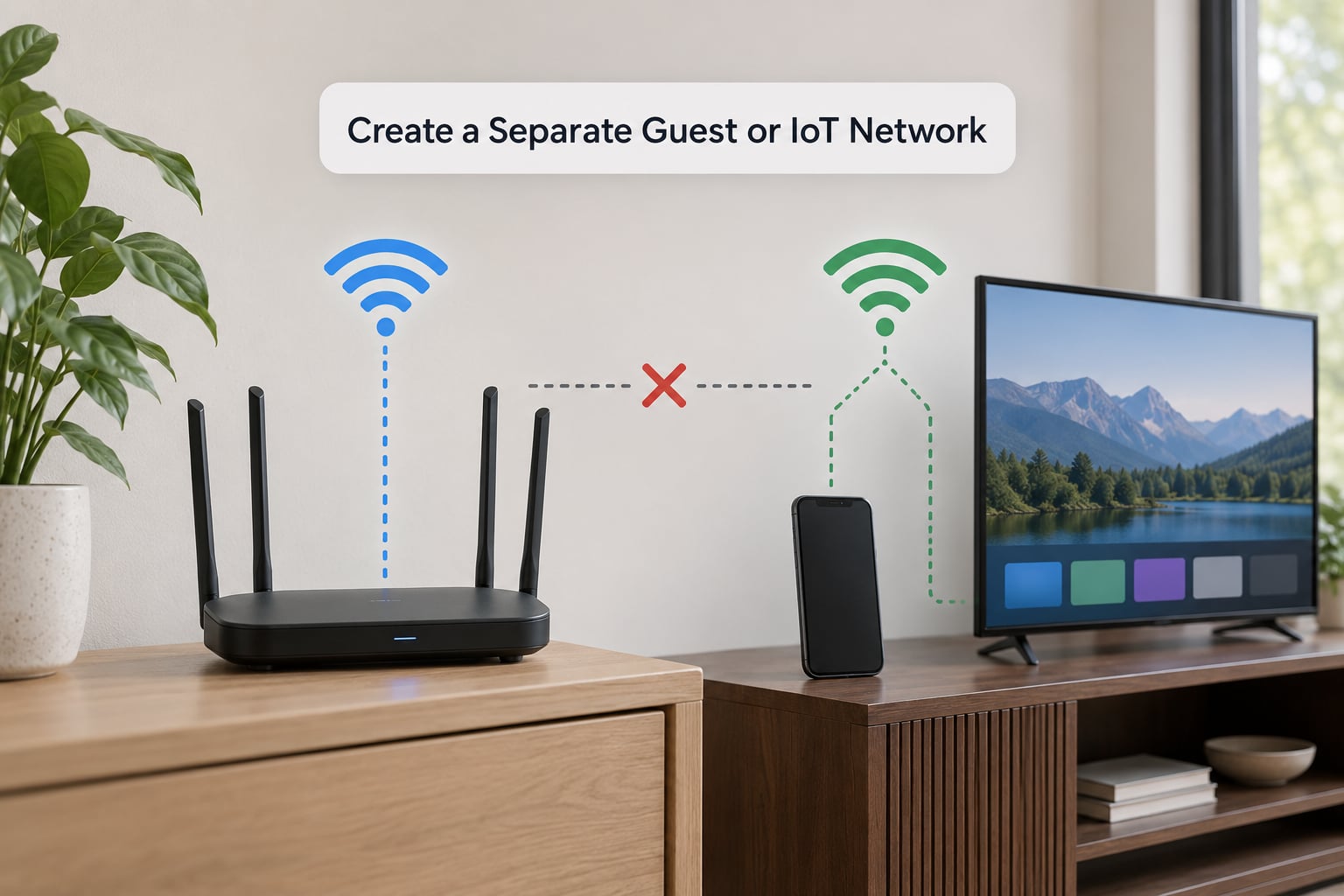
A guest network is not only for visitors. It is the best place for smart home devices, because it gives them internet access while stopping them reaching your laptop, phone and NAS.
Most people never realise this and treat guest as a visitor feature. That is a waste. A smart TV, a video doorbell and a roommate’s laptop sit happily on an isolated network and never touch the main one.
Find Guest Network in your wireless settings. Enable it, give it a distinct name, and set its own password. Then look for Allow access to local network, Access local network, or Wireless isolation and switch it off so guests and IoT devices cannot see your main devices.
Move your smart bulbs, plugs, cameras, speakers and TV over to it. Most take a couple of minutes each in their own app.
How to verify: connect a phone to the guest network, then try to open a shared folder or a printer on the main network through an app or browser. It should fail. Regular internet browsing should still work.
8. Review Connected Devices and Remove Unknown Access
Your router keeps a live list of everything currently connected, usually under Attached Devices, Connected Devices, Device Manager, or DHCP Client List. Open it and check the names.
You will recognise your own phones, laptops, TVs and appliances. Unknown entries are worth investigating. Look at a connected device and try to match it to a MAC address, which shows as a first-few-hexadecimal-digits value or a device name the manufacturer assigned.
If you find something unfamiliar, change the Wi-Fi password, sign back in, and confirm it has gone. Block or remove it if your router offers that option.
Write down what you expect to see, roughly. Next time you check in three months you will know instantly whether something new appeared.
Do this once a quarter, and always after a guest stays over or a roommate moves out.
9. Perform a Final Security Check
Run through the whole list once more in the admin panel. Encryption reads WPA2-AES, WPA3, or WPA2/WPA3 transition. The administrator password is yours, not the sticker default, and the username is non-standard if your router allowed a change.
The Wi-Fi password is a unique long passphrase. Firmware reports up to date. WPS, UPnP and remote management are all disabled. Guest and IoT devices sit on an isolated network with local access turned off. Port forwarding rules are empty unless you personally added one, so check that area too.
If your ISP supplied the router with settings it locked down, ask them for admin access. Some providers also apply a custom Wi-Fi password or forced encryption that overrides your change, so confirm your settings survived a reboot.
If you would rather start fresh than audit inherited settings, a factory reset followed by these steps takes longer but removes anything the previous owner or the provider configured. Users on r/techsupport describe that reset-then-change sequence as the reliable way to get a clean baseline.
Common Mistakes
Leaving the default administrator password. It is printed on the router, on the box, and in long lists online. Attackers try it first, every time.
Choosing WEP, or an open network with no password. WEP is broken so thoroughly that hobbyists break it for fun. An open network means anyone nearby can use your connection and see traffic.
Forgetting that a password change disconnects everything. Reconnect laptops automatically, phones after one entry, smart devices after a manual pairing. Plan for it.
Turning on WPA3-Personal and losing half your smart home. Expected. Old bulbs, plugs and speakers predate WPA3. Use WPA2/WPA3 transition mode instead of abandoning encryption.
Leaving WPS enabled. It exists to admit nearby devices without a password. Turn it off and use your guest network for anyone who needs easy access.
Putting IoT devices on the main network. A cheap smart plug with a default password on your main network is a bigger risk than any external attacker. Isolate it.
Installing firmware from a third-party site. Update through the admin panel or the manufacturer’s official support page only.
Confusing the two passwords. The Wi-Fi password gets your devices online. The administrator password controls the router settings and is far more important to change.
Hiding your network name. Still recommended by several guides, and still not worth doing. It does not stop Wi-Fi scanners, and it stops nothing at all once an attacker has the password. Networking communities flag it as false confidence. Leave the SSID broadcast.
Enabling MAC address filtering. Forum consensus is that it barely helps: MAC addresses are broadcast in clear text and are trivial to spoof. Use a guest network instead.
Changing your password every month is unnecessary. A long unique passphrase plus current firmware is what matters.
Frequently Asked Questions
Is WPA2 still safe for a home Wi-Fi network?
Yes, provided the Wi-Fi password is long, unique and not reused from another network. WPA2-AES is not broken the way WEP was, and the realistic way someone breaks a WPA2 network today is by getting your password, not by attacking the encryption itself. Move to WPA3 or WPA2/WPA3 transition mode when your devices allow it, but staying on WPA2 with a strong passphrase is far better than sitting on WEP or an open network.
Is WPS safe to leave enabled?
No. WPS, or Wi-Fi Protected Setup, lets a nearby device ask your router to admit it without anyone typing a password. Researchers have published practical attacks against it repeatedly over the years, and firmware patches have never closed the underlying design problem. Turn WPS off in your wireless settings, then use a guest network with its own passphrase for anyone who needs quick access.
How can I tell if someone is hacking my Wi-Fi?
Check the connected devices list in your admin panel and look for names you do not recognise. Warning signs include an SSID or admin password that changed without you, a changed DNS server, downloads or streaming you never started, and a steady stream of requests when nothing is running. Compare the device list against what you expect. If something unfamiliar shows up, change the Wi-Fi password immediately and confirm the device disappears.
Do I need a VPN to secure my home Wi-Fi?
Not for the network itself. A VPN encrypts traffic between your device and a remote server, which mainly matters on public Wi-Fi at a cafe, airport or hotel where the network operator can see your unencrypted traffic. At home, a strong passphrase, WPA3 or WPA2-AES, updated firmware and disabled WPS do far more. A paid VPN service adds privacy from your internet provider, but it is not a substitute for fixing router settings.
What should I do if I think my home Wi-Fi was hacked?
Start with the router. Change the administrator password, then the Wi-Fi password, and sign in to confirm any settings you did not choose have been reset, including DNS servers and port forwarding rules. Update firmware, disable WPS and remote management, and confirm the connected device list contains only hardware you recognise. If someone was using your connection, changing the Wi-Fi password ends their access.
Conclusion
Start tonight with two changes: replace the router administrator password, then set a fresh long Wi-Fi passphrase. Those two take ten minutes and remove the entry points that almost every home network actually falls through.
Next, update the firmware, turn off WPS and remote management, and move your smart devices and guests onto an isolated guest network. Review the connected device list once, and you have covered everything that matters.
Skip hiding your network name and skip MAC filtering. Do not spend your evening on either one.