To factory reset a Windows laptop, open Start > Settings > System > Recovery > Get started next to Reset this PC on Windows 11, or Settings > Update & Security > Recovery > Get started on Windows 10. Then choose Keep my files or Remove everything, pick Cloud download or Local reinstall, and click Reset. The laptop restarts several times while it rebuilds Windows, so expect 30 to 60 minutes with the power cable plugged in.
That is the whole process on any brand — HP, Dell, Lenovo, ASUS, Acer, Samsung, Microsoft Surface. The menu wording shifts a little from one manufacturer to the next, but the underlying Windows option is the same on every machine.
I have reset more laptops than I can count, and the ones that go wrong almost always go wrong for the same reasons: a missing backup, a forgotten Microsoft account password, or a BitLocker recovery key nobody saved before starting. Those three things take ten minutes to sort out beforehand and can cost you a drive full of data afterwards. Everything else here is just clicking through screens.
This guide is current for 2026 and covers Windows 11 and Windows 10, plus what to do when the built-in reset refuses to run.
Table of Contents
- 1What You Need
- 2Step-by-Step
- 3How to factory reset a Windows 11 laptop
- 4How to factory reset a Windows 10 laptop
- 5How to reset a Windows laptop when you cannot sign in
- 6How to check that the factory reset worked
- 7Common Mistakes
- 8You forgot the Windows password or the Microsoft account password
- 9You chose Keep my files when you wanted a clean laptop
- 10You did not save the BitLocker recovery key
- 11The reset failed or stalled
- 12The screen goes black during or after the reset
- 13A work or school laptop refuses to reset
- 14Files are missing after the reset
- 15You followed Windows 7 instructions
- 16A note on what a reset does not erase
- 17Frequently Asked Questions
- 18Will factory resetting a Windows laptop delete my files?
- 19How long does it take to factory reset a Windows laptop?
- 20Does factory reset remove Microsoft Office and other paid apps?
- 21Can I factory reset a Windows laptop without the password?
- 22Will the laptop still work after a factory reset?
- 23What do I do if Windows will not reset?
- 24What To Do First
What You Need
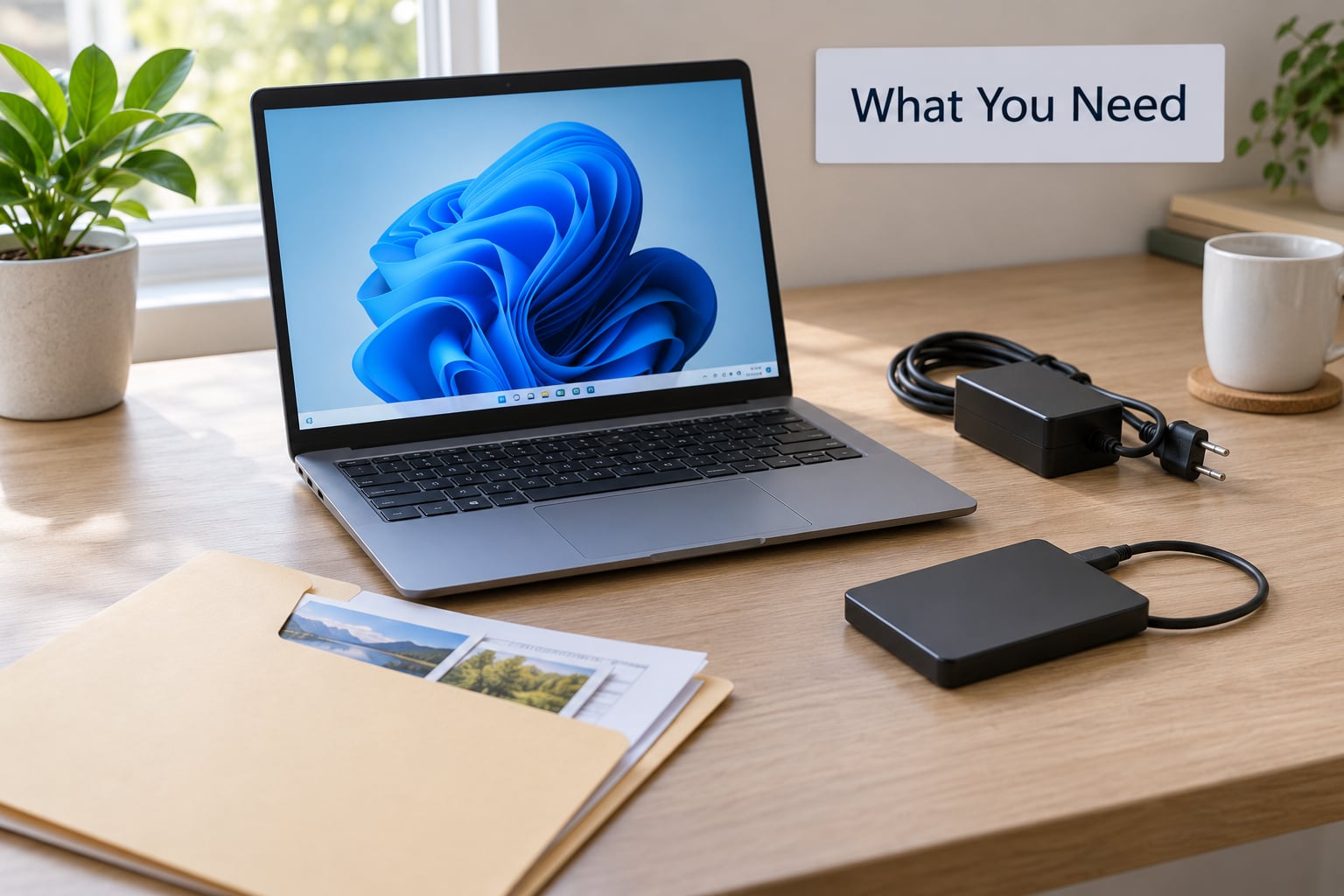
Six things, and only one of them is complicated.
- A backup of your files. Copy anything you care about to an external drive, a network share, or cloud storage. The Desktop, Documents, Downloads, and Pictures folders are where most people keep what matters.
- Your Microsoft account password and PIN. You will need the account password, not just the four-digit PIN, to sign back in after the reset. If you have forgotten it, reset it online before you touch the laptop.
- Your BitLocker recovery key. If BitLocker is on, this is the 48-digit key that decrypts your drive. Without it the reset can leave you staring at a recovery screen you cannot get past.
- The power adapter. A reset that dies halfway through because the battery emptied is a genuinely awful afternoon.
- 30 to 60 minutes. Longer if you choose Cloud download on a slow connection.
- Your serial number and any device enrolment details, if the laptop came from an employer or school.
Windows 11 and Windows 10 use near-identical reset options. Only the route to the Recovery page differs, and I cover both below.
If BitLocker is switched on, open Settings > Privacy & security > Device encryption (Windows 11) or search for BitLocker in the Start menu (Windows 10), then click Back up recovery key and save it to your Microsoft account or a printout. Users on r/WindowsHelp and r/techsupport describe the same pattern over and over: the reset wipes the key, the drive comes back encrypted, and there is no way in. It is the most avoidable data-loss story in this whole process.
Step-by-Step
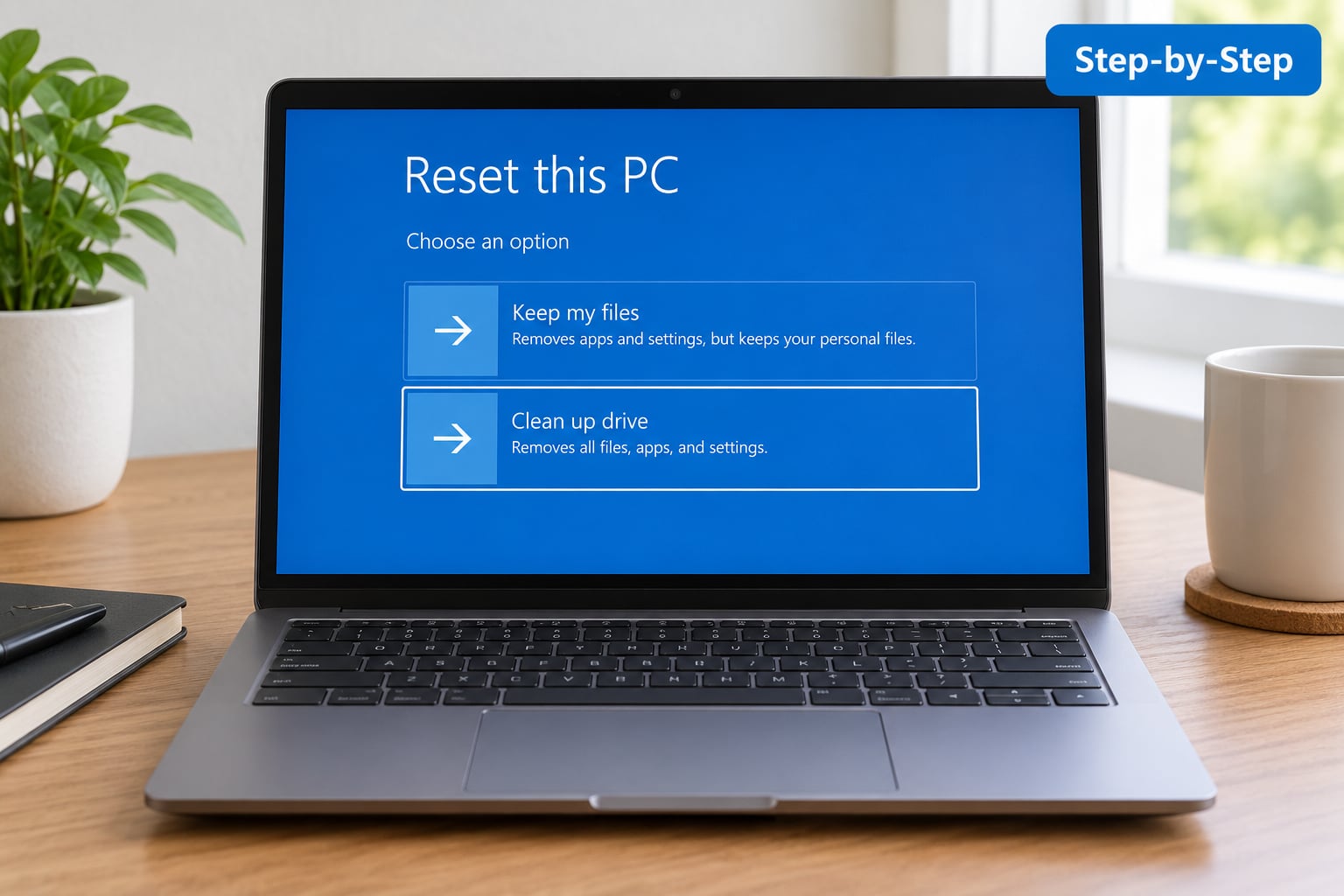
Check which Windows version you are running first — click Start > Settings > System > About and look at the Windows specification line. The two paths below both end at the same Reset this PC screens.
How to factory reset a Windows 11 laptop
- Plug in the power adapter and connect to a Wi-Fi network if you plan to use Cloud download.
- Click Start > Settings. You can also press Windows + I.
- Select System in the left sidebar, then Recovery.
- Under Reset this PC, click the Get started button.
- Choose Keep my files or Remove everything. Keep my files reinstalls Windows and keeps your apps, documents, and settings. Remove everything deletes applications, settings, and personal files, and is the right choice if you are selling the laptop or starting from scratch.
- Choose Cloud download or Local reinstall. Cloud download fetches a fresh copy of Windows from Microsoft and repairs corrupted system files, but needs a steady connection. Local reinstall uses the copy already on the machine, works offline, and is faster.
- Click through the confirmation screens. On the last one you will see Clean up drive or Clean files if you picked Remove everything. Turn it on if you are selling or recycling the laptop and want a clean, unrecoverable drive.
- Click Reset. The machine restarts more than once, and a black screen or the manufacturer logo during those restarts is normal.
How to factory reset a Windows 10 laptop
- Plug in the power adapter and connect to the internet if you want Cloud download.
- Click Start > Settings, then Update & Security.
- Select Recovery in the left sidebar.
- Under Reset this PC, click Get started.
- Choose Keep my files or Remove everything, using the same rule as above.
- Choose Cloud download or Local reinstall.
- Enable Clean data if you are wiping the machine for someone else, then click Reset.
That single path difference — System on Windows 11, Update & Security on Windows 10 — is the whole reason so many people think the reset has been removed from their laptop. It has not moved.
How to reset a Windows laptop when you cannot sign in
You do not need the password to reach the reset. On the sign-in screen, click the Power icon in the bottom-right corner, then hold Shift while you click Restart. The laptop restarts into the Windows Recovery Environment instead of Windows.
From there choose Troubleshoot > Reset this PC > Remove everything > Local reinstall > Reset. This works without a password, and it is the route to use on a machine you inherited, a second-hand purchase, or one you are locked out of. The same menu holds System Restore and Startup Repair, which come in handy when the reset itself is the thing that is broken.
If you are resetting a work or school laptop, stop and read the section on managed devices below first.
How to check that the factory reset worked
After the restarts finish you land on the Windows setup screens — region, keyboard, network, and your Microsoft account. The fact that you are seeing them at all is the proof: your old installation and user profile are gone.
Two more checks are worth making. Open Settings > Apps and confirm that the third-party programs you expected to disappear are in fact gone. Then check Settings > System > Activation: a laptop that came with Windows activated stays activated after a reset, because the license is tied to the hardware, not the installation.
Expect the machine to be slower for the first few minutes after setup, while Windows indexes files and installs updates in the background. Give it an hour on Wi-Fi before judging it.
Common Mistakes
Nearly every reset problem traces back to one of the following.
You forgot the Windows password or the Microsoft account password
You cannot run Reset this PC from inside Windows without signing in, but the Shift+Restart route above bypasses the login entirely. If you want your data back rather than just a clean machine, use the reset without logging in route and pick Keep my files.
You chose Keep my files when you wanted a clean laptop
This is the most common option mistake. Keep my files leaves your installed apps, desktop shortcuts, and settings in place — it is a repair, not a wipe. If you were moving to a new laptop or clearing a machine for someone else, redo the reset and pick Remove everything. You do not have to do the whole backup dance twice if nothing changed.
You did not save the BitLocker recovery key
If the drive comes back asking for a 48-digit recovery key, the reset has stranded you. Check your Microsoft account at account.microsoft.com/devices/recoverykey — the key is often stored there if the feature was on. If it was never saved anywhere, the data on that drive is gone. There is no reset trick that brings it back.
The reset failed or stalled
There was a problem resetting your PC usually means the reinstallation itself did not complete. The usual causes are a nearly full drive with no room to stage the new install, a failing drive, or third-party antivirus blocking the process. Free up at least 15 to 20 GB first, uninstall any antivirus, and try a Local reinstall. If it fails again, the reset is not your problem to solve — use Startup Repair or a clean install from a bootable USB instead.
A reset that appears to hang is usually not hung. A long stall at Just a moment or Getting things ready, sometimes sitting at 0 percent for a while, is normal while Windows stages the install. Community reports put a working reset at roughly 20 to 45 minutes. If nothing has changed after an hour with the adapter plugged in, force a restart and try the recovery menu route.
The screen goes black during or after the reset
During the process, a black screen is expected at one or more of the restarts — that single clarification prevents most of the panicked posts about it. A black screen that never resolves is a different problem. Press Windows + Ctrl + Shift + B to reset the graphics driver, unplug every USB device and external monitor, and power cycle. If the screen stays dark, hold the power button for ten seconds to shut down, then repeat the Shift+Restart route and choose Troubleshoot > Advanced Options > Startup Repair.
A work or school laptop refuses to reset
If Reset this PC is greyed out, or you get the problem error immediately, the laptop is enrolled in mobile device management. Your employer or school controls what happens to it, and Reset this PC is one of the settings they lock. This comes up constantly on r/computers with inherited work machines. You cannot bypass it, and trying to will not damage anything, but it will not work either — ask whoever administers the device.
Files are missing after the reset
Check the recycle bin on the drive first, and check OneDrive if you use it. If you picked Remove everything, local files were removed as part of the process and the recycle bin was emptied too. That is exactly why the backup comes first.
You followed Windows 7 instructions
Plenty of guides still recommend pressing F8 at boot, running rstrui.exe from a command prompt, or using the Control Panel’s Backup and Restore. None of that applies to Windows 10 or 11. Similarly, F11 or F12 at boot opens the manufacturer’s own recovery partition on Dell, HP, and Lenovo — it is not the Windows reset, and on some models it overwrites or resets the recovery key, so leave it alone unless the manufacturer tells you otherwise.
A note on what a reset does not erase
Reset this PC only touches the Windows installation on the main drive. It does not delete a second internal drive, a separate data partition, anything on an external drive you keep plugged in, or the OEM recovery partition the manufacturer uses. Unplug external drives before you reset, especially if the goal is a clean machine for someone else.
Frequently Asked Questions
Will factory resetting a Windows laptop delete my files?
Yes, if you choose Remove everything. That option deletes your apps, settings, and personal files stored on the Windows drive, including anything in Desktop, Documents, and Downloads. Choosing Keep my files reinstalls Windows while leaving your personal data in place. Back up to an external drive or cloud storage before you start either way, because there is no undo once the process begins.
How long does it take to factory reset a Windows laptop?
Allow 30 to 60 minutes for a full reset on a modern laptop, and keep the power adapter connected the whole time. Cloud download takes longer than Local reinstall because it fetches Windows from Microsoft over your connection. The machine restarts several times during the process, and a black screen at one of those restarts is normal rather than a failure.
Does factory reset remove Microsoft Office and other paid apps?
It usually does. Remove everything takes third-party applications out, and Microsoft Office is third-party as far as Windows is concerned. Windows itself stays activated because the license is stored on the hardware, so you do not buy Windows again. Any software you paid for separately has to be reinstalled, and some purchases will need the licence key or account you originally used.
Can I factory reset a Windows laptop without the password?
Yes. On the sign-in screen, click the Power icon in the bottom-right corner and hold Shift while clicking Restart. The laptop boots into the Windows Recovery Environment, where you choose Troubleshoot, then Reset this PC, then Remove everything. This works without any password, and it is the standard route for a second-hand laptop or one you are locked out of.
Will the laptop still work after a factory reset?
Yes, as long as it worked before. A reset reinstalls Windows and removes software and settings, not the hardware. Windows stays activated on the same machine, and the drivers reinstall automatically. If BitLocker was on, save the recovery key first, since the reset can leave the drive encrypted and unreachable without that 48-digit key.
What do I do if Windows will not reset?
Free up at least 15 to 20 GB, uninstall third-party antivirus, and retry with a Local reinstall. If it still fails, boot into the recovery environment with Shift+Restart and run Troubleshoot, then Advanced Options, then Startup Repair. A managed work or school laptop often cannot be reset at all, because the administrator controls that setting. A failing drive is the other common cause, and no software fix repairs that.
What To Do First
Back up your files, confirm you know your Microsoft account password, and save the BitLocker recovery key if encryption is on. That is the ten minutes of work that protects everything else. Then open Settings and follow the recovery path for your version of Windows, and give it an hour.