If you want to know how to wipe an iPhone before selling it, the whole job is one menu path: Settings, then General, then Transfer or Reset iPhone, then Erase All Content and Settings. Back up first, sign out of your Apple Account, and only then erase. Get the order wrong and the phone lands on an Activation Lock screen that only you can clear, which is exactly how private sales turn into refund demands.
Updated for October 2026 with current iOS menu names. Every path below is Apple-native, no erasing utilities required.
Table of Contents
- 1What You Need
- 2Step-by-Step: How to Wipe an iPhone Before Selling It
- 31. Back Up Your iPhone Before Removing It
- 42. Remove Your Apple Account and Turn Off Find My
- 53. Check for SIM and eSIM Details
- 64. Factory Reset the iPhone
- 75. Complete the Setup Screen Without Signing In
- 86. Perform a Final Privacy and Activation-Lock Check
- 9Common Mistakes
- 10Frequently Asked Questions
- 11Will erasing an iPhone remove my Apple ID and activation lock?
- 12What should I do if I forgot my Apple Account password before selling my iPhone?
- 13Should I remove the SIM card before factory resetting an iPhone?
- 14Is a factory reset enough to make an iPhone safe to sell?
- 15What does the buyer see after I wipe my iPhone?
- 16Conclusion
What You Need
Six things, and only one of them is hard to replace.
- Your Apple Account password. Sign out asks for it, and so does the erase. If you cannot remember it, sort that out first.
- The phone passcode. Without it, you cannot confirm the erase on-device.
- A recent backup. Both an iCloud backup and a computer backup if you want belt and braces.
- Wi-Fi. The erase takes noticeably longer on cellular data, and backup needs a connection anyway.
- A charging cable. A reset that runs flat can leave the phone stuck on the Apple logo.
- Charge above 50 percent. A half-empty phone may ask you to plug in before it will start.
One more thing has no fix later: Find My iPhone has to be switched off from the same Apple Account that is signed into the phone. A family member’s account will not do it.
Step-by-Step: How to Wipe an iPhone Before Selling It
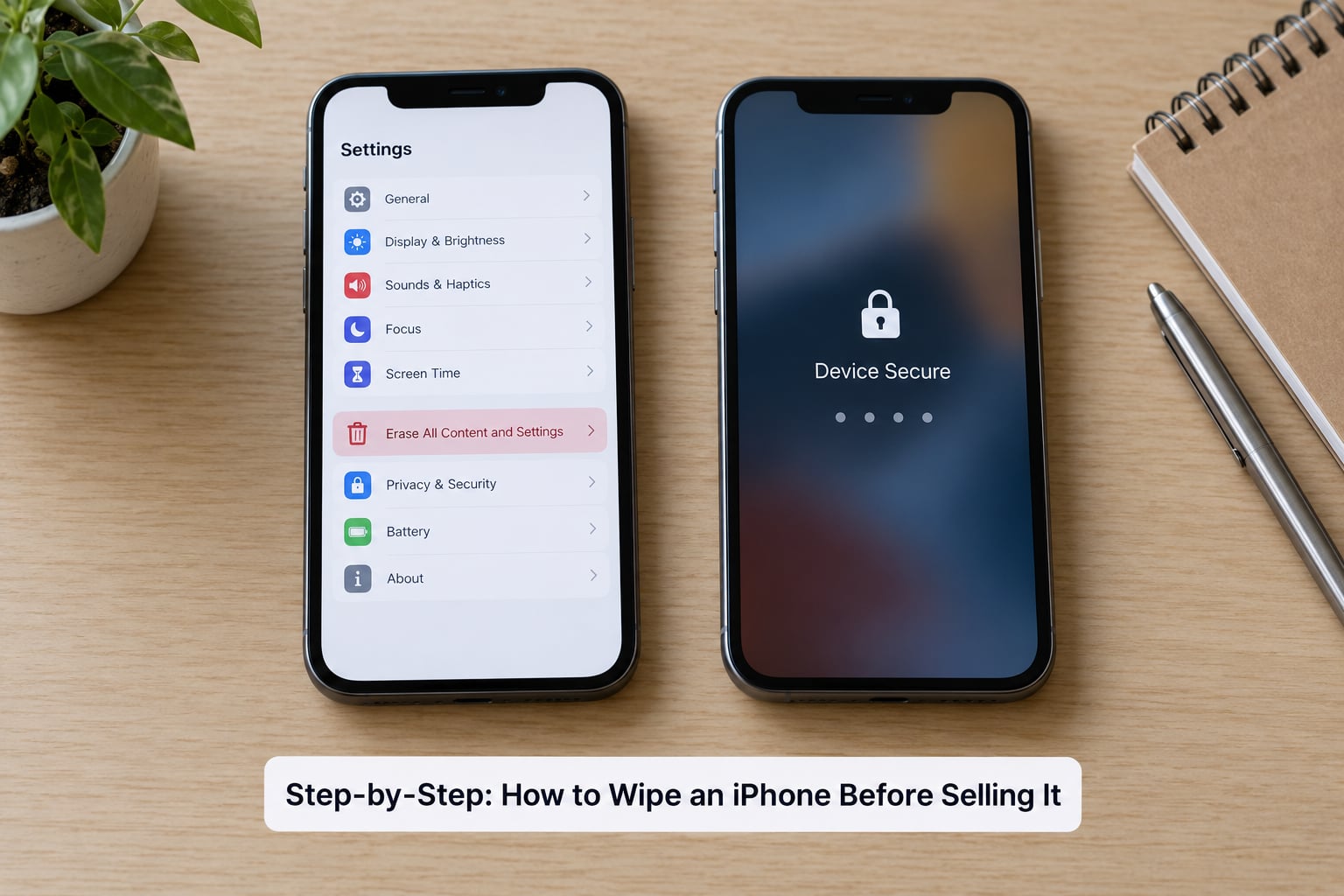
Work top to bottom. Each step below says what to tap and what you should see when it worked.
1. Back Up Your iPhone Before Removing It
Open Settings, tap your name at the top, tap iCloud, then iCloud Backup. Read the Last Backup line. An old date means back up now.
Tap Back Up Now and leave the phone on Wi-Fi until the timestamp changes. That confirms your photos, messages and contacts exist somewhere other than the phone you are about to empty.
For a second copy, connect to a Mac and use Finder, or to a Windows PC and use Apple Devices. Trust the computer if it asks. A local backup is the one that survives if you later delete something from iCloud by accident.
Check anything that syncs but cannot be restored: authenticator apps, two-factor codes, notes, and Wi-Fi passwords. Screenshots of those matter more than the photos.
2. Remove Your Apple Account and Turn Off Find My
Open Settings and tap your name at the top. Scroll to the bottom and tap Sign Out. Apple asks which data you want to keep in iCloud. Turning Find My iPhone off is what permits the sign out, so expect that prompt.
Enter your Apple Account password when asked. This is the step where people get stuck: a forgotten password means the phone cannot be sold until the account is recovered at iforgot.apple.com or through Apple Support.
To confirm Find My is gone, reopen Settings and check that iCloud no longer lists your account. Then, on a computer, open icloud.com/find and remove the device from your Apple Account. That removes it from every device list you own, so a lost phone cannot phone home to you later.
Unpair any Apple Watch and AirPods while you still have access. Settings, then your watch name, then Unpair Watch. If you skip this, the buyer will inherit an iPhone that asks them to set up a watch that is already paired to your wrist.
3. Check for SIM and eSIM Details
Look for the SIM tray along the edge of the phone and eject it with a paperclip. Physical SIM cards are easy to forget because they fall out and vanish into a drawer.
For eSIM, open Settings, then Cellular. If you see an eSIM line with a Remove eSIM option, remove it, or leave the cellular plan with your carrier if you plan to keep the number. Your carrier’s app or website is where the removal happens on some plans.
Do not confuse either of these with a network reset. Reset Network Settings clears saved Wi-Fi passwords and cellular preferences but touches no personal data. It has nothing to do with wiping the phone.
4. Factory Reset the iPhone
This is how to wipe an iPhone before selling it in the simplest way, and it takes about five taps.
- Open the Settings app.
- Tap General.
- Scroll down and tap Transfer or Reset iPhone.
- Tap Erase All Content and Settings.
- Tap Erase iPhone and confirm with your passcode.
On iOS 15 and earlier the menu is simply Reset, and the option sits at the bottom of that screen. Same action, older label.
The phone restarts at the Apple logo and can take anywhere from a few minutes to half an hour on a large-capacity model. Do not interrupt it, and do not try to power it off to hurry things along.
Apple will warn you that media purchases and accounts will be removed. That is normal, and confirming with your passcode is the final step. There is no undo.
5. Complete the Setup Screen Without Signing In
A successful erase lands on the Hello screen with a globe and the word Hello in a large font. That is the finish line.
Do not tap through it. No Apple ID, no Wi-Fi join, no fingerprint setup, no “Hello” tour. Every tap you make starts rebuilding a profile attached to you.
Once the setup screen is showing, press and hold the side button until the phone powers off. That is how you hand it over.
6. Perform a Final Privacy and Activation-Lock Check
Power it on once more and confirm it returns straight to Hello, not to an Apple ID or Activation Lock request. If it asks for a password, something is still linked and you must fix it before the phone leaves your hands.
Empty the SIM tray one more time and check the box for the phone, the charging cable, the case and any paperwork. Peek inside the case for a SIM card somebody tucked in there.
Screenshot the IMEI or MEID and the battery health reading from Settings, then General, then About, before you wipe. On a later model these live under Settings, then General, then About and AppleCare, Warranty and Service. Having those on your phone helps you answer questions after it is gone.
Finally, check icloud.com/find from a computer. Your old phone should no longer appear in the device list.
Common Mistakes
Every one of these has shown up in the forums, usually mid-sale.
Resetting before signing out. Erase All Content and Settings while Find My is on leaves Activation Lock active, and the buyer hits a password wall on a phone they already paid for. Fix the order: sign out first, always.
Using the wrong Apple Account. A phone set up on a work or school account will not sign out cleanly with your personal password. Sign out of every account listed under your name before you reset.
Leaving Find My on. Turning it off is a precondition for signing out, so if you managed to sign out, it is already off. Check icloud.com/find anyway, since a stale device entry can survive on your other devices.
Deleting only photos. Swiping the Photos app clean deletes what the buyer can see, not what a recovery tool can read. Erasing the whole phone through Settings is faster than deleting app by app and far more thorough.
Forgetting the physical SIM. A nano-SIM in the box is a traceable card attached to your number. Take it out.
Assuming the reset unlocks the carrier. Erase All Content and Settings removes the carrier lock tied to your plan so the buyer can activate their own. It does not check whether your phone is contract-locked, so if you owe money on the device, settle that before you sell.
Handing over a phone still linked to another account. Sellers on Reddit and Apple Discussions describe this as the standard private-buyer scam: the phone arrives asking for a stranger’s password, and the payment reverses. Removing the device from your Apple Account at icloud.com/find before the sale is the cheapest insurance there is.
One more to avoid: third-party eraser apps. The utility sites ranking for this query all push one, and every install puts a program on the device holding your most personal files. A factory reset already destroys the encryption key, so the software has nothing to add.
Frequently Asked Questions
Will erasing an iPhone remove my Apple ID and activation lock?
No. Erase All Content and Settings wipes the phone but keeps Activation Lock tied to whatever Apple Account was on it. You have to sign out of iCloud and switch off Find My iPhone first. Once that is done and the device is removed from your Apple Account at icloud.com/find, the erase clears everything and the phone boots to the Hello screen.
What should I do if I forgot my Apple Account password before selling my iPhone?
Recover the password before you touch the phone. Go to iforgot.apple.com and work through the account recovery steps, or contact Apple Support with proof of ownership. The erase itself also demands that password, so there is no route around it on the device. If the account is a managed work or school one, your IT department has to release it.
Should I remove the SIM card before factory resetting an iPhone?
Take it out, yes, though the reset works either way. A physical SIM carries your number and can be traced back to you, so leaving it in the tray hands the buyer a live card. With an eSIM, remove the cellular plan in Settings or through your carrier. Either way, nothing about the SIM affects whether the personal data is erased.
Is a factory reset enough to make an iPhone safe to sell?
On a stock iPhone, yes. Erase All Content and Settings destroys the encryption key that protects your stored files, which makes them cryptographically unreadable rather than merely hidden. That is why paying for a secure erase utility is unnecessary. The remaining risk is not data recovery but Activation Lock, which is an account problem you fix by signing out beforehand.
What does the buyer see after I wipe my iPhone?
The Hello setup screen with a globe and language choices, with no owner information attached. A good buyer starts setup there and signs into their own Apple Account, then follows the prompts to restore from their own backup. If they see an Apple ID or password prompt instead, the phone was not fully unlinked before you sent it.
Conclusion
The safe order is short: back up, sign out and disable Find My, remove the device from your Apple Account, erase all content and settings, confirm the Hello screen, take out the SIM, then hand over a phone you never touched after the erase.
Skipping the account steps is what causes the problems. Everything else is a menu tap.