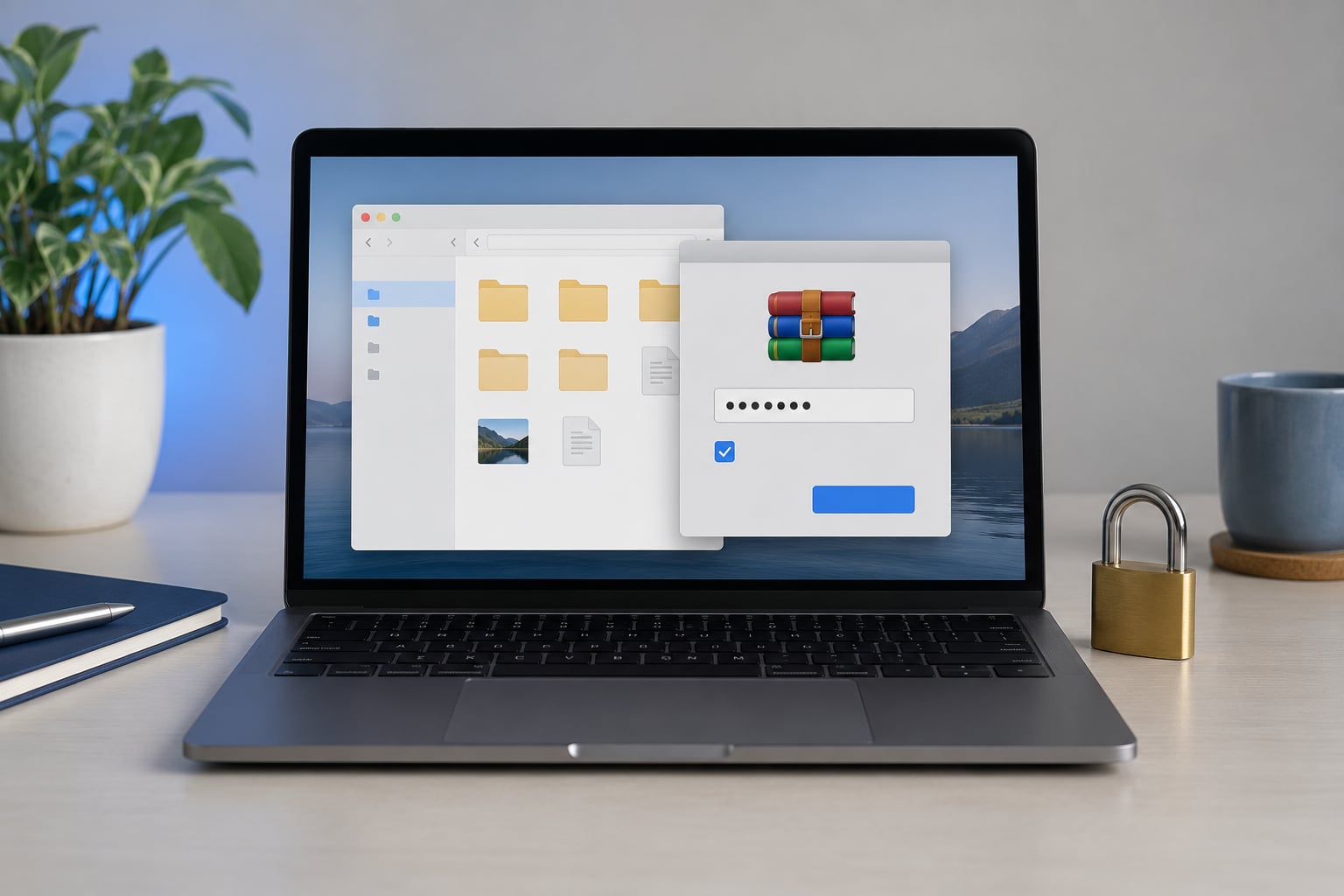
Encrypting a folder on Windows takes about two minutes if you use 7-Zip: right-click the folder, choose Add to archive, turn on AES-256 encryption, set a password, and everything inside becomes unreadable without it. That method works on Windows 10 and Windows 11 across every edition, including Home, which is exactly why it beats the built-in option for most people. Below is the full workflow, plus how to check that the protection actually holds.
I have run this on a few shared family PCs and a laptop that travels, and the 7-Zip route is the one that keeps working. The built-in Windows checkbox is the first thing people try, and it is greyed out more often than not.
Table of Contents
- 1What You Need
- 2Step-by-Step: How to Encrypt a Folder on Windows
- 3Step 1: Install and Open 7-Zip
- 4Step 2: Select the Folder to Encrypt
- 5Step 3: Create the Encrypted Archive
- 6Step 4: Set the Password and AES-256 Encryption
- 7Step 5: Finish and Verify the Archive
- 8Step 6: Open the Encrypted Folder Later
- 9How to Encrypt a Folder on Windows Without 7-Zip
- 10EFS on Pro, Enterprise and Education
- 11BitLocker for whole drives
- 12Common Mistakes
- 13Frequently Asked Questions
- 14Can I encrypt a folder on Windows 11 without installing extra software?
- 15What happens if I forget the password for a 7-Zip encrypted folder?
- 16Is a password-protected ZIP the same as an encrypted folder?
- 17Can Windows Home encrypt a single folder with BitLocker?
- 18Can I put an encrypted 7-Zip archive in cloud storage?
- 19Does encrypting a folder protect the original files after I create the archive?
What You Need
You need four things, and three of them you probably already have.
- A Windows 10 or Windows 11 machine. Any edition, including Home.
- 7-Zip, downloaded from its official site. It is free and open source.
- The folder you want to protect, and a spare password you have not used anywhere else.
- Free disk space roughly equal to the folder size, since the archive is a copy until you delete the original.
Windows Home deserves its own note. Home has no Encrypting File System and no BitLocker folder option, which is the single most common reason people give up on this. 7-Zip sidesteps the edition problem entirely.
Use a password manager rather than a password you invent in your head. You will need to type this password every single time you open the folder, and a forgotten archive password has no recovery route.
Step-by-Step: How to Encrypt a Folder on Windows
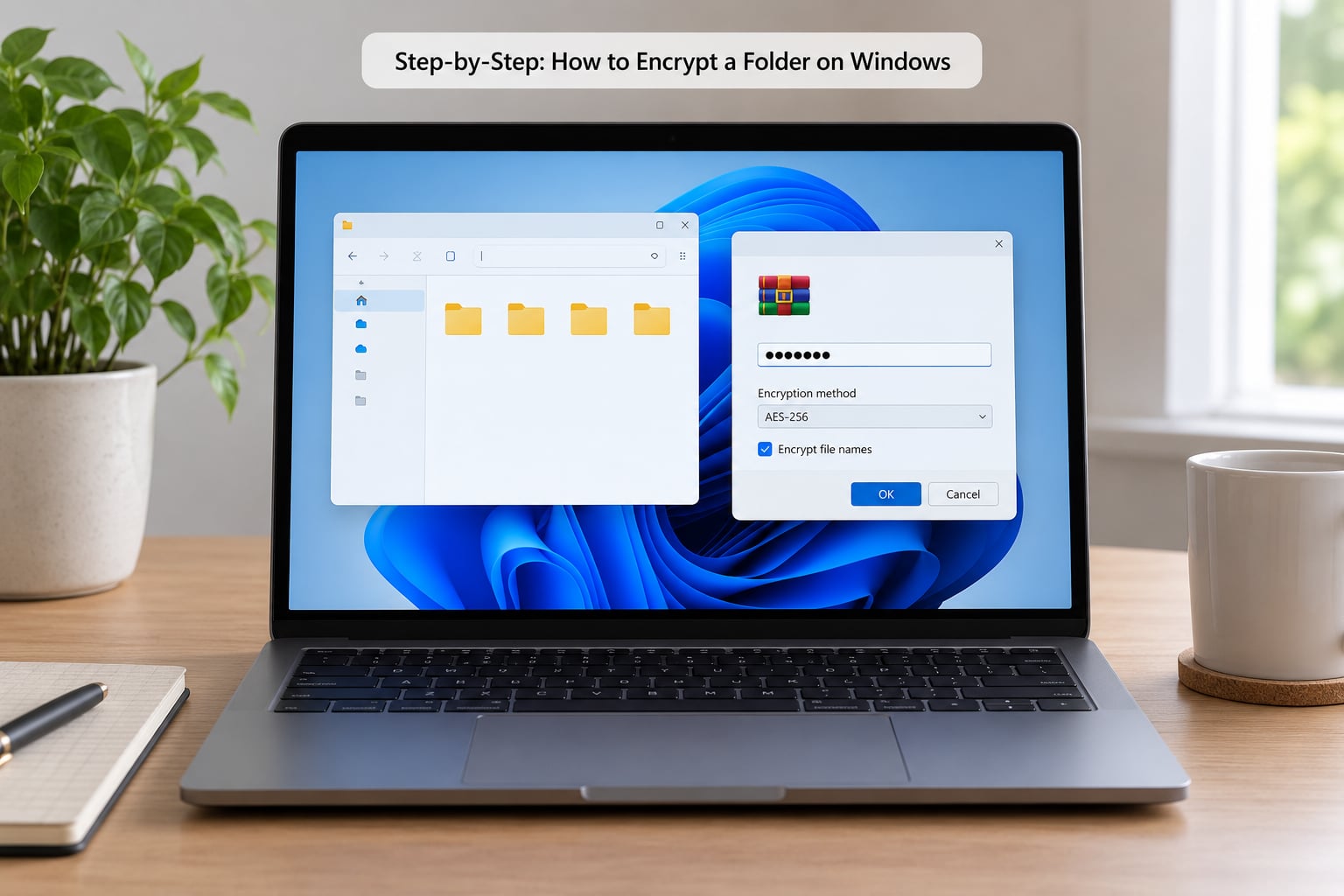
The whole process takes about two minutes once 7-Zip is installed. Work through these six steps in order, then read the verification step properly rather than assuming it worked.
Step 1: Install and Open 7-Zip
Go to the 7-zip.org website and download the 64-bit installer for Windows. Windows 10 and Windows 11 both run the x64 build on standard hardware.
Double-click the downloaded file, accept the defaults, and finish the install. Open 7-Zip File Manager from the Start menu so you know it is there, then close it. For the rest of these steps you will mostly work from the right-click menu in File Explorer.
Check the publisher or website before you run any installer. This is the one moment in the whole process where a careless click can undo everything else.
Step 2: Select the Folder to Encrypt
Open File Explorer and navigate to the folder you want to protect. Right-click the folder itself, not a file inside it.
On Windows 11 the 7-Zip entry sits under Show more options at the bottom of the right-click list. Click that first if you cannot see the 7-Zip submenu. On Windows 10 the submenu appears straight away.
Hover the 7-Zip submenu and choose Add to archive. You will see the name of your folder pre-filled in the dialog, which is your confirmation that the right source was selected.
Step 3: Create the Encrypted Archive
The Add to Archive dialog is doing several things at once. The Archive name field at the top controls what the finished file is called, and leaving the folder name in place is usually fine.
Under Archive format, choose 7z. This matters more than it looks: the 7z format supports AES-256 and hidden file names, while the ZIP option in the same dropdown offers much weaker protection.
Compression level changes how small the archive gets, not whether it is encrypted. Normal suits most folders, and Maximum shrinks the file further at the cost of slower compression.
Leave Save to archive selected and browse to the destination if you want the encrypted file somewhere other than next to the original folder.
Step 4: Set the Password and AES-256 Encryption
Tick the box next to Encrypt file names in the lower-right of the dialog. Without it, anyone can still read the list of filenames inside the archive even if they cannot open the files.
Enter your password in the two fields below it and confirm they match. Then set Encryption method to AES-256, which is the strongest option 7-Zip offers.
Compression and encryption are different things. Compression makes files smaller, and a plain 7z archive with no password ticked is no more secure than a folder sitting in your Documents. Encryption is what turns the contents into something unreadable, and AES-256 is the cipher doing it.
This is the step where you decide whether how to encrypt a folder on Windows actually worked for you. If the encryption box was never ticked, you now have a smaller copy of your files and nothing else.
Step 5: Finish and Verify the Archive
Click OK. 7-Zip shows a progress window and writes the archive to the destination you chose. Wait for it to reach full before doing anything else.
Then verify it. Open the finished archive by double-clicking it. With file names encrypted you should get a password prompt before you see a single filename, and if you enter a wrong password, the contents stay locked rather than half-opening.
Try a wrong password once on purpose. It takes five seconds and confirms the archive is genuinely encrypted instead of merely compressed.
Step 6: Open the Encrypted Folder Later
Double-clicking the .7z file in File Explorer opens it in 7-Zip and prompts for the password. Type it, and the folder tree appears exactly as it was.
To get the files out, click Extract at the top, pick a destination, and confirm. Choose No when 7-Zip asks whether to keep the extracted files inside the archive window.
You can also drag a file straight out of an open archive and run it without extracting, which saves disk space for a one-off file. Delete temporary copies once you are done, and clear the Recycle Bin if the extracted files were sensitive.
How to Encrypt a Folder on Windows Without 7-Zip
Windows does ship two built-in options, and both come with limits worth understanding before you pick one.
EFS on Pro, Enterprise and Education
The Encrypting File System is the feature behind the Encrypt contents to secure data checkbox. Right-click the folder, choose Properties, open the General tab, click Advanced, tick the encryption checkbox, then confirm with OK and Apply. When Windows asks whether to apply changes to this folder, subfolders and files, say yes. That is the whole method.
It is genuinely convenient because files stay readable in place and only your Windows account can open them. The honest catch is that it is per-user, not admin-proof, and a domain administrator or someone booting a recovery environment can work around it. It is also unavailable on Home, on network shares, and on exFAT or FAT32 drives such as most USB sticks and memory cards.
If the checkbox is greyed out, no registry tweak will unlock it. Windows Home simply does not ship EFS.
BitLocker for whole drives
BitLocker encrypts an entire volume, not a single folder, and it needs Pro, Enterprise or Education. BitLocker To Go does the same job for USB drives and external disks.
Use it when you want the whole machine protected, and back up the 48-digit recovery key somewhere safe first. It is the wrong tool if you only want one folder locked, because there is no way to point it at a folder.
Both built-in routes are worth knowing about, but for a single folder on any edition, the 7-Zip workflow above is the shortest reliable path. VeraCrypt is the other free option worth knowing, since it creates an encrypted container that mounts as a virtual drive and supports hidden volumes for plausible deniability.
Common Mistakes
These are the failures I see repeatedly, and each has a straightforward fix.
- Forgotten password. There is no reset and no back door. Store the password in a password manager before you create the archive, and keep a copy outside the archive itself.
- Choosing ZIP instead of 7z. ZIP in that dropdown uses an older, weaker scheme and hides the contents but not the file names.
- Downloading from a third-party site. Extra download buttons on software portals frequently wrap repacked installers. Use 7-zip.org.
- Assuming compression is encryption. An unticked encryption box gives you a smaller copy of the same readable files. Tick the box, then confirm with a wrong-password test.
- Moving the archive and losing access. Nothing was wrong; you are just on a different machine with no copy of the password. Keep the password somewhere you can reach.
- Leaving the originals in place. The archive is a copy, so the unencrypted folder is still there until you delete it. Verify the archive first, then remove the originals and empty the Recycle Bin.
- Believing NTFS permissions or the hidden attribute protect anything. They do not. An administrator or a recovery environment reads those files without trouble.
Frequently Asked Questions
Can I encrypt a folder on Windows 11 without installing extra software?
Yes, on Pro, Enterprise and Education. Open File Explorer, right-click the folder, choose Properties, open the General tab, click Advanced, tick Encrypt contents to secure data, then press OK and Apply. On Windows 11 that menu sits behind Show more options in the right-click list. On Home the checkbox is greyed out because EFS is not included, so you need 7-Zip or VeraCrypt there.
What happens if I forget the password for a 7-Zip encrypted folder?
The archive stays encrypted and there is no way back. 7-Zip has no key escrow and no back door, so nobody can decrypt it for you. That is exactly why the password belongs in a password manager before you compress anything. If the password is gone, check whether the original files still exist outside the archive, because encryption never touches them.
Is a password-protected ZIP the same as an encrypted folder?
Not really. A standard password-protected ZIP uses an older, weaker scheme and still exposes the list of filenames. A 7-Zip .7z archive with AES-256 and Encrypt file names ticked hides the contents and the file names together. Remember that 7z does not encrypt by default, so the checkbox has to be selected in the Add to Archive dialog each time.
Can Windows Home encrypt a single folder with BitLocker?
No. BitLocker encrypts a whole volume or drive rather than a single folder, and it requires Pro, Enterprise or Education. Device encryption on Home covers the entire disk automatically on many machines, but you cannot point it at one folder. For folder-level protection on Home, use a 7-Zip archive with AES-256 or a VeraCrypt container.
Can I put an encrypted 7-Zip archive in cloud storage?
Yes, and encrypting before you upload is the sensible habit. The stored file is already ciphertext, so the provider cannot read it. Keep the password in a manager on a device the provider never sees, because a cloud account password reset will not decrypt anything. VeraCrypt containers sync poorly, so archives suit cloud workflows better.
Does encrypting a folder protect the original files after I create the archive?
No. The archive is a copy. The originals stay unencrypted in their folder until you remove them. Verify that the archive opens with the password and refuses a wrong one, then move or delete the originals and empty the Recycle Bin. A neater habit is to keep one working folder on a drive that is already encrypted rather than passing copies around.
Start with the folder you care about most, run the six steps, and test a wrong password before you trust the result. Once that archive exists, decide whether the plaintext originals still need to be on that machine, because that is the copy most people forget. If you later need to undo it, open the archive with the password and delete the .7z file, or clear the same checkbox you used to encrypt an EFS folder.