
The fastest way to organize browser tabs without losing your mind is to name your work areas, collapse the ones you are not using, and let search handle the rest. Thirty minutes of setup buys you a tab strip you can read at a glance, and five minutes at the end of the day keeps it that way.
This is the system I actually use across Chrome, Edge, Firefox and Safari. It works on any current desktop version of those four browsers, needs no new app, and scales from a messy 90-tab afternoon to a normal workday.
Table of Contents
- 1What You Need
- 2Step-by-Step
- 3Step 1: Clear the existing tab clutter safely
- 4Step 2: Choose a simple folder structure
- 5Step 3: Put every new tab in its proper place
- 6Step 4: Use vertical tabs when space is tight
- 7Step 5: Search and reopen tabs instead of hoarding them
- 8Step 6: Maintain the system with a five-minute routine
- 9Common Mistakes
- 10Over-grouping
- 11Vague labels
- 12Saving everything
- 13Duplicate tabs and bookmarks
- 14Ignoring your phone and synced tabs
- 15Mixing temporary research with active work
- 16Frequently Asked Questions
- 17What is the easiest way to organize browser tabs?
- 18Should I use tab groups or bookmarks?
- 19How many browser tabs is too many?
- 20Do Chrome, Edge, Firefox, and Safari tab groups work the same way?
- 21How can I find a tab I closed accidentally?
What You Need
You need a current desktop version of Chrome, Edge, Firefox or Safari, roughly half an hour for the first cleanup, and five minutes a day afterwards. That is the whole tool list.
Everything in this guide sits on four layers. Understanding which layer a tab belongs on is what keeps the system from falling apart in week two.
| Layer | What it is for | Example |
|---|---|---|
| Active tabs | What you are working on right now | A draft, a spreadsheet, a meeting agenda |
| Tab groups | A named task with a start and an end | Q3 Launch, in grey |
| Bookmarks | Permanent destinations | Payroll portal, company wiki |
| Saved or suspended tabs | Pause, not delete | A long reference you will read Friday |
The mistake almost everyone makes is putting everything on one layer. Ninety tabs in one strip, or ninety bookmark folders, or a saved-session pile you never reopen. Each layer is fine on its own; the mess comes from mixing them.
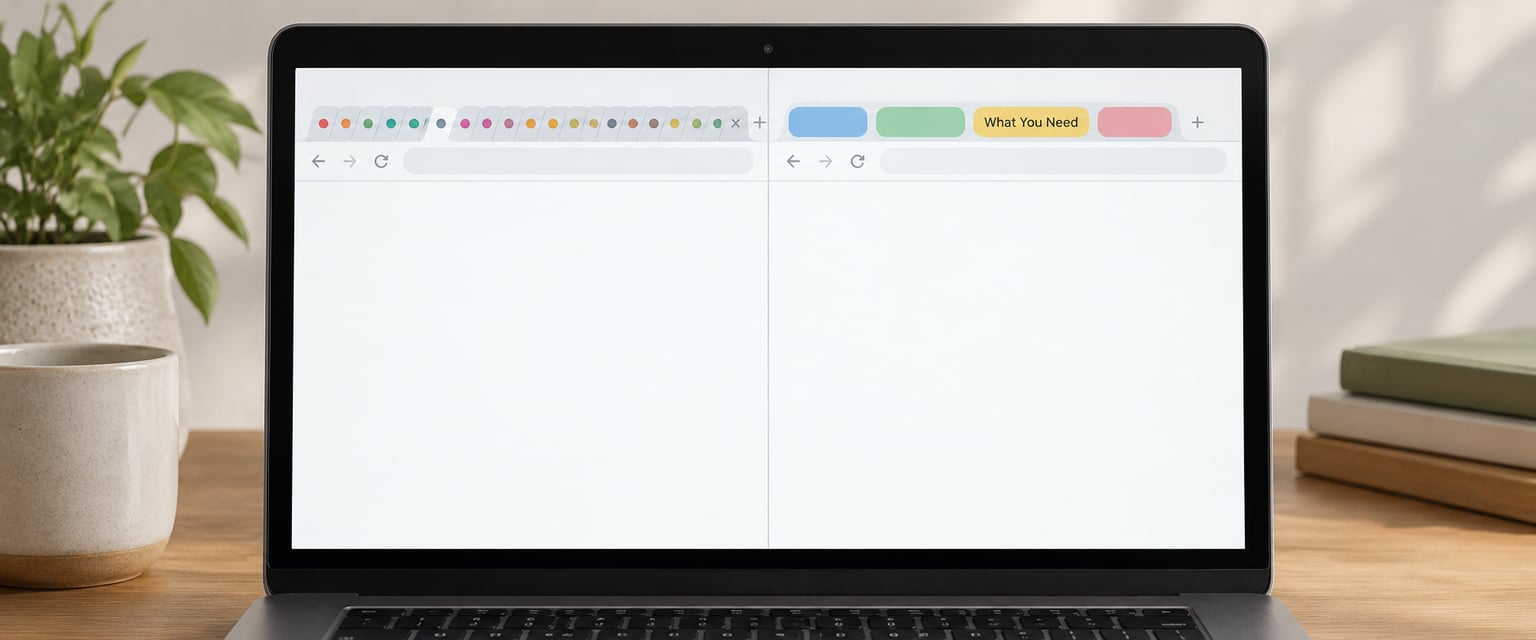
For a sense of the target, picture where you are heading: a window that currently holds dozens of mixed tabs becomes five named work areas, most of them collapsed to a single colored chip.
Step-by-Step
Below is the repeatable version of how to organize browser tabs in a way that survives contact with a normal week. Each step names the control, gives a concrete example, and ends with a test so you know it worked.
Step 1: Clear the existing tab clutter safely
Start by looking before you close anything. In Chrome and Edge, press Ctrl+Shift+T (Cmd+Shift+T on Mac) to walk back through recently closed tabs and windows one at a time. Firefox uses Ctrl+Shift+T as well, and Safari uses Cmd+Shift+T to reopen the last closed tab.
Sort every tab into one of three piles: keep it open, bookmark it, or close it. A page that took ten minutes to find should not be closed before you have either bookmarked it or written down where it came from.
To catch duplicates, look for the same site appearing two or three times in the strip. Chrome users can check the full list at chrome://history, where the search box accepts a domain name and shows every visit to it.
Worked example: I came back to a session with 96 tabs. I kept three, bookmarked five that I knew I would need again, and closed the other 88. The 88 were not gone, just in history, and I had not lost a single one of them.
Test: your tab strip should fit on screen without shrinking titles into unreadable slivers. If it still does not fit, you skipped a decision somewhere.
Step 2: Choose a simple folder structure
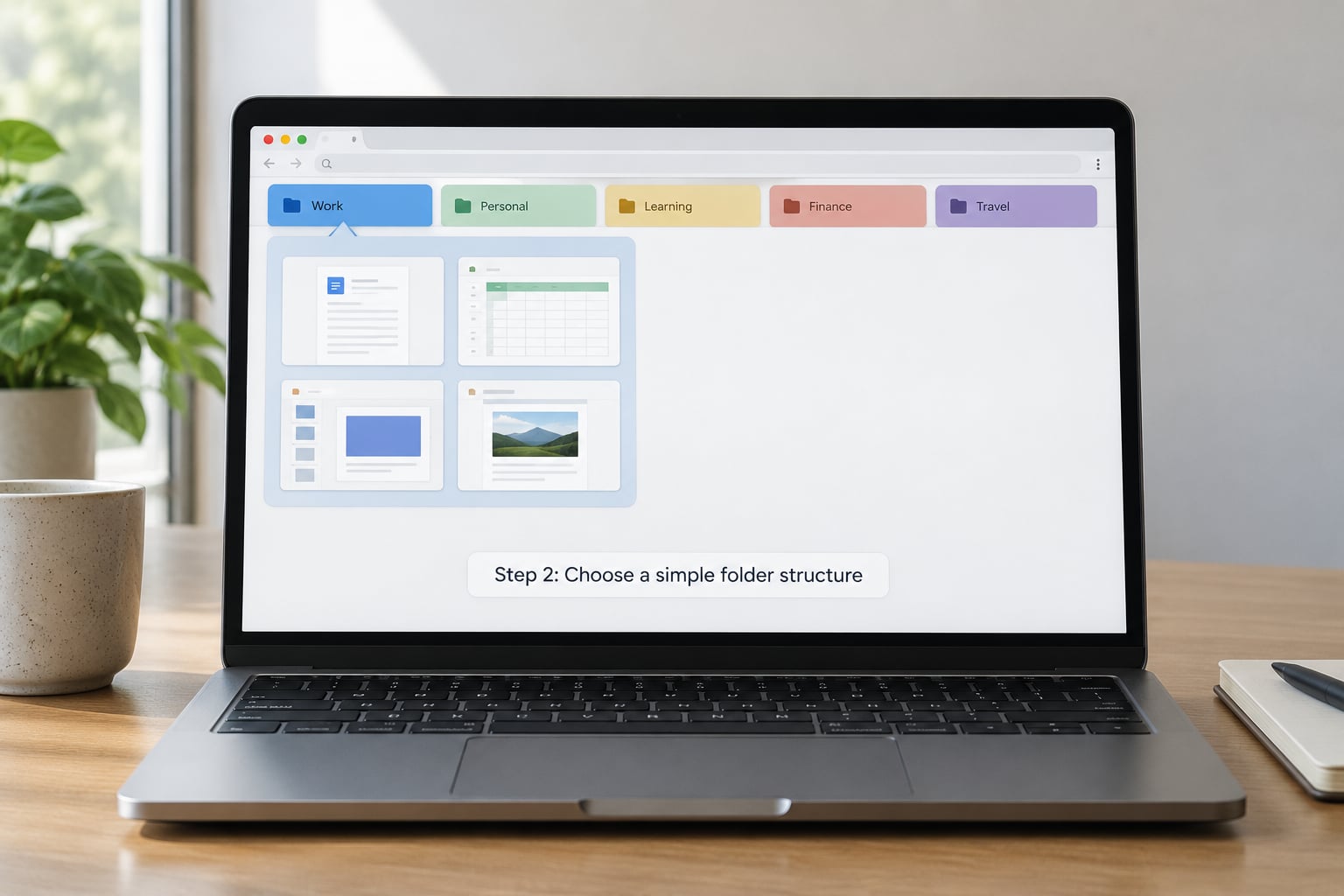
Pick five groups and stop. Work, Research, Shopping, Learning and Later is a fine starting set. Write them somewhere visible until you stop needing the reminder.
Name groups by outcome, not by application. “Q3 Launch” tells you what the tabs are for; “Google Docs” only tells you what program they are open in, which is already visible from the favicon. Boise State makes the same point about grouping by outcome, and it is the single rule that does the most work.
Fix a color per group and never change it. My convention is grey for internal work, blue for anything client-facing, yellow for reference material, and green for admin that has a deadline. Consistency is doing the recognition work so your brain does not have to read the label.
Five groups is deliberate. Forum threads about this problem repeatedly show people abandoning elaborate systems within weeks, while simple memorable naming conventions survive. Start at five and add a sixth only when one of them splits into two genuinely separate pieces of work.
Test: close the browser and reopen it. You should be able to say what each colored chip is for without clicking it.
Step 3: Put every new tab in its proper place
Adopt one rule and the rest follows: every new tab joins an existing group, becomes a bookmark, or gets closed. No fourth option, no floating tabs accumulating at the right end of the strip.
In Chrome, right-click a tab and choose Add tab to new group, or drag an existing tab into a group. In Edge, right-click and pick Add tab to group, or use the tab overflow menu in the top-left corner of the strip. In Firefox, right-click and choose Add Tab to New Group, then rename it from the group’s right-click menu.
Safari on macOS works slightly differently. Right-click a tab and choose Move Tab to New Group, or use the Window and Tabs menu to create a Tab Group first. On Safari 17 and later you can also switch on the sidebar, which turns the tab strip into a vertical list with full page titles.
Example: during a research afternoon, project tabs go into the Research group, reference documents go into Learning, and anything social gets closed within a minute. The point is not the category, it is that the decision takes under five seconds and the tab never sits loose.
Test: after an hour of browsing, no tab should be sitting outside a group. If one is, it is a loose tab and it gets a decision.
Step 4: Use vertical tabs when space is tight
Vertical tabs trade a thin strip of favicons for a sidebar of readable page titles. That matters on a laptop screen or in a narrow window, where a horizontal strip collapses into an unreadable row of slivers by about tab twenty.
To switch on vertical tabs in Chrome, click the three-dot menu at the top right and hover over View, then choose Vertical tabs. Edge does the same from the browser menu. Safari users can enable Show Tab Bar in the View menu on version 17 and later, which puts groups in a sidebar.
Firefox does not have a native vertical tab strip. Firefox power users tend to reach for Tab Stash or Winger instead, and those extensions have been in use for years without drama, according to long-running discussion in r/firefox.
Treat this as an optional layout, not a requirement. Vertical tabs help when you read tab titles and browse narrow windows. If you work mostly by favicon recognition or you dislike a sidebar, the named-group system works fine without it.
Test: open twenty tabs and see whether you can still tell them apart. If yes, leave the layout alone.
Step 5: Search and reopen tabs instead of hoarding them
Storing a tab for a week and searching for it in five seconds is a bad trade, and hoarding is the habit that gets people to 100-plus tabs. Search instead.
| Browser | Open tab search or history | Reopen last closed |
|---|---|---|
| Chrome | Ctrl+Shift+A, or the small arrow at the top-left of the strip | Ctrl+Shift+T |
| Edge | Ctrl+Shift+A from the tab search menu | Ctrl+Shift+T |
| Firefox | Ctrl+Shift+A, or the List all tabs button | Ctrl+Shift+T |
| Safari | History menu, or Cmd+Shift+A for tab overview | Cmd+Shift+T |
Search terms that work well are project names, domain names and exact page titles. Typing the project name in the Chrome tab search box pulls up every tab, window and device that mentions it, including ones you closed days ago.
This is also the honest answer to the most common request in browser forums, which is sorting tabs automatically. The built-in search is the closest thing to an assistant, and in practice it beats most auto-grouping tools because it does not guess wrong about what a tab is for.
Test: pick a page you closed last Tuesday and bring it back in under ten seconds without opening a search engine.
Step 6: Maintain the system with a five-minute routine
Setup is the easy part. What follows is the checklist I run at the end of every workday, and it takes about five minutes.
- Close every group whose work is finished, rather than leaving it collapsed and lingering.
- Rename any group whose label has stopped meaning something specific.
- Bookmark the reference pages you will want again instead of leaving them open.
- Suspend or save anything you genuinely need later, and put it in the Later group with a note about why.
- Open the next session with a clean strip: only the tabs for today’s first task.
If a day slips, do not try to catch up over the weekend. Just start the next session from a clean strip and treat the pile as unprocessed.
People often ask whether a large number of open tabs actually slows the browser down. Modern desktop browsers unload background tabs to save memory, and Chrome’s Memory Saver setting does this more aggressively than the default. Performance is real but modest; the bigger cost is the cognitive one, hunting through 80 unlabelled tabs to find one document.
Test: after a week, your Later group should be smaller than it was on Monday. If it is not, you are hoarding, not parking.
Common Mistakes
Most failed tab systems fail for one of six reasons, and each has a straight correction.
Over-grouping
Twelve groups is the same problem as twelve loose tabs, just with more clicking. Cap yourself at five or six and merge anything that splits below three tabs.
Vague labels
A group called “Stuff” or “Later” tells you nothing on Monday. Name it for the outcome, and if you cannot name it in three words, you do not understand the task well enough to start it.
Saving everything
The save-all-tabs button in Chrome’s bookmark manager is the most quoted workaround in browser forums and the most regretted one, because it produces bookmark folders holding a hundred tabs each. Save the five things you will actually return to, not the ninety you felt guilty about closing.
Duplicate tabs and bookmarks
They accumulate quietly. Sweep the history page and the bookmark manager once a month; it takes two minutes and removes the clutter that made you avoid the whole system.
Ignoring your phone and synced tabs
Desktop tidy is wasted if the phone stays at 99 tabs. On Android, Chrome supports tab groups from the tab grid: tap the number above the grid, then Group. On iPhone, Safari’s tab overview handles groups too, and iOS Safari carries your desktop tab groups and pinned tabs across devices when you are signed in to the same Apple account. Android sends your tab groups and recent tabs to signed-in devices as well.
Mixing temporary research with active work
When reading material and doing the work happen in one group, neither is easy to find. Keep active work in its own group and let Research hold anything you have not acted on yet.
On a cap: most people are comfortable with about 8 to 10 active tabs, and going much past 15 makes the strip hard to scan. Pick a personal ceiling and treat it as a soft limit rather than a rule you break daily.
Frequently Asked Questions
What is the easiest way to organize browser tabs?
Name five work areas, color them the same way every time, and collapse the ones you are not using. Give every new tab one of three fates: join a group, become a bookmark, or get closed. Then use your browser’s tab search rather than keeping tabs open as storage. Half an hour of setup covers most people, and a five-minute end-of-day sweep keeps it working.
Should I use tab groups or bookmarks?
Use both, for different jobs. Tab groups hold work in progress and should be closed when the task ends. Bookmarks hold destinations you will visit again on purpose, like a payroll portal or a company wiki. A page you might need next week belongs in a saved session or the Later group, not in a bookmark folder you will never open again.
How many browser tabs is too many?
Most people find more than about 15 open tabs hard to scan, and a strip past 30 stops showing readable titles entirely. A good working ceiling is 8 to 10 active tabs plus a few collapsed groups. The test is not the count but whether you can find a specific page in under ten seconds without searching.
Do Chrome, Edge, Firefox, and Safari tab groups work the same way?
They are close but not identical. Chrome, Edge and Firefox all create groups by right-clicking a tab, then let you rename and color them, and all three save groups across restarts. Safari uses Move Tab to New Group instead, and groups live inside windows rather than the window itself. Firefox has no native vertical tab strip, which is its main gap.
How can I find a tab I closed accidentally?
Press Ctrl+Shift+T on Windows and Linux or Cmd+Shift+T on Mac to reopen the most recently closed tab, and keep pressing to walk back through them one at a time. Chrome and Firefox also offer a full search box that finds tabs from previous sessions and other devices. Session managers like Tab Session Manager keep named sets you can restore wholesale.
Start today with one thing: right-click a tab, choose Add tab to new group, name it after what you are doing right now, and collapse it when you move on. The habit of giving each tab a place is worth more than any app you could install.