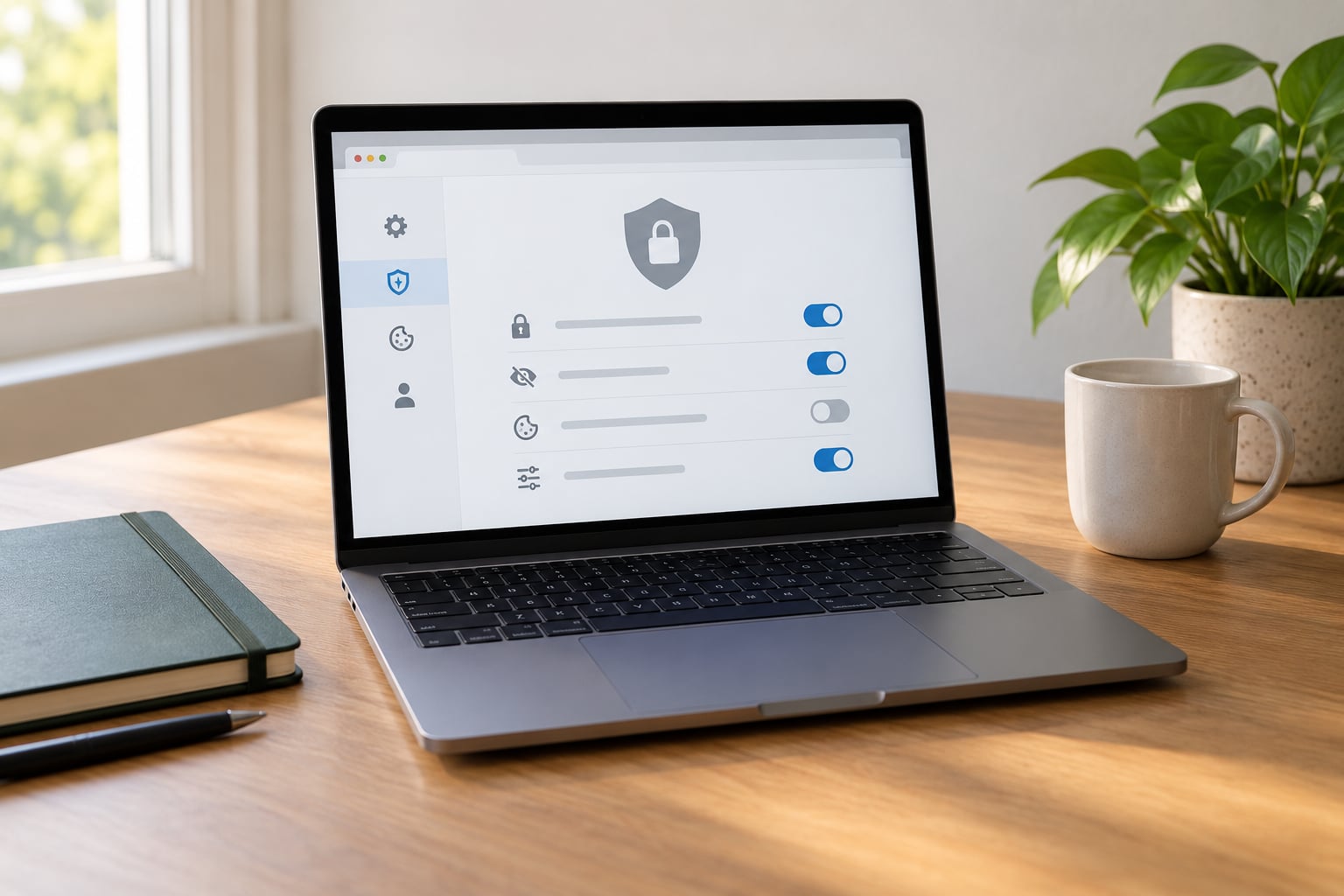
To block trackers in your browser, open the privacy settings your browser already ships with, turn its tracking protection up, block third-party cookies, and add one well-known blocker extension. In Chrome the whole job takes about two minutes: Settings > Privacy and security > Third-party cookies > Block third-party cookies.
A web tracker is any cookie, script, pixel, or fingerprinting method a site embeds to record what you open, search, and buy, usually without showing you anything about it. Those records get tied to an identifier and handed to a third party, which is how an ad for something you searched for shows up on a site you have never visited. Blocking means cutting off the identifier, the request it makes, or the script that creates it.
Ten minutes of setup covers a desktop browser and a phone. Do the built-in settings first because they survive updates, then decide whether you need an extension on top.
Table of Contents
- 1What You Need
- 2Step-by-Step
- 3How to Block Trackers in Your Browser in Firefox
- 4How to Block Trackers in Your Browser in Chrome or Edge
- 5How to Block Trackers in Your Browser in Safari
- 6Choose a Balanced Blocking Level
- 7Verify That Tracking Protection Is Working
- 8Common Mistakes
- 9Common Mistakes
- 10Frequently Asked Questions
- 11Which browser blocks trackers best out of the box?
- 12Does private browsing or incognito mode stop trackers?
- 13Does a VPN block trackers?
- 14Is uBlock Origin still working in Chrome?
- 15Why does a website break after I block trackers, and how do I fix it?
- 16Is Global Privacy Control better than Do Not Track?
- 17Conclusion
What You Need
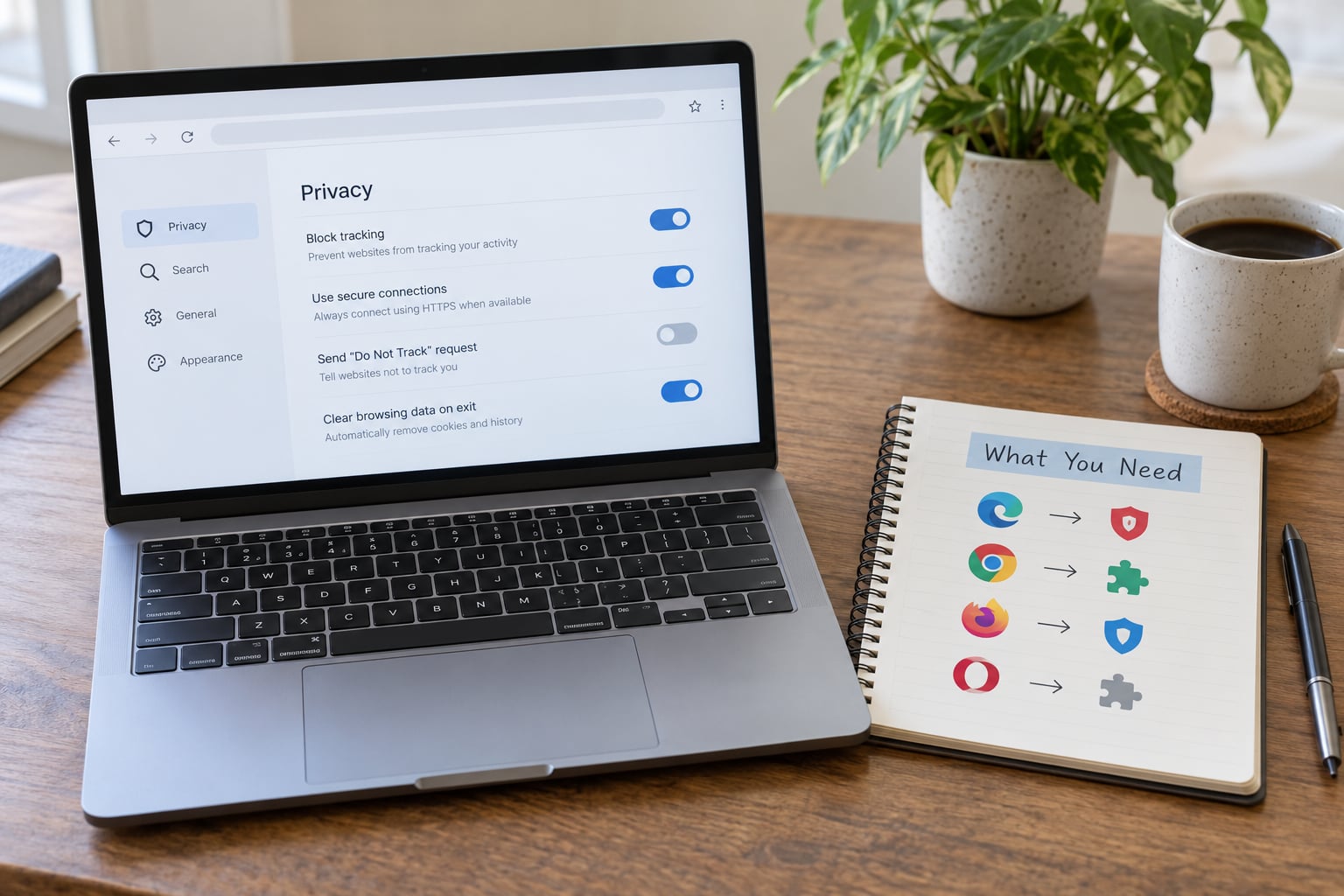
Nothing exotic. You need a current version of Chrome, Edge, Brave, Firefox, Safari, or Opera, and about ten minutes. Admin access helps on a work or school machine, though it is not always available.
Before you change anything, note these prerequisites:
- A browser that is not managed by an employer or school. Managed browsers hide the privacy settings, and a policy update can silently restore them. If settings keep reverting after an update, that is usually the reason.
- Access to your browser’s official extension store. Install blockers only from the store listing, never from a download link in an article or forum post.
- A second browser for testing. Several trackers load only on pages you already visited, so a fresh window is not always a clean read.
- Optional: a network request viewer. Every major browser ships one, and it is how you confirm the change took effect.
Nothing here needs a subscription or a separate app. If you want the strongest starting point, do this in Firefox or Brave first, then copy the equivalent settings into the browser you use most.
Step-by-Step
The order matters. Turn the browser’s own protections on first, then add a blocker, then check the result. Doing it in that order means you can tell which change fixed a problem.
| Browser | Tracking protection path | Block third-party cookies |
|---|---|---|
| Chrome | Settings > Privacy and security > Security > Enhanced protection | Settings > Privacy and security > Third-party cookies > Block third-party cookies |
| Edge | Settings > Privacy, search, and services > Tracking protection (set to Balanced) | Settings > Privacy, search, and services > Third-party cookies > Block third-party cookies |
| Brave | Settings > Shields (Block third-party cookies) | Included in the Shields defaults |
| Firefox | Settings > Privacy & Security > Enhanced Tracking Protection (set to Strict) | Settings > Privacy & Security > Cookies > Enhanced Tracking Protection |
| Safari on Mac | Settings > Privacy & Security > Prevent Cross-Site Tracking | Handled by Intelligent Tracking Prevention |
| Safari on iPhone and iPad | Settings > Privacy & Security > Prevent Cross-Site Tracking | Same setting, same name |
| Opera | Settings > Privacy & security > Block third-party cookies | Included in the standard settings block |
On every browser, also look for a Global Privacy Control toggle, usually sitting near the cookie settings. It sends a legally recognized opt-out signal that sites and downstream companies are obliged to honor, which plain browser settings do not.
How to Block Trackers in Your Browser in Firefox
Firefox has the most control of the major browsers, because its protection is a list you can read and adjust.
- Open Settings > Privacy & Security and find Enhanced Tracking Protection.
- Choose Strict if you want the heaviest blocking. Standard already handles most cross-site trackers.
- Leave the two boxes ticked for protection against known malicious sites and against trackers that fingerprint your device.
- Open the about:addons page in the address bar to install uBlock Origin from the official add-ons listing. Pick the plain uBlock Origin, not a copy with a similar name.
- After installing, open its dashboard. You should see a running count of requests it has blocked. If the number stays at zero on a page full of ads, something is wrong.
Strict mode occasionally breaks a login button or a checkout flow. When that happens, click the uBlock Origin icon, open the site list, and switch just that site to a lower setting rather than turning the whole extension off.
How to Block Trackers in Your Browser in Chrome or Edge
Chrome’s path is Settings > Privacy and security > Third-party cookies > Block third-party cookies. Turn that on first. Directly beneath it sits the Global Privacy Control toggle; switch it on too.
Edge mirrors the same layout under Settings > Privacy, search, and services > Tracking protection, where you pick from Off, Balanced, and Strict. Long-time Edge users report that pairing Strict with a separate extension causes conflicts and blank regions on some pages, so Balanced plus one extension is the combination I would pick.
One Chrome-specific wrinkle matters here. Chrome’s Manifest V3 extension rules limit how much any blocker can block with its own filter lists, and the Chrome Web Store version of uBlock Origin does less than the Firefox version. Read the developer’s note on the store listing before you judge it. If you want the full-strength filter list, Firefox is the better host for it.
How to Block Trackers in Your Browser in Safari
Safari’s protection is called Intelligent Tracking Prevention and it is on by default. On a Mac, open Settings > Privacy & Security > Prevent Cross-Site Tracking and confirm it is ticked. Turn on Hide IP address in the same place to limit what gets leaked to sites you connect to.
On an iPhone or iPad the same setting sits at Settings > Privacy & Security > Prevent Cross-Site Tracking. Below it, review what each app reports under Allow apps to request to track. Saying no to app tracking is the single most effective mobile change, and it is also the one most people leave alone.
What Safari will not do is show you a running count of blocked trackers, and it silently removes tracking data from your browsing history after a set period rather than blocking the request. If you want a visible panel and per-site rules, install a content blocker from the App Store. Do not expect the built-in settings to stop fingerprinting on their own.
Choose a Balanced Blocking Level
The middle setting is the one most people should live on. It blocks the trackers that follow you around and leaves the scripts that make a page work.
- Firefox: Standard is a good everyday level; Strict if you browse mostly through search and do not log into complicated web apps.
- Edge: Balanced, for the reason above.
- Filter lists: stick to the default list plus one or two curated extras. Every extra list raises the chance of a false positive.
- Avoid lists that promise to disable security warnings, certificate checks, or JavaScript globally. Those break the protections that keep a page safe.
- If a site breaks, fix that one site. Do not downgrade the whole browser.
A false positive is a script that looks like a tracker but is load-bearing, such as a login widget or an embedded payment form. The fix is always a per-site exception, never a global off switch.
Verify That Tracking Protection Is Working
Almost every guide stops at the toggle. Here is how to check that you actually changed something.
- Open your browser’s developer tools with F12, or Ctrl+Shift+I on Linux and Windows, then pick the Network panel.
- Reload a busy news or shopping page and watch the request list. Third-party domains appear as separate rows with their own names.
- With blocking off you will see analytics and ad domains loading. With blocking on, those rows either disappear or fail immediately.
- Run an established privacy test page, such as the fingerprinting check run by Privacy Badger or the tracker coverage test run by the Electronic Frontier Foundation. Compare the result before and after.
- Repeat the check in a private window. If the score improves there but not in a normal one, something is still carrying over between sessions.
Treat that score as a signal, not a certificate. Test pages can only see what they load, and a clean result does not mean every tracker on every site was stopped.
Common Mistakes
- Running two blockers at once. Two extensions that both filter requests produce duplicate rules, memory overhead, and broken pages. Pick one.
- Blocking first-party scripts. That is the script running on the site you are reading. Blocking it disables the site itself.
- Assuming a private window stops tracking. It only stops the browser from writing history locally. The trackers still load and still report.
- Leaving an extension on an old version. Filter lists update daily; a stale extension quietly blocks less.
- Expecting a header to end tracking. A signal like Do Not Track is voluntary and widely ignored. Global Privacy Control has legal force in several US states and is worth enabling anyway.
Common Mistakes
The most common problem is not weak settings, it is a wrong mental model. People spend an hour toggling browser options while the actual tracking comes from somewhere else entirely.
Believing incognito mode blocks trackers. It does not. A private window stops the browser saving your history and drops cookies when it closes, but the page still loads its analytics scripts and still reports your visit to the ad company. Use it for shared machines, not for privacy.
Expecting a VPN to stop tracking. A VPN moves your traffic through a different server and hides your home IP address from the destination site. Cookies, pixels, fingerprinting, and advertising identifiers all travel inside that connection and arrive exactly as before.
Relying on Do Not Track alone. It is a header that asks nicely. Very few large sites honor it. Global Privacy Control is the version with regulatory teeth behind it in several US states, and it is enabled in a couple of clicks on most browsers.
Installing two blockers. Long-time users across the Firefox and privacy communities generally recommend one blocker, usually uBlock Origin, plus built-in protection. A study comparing blockers found nearly everything Privacy Badger blocks is already covered by uBlock Origin’s lists, so running both adds breakage without adding coverage.
Fixing a broken site by disabling everything. That is how people lock themselves out of a bank login for a week. Use a per-site exception instead.
A short maintenance routine keeps the setup working:
- Review your extension list once a month and remove anything you do not remember installing.
- Check the blocker dashboard after a major browser update, because filter lists change under you.
- Clear cookies and site data on a schedule, roughly once a month, to reset any identifiers already stored.
- Re-check a privacy test page after every browser release; new features sometimes reset a setting without telling you.
- On a work or school device, accept that the settings are locked and focus instead on separating personal browsing into a personal profile or browser.
Frequently Asked Questions
Which browser blocks trackers best out of the box?
Firefox with Enhanced Tracking Protection set to Strict and uBlock Origin installed is the most adjustable setup you can get. Brave blocks the most by default with no configuration, since its Shields are on from the first launch. Chrome and Edge give you fewer controls, and Chrome’s extension rules limit what a blocker can filter. Safari blocks quietly and well but shows you no evidence of what it stopped.
Does private browsing or incognito mode stop trackers?
No. A private window keeps your history off the local machine and discards cookies when it closes, but the tracking scripts on the page still load and still report your visit. It solves a shared-computer problem, not a tracking problem. Blocking trackers requires a cookie setting, a tracking protection toggle, or a blocker extension.
Does a VPN block trackers?
A VPN hides your home IP address from the site you visit and shifts your traffic to a remote server. Cookies, tracking pixels, fingerprinting, and advertising identifiers all travel inside that same encrypted connection and arrive untouched. Pair a VPN with browser tracking protection if you want to cover both your address and your in-browser identifiers.
Is uBlock Origin still working in Chrome?
It works, but less thoroughly than in Firefox. Chrome’s Manifest V3 rules restrict the filter lists an extension can carry, so the Chrome version blocks fewer requests than the Firefox version on the same page. Firefox still allows the full list. If maximum blocking matters to you, run uBlock Origin in Firefox and use it as your main browser.
Why does a website break after I block trackers, and how do I fix it?
Usually a false positive: a script that looks like an ad tracker but actually runs a login, a payment form, or a comment box. Do not switch the blocker off globally. Open the blocker icon, find the site in its list, and either lower the blocking level for that one domain or allow it. If the site still fails, the culprit is usually a filter list rather than the built-in protection.
Is Global Privacy Control better than Do Not Track?
Yes, because it is enforceable rather than voluntary. Do Not Track is a header that asks sites to stop following you, and many large sites ignore it. Global Privacy Control is recognized by law in several US states, so sites that receive it must stop selling or sharing your personal data. Turn both on, since GPC costs you nothing extra.
Conclusion
Start with the settings your browser already has: block third-party cookies, set tracking protection to the middle or strict level, and turn on Global Privacy Control. Add exactly one blocker extension if you want per-site control and a visible count of what got stopped. Then run a privacy test page to confirm the change, and check it again after every major browser update.
That is the whole job. Ten minutes now beats an hour of tweaking a setup that was already doing most of the work.