To securely erase a hard drive before selling it, back up your files, confirm whether the drive is a mechanical hard drive or a solid-state drive, wipe it with the method that matches that drive type, then check the result before the machine leaves your hands. On Windows a reset with the clean data option turned on takes about an hour on a typical laptop. The job is beginner-level; the real risk is using a hard drive method on an SSD and believing a wipe that never happened.
Most of the anxiety comes down to one fact. Deleting files and formatting a drive do not destroy anything; they remove the index that points at your data, and the contents stay readable until new writes cover them. Software that recovers those files is cheap, and some buyers of second-hand machines go looking for it.
Key takeaways
- Back up first. A wipe is permanent and there is no undo.
- Know your drive type: mechanical HDD, SATA SSD, or NVMe SSD. The method changes completely.
- HDDs get overwritten sector by sector. One pass is enough for modern drives.
- SSDs need a Secure Erase command sent to the drive’s own controller, not an overwrite.
- Sign out of every account and save any encryption recovery key before the handoff.
- Pulling the drive and keeping it is the only option with zero risk, and it usually raises what the machine sells for.
Last updated: October 2026
Table of Contents
- 1What You Need
- 2Step-by-Step: How to Securely Erase a Hard Drive Before Selling It
- 3How to securely erase a hard drive before selling it: back up the data first
- 4How to securely erase a hard drive before selling it: identify the drive and choose the method
- 5How to securely erase a hard drive before selling it: erase Windows, macOS, or Linux
- 6How to securely erase a hard drive before selling it: erase an SSD with a secure sanitize method
- 7How to securely erase a hard drive before selling it: verify the result
- 8How to securely erase a hard drive before selling it: remove and prepare the drive for sale
- 9Common Mistakes
- 10Frequently Asked Questions
- 11Is formatting a hard drive enough before selling it?
- 12Should I use a secure erase method for an SSD?
- 13What is the best way to wipe a Windows or Mac hard drive?
- 14Can deleted files be recovered after a secure erase?
- 15Do I need to remove the hard drive before selling my computer?
- 16Does encrypting a drive first make it safe to sell?
- 17Conclusion
What You Need
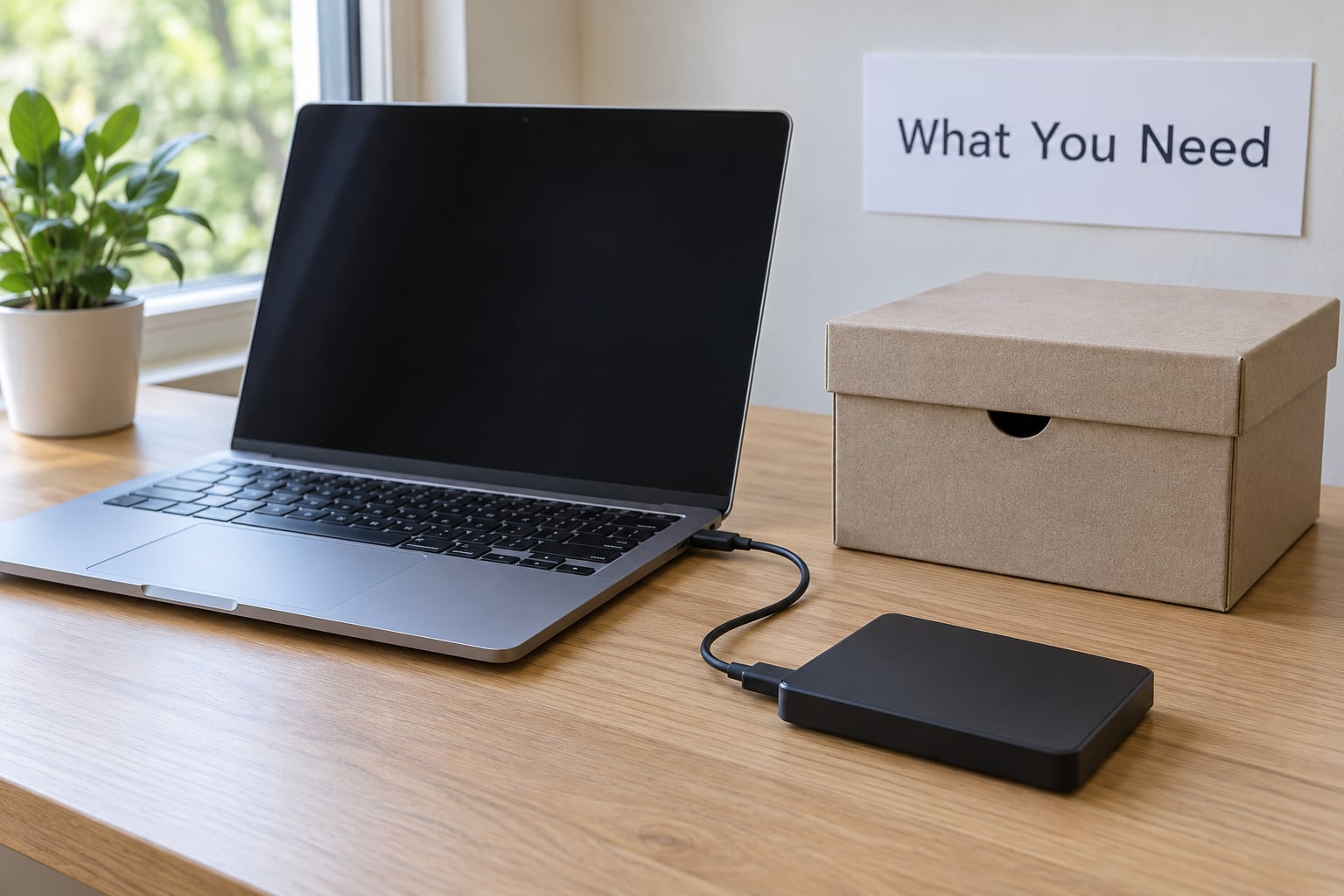
You need less than most people expect, and every item below is either free or already in the machine.
- The computer or drive you’re clearing. If you are selling the whole machine, note that it may hold more than one drive, plus a small recovery partition.
- A backup destination. An external drive with free space equal to or larger than your used storage, or cloud storage if your files are small.
- The erase tool for your system. Windows has a built-in reset, macOS has Erase All Content and Settings and Disk Utility, and Linux has nwipe or hdparm. Free options exist for every platform.
- An 8 GB or larger USB stick and Rufus if you plan to boot a standalone wiper such as DBAN, nwipe, or ShredOS instead of using a built-in menu.
- Time. A laptop reset runs roughly 30 to 90 minutes. A secure erase of an SSD takes minutes. A full overwrite of a 2 TB mechanical drive can take three to four hours or more.
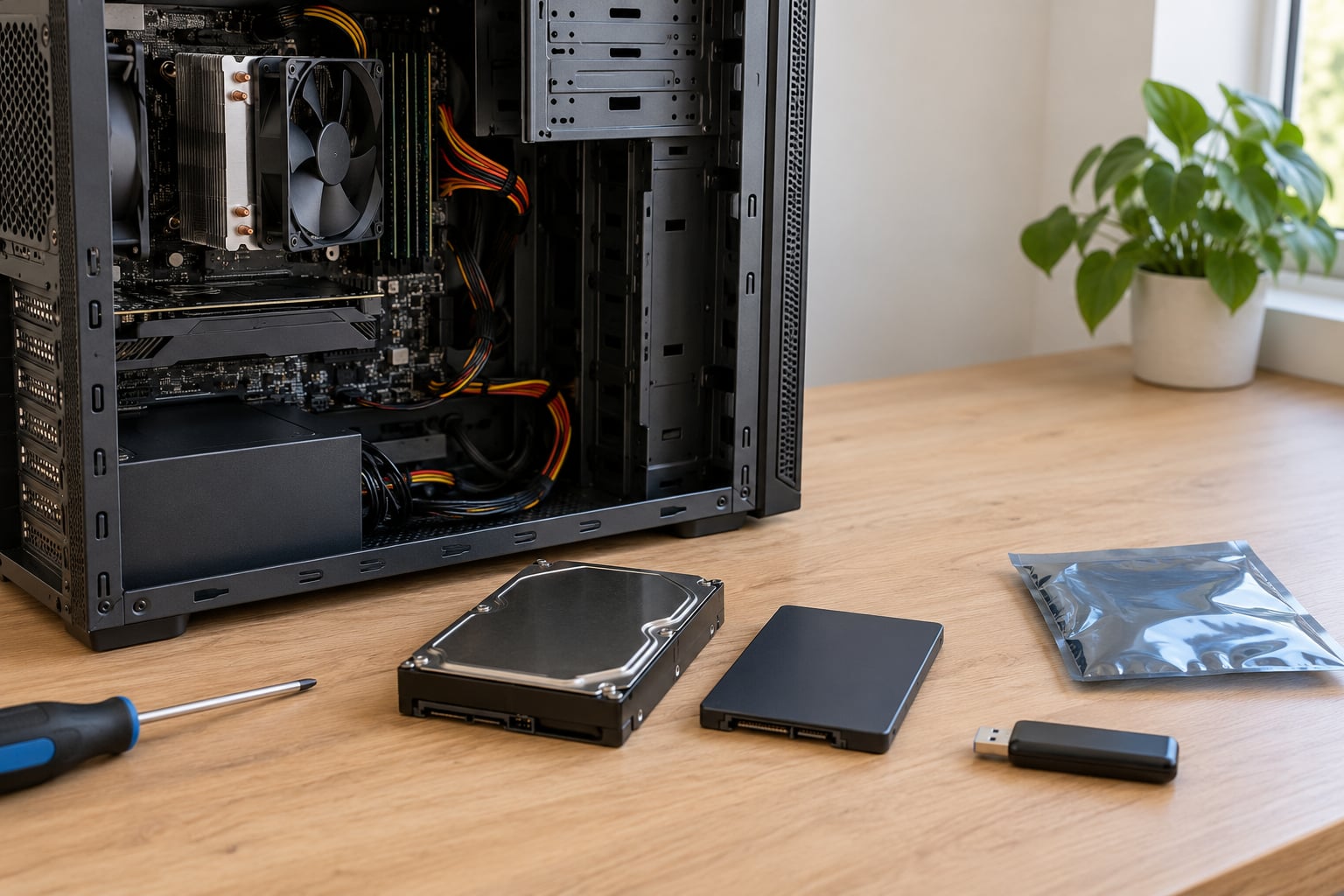
- A small screwdriver and an anti-static bag if you plan to remove the drive yourself, plus the original packaging if you have it.
- A way to check the result afterwards, which is covered in the verification step below.
If the drive is already dead or clicking, stop planning and skip to the last step in the sequence. A wipe you cannot run is not a wipe, and physical destruction or keeping the drive are your only real options.
Step-by-Step: How to Securely Erase a Hard Drive Before Selling It
How to securely erase a hard drive before selling it: back up the data first
Copy anything irreplaceable off the machine before you touch a single setting. Photos, scanned documents, tax records, saved game worlds, and a browser bookmark file you spent years curating all go to an external drive or a cloud folder.
Use the 3-2-1 rule if the data matters: three copies, on two types of media, with one stored somewhere else. Once the copy finishes, open a few of the biggest files and confirm they actually open. A backup that silently failed is worse than no plan, because you will only find out after the wipe.
While you have the machine working, save your encryption recovery key somewhere offline. On Windows that means the BitLocker key, which you can find under Settings, Accounts, Sign-in options. On a Mac, write down the FileVault recovery key from System Settings, Privacy and Security. Losing that key after a reinstall is a common and avoidable self-inflicted problem.
How to securely erase a hard drive before selling it: identify the drive and choose the method
You cannot pick a method until you know what you are wiping. Mechanical hard drives, SATA solid-state drives, and NVMe solid-state drives store data in completely different ways, and the tool that works on one of them does nothing useful on the others.
On Windows, press Win and R, type msinfo32, and press Enter. The System Information window shows the drive model and its media type. You can also open Task Manager, go to the Performance tab, and click Disk 0 on the left. The graph at the top tells you whether the drive is an SSD or a mechanical drive.
On macOS, open the Apple menu, choose About This Mac, then Storage, where the drive name and type appear. System Information, reachable from Spotlight, lists the model number, which you can match against the manufacturer’s specifications. On Linux, lsblk prints every block device with its model and whether it is a rotational disk.
| Drive type | Method that works | Tools to use | Typical time |
|---|---|---|---|
| Mechanical HDD | Overwrite every sector, one pass | DBAN, nwipe, DiskPart clean all | 1 to 4 hours for 2 TB |
| SATA SSD | Secure Erase or Sanitize via the controller | Manufacturer utility, DiskPart, Parted Magic | 5 to 20 minutes |
| NVMe SSD | NVMe Secure Erase or Sanitize | BIOS secure erase, manufacturer utility, Parted Magic | 2 to 10 minutes |
| Failing or dead drive | Physical destruction, or keep the drive | Cross-cut shredder, or destroy the platters and flash chips | Minutes |
| Encrypted drive | Destroy the key, then wipe normally | BitLocker, VeraCrypt, FileVault | Same as above |
Three words get confused constantly, so it is worth separating them. Deleting a file removes a pointer. Formatting a drive rebuilds a file system on top of the same data area. A secure erase actually overwrites or resets the data area itself, which is the only version a buyer cannot undo.
How to securely erase a hard drive before selling it: erase Windows, macOS, or Linux
On Windows 10 and 11, the built-in reset is the fastest route for a whole machine. Open Settings, go to System, then Recovery, and choose Reset PC. Select Remove everything, then Advanced settings, and turn on Clean all data for drives, which tells Windows to overwrite the storage rather than just delete the files. Pick Local reinstall if the buyer should have a machine that works without your Microsoft account attached to the activation, or Cloud download if you would rather not trust the existing install. Sign out of every account first, or the reset will refuse to start.
If you would rather work at the disk level, DiskPart is built into Windows and costs nothing. Right-click the Start button and open Terminal (Administrator) or Command Prompt (Administrator), then type these commands one at a time.
diskpart
list disk
select disk 1
clean all
exit
Read the list disk output carefully and match the size and model to the drive you intend to wipe. The wrong number here is unrecoverable, and the drive holding your operating system cannot be cleaned this way while Windows is running from it.
On macOS, open System Settings, choose General, then Transfer or Reset, and select Erase All Content and Settings. That returns the machine to factory state and removes the activation lock and your Apple ID from it in one pass. For a drive you are removing and selling on its own, open Disk Utility, choose the drive, click Erase, and pick a format. Older versions of macOS offer a Security Options menu with Secure Erase levels; current APFS drives do not, which is another reason to use an encryption-based approach on a Mac.
On Linux, the cleanest route is a bootable USB running nwipe or ShredOS, both free and both direct descendants of DBAN. From a terminal on a live system, sudo hdparm --user-master u --security-set-pass yourpassword followed by sudo hdparm --user-master u --security-erase-enhanced yourpassword issues the drive’s own Secure Erase command. Note that shred is for individual files; pointed at a device it is the wrong tool and can take days.
How to securely erase a hard drive before selling it: erase an SSD with a secure sanitize method
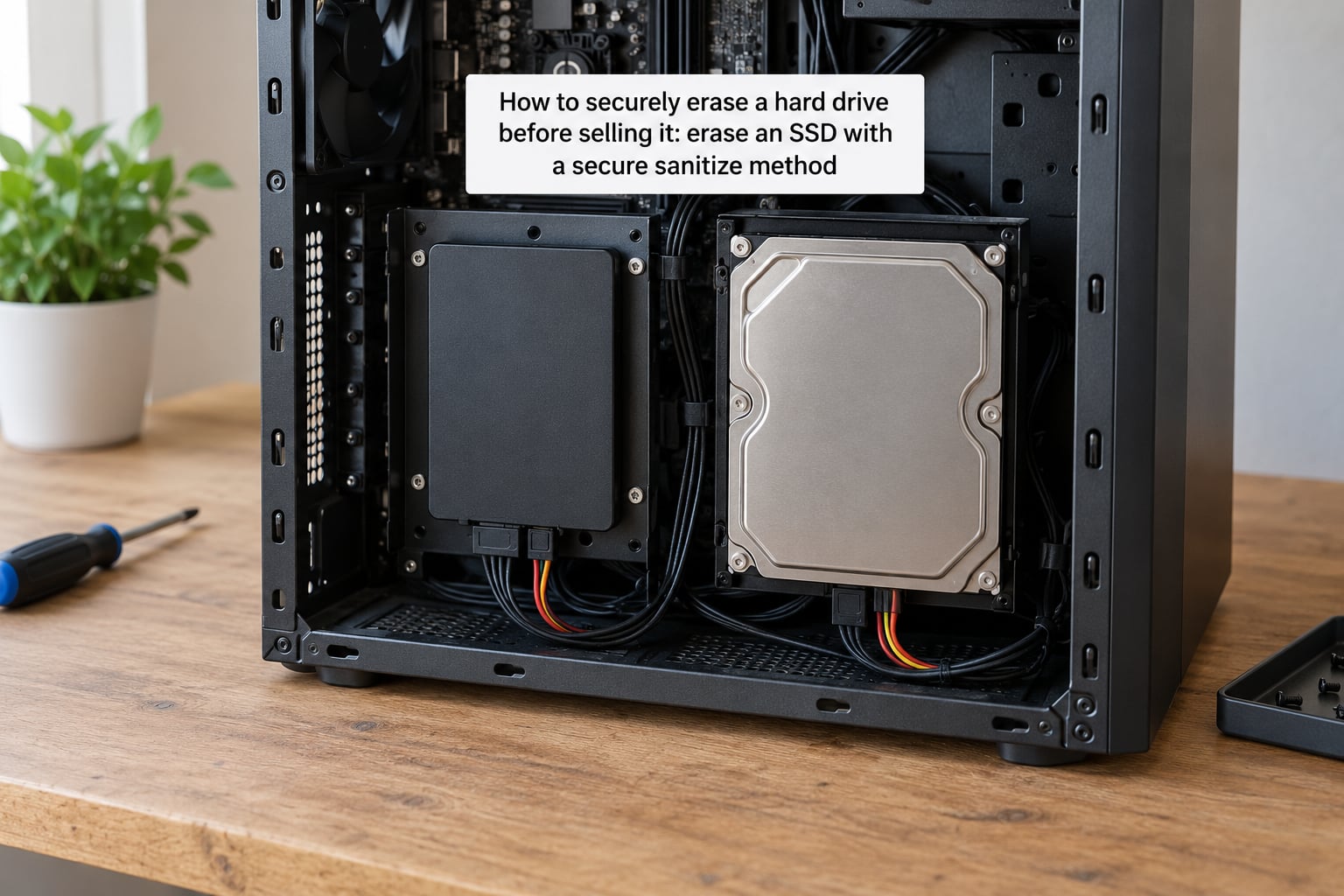
SSDs need a different approach, and this is where most guides go wrong. Flash memory is not written in the same physical order as a spinning disk. A controller spreads writes across the chip to even out wear, and it keeps a reserve area called over-provisioning that the operating system can never address. Overwriting visible sectors can therefore leave your old files sitting in blocks the controller quietly reuses later.
The TRIM command does not solve this. TRIM tells the drive which blocks are unused so it can erase them in the background, but recovery labs report pulling readable data off SSDs after a TRIM-assisted wipe. The reliable method is ATA Secure Erase, or NVMe Secure Erase on newer drives, sometimes labelled Sanitize. The command goes straight to the controller, which resets every cell, including the hidden ones, to factory state in minutes.
You have four ways to send it. Your motherboard’s UEFI setup often has a Secure Erase or Drive Erase option under storage settings, and it needs no extra software. The drive maker’s own utility does the job too, and these are the ones worth trying first: Samsung Magician, Crucial Storage Executive, Western Digital Dashboard, Kingston SSD Manager, SK hynix SSD Tools, ADATA SSD Toolbox, Sabrent Control Panel, and Seagate SeaTools. Parted Magic is a paid graphical front end that handles awkward cases and unusual hardware. DiskPart’s clean all works as a fallback, though it writes zeros through the normal interface rather than issuing a controller command.
If a utility lists your drive as Frozen, it means the interface will not send a secure erase while the drive is in use. Put the system to sleep with the power button and wake it, then reopen the tool and the drive usually becomes selectable. If a manufacturer tool does not recognise your model, that brand’s utility often only covers the drives it made, and another tool or the BIOS menu is the way around it.
The fallback when no secure erase tool exists for your drive is encryption first. Turn on BitLocker, VeraCrypt, or FileVault, let it finish, then wipe or format the drive. Destroying the key makes the ciphertext unrecoverable, and on a drive with full-disk encryption this is as good as erasing the platters.
How to securely erase a hard drive before selling it: verify the result
Verification takes five minutes and it is the step most sellers skip. After the wipe, open Disk Management on Windows and look at the disk you cleaned. It should appear as unallocated space with no partitions and no volumes, or be missing entirely if the tool took it out of the storage stack. Run list disk in DiskPart again and confirm no partitions are listed under that disk number.
Then do the check that actually matters: run a free file recovery scan over the drive. If the tool comes back with a handful of unrelated system files, the erase worked. If it turns up a folder called Desktop containing documents you wrote years ago, the wipe did not, and you still have time to try a different method.
Write down what you did before you forget it: the drive model, its serial number, the date, and the method used. For a business selling machines in volume, that note becomes the certificate of destruction your compliance team will eventually ask for, and NIST SP 800-88 Rev. 1 describes the Clear, Purge, and Destroy levels that such records are meant to document.
How to securely erase a hard drive before selling it: remove and prepare the drive for sale
Shut the machine all the way down before you open it. Sleep and hibernation keep power on the board and can restart work mid-wipe, so use a full shutdown and confirm the fans have stopped.
On a desktop, unplug the power cable and hold the power button for ten seconds to drain it. On a laptop with a removable 2.5-inch drive, disconnect the battery if you can reach it, then release the retention screw and slide the caddy out. M.2 drives just unclip at one end after removing the single retention screw. Keep the screw, and slide the old drive into an anti-static bag if it is going to travel.
Decide what you are actually selling. A bare drive earns more than a drive inside an old laptop, and a machine with a clean, working operating system is easier for a buyer to set up. If you keep the drive, the buyer never has any way to read what was on it and you do not need to verify anything. If you sell the whole machine, list it as fully wiped, and mention that the drive was erased rather than simply reset, because buyers have been burned by the difference.
Pack the computer with something that absorbs a drop, and do not tape loose screws to the case. Photograph the internals before you close it up; getting a machine back together in the wrong order is more common than damaging it.
Common Mistakes
Almost every seller who gets burned makes the same handful of mistakes, and each has a simple fix.
Sending it to the recycle bin. Deleting a file only removes its entry from the file system. Free recovery tools scan for orphaned entries on a wiped drive all day.
Running a quick format. A quick format rebuilds the file system and leaves every byte of your data underneath it. A full format on a mechanical drive overwrites the main data area, but it still leaves the drive’s internal spares untouched, and on an SSD it misses the over-provisioned space entirely.
Wiping the wrong drive. This is the one that hurts. Confirm the disk number against the model and size shown in Disk Management or list disk before you type any command that writes.
Skipping the backup. A wipe with no verified copy behind it turns a hardware problem into a permanent one. Open a handful of the copied files before you start.
Running DBAN on an SSD. Overwriting a solid-state drive is slow, unreliable, and adds wear for no benefit. Use a Secure Erase command or the encryption trick above instead.
Paying for seven-pass DoD 5220.22-M wipes. That seven-pass standard was written for drives far older than anything you are selling today. NIST SP 800-88 treats a single full overwrite as a valid purge for modern magnetic media, and the extra passes just add hours.
Trusting a data shredder app. Software that claims to shred by generating magnetic noise is not doing anything to your drive. It rewrites files, and the drive’s own cache can defeat it.
Believing scratching or water works. Scratching the cover does nothing to a sealed drive, and platters under a scratched lid may still spin and read. Submerging a drive in water corrodes the electronics and can leave a platter readable for months, so treat a wet drive as a live device until it is professionally destroyed.
Selling a machine that is still signed in. Windows will not complete a reset while a Microsoft account is attached. Remove accounts under Settings, Accounts, Your info, sign out, then reset. On a Mac, remove the device from your Apple ID list so activation lock does not follow it.
Forgetting the other drives. Machines with a second internal drive or a small system recovery partition keep data somewhere other than C:. Wipe every disk in the list, not just the first one.
One last piece of advice: write down the serial number of the drive you wiped and the date. If a buyer ever questions whether the machine was sanitized, that note answers the question without any argument.
Frequently Asked Questions
Is formatting a hard drive enough before selling it?
No. A quick format only rebuilds the file system and leaves your data underneath it, readable by recovery software. A full format overwrites the main data area on a mechanical drive but still skips the drive’s internal spare sectors, and on an SSD it misses over-provisioned space. Use a single-pass overwrite for an HDD and a Secure Erase command for an SSD.
Should I use a secure erase method for an SSD?
Yes, and it is the only reliable method for flash storage. Wear leveling and over-provisioning mean ordinary overwrites can leave old files in blocks the controller reuses later, and TRIM alone does not prevent recovery. ATA Secure Erase or NVMe Secure Erase tells the controller to reset every cell to factory state, usually in minutes.
What is the best way to wipe a Windows or Mac hard drive?
On Windows, use Settings, System, Recovery, Reset PC, choose Remove everything, then enable Clean all data for drives under Advanced settings. On macOS, use System Settings, General, Transfer or Reset, then Erase All Content and Settings, which also clears the activation lock. Both are free, take under an hour on a typical laptop, and leave a machine ready for the next owner.
Can deleted files be recovered after a secure erase?
After a proper purge, no, not with normal software or lab techniques. The exception is a drive with unrecoverable bad sectors, because the firmware may refuse to overwrite those regions, so keep such drives or destroy them physically. What people often confuse with recovery is the case where files were only deleted or the machine was merely reset, which leaves plenty behind.
Do I need to remove the hard drive before selling my computer?
You do not have to, but it is the safest choice and usually the one that pays best. A removed drive cannot be read by the buyer at all, so there is nothing to verify and no risk of a failed wipe. If you would rather sell the machine intact, wipe every internal drive and confirm afterwards that each one shows as unallocated space.
Does encrypting a drive first make it safe to sell?
It does, if you then destroy the key. Turn on BitLocker, VeraCrypt, or FileVault, let encryption finish, and wipe or format the drive, which discards the key along with everything else. Without the key the remaining data is ciphertext that no practical tool can read. Save your recovery key somewhere else first, or you will lock yourself out of your own machine.
Conclusion
Start with the two steps that prevent almost every disaster: copy your files somewhere you can reach later, and confirm whether the drive is a mechanical disk or a solid-state one. Everything after that depends on that answer, because an HDD wants a single full overwrite while an SSD wants a Secure Erase command sent to its own controller.
Then wipe it with the method that fits, check the result on the drive itself, and only hand the machine over once you have seen it come back empty. If you would rather not deal with any of that, pull the drive and keep it. That single decision removes the whole question.