The fastest way to transfer data from Android to iPhone is Apple’s free Move to iOS app, and it only works while the new iPhone is still sitting on its setup screen. The phone shows a transfer code, you type it into the Android, choose what to copy, and both phones move everything across your Wi-Fi. The catch is the setup screen itself: once you finish, Move Data from Android is gone and cannot be brought back without erasing the phone.
That leaves two very different jobs. If the iPhone is brand new and untouched, this takes about 15 minutes of setup plus the transfer time. If somebody already configured it, or handed it to you second-hand, you move your data category by category instead. This guide covers both, plus the things that never make the trip no matter which route you take.
Last updated: October 2026
Table of Contents
- 1What You Need
- 2Two different starting points
- 3Step-by-Step: How to Transfer Data From Android to iPhone
- 4Prepare the Android in five minutes
- 5Run the transfer
- 6How you know it worked
- 7How to transfer data from Android to iPhone using Google Drive
- 8How to transfer contacts and messages from Android to iPhone
- 9How to transfer data from Android to iPhone with a Mac or Windows PC
- 10Common Mistakes
- 11Frequently Asked Questions
- 12What is the easiest way to transfer data from Android to iPhone?
- 13Can I transfer everything from my Android phone to my new iPhone?
- 14Do I need a USB cable to transfer data from Android to iPhone?
- 15How long does transferring data from Android to iPhone take?
- 16Will my photos and contacts transfer automatically with Move to iOS?
- 17What should I do if Move to iOS stops or misses some data?
- 18Start During Setup and Rescue Your Authenticator Apps First
What You Need
Both routes assume a few things. If you are missing one of these, sort it out before you start, because a transfer that fails halfway is far more annoying than a ten-minute delay now.
- Both phones charged and plugged in. A flat battery mid-transfer is the most common way people lose progress.
- The same Wi-Fi network on both devices. Move to iOS is a wireless transfer. Cellular data on the Android is the single most reported cause of silent failure.
- Your Apple ID and password. iCloud turns up during setup, and you cannot skip past it.
- Your Google account password. Needed to sign in on the iPhone for photos, contacts, mail and calendars.
- An Android phone on Android 5.0 or later. Older versions have no Move to iOS app at all.
- A recent Android backup. Turn on Google backup in Android Settings > System > Backup before you do anything else. It is your fallback if something goes wrong.
- Free space on the iPhone. Have at least the size of your Android data available, plus a little breathing room. For large photo libraries, Move to iOS may also ask for temporary iCloud space.
- Two-factor authentication codes, sorted out first. Authenticator apps never sync between Android and iPhone. Transfer or re-seed them before you wipe anything.
Two different starting points
iPhone still on the Hello screen: use the main Move to iOS flow below. It moves photos, contacts, messages, apps, passwords and settings in one pass.
iPhone already set up and in use: the full one-pass transfer is off the table. Either erase the phone and redo setup, or move photos, contacts, files and messages separately. The next three sections cover both routes, so pick the one that matches your situation rather than reading everything.
Step-by-Step: How to Transfer Data From Android to iPhone
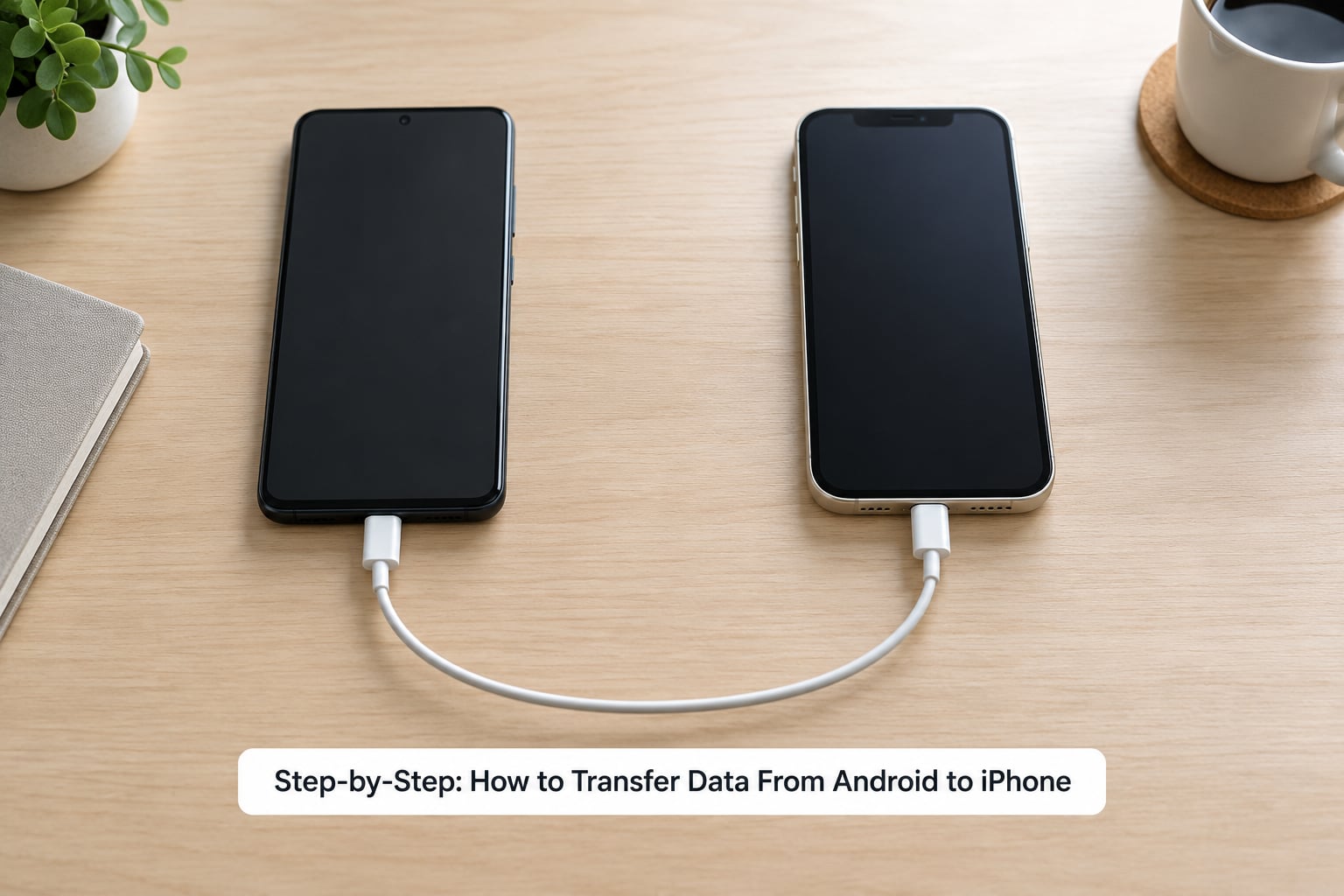
Before the walkthrough, a short honest comparison. Every route below is free and moves your data without installing third-party software on either phone.
- Move to iOS during setup is for a brand-new iPhone. It moves photos, contacts, messages, apps, passwords and Wi-Fi settings, needs Wi-Fi, and does not erase anything because it is part of setup.
- Erase and redo setup gives you the same one-pass transfer on an iPhone you configured yourself, but it wipes the phone first and still needs Wi-Fi.
- Google Photos and Google Drive move photos, videos and documents without touching the iPhone. Cloud access is the only requirement.
- Google account sync handles contacts, mail, calendars and notes. You only need the internet to sign in, not for the sync itself.
- A Mac or Windows PC is the route for big camera libraries and files you have already exported. It needs a cable and no internet.
- App-by-app transfer inside each app covers WhatsApp and other chat history. Nothing else moves, and most of these need a connection.
Prepare the Android in five minutes
Open Settings > Apps > Move to iOS and read the list of data types it can move before you commit. If you see something you need and it is greyed out, fix that first.
Turn off mobile data and keep Wi-Fi on. This is the single most repeated fix in transfer advice: a stalled import is usually a phone quietly hopping back onto the cellular network.
Plug both phones into power, put them face up on the same table, and leave them alone. Touching the iPhone mid-transfer, or answering a notification on the Android, can pause the copy.
Run the transfer
- Start the iPhone setup. Power on the new iPhone, choose your language and region, and connect to Wi-Fi when asked.
- Stop at the Apps & Data screen. This is the screen with the options to restore from an iCloud or computer backup, enter a Setup Assistant migration, or transfer from another phone.
- Tap Move Data from Android. It appears on the screen only while setup is unfinished.
- Install Move to iOS on the Android. The iPhone reads the code from the Play Store link automatically, or you can search for Move to iOS in the Google Play Store yourself.
- Tap Continue on the Android and enter the transfer code. The iPhone displays a six-digit code. Type it on the Android and tap Next.
- Choose your data types. Tick photos, contacts, messages, apps, passwords, Wi-Fi settings and anything else you want. Untick what you can re-download instead, like music and stock apps, to shorten the transfer.
- Let it run. Progress and an estimated finish time appear on the iPhone. Large libraries can run for an hour or more. Keep both phones charging, connected to Wi-Fi, and untouched.
- Finish setup. When the iPhone says the transfer is complete, tap Finish and continue through Apple ID, Siri and the rest of setup.
How you know it worked
The iPhone shows a transfer progress bar before it finishes, then a completion screen listing the categories copied. That screen is the first checkpoint, not the last one. Open Photos and scroll well past your most recent years, open Contacts and search for a name you will recognise, and check that your message thread with a family member is still there. Doing that now, while the Android is intact, is what saves you from finding a gap after you have wiped the old phone.
How to transfer data from Android to iPhone using Google Drive
Google Drive moves the loose files that do not appear in a device transfer: PDFs, spreadsheets, scanned documents, exported chat logs, downloads, project folders. It is also the simplest way to move photos when you would rather not use Apple’s app at all.
For files: install Google Drive on the Android, open the folder you want, tap each file, choose Share or Save to Drive, then open Drive on the iPhone and download into Files. For anything big, upload from a browser at drive.google.com instead. Uploading over Wi-Fi from a phone takes far longer than from a laptop.
For photos and videos: if Google Photos backup is already switched on for your Google account, most of your library is already in the cloud. On the iPhone, install Google Photos, sign in with the same account, and your library appears. Two details matter. Turn off View saved photos so images download in full resolution rather than as thumbnails, and be aware that anything above about 16 megapixels was compressed at upload unless you had storage available.
What this route does not move: contacts, SMS and call history, app data, saved passwords, authenticator apps, ringtones you bought, and any file still sitting only in the Android’s internal storage. Google Drive is a file mover, not a device migration.
How to transfer contacts and messages from Android to iPhone
Contacts are the easiest thing to move, and the easiest thing to duplicate. Messages are the opposite: SMS history can come with a setup transfer, but chat apps handle their own data and never ride along with Move to iOS.
Contacts, fastest way: if your contacts are synced to Google, sign in to that account on the iPhone and turn contacts on. On the iPhone, go to Settings > [your name] and check the account is listed, then open Settings > Contacts > Accounts and confirm Contacts is switched on for the Google account. Give it a few minutes, then search a surname. If contacts appear twice, you have imported and synced, so delete one source and keep the sync.
Contacts, export route: on the Android, open the Contacts app, open the menu, choose Import or Export, then Export to vCard and save the .vcf file. Send it to yourself by email, upload it to Drive, or share it directly to the iPhone. On the iPhone, open Settings > Contacts > Import and choose the file. Import as a new contact keeps the entry; merge it if you already have that person in iCloud.
Messages: SMS and MMS threads transfer with Move to iOS during setup, and they arrive as green bubbles. Turning on iMessage converts recent threads to blue, which needs an Apple ID and internet. WhatsApp keeps everything inside its own app: on the Android, open WhatsApp > Settings > Chats > Move Chats to iPhone, plug both phones in together on the same Wi-Fi, and follow the prompts. It needs a recent WhatsApp backup on the Android, so take one from the Chats menu first.
Signal, Telegram and most other encrypted apps do not transfer chat history this way. With those services you reinstall the app on the iPhone, sign in with the same number, and let the platform restore what it can from its own server-side backup. Anything still missing stays missing, so screenshot the conversations you cannot lose.
How to transfer data from Android to iPhone with a Mac or Windows PC
A computer is the slowest route but the most controllable one, and it is the only good answer for a camera library in the tens of thousands of shots. The path is Android to PC to iPhone, because neither phone can read the other’s storage directly.
Get the photos off the Android: connect it with a USB cable, unlock it, and choose File transfer or MTP when prompted. On Windows, File Explorer opens the phone, then Internal storage > DCIM > Camera. Drag the whole folder to your desktop. On macOS, use Android File Transfer or a third-party file manager, since Finder cannot read an Android phone.
Put them on the iPhone: on a recent macOS version, Finder replaced iTunes for device management. Connect the iPhone, unlock it, tap Trust This Computer, select the phone in the sidebar, then open the Files tab and drag the DCIM folder in. On Windows, use iTunes or the Apple Devices app, pick the iPhone, and use its file transfer view to copy the same folder into DCIM. The Photos app needs a moment to index new files before everything shows up.
What a computer cannot do: it cannot move app data, message history, authenticator apps, or contacts that exist only inside the Android Contacts app with no Google account behind it. Contacts need a vCard export first. Music you ripped yourself can be dragged across to the Music app, but purchased and DRM-protected tracks cannot.
Common Mistakes
The transfer stops at a percentage and never finishes. Almost always a network or power problem. Cancel it, turn mobile data off on the Android, confirm both phones are on the same Wi-Fi band, plug both in, restart both devices, and run it again.
Move to iOS is not in the Play Store, or there is no Play Store. Huawei devices and other phones without Google Play Services cannot install the app at all. On these, move photos through Google Drive or a PC, contacts through a vCard export, and messages app by app. No workaround restores the missing one-pass transfer.
The iPhone says Move Data from Android is unavailable. Setup is already complete. You can only bring the option back with Settings > General > Transfer or Reset iPhone > Erase All Content and Settings, then redo setup. Back up first, because that path erases everything on the iPhone.
Photos appear twice. Usually Google Photos syncing alongside a manual copy. Decide on one route and delete the other. Check the iPhone Photos app and the iCloud library rather than assuming which copy is which.
The Files app freezes when opening imported photos. Some files stored by Android apps in unusual formats do not render properly on iOS. Close the app, force quit it, and move the offending files to an iCloud-compatible folder or re-download them through Google Photos.
Contacts are missing entirely. Either they were never synced to Google, or the account on the iPhone has the Contacts toggle off. Go back to Settings > Contacts > Accounts and switch it on, then export a .vcf from the Android as a guaranteed copy.
The transfer runs out of space or stalls on iCloud. A large photo library can need temporary iCloud capacity. Check free space in Settings > [your name] > iCloud before you start, and remove video downloads from your existing library first if you are tight.
Samsung phones. Samsung Smart Switch offers a similar one-time transfer, but it runs as an alternative to Apple’s setup screen rather than alongside it. Pick one path, not both, or you can end up with half-migrated accounts.
Frequently Asked Questions
What is the easiest way to transfer data from Android to iPhone?
The easiest route is Apple’s free Move to iOS app, run while the new iPhone is still on its setup screen. Choose Move Data from Android on the Apps and Data screen, install the app on your Android, enter the transfer code the iPhone displays, and pick your data types. It moves photos, contacts, messages, apps and passwords over Wi-Fi in one pass, with no computer and no paid software.
Can I transfer everything from my Android phone to my new iPhone?
No, and the gaps are worth knowing before you wipe the old phone. WhatsApp, Signal and most encrypted chat histories do not come across in a device transfer. Authenticator apps, banking apps, DRM-protected music, some ringtones and Android-specific files never move, and you cannot run Android apps on iOS at all. Everything else, including photos, contacts and SMS history, does transfer.
Do I need a USB cable to transfer data from Android to iPhone?
No. Move to iOS and the Google sync routes are wireless, and a USB cable is not required for either one. The cable only matters for the computer route, where you copy photos and files from the Android to a PC or Mac and then push them onto the iPhone. Keep both phones charging during a wireless transfer, but the charging lead does not need to connect the two devices to each other.
How long does transferring data from Android to iPhone take?
A few gigabytes of contacts, messages and apps usually finish in well under an hour. A large photo or video library is the slow part, and can take a few hours on an average home connection. The main causes of a slow run are mobile data left on, phones that are not plugged in, and a crowded Wi-Fi network. Clearing both phones and restarting the router beforehand makes a noticeable difference.
Will my photos and contacts transfer automatically with Move to iOS?
Only the categories you actually tick. Move to iOS shows a checklist on the Android and transfers each item you select, so you control exactly what moves. Photos, contacts, messages, apps, passwords and Wi-Fi settings are all offered separately. Untick anything you can download again later, such as music and stock apps, and the transfer finishes noticeably faster.
What should I do if Move to iOS stops or misses some data?
Cancel the transfer, turn mobile data off on the Android so it stays on Wi-Fi, plug both phones in, and restart both before trying again. If data is still missing, move it by type: Google Photos for media, Google account sync for contacts, a vCard export for address books, and the in-app transfer inside WhatsApp for chats. Keep the Android intact until you have confirmed everything arrived.
Start During Setup and Rescue Your Authenticator Apps First
If the iPhone is still on the Hello screen, use Move to iOS now and let it carry contacts, photos, messages and passwords in one pass. If setup is finished, decide honestly between erasing the phone and moving things one by one.
Before you wipe anything, get your authenticator apps sorted, since those never sync between platforms and nobody wants to discover that at the login screen. Check that your photos, contacts and key message threads are actually on the new phone. Only then trade in or erase the Android.