Learning how to choose a Linux distro for beginners comes down to three things: how familiar the desktop feels, how well your hardware is supported, and how much help you can find when something breaks. For most people moving over from Windows, Linux Mint Cinnamon is the least jarring place to start, while Ubuntu Desktop LTS is the safer pick if you plan to follow online tutorials word for word. Best of all, you can try either one from a USB stick without touching the drive inside your computer.
Table of Contents
- 1What Makes a Linux Distribution Beginner-Friendly?
- 2What a Linux distribution actually is
- 3The seven criteria worth comparing
- 4The desktop environment is the real decision
- 5Which Beginner-Friendly Linux Distros Should You Consider?
- 6Linux Mint Cinnamon: the comfort pick
- 7Ubuntu Desktop LTS: the tutorial pick
- 8Fedora Workstation: current software, steeper documentation
- 9Zorin OS and Pop!_OS: polished newcomers
- 10Older hardware: pick a lighter desktop
- 11Skip these as your first distro
- 12How Do You Choose a Linux Distro for Beginners Based on Your Needs?
- 13How to choose a Linux distro for beginners: three questions
- 14Match your situation to a distribution
- 15Dual boot, replace, or run a virtual machine
- 16Should You Choose a Beginner Distro or a More Customizable One?
- 17How Can You Test a Linux Distro Before Installing It?
- 18What Should You Do After Choosing a Distribution?
- 19What breaks after switching
- 20First-week checklist
- 21Frequently Asked Questions
- 22Is Ubuntu or Linux Mint better for a beginner?
- 23Do I need to know command-line coding to use Linux Mint?
- 24Will installing Linux damage my Windows installation or files?
- 25Can I try a Linux distribution without installing it?
- 26Which Linux distribution works best on older computers?
- 27How do I check whether my computer is compatible with Linux?
- 28Conclusion
What Makes a Linux Distribution Beginner-Friendly?
What a Linux distribution actually is
The Linux kernel on its own is not an operating system you can install and use. A distribution bundles that kernel with a desktop environment, a package manager, an installer and a set of preinstalled apps, so you get a working computer after one download.
That is why there are hundreds of distributions. They differ mainly in which desktop they ship with, how quickly they update, and how much they assume you already know.
The seven criteria worth comparing
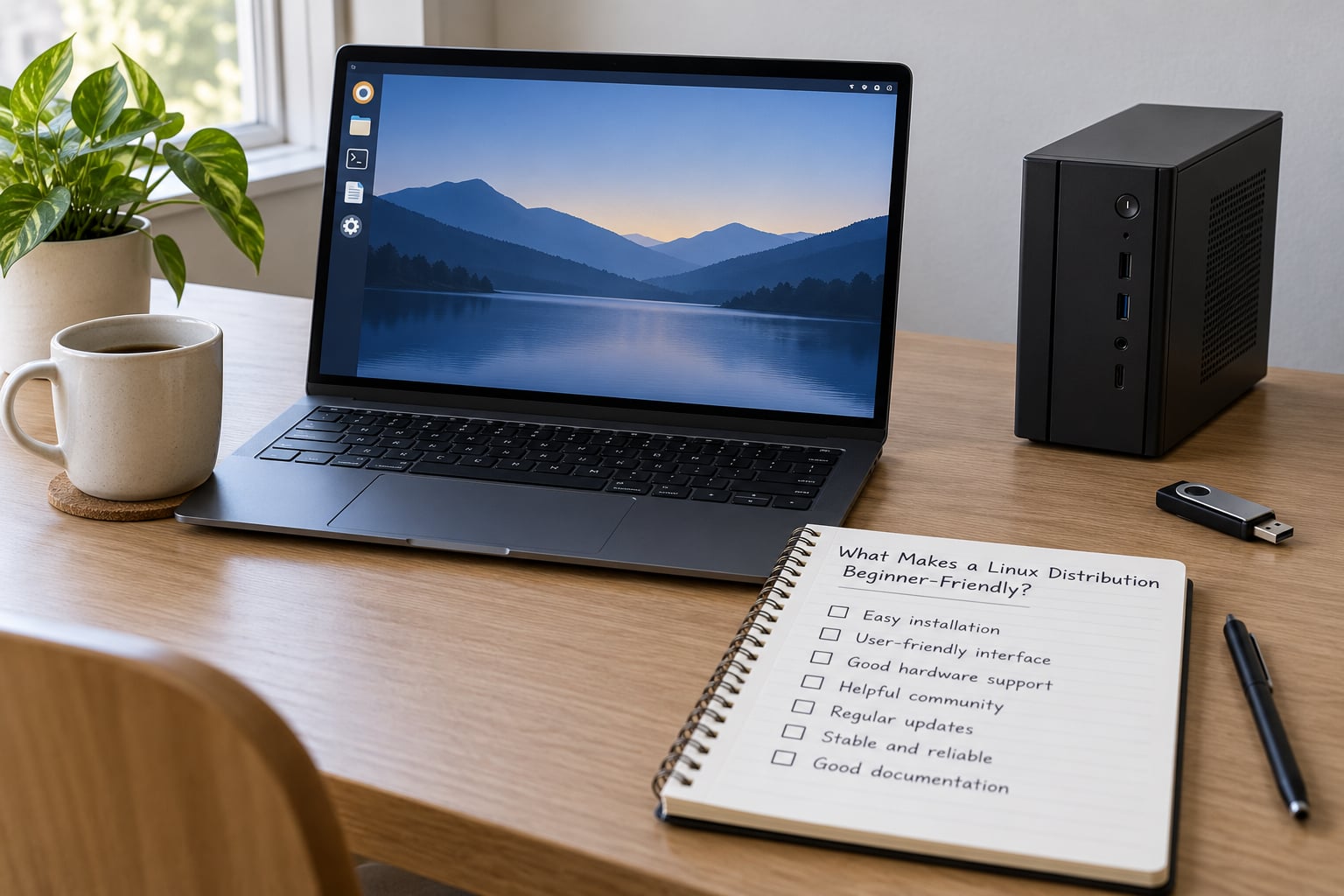
Beginner-friendly is not a marketing label. It means seven concrete things:
- Installation difficulty. A graphical installer that runs from a USB stick, with a clearly worded partitioning step.
- Desktop familiarity. A start menu, a taskbar and a file manager that a Windows user recognises on sight.
- Hardware and driver support. Wi-Fi, Bluetooth, audio and graphics working out of the box on your specific model.
- Software availability. The apps you actually need, available from the official store or repository.
- Documentation and community. Searchable answers on the web, which matters more than any feature list.
- Privacy and update policy. Whether the distribution phones home, and how long each release gets support.
- Recoverability. A clear way to install alongside Windows or undo the whole thing.
The documentation line is the one beginners underestimate. If you are following a course, a YouTube walkthrough or an answer from a forum, that guide was almost certainly written for Ubuntu and its apt package manager, so matching it saves you a lot of head-scratching.
The desktop environment is the real decision
Most of the personality difference between distributions comes from the desktop environment, the layer that draws your windows, menus and settings.
- GNOME is polished and modern, with a large community and thorough documentation. Ubuntu ships it by default.
- Cinnamon looks and behaves most like Windows, which is why Linux Mint builds its whole identity around it.
- Xfce is lighter and uses less memory, which makes it a better fit for older laptops.
Two distributions built on the same desktop can feel entirely different to a beginner. Compare the desktop first, then the release behind it.
Which Beginner-Friendly Linux Distros Should You Consider?
Linux Mint Cinnamon: the comfort pick
Mint is built on Ubuntu, so nearly every Ubuntu tutorial works on it. Cinnamon gives you a familiar layout, and the Update Manager handles driver and system updates through one screen, which removes most of the guesswork from a first month.
It suits Windows switchers, family computers, and anyone who wants things to work quietly without reading release notes.
Ubuntu Desktop LTS: the tutorial pick
Every long-term support release gets five years of security updates, and Ubuntu ships proprietary media codecs and drivers out of the box, so movies, HDMI and some wireless chips behave better than on many alternatives.
Pick it when you are following a course, applying for jobs that expect Ubuntu, or want the largest community and the deepest documentation available to beginners.
Fedora Workstation: current software, steeper documentation
Fedora ships newer software than Ubuntu and has a strong reputation for upstream work. Its package manager is dnf rather than apt, so commands copied from an Ubuntu tutorial will fail until you translate them.
It is a good second distro, not a bad first one, if you read documentation closely.
Zorin OS and Pop!_OS: polished newcomers
Both are designed specifically with newcomers in mind. Zorin imitates the Windows layout closely and offers a guided tour on first boot, while Pop!_OS ships with sensible defaults and handles graphics switching on hybrid laptops.
Choose them for a gentler first contact with Linux, and accept a smaller community than Mint or Ubuntu when you need troubleshooting help.
Older hardware: pick a lighter desktop
If the machine has 4 GB of RAM or less, or struggles to feel current under Windows, the desktop matters more than the distribution. Linux Mint Xfce, Xubuntu, MX Linux and Linux Lite all consume far less memory than a full GNOME desktop.
Same repositories, same software, smaller footprint. A very old 32-bit machine is a different case entirely and needs a dedicated 32-bit project rather than any of these.
Skip these as your first distro
Kali Linux is a security testing toolkit with a rolling release and no default desktop; it is not a general-purpose first system. Arch and Gentoo expect you to build the system yourself. Random community spins often ship outdated repositories.
None of that makes them bad. It makes them a project for month two, not day one.
How Do You Choose a Linux Distro for Beginners Based on Your Needs?
How to choose a Linux distro for beginners: three questions
Answer these in order and the decision usually makes itself.
- Is the machine 64-bit? Any laptop or desktop bought in the last decade is. Check Settings, About, or System Information on Windows. A 32-bit machine needs a 32-bit distribution.
- Do you follow tutorials? If yes, choose Ubuntu or Linux Mint so that apt commands, PPA instructions and course labs match what you read.
- Will you troubleshoot? If you would rather everything just work, pick a polished desktop and never open a terminal. If you enjoy fixing things, the constraint disappears.
Then check the specific hardware that usually causes trouble. Wi-Fi and Bluetooth chips need driver support, and some very new laptop wireless hardware has no Linux driver at all. Graphics cards from the last one or two generations may need an additional driver enabled before they perform well. Printers, scanners and specialised peripherals are the second common trouble spot.
Storage matters less than people expect. A comfortable working minimum is about 25 GB of free space with 4 GB of RAM, and 8 GB of RAM makes the difference between smooth and sluggish in a browser with twenty tabs open.
Match your situation to a distribution
| Your situation | Pick this | Why |
|---|---|---|
| Switching from Windows, want a familiar desktop | Linux Mint Cinnamon | Windows-like layout, Ubuntu tutorials still apply |
| Following a programming course or tutorials | Ubuntu Desktop LTS | Matches nearly every guide online |
| Old laptop with 4 GB RAM or less | Linux Mint Xfce or Xubuntu | Lightweight desktop leaves memory free |
| Shared family computer | Linux Mint Cinnamon or Zorin OS | Familiar layout reduces support calls |
| Privacy-focused everyday browsing | Fedora Workstation or Linux Mint | No ads or tracking baked into the desktop |
| Want the newest software versions | Fedora Workstation | Ships recent kernels and desktop stacks |
| Not ready to give up Windows | Any of the above, dual booted | You can boot either system from a menu |
Dual boot, replace, or run a virtual machine
These three options solve different problems, and beginners usually mix them up.
- Virtual machine runs Linux in a window inside Windows. Nothing about your Windows install changes, which makes it the safest place to look around. A virtual machine needs at least 8 GB of assigned memory to feel comfortable.
- Dual boot puts Linux on the same machine in its own partition with a boot menu at startup. Nothing is deleted if you shrink the Windows partition carefully, but resizing is the step where beginners make mistakes.
- Full replacement wipes Windows entirely. It is the cleanest result and the least reversible.
For a first attempt, the virtual machine answers “does this feel right to me” and the live USB answers “does my hardware work”. Install for real once both are yes.
Should You Choose a Beginner Distro or a More Customizable One?
Customization sounds appealing until you realise how much of it is maintenance. This is roughly how the community ranks distributions by how much they ask of you.
| Level | Distributions | What you take on |
|---|---|---|
| Easy | Linux Mint, Ubuntu Desktop, Zorin OS, Pop!_OS | Graphical installer and store, almost no command line |
| Moderate | Fedora Workstation, Debian, openSUSE | Occasional terminal work, different package manager |
| Difficult | MX Linux, Manjaro, elementary OS with tweaks | Resolving conflicts, mixing repositories responsibly |
| Expert | Arch, Gentoo, NixOS | Building or declaring the whole system yourself |
The other axis is release cadence. A fixed-release distribution such as Ubuntu LTS ships tested updates on a schedule and stays stable for years. A rolling release such as Arch delivers the newest software the day it ships, which means more frequent change and less forgiveness when something breaks.
For your first months, a fixed-release distribution with long-term support is the sensible default. It gives you a system whose state you can describe in one sentence, which makes searching for help far easier.
Switching later is normal and not a failure. Keep your documents in your home folder, back up before any reinstall, and you can move to a different distribution whenever your needs change.
How Can You Test a Linux Distro Before Installing It?
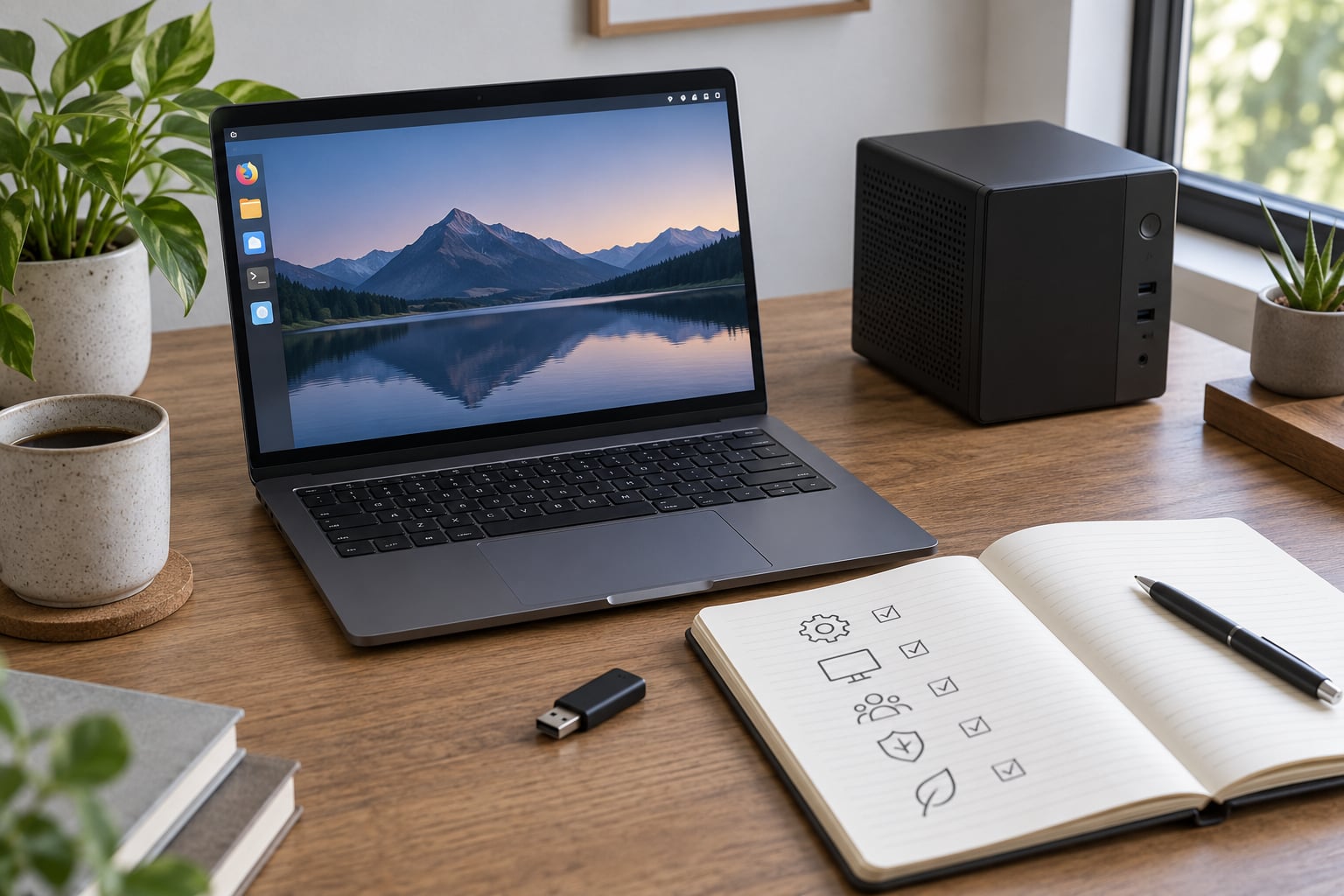
A live USB runs the entire operating system from the flash drive, so you get the real desktop, the real driver situation and the real performance without installing anything.
- Download the ISO from the official site. Use the distribution’s own domain. Mirrors listed in blog posts and forum comments are a common source of tampered files.
- Write the image to the stick. Pick a USB drive of 4 GB or more, then use Rufus on Windows or Balena Etcher on Linux and macOS. This step copies the image onto the drive. Simply dragging the ISO file onto the drive does not work, and that is the single most common beginner mistake.
- Boot from the USB. Restart with the stick plugged in and open the boot menu, usually by holding F12, F9, F8, F11 or Esc as the machine powers on, or Command and Option on an older Mac.
- Test the hardware. Join a Wi-Fi network, play a video with sound, move the mouse, type on the keyboard, use the touchpad, and check an external monitor if you use one.
- Decide from what failed. If everything worked, install. If Wi-Fi did not connect, you can often fix it from the terminal once online elsewhere, but on unsupported hardware you should pick a different distribution instead.
The live session runs from RAM, so changes vanish when you power off. Anything you save goes to the drive, not the stick.
What Should You Do After Choosing a Distribution?
Turn the decision into a sequence. Download from the official project site, verify your hardware, create the bootable USB, run the live session, install, then update.
The installer offers to install alongside an existing system, which is the option to pick if you want to keep Windows. If it cannot shrink the partition automatically, use the manual partitioning option carefully, and back up first either way.
What breaks after switching
Plenty of things work, but a few genuinely do not, and it is better to know now:
- Printers and scanners. Brother, HP, Canon and Epson models generally work; obscure brands and all-in-one scanners often do not.
- Microsoft Office and Adobe apps. There is no native version. LibreOffice and OnlyOffice handle most school and office documents, and the web versions of Office cover the rest.
- Some games. Many Steam titles run well, but titles with kernel-level anti-cheat do not, and some launchers need workarounds.
- Specialist software. Certain audio plugins, CAD tools and vendor-specific utilities have no Linux build.
- Bluetooth headsets and niche peripherals. Usually fine, occasionally a firmware package is missing.
None of this is a reason not to switch. It is a reason to check your own must-have software before you commit.
First-week checklist
- Run every system update through the official updater.
- Install your browser and your must-have apps from the distribution’s software centre rather than from random download sites.
- Learn three commands: update, install, and search for a file.
- Turn on automatic security updates and leave them on.
- Set up a backup for your home folder before you start changing things.
- Bookmark the distribution’s documentation page while the instructions are still fresh.
Frequently Asked Questions
Is Ubuntu or Linux Mint better for a beginner?
Choose Linux Mint if you are coming from Windows and want a familiar layout with fewer surprises, since it ships an Update Manager that handles drivers and system updates in one place. Choose Ubuntu Desktop LTS if you are following tutorials, a programming course or job documentation, because almost every guide online assumes Ubuntu and its apt package manager. Mint is built on Ubuntu, so the two behave more similarly than their reputation suggests.
Do I need to know command-line coding to use Linux Mint?
No. Linux Mint Cinnamon is built for people who never open a terminal, and installing software, updating the system and changing settings are all done through graphical windows. You will still meet the terminal eventually, usually when you need to install a driver or fix a package problem. Learning five or six basic commands early is useful, but it is not a prerequisite for ordinary daily use.
Will installing Linux damage my Windows installation or files?
Not if you back up first and choose the right installer option. Selecting install alongside Windows creates a new partition and leaves your existing files untouched, though resizing the Windows partition is the step where mistakes happen. Choosing to erase the disk removes Windows completely. A live USB session changes nothing on your hard drive at all, so testing there first removes the risk entirely.
Can I try a Linux distribution without installing it?
Yes. Write the distribution ISO image to a USB stick with Rufus or Balena Etcher, boot the machine from that stick, and the full desktop loads into memory without installing anything. You can check Wi-Fi, sound, keyboard, touchpad and graphics performance first. Nothing you do in the live session is saved, and your hard drive is untouched until you run the installer.
Which Linux distribution works best on older computers?
For machines with 4 GB of RAM or less, pick a lightweight desktop rather than a different distribution: Linux Mint Xfce, Xubuntu, MX Linux and Linux Lite all run comfortably where a full GNOME desktop would feel sluggish. Expect a 25 GB minimum for storage and prefer a machine with a 64-bit processor. Very old 32-bit hardware needs a dedicated 32-bit project, since current beginner distributions no longer ship 32-bit images.
How do I check whether my computer is compatible with Linux?
Boot a live USB and see. That session uses your actual Wi-Fi, Bluetooth, audio, camera and graphics drivers, so it is the most honest compatibility test available. Before that, confirm the processor is 64-bit, check whether your specific Wi-Fi chip has a published driver, and look up your printer model. If something fails in the live session, it will very likely fail after installation too.
Conclusion
Start Linux Mint Cinnamon if you want the gentlest move away from Windows, and start Ubuntu Desktop LTS if your learning material assumes it. Whichever you pick, judge it on your own hardware and your own software, not on a feature list.
Do three things today: write down the programs you cannot work without, note your processor, Wi-Fi and printer models, then write two ISO files to a USB stick and boot both live sessions back to back. Whichever one feels normal fastest is your answer, and you can install it this weekend.