You can convert a video file to MP4 for free in about two minutes, and you do not need to buy anything. Pick a free browser converter for small files, or install free desktop software such as HandBrake or VLC when the video is large or private. Either way the process is the same: load the file, choose MP4 as the output, and start the conversion.
MP4 with H.264 video is the format that plays almost everywhere: phones, Smart TVs, WhatsApp, Instagram, Premiere Pro. Files shot on iPhones, downloaded as MKV or WebM, or recorded as AVI, WMV or FLV often refuse to play or upload anywhere until they are converted.
I have converted enough clips on Windows, Mac and Linux to know where people get stuck, and it is almost never the conversion itself. It is picking a tool that adds a watermark, choosing settings that quietly ruin the picture, or uploading a family video to a stranger’s server. This guide walks through the whole job and flags those traps.
Table of Contents
- 1What You Need
- 2Step-by-Step: How to Convert a Video File to MP4 for Free
- 31. Choose a Free Video Converter
- 42. Import the Original Video
- 53. Select MP4 as the Output Format
- 64. Adjust Resolution, Quality, and Audio
- 75. Start the Conversion and Check the Result
- 8Common Mistakes
- 9Frequently Asked Questions
- 10Is HandBrake really free?
- 11Is VLC or HandBrake better for converting to MP4?
- 12How do I convert a video to MP4 on my iPhone?
- 13What input formats can be converted to MP4 for free?
- 14Does converting to MP4 lose quality?
- 15Can I convert several videos to MP4 at once for free?
What You Need
Nothing here costs money. You need three things: the original video file, a converter that suits the size of it, and enough free space on the output drive for a second copy of the video.
The source file. Before anything else, play it once in VLC, QuickTime or your phone’s gallery. If it will not play there, it is damaged or half-downloaded, and no converter will fix it.
A converter. There are three sensible routes, and they cost nothing.
- Browser-based — no install, ready in seconds, but the file is uploaded to a server and free tiers usually cap around 100 MB to 1 GB.
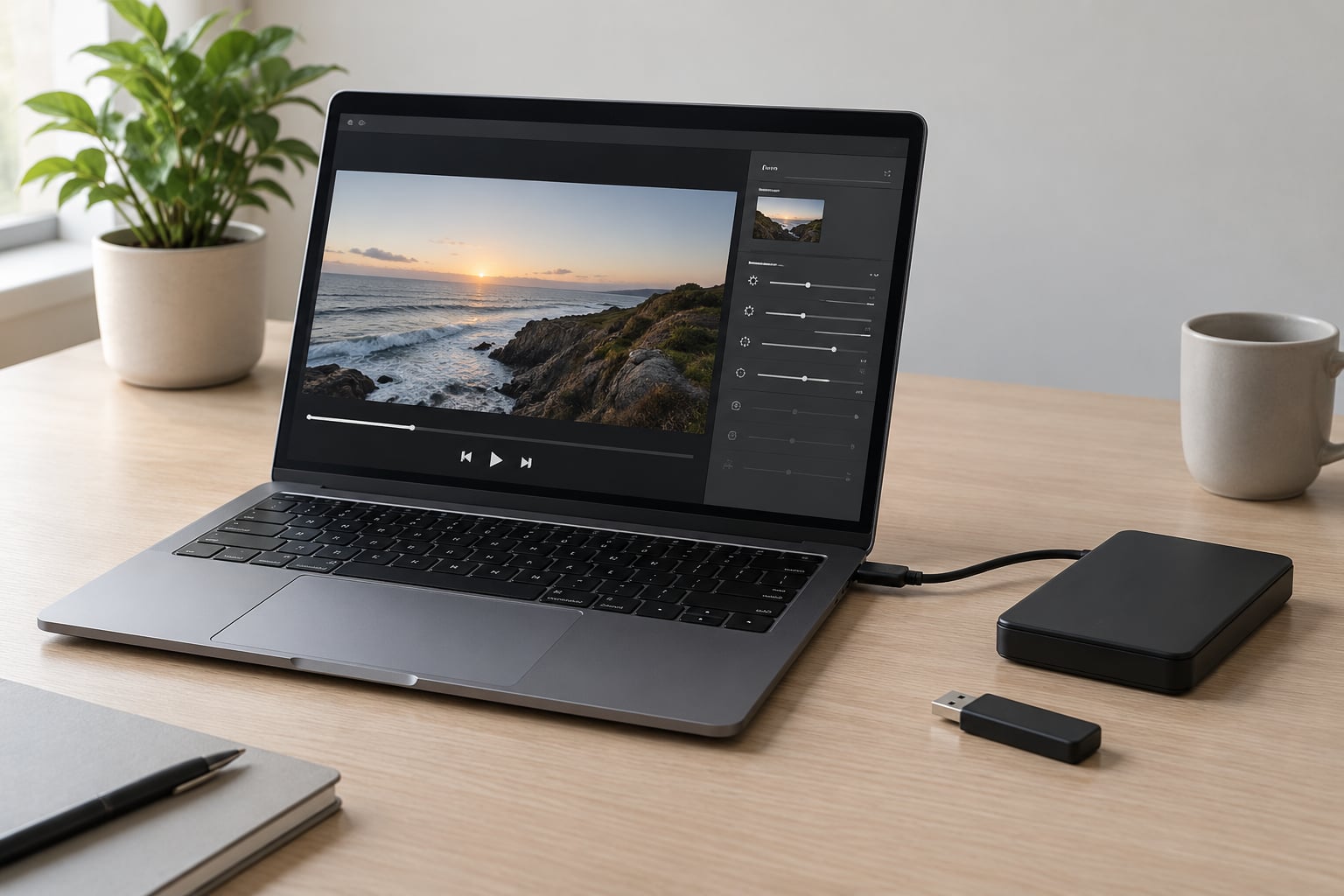
- Free desktop software</strong — HandBrake, VLC, Shutter Encoder, FFmpeg. Files never leave your machine, big files are fine, and batch queues are normal.
- Phone or tablet apps</strong — the only option if you have no computer at all.
My rule: anything under about 200 MB and not personal can go through a browser tool. Everything larger, or anything from a child’s birthday party, gets converted offline.
Step-by-Step: How to Convert a Video File to MP4 for Free
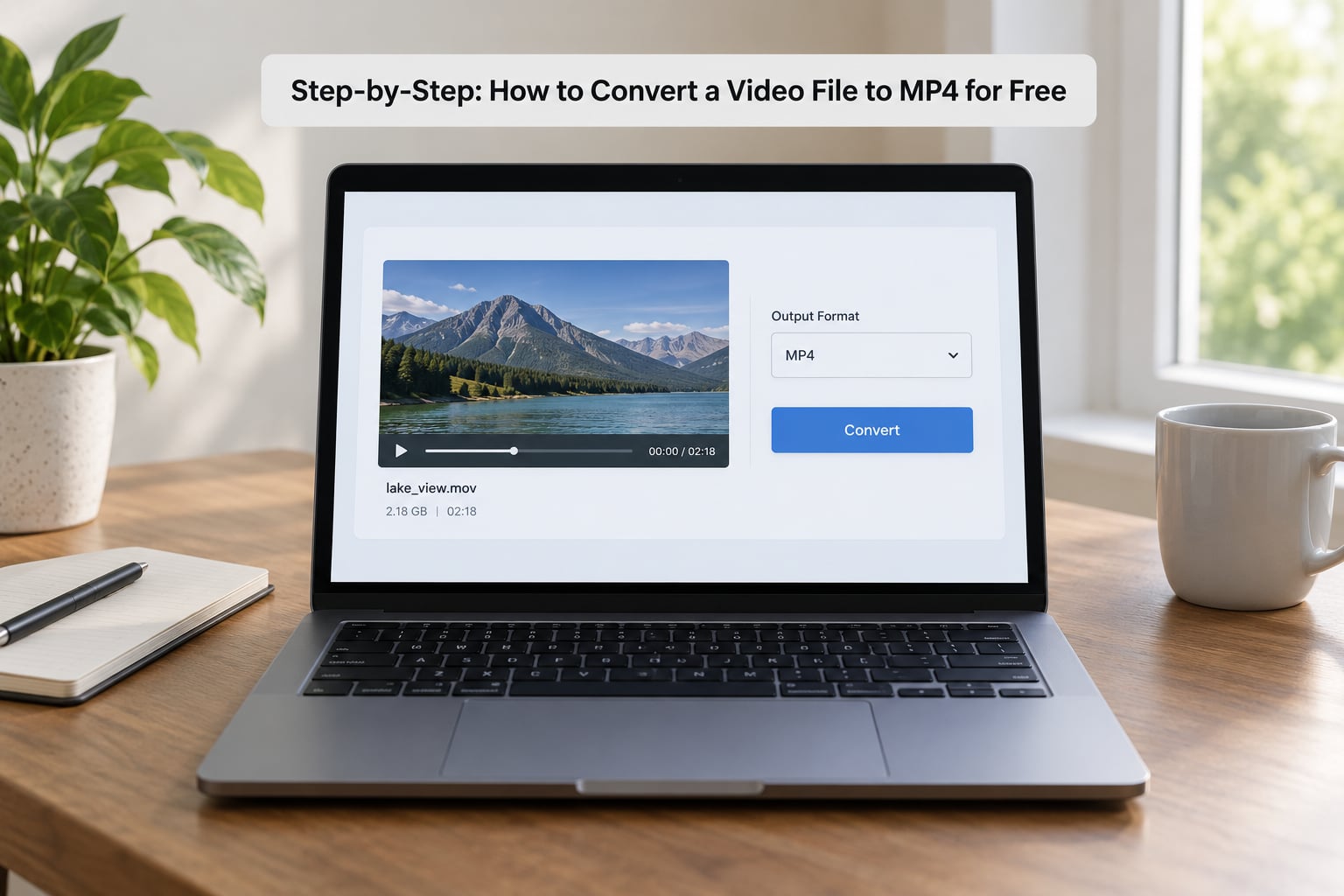
These five steps work in every free converter I have used, whether it runs in Chrome or on your desktop. Only step 1 differs between tools; the rest is the same mental model, so once you learn it you can switch between them freely.
1. Choose a Free Video Converter
Start with HandBrake. It is open source, free forever, has no ads, no watermark and no upsell to a paid edition, and it runs on Windows, macOS and Linux. It is the most consistently recommended desktop converter in forums like r/VideoEditing and r/freesoftware, and for good reason: it handles phone presets, keeps subtitles, and queues whole folders.
Use VLC if you already have it installed. Its Convert/Save function is buried three menus deep and gives you almost no control over quality, but for “I just need this clip to play somewhere” it takes a minute. Use Shutter Encoder if you want FFmpeg’s power behind a graphical interface. Use FFmpeg directly if you are comfortable with a command line and want the fastest possible results.
For browser tools, CloudConvert, FreeConvert, Adobe Express, VEED and Convertio all convert to MP4 at no cost for everyday files, with no account required on the free tier. Each has a published free limit, typically between 100 MB and 1 GB, and it is worth reading that number before you upload rather than after.
2. Import the Original Video
In HandBrake, click Open Source and pick the file. In most browser converters you can drag the file straight onto the page, or press Add file or Choose file. VLC uses Media, then Convert/Save, then Add.
Confirm the name and length shown in the preview match what you expect. If the duration looks wrong, the file is incomplete and you should re-download or re-transfer it before going further.
One habit worth keeping: work on a copy. If something goes wrong halfway through a long transcode, you do not want to be hunting for a fresh copy of the only copy.
3. Select MP4 as the Output Format
MP4 is a container, not a codec, and this trips up almost everyone at first. The container is the box; the codec is what is inside it. Nearly every device on earth plays an MP4 box containing H.264 (also called MPEG-4 AVC) video and AAC audio, so that is what you want.
In HandBrake, set Format to MP4 and leave the preset alone if you are not sure. Presets like Fast 1080p30 are tuned for compatibility rather than file size. For phones, Social media or an Apple TV-style target, pick the matching device preset instead and the resolution gets set for you.
Choose HEVC (H.265) only when you need the smaller file and know the target supports it. It halves the size at the same quality, which is lovely, and it will not play on older Android phones, many Smart TVs or most older editing software.
4. Adjust Resolution, Quality, and Audio
The defaults in HandBrake are already sensible, which is why I recommend it. If you want to understand what you are changing, here is what each setting does.
- Resolution — match your source, never upscale. Converting a 720p clip to 1080p gives you a bigger file and no more detail.
- Quality / RF or CRF — lower number means better quality and a bigger file. Somewhere between 18 and 23 is the sweet spot; 23 is the HandBrake default and looks fine.
- Frame rate — keep the source frame rate. Forcing 30 fps onto 24 fps footage makes motion look wrong.
- Audio codec — AAC. Bitrate of 128 to 160 kbps is plenty for stereo; beyond that you are burning space nobody hears.
- Aspect ratio — leave on the source setting. Manual changes are what produce stretched or squashed faces.
If your real problem is that the file is too big to email or upload, shrink the resolution one step (1080p to 720p) rather than cranking quality down. It cuts the size far more than a CRF change and the result still looks clean on a phone.
Converting is re-encoding, and re-encoding is lossy. Quality loss is unavoidable unless you can remux instead — which is only possible when the video inside is already H.264 and you are simply moving it into an MP4 box.
5. Start the Conversion and Check the Result
Choose your output folder, name the file, and press Start Encode in HandBrake or Convert in the browser tool. A 10-minute 1080p clip on a mid-range laptop typically takes somewhere between 3 and 15 minutes depending on resolution and whether hardware acceleration is switched on.
Then actually check the result rather than assuming it worked. Play the new file end to end, or at least the first and last minute, and confirm the audio is there. Then open it on the device you care about, because a file that plays fine in VLC can still fail on a Smart TV.
If the size came out bigger than the original and nothing about the quality improved, you converted an already-H.264 MP4 by mistake. Skip the step and re-download the source.
Common Mistakes
The conversion fails or stops halfway. Almost always a damaged source or too little disk space. Play the original first, then check you have room for a second full-size copy of the video on the output drive.
The MP4 plays as a black screen. The stream is usually HEVC or a 10-bit encode that the target device cannot decode. Re-export with H.264 in HandBrake, which is the safest choice on old TVs and phones.
There is no sound. The audio track was often left off. In HandBrake open the Audio tab, tick the source track and set the codec to AAC. In VLC, check that Audio is enabled in the profile you chose rather than a video-only profile.
Subtitles vanished. MKV files often carry subtitle tracks as separate streams that get dropped by default. In HandBrake use the Subtitles tab and select which tracks to include; VLC has no subtitle control in its converter at all, which is a good reason to switch tools for this job.
The file is far too large. Drop the resolution a step, raise the CRF number toward 23, or move to a two-pass preset. Going from CRF 18 to 23 roughly halves the file for a difference most viewers will not notice on a phone.
The picture looks stretched or squashed. Someone changed the aspect ratio or resolution by hand. Reset those to match the source and run it again.
You uploaded something personal to a stranger’s server. This one is worth taking seriously. Browser converters transmit your file to a server you do not control, and retention policies vary. For anything personal, or anything above the free tier limit, use offline software.
Last habit: keep the original until you have confirmed the MP4 plays everywhere you need it. Re-encoding is one-way, so that source file is your only way back.
Frequently Asked Questions
Is HandBrake really free?
Yes. HandBrake is open source and free for personal and commercial use, with no watermark, no time limit and no paid edition. The developers ask for donations rather than selling a subscription, and the same goes for VLC, Shutter Encoder and FFmpeg. Be wary of separate programs advertised as free video converters that are really trials: they either stamp a watermark, cap the export length or push you to a paid upgrade at the download page.
Is VLC or HandBrake better for converting to MP4?
HandBrake, if you want control. It exposes resolution, quality, frame rate and audio settings, preserves subtitles and queues whole folders. VLC is better if you already have it open and need a quick one-off, though its Convert/Save dialog is hard to find and gives you almost nothing to adjust. If you are converting more than a couple of files, stay with HandBrake.
How do I convert a video to MP4 on my iPhone?
The Files app cannot convert, so you need a converter app from the App Store. In the app, add the clip from your photo library, choose MP4 as the output format, pick a resolution such as 1080p, and save it back to your camera roll. It works with no computer and no account. Watch the free version limits, as some apps cap export length or add a watermark.
What input formats can be converted to MP4 for free?
The common ones: MOV, MKV, AVI, WMV, FLV, WebM, MPEG and M4V, plus most phone camera files. HandBrake, VLC, FFmpeg and every serious online converter read all of these. Odd or proprietary formats from older capture cards may need FFmpeg, which understands nearly everything. If a converter cannot open your file, try a different one before assuming the file is broken.
Does converting to MP4 lose quality?
Some, if the converter re-encodes the video, which nearly all of them do. Quality loss is smallest when the source is already H.264 and you use a sensible quality setting such as CRF 18 to 23. If the video inside is already H.264 and you only need a different container, an FFmpeg stream copy moves the streams without touching them at all and loses nothing.
Can I convert several videos to MP4 at once for free?
Yes, and desktop software handles it far better than a browser tool. In HandBrake, drag a whole folder into the queue and it works through them one after another, leaving your computer free. Shutter Encoder and FFmpeg do the same with more control over naming. Online converters are usually one file per session, and batch uploads on the free tier are rare.
Start with HandBrake for anything on a computer, or a browser converter for a small file you do not mind uploading. Load the file, choose MP4 with H.264, leave the resolution and frame rate matching the source, and start the encode. Once you have done it a couple of times, the whole thing takes about two minutes per file and the question stops coming up.