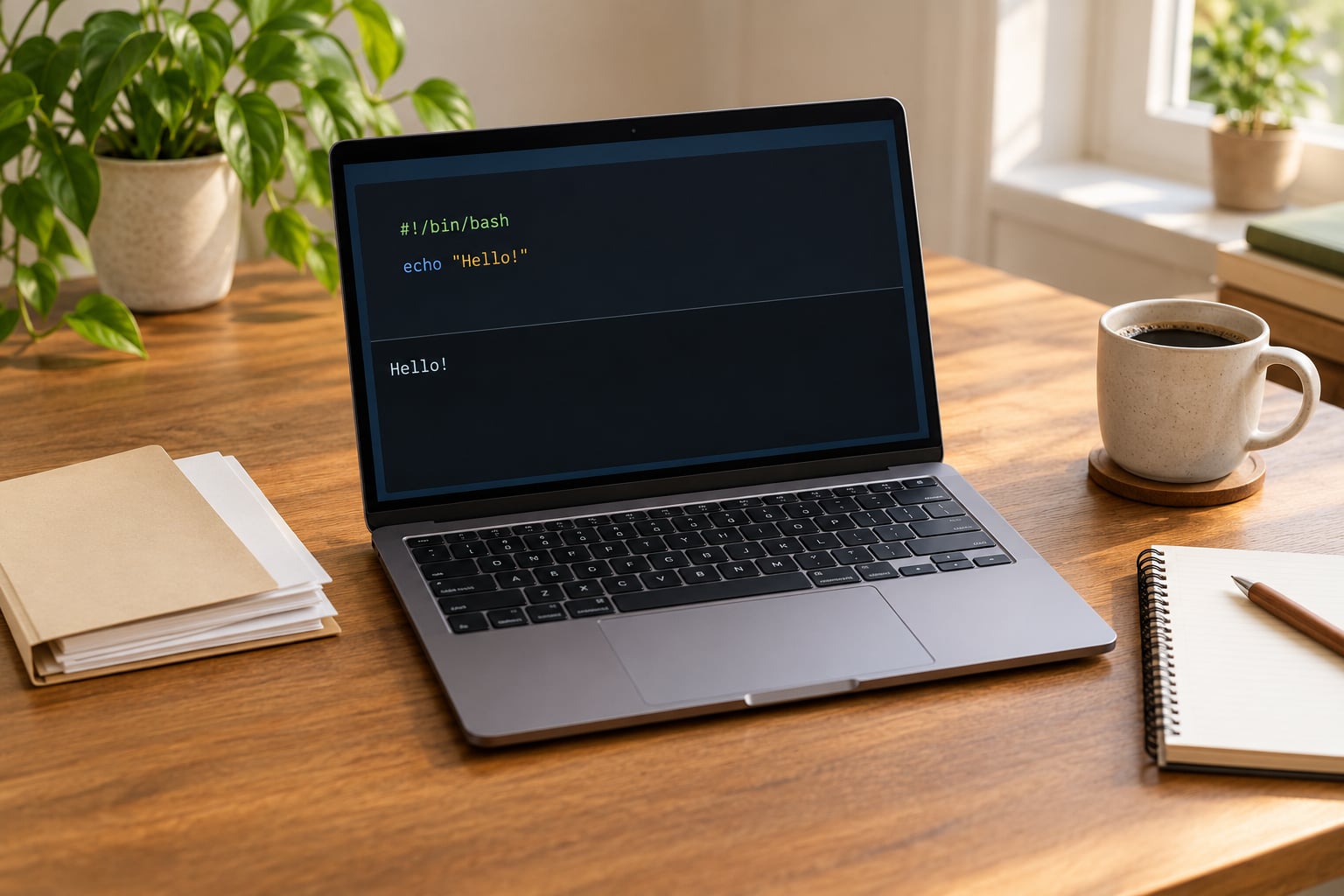
If you have typed how to write a simple shell script for beginners into a search box and landed here, the answer is short. You create a plain text file, put a shebang line at the top, add a few commands, make the file executable with chmod +x, and run it with ./hello.sh. The whole loop takes about five minutes, and you need nothing more than a terminal and a text editor.
That is the entire idea. A shell script is just a text file holding a list of commands your terminal would otherwise make you type one by one. Once you have the create, save, run and edit cycle working, scripting stops being mysterious and starts being a shortcut.
On macOS and Linux the shell is already there. On Windows you will want WSL or Git Bash first, and I cover that in the setup section below.
Table of Contents
- 1What You Need
- 2Step-by-Step: How to Write a Simple Shell Script
- 31. Open a terminal and choose a working folder
- 42. Create the script file
- 53. Add the shebang and first commands
- 64. Save the script and make it executable
- 75. Run the script and test its output
- 86. Make a small useful change
- 9Common Mistakes
- 10Frequently Asked Questions
- 11Do I need chmod +x to run a shell script?
- 12Which shebang should I use, bash or sh?
- 13Is shell scripting hard to learn?
- 14Should I use Bash or Python for automation?
- 15Why does my script say permission denied?
- 16How do I run the same script on a schedule?
What You Need
Four things, and three of them are already installed.
- A terminal. Terminal on macOS, GNOME Terminal or Konsole on Linux, or your Windows Terminal once WSL is set up.
- A Bash-compatible shell. macOS ships both zsh (your default) and an older Bash at /bin/bash. Most Linux distributions ship Bash as the default.
- A text editor.
nanocomes in the terminal and is the friendliest for a first script. Vim, VS Code or anything else works fine too. - File permissions. Not software, just the idea that a file can carry a flag saying “run me”.
chmod +xsets that flag.
Which shell you land in matters less than people think, but it does explain a lot of tutorials disagreeing with each other.
| Shell | What it is | Where you meet it |
|---|---|---|
| sh | The original POSIX shell, strict and portable | Startup files, minimal containers, scripts that must run anywhere |
| bash | Bourne Again Shell, the common default on Linux | Almost every beginner tutorial and sysadmin script |
| zsh | Modern shell with better completion and prompts | The default you type into on macOS |
| fish | Friendlier syntax, deliberately not bash-compatible | People who outgrew bash and installed it deliberately |
| ksh | Legacy shell from the 1980s | Old Solaris and AIX servers still in production |
Use echo $SHELL to see which one opened your terminal, and bash --version to confirm Bash exists even if it is not your default. If you want to follow a tutorial written for Bash, run the commands through Bash and you will not trip over zsh differences.
Step-by-Step: How to Write a Simple Shell Script
1. Open a terminal and choose a working folder
Open your terminal. On macOS, Terminal is under Applications and Utilities; on Linux it is usually in the dock already.
Decide where the script lives. A dedicated folder keeps your home directory clean, and mkdir -p never complains if the folder is already there.
pwd
mkdir -p ~/shell-scripts
cd ~/shell-scripts
pwd
The second pwd should print your new folder path. That output is your confirmation that step one worked.
2. Create the script file
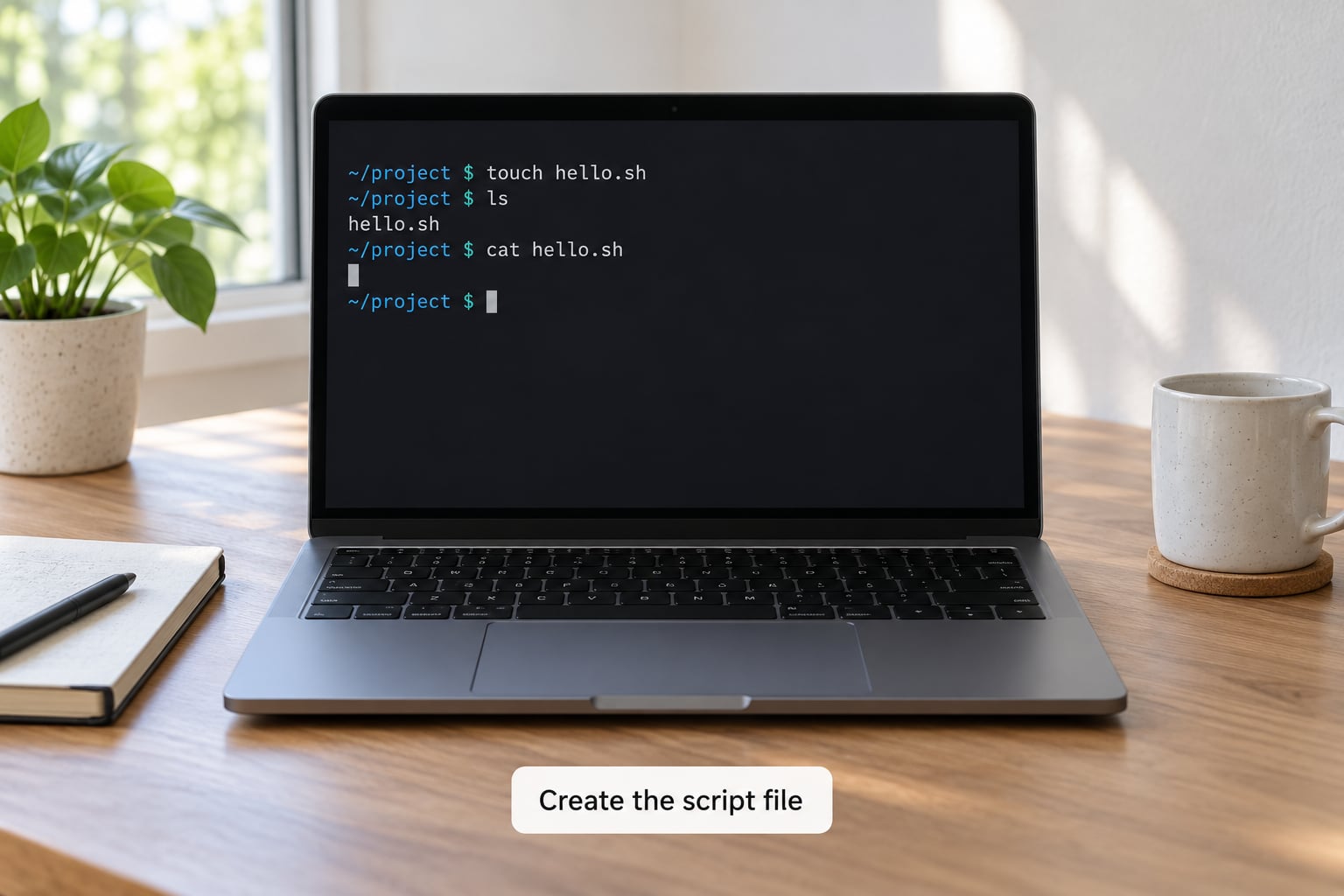
Open a new empty file called hello.sh. The .sh extension is a convention rather than a rule, but it keeps your scripts recognisable.
nano hello.shA blank screen with a row of shortcuts at the bottom means you are in nano. If the file already exists, nano opens it instead of wiping it, so do not be surprised if your commands are still there.
3. Add the shebang and first commands
The shebang is the first line of the script and tells the operating system which interpreter should read the rest of the file. Without it, the system guesses, and the guess is wrong often enough to waste an afternoon.
#!/bin/bash

# A greeting script that takes a name, or falls back to a default
name="world"

if [ $# -eq 0 ]; then
  name="world"
else
  name=$1
fi

echo "Hello, $name!"
echo "Today is $(date +%A)."
Type or paste that in, character for character. Two rules cause most of the errors beginners hit here: no spaces around the equals sign when you assign a variable, and single spaces inside the square brackets.
You can see the two variables do different jobs. name is a variable you made up, and $# is a built-in that holds the number of arguments passed to the script.
4. Save the script and make it executable
In nano, save with Ctrl + O, confirm the filename, then exit with Ctrl + X. The bottom of the screen confirms each step, so a script that “did not save” usually means the shortcut never registered.
Now set the executable bit, which is the step people forget and then meet as a permission denied error.
chmod +x hello.sh
ls -l hello.sh
The listing shows -rwxr-xr-x. Those first ten characters are the permissions, and the third one being x for the owner is what chmod +x just added.
You do not need that flag to run the script. bash hello.sh hands the file to Bash directly and works either way, which is a handy trick while you are still editing.
5. Run the script and test its output
Run it with an argument, then without one. The output should change, which proves the script is reading what you pass it.
./hello.sh Priya
Hello, Priya!
Today is Saturday.

./hello.sh
Hello, world!
Today is Saturday.
If you see Permission denied, the executable bit did not stick. If you see No such file or directory, you are in the wrong folder, and pwd will tell you where you actually are.
Two habits pay off from day one. bash -n hello.sh checks syntax without running anything, and echo $? right after a command prints its exit code, where 0 means success.
6. Make a small useful change
Editing is where scripting actually starts. Add an hour check so the script changes its greeting in the evening, then rerun it.
hour=$(date +%H)

if [ $hour -ge 18 ]; then
  echo "Good evening, $name!"
elif [ $hour -ge 12 ]; then
  echo "Good afternoon, $name!"
else
  echo "Good morning, $name!"
fi
Run it again and confirm the line matches the time. You have just completed the loop that scripting is built on: edit, run, look at the output, fix what surprised you.
Common Mistakes
Almost every beginner error comes from one of these eight, and the error text tells you which one you hit.
| Mistake | What you see | Fix |
|---|---|---|
| Forgot the shebang | Exec format error, or the file opens in a text editor | Put #!/bin/bash on line one |
| Skipped chmod | bash: ./hello.sh: Permission denied | Run chmod +x hello.sh |
| Spaces around the equals sign | name=world: command not found | Write name="world" with no spaces |
| No spaces inside the brackets | [: missing ] or a silent wrong result | Write [ -f file ] with spaces |
| Unquoted variable in a filename | Works until a folder is called My Photos | Write "$file" in every command |
| Wrong working directory | No such file or directory | Check pwd, then use the full path |
| Unclosed quote | Waiting for more input, or unexpected EOF | Count your single and double quotes |
| Edited but never saved | Your change did nothing at all | Ctrl + O to save before exiting nano |
The spacing rules look arbitrary because they are historical, not logical. Bash treats = and the brackets as operators with required separators, so treat them like language keywords rather than maths symbols.
One habit prevents a whole category of silent failure: add set -euo pipefail below the shebang once your script does more than a couple of lines. It stops the script on the first failed command, catches unset variables, and treats broken pipes as errors.
Windows users hit a separate wall. A .sh file will not run from PowerShell or Command Prompt, so use WSL for a real Linux environment or Git Bash for a lighter one that still gives you chmod and #!/bin/bash.
Frequently Asked Questions
Do I need chmod +x to run a shell script?
No. Running bash hello.sh hands the file to Bash directly and works with any permissions. You only need the executable bit for the ./hello.sh form, or for scripts invoked from cron, systemd, or another script. Setting it once at the start saves the confusing error later.
Which shebang should I use, bash or sh?
Use #!/bin/bash for anything you learn from today onwards, because Bash is the default on most Linux systems and has better error messages. Use #!/bin/sh only when the script must run on minimal systems with no Bash installed. Keep the shebang and the shell you test in sync.
Is shell scripting hard to learn?
The first script takes minutes. The parts that feel awkward early on are spacing rules and quoting, and both stop being confusing after a few deliberate errors. Most people write useful scripts after a weekend of practice. Treat bash like any other tool and keep scripts short while you learn.
Should I use Bash or Python for automation?
Use Bash when the job is gluing commands together: backups, log cleanup, file renames, service checks. Use Python when you need data structures, real error handling, libraries, or anything with more than a little branching. Shell is faster to type, Python is easier to grow once a script passes thirty lines.
Why does my script say permission denied?
The file is not marked executable. Run chmod +x scriptname.sh in the same folder as the file and try ./scriptname.sh again. If you prefer not to change permissions, bash scriptname.sh runs it just fine. Also check that you used chmod on the file itself and not on its parent folder.
How do I run the same script on a schedule?
Put the absolute path to your script in a crontab entry, then run crontab -e to edit it. Use full paths inside the script too, because cron runs with almost no environment set. A line such as 0 7 * * * /home/you/shell-scripts/report.sh runs it every day at seven in the morning.
Start with the script you already built. Open hello.sh, change the default name to your own, and run it without an argument so the fallback path gets exercised. That edit-test-improve loop is how to write a simple shell script for beginners, and everything after it, from loops to functions, is the same idea in a bigger file.
If you want the honest version of the learning curve, the first month is mostly about stopping yourself from being surprised by quoting. Keep scripts under thirty lines, read the error messages instead of skipping them, and shell scripting stops feeling like a separate language you have to memorise.