To set up SSH keys instead of passwords, you generate a key pair with ssh-keygen, copy the public half to the server’s authorized_keys file, and then switch password login off in sshd_config. It takes about ten minutes and one terminal, and the payoff is a remote login that no password guess can ever crack.
Most people find the key generation fiddly the first time, not because it is complicated but because nobody shows them what the files look like afterwards. So here is the whole sequence first, then the detail for each step.
Table of Contents
- 1How to Set Up SSH Keys Instead of Passwords in 6 Steps
- 2What You Need
- 3Step-by-Step: How to Set Up SSH Keys Instead of Passwords
- 4Generate an SSH Key Pair
- 5How to Copy the Public Key to the Server
- 6Test SSH Keys Instead of Passwords Before Changing Anything
- 7Disable Password Login Safely
- 8Common Mistakes and How to Fix Them
- 9Frequently Asked Questions
- 10Are SSH keys safer than passwords for remote server access?
- 11Should I use a passphrase for my SSH private key?
- 12Can I disable SSH passwords without locking myself out?
- 13How do I use the same SSH key on multiple computers?
- 14What is the difference between an SSH public key and private key?
- 15How do I revoke an old SSH key from my server?
How to Set Up SSH Keys Instead of Passwords in 6 Steps
- Generate a key pair:
ssh-keygen -t ed25519 -C "[email protected]" - Copy the public key over:
ssh-copy-id -i ~/.ssh/id_ed25519.pub username@server - Test it:
ssh username@serverand confirm you are not asked for a password - Open a second terminal and keep it connected as your fallback session
- Disable password login in
/etc/ssh/sshd_configand reload the SSH service - Verify the new key login still works, then close the fallback session
Step five is the one people rush. Do not touch it until step three has worked and a second session is sitting open and idle.
What You Need
Six things, and you probably already have all of them:
- Your local computer running macOS, Linux, or Windows 10 or 11. Windows has shipped the OpenSSH client in the optional features list since Windows 10, so you do not need a third-party tool if you would rather not.
- A terminal. Terminal on macOS, GNOME Terminal or any shell on Linux, PowerShell or Command Prompt on Windows.
- The server address, either a hostname or an IP address.
- The username you log in as, usually
rooton a fresh VPS orubuntuon an AWS EC2 Ubuntu image. - Working password access to the server right now, at least until you have tested the key.
- sudo privileges for the final server-side step. You do not need to be root, but you do need to be able to edit
sshd_configand restart the SSH service.
Nothing here needs a second computer, a second monitor, or a USB stick. If you can get into the server with a password right now, you have everything required.
Step-by-Step: How to Set Up SSH Keys Instead of Passwords
Generate an SSH Key Pair
Run this on your own machine, not on the server:
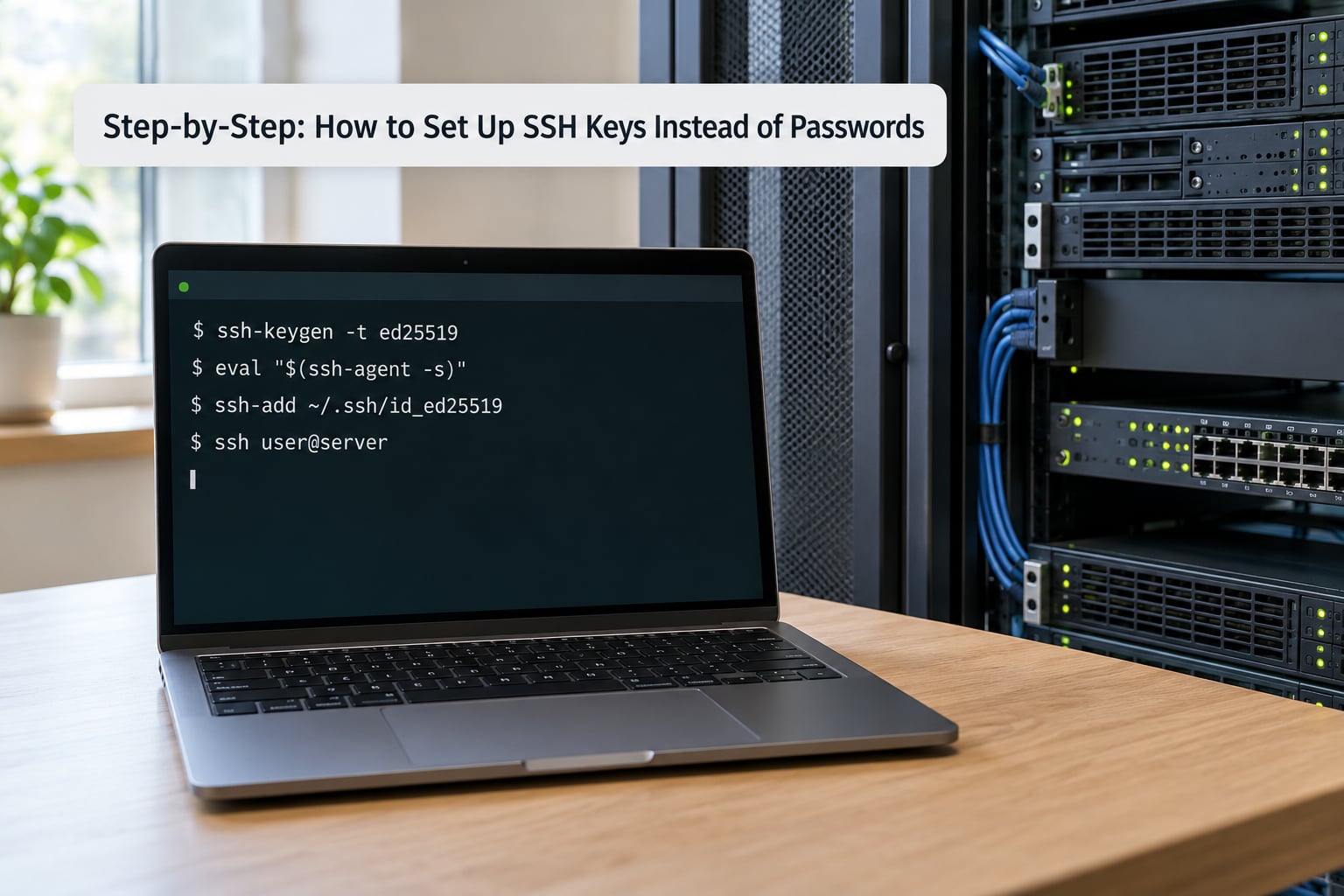
ssh-keygen -t ed25519 -C "[email protected]"You will get three prompts. The first asks where to save the file and the default is right for most people: /Users/you/.ssh/id_ed25519 on a Mac, /home/you/.ssh/id_ed25519 on Linux. The second and third ask for a passphrase and then confirm it.
When it finishes you have two files. id_ed25519 is the private key, id_ed25519.pub is the public key. The private key is the one that stays on your computer and the one you never email to anyone, paste into a chat window, or commit to a git repository. The public key is the one that goes on the server, and there is no harm in it being public.
If you want a name that says what the key is for, add -f:
ssh-keygen -t ed25519 -C "work laptop" -f ~/.ssh/id_ed25519_workThat gives you id_ed25519_work and id_ed25519_work.pub. Named keys pay off the day you add a second one.
On the passphrase question: a passphrase encrypts the private key at rest, so a stolen laptop does not hand an attacker a working key. Leave it empty only for a server-side automation key with no human attached, and never for the key you log into machines with. A person on r/linuxquestions hitting a passphrase prompt on every connection is far more common than a stolen laptop, and the fix is ssh-agent, which is covered in the key management section below.
Which algorithm? Ed25519 is the sensible default in 2026 and works with every current OpenSSH client. RSA at 4096 bits is the compatibility answer for a very old client or an odd embedded device, and ECDSA with the nistp256 curve sits in between.
| Algorithm | Key size | Speed | Use it when |
|---|---|---|---|
| Ed25519 | 256 bit | Very fast | Default choice for any current server or client |
| ECDSA | 256 bit (nistp256) | Fast | You want the same key length numbers as Ed25519 with wider support |
| RSA | 4096 bit | Slower to sign, widely supported | The client is old, or a compliance policy insists on RSA |
On Windows: open PowerShell and run the same command. The keys land in C:Usersyou.ssh. If you would rather work in PuTTY, PuTTYgen generates a .ppk file instead, and PuTTYgen cannot read an OpenSSH private key that has a passphrase unless you clear it first in the PuTTYgen dialog. Using OpenSSH from PowerShell and PuTTY side by side is a common source of confusion, and it is easier to stay in OpenSSH.
How to Copy the Public Key to the Server
The easy way, on macOS and Linux:
ssh-copy-id -i ~/.ssh/id_ed25519.pub username@serverIt asks for the server password once, appends the public key to ~/.ssh/authorized_keys on the server, and sets permissions for you.
On Windows, ssh-copy-id usually is not there, which is the single most common Windows-specific complaint. Use the pipe method instead, and it works identically on every platform:
type %USERPROFILE%.sshid_ed25519.pub | ssh username@server "mkdir -p ~/.ssh && cat >> ~/.ssh/authorized_keys && chmod 700 ~/.ssh && chmod 600 ~/.ssh/authorized_keys"On macOS and Linux the same fallback uses cat in place of type:
cat ~/.ssh/id_ed25519.pub | ssh username@server "mkdir -p ~/.ssh && cat >> ~/.ssh/authorized_keys && chmod 700 ~/.ssh && chmod 600 ~/.ssh/authorized_keys"Three details catch people here. If your server runs SSH on a nonstandard port, add -p 2222 to the ssh part. If your username is not the default, type it explicitly. And notice every command above points at the .pub file. Appending the private key to authorized_keys does nothing useful and quietly leaks your key to anyone with read access on that account.
Confirm what landed on the server:
ssh username@server "tail -n 2 ~/.ssh/authorized_keys"You should see a line beginning with ssh-ed25519. If you see -----BEGIN OPENSSH PRIVATE KEY-----, delete that line immediately and copy the public key properly.
Test SSH Keys Instead of Passwords Before Changing Anything
Open a fresh terminal and connect. Do not reuse the session you are already logged in through, because if the key does not work you will want a way back in.
ssh username@serverYou should land at a prompt with no password prompt at all. If your key has a passphrase, the agent or the client asks for the passphrase, and that is normal. The password question and the passphrase question are different things, and people mix them up constantly.
When it does not work, add -v and read the output:
ssh -v username@serverThe lines that matter say Offering public key and then either Server accepts key or Authentications that can continue: publickey. A rejection there almost always means a permissions problem on the server rather than a broken key.
To check whether the account still accepts a password at all, force it:
ssh -o PreferredAuthentications=password -o PubkeyAuthentication=no username@serverThat is a useful diagnostic and also the answer to the common “how do I get back to password login” question. If the server still has PasswordAuthentication yes, this gets you in even with keys misconfigured.
Disable Password Login Safely
This is the step that locks people out, so slow down. Keep a second terminal window connected to the server as root or a sudo-capable user before you change anything, and leave it open and idle. If the new settings are wrong, that window is still your way in.
Back up the config first:
sudo cp /etc/ssh/sshd_config /etc/ssh/sshd_config.bakEdit it with sudo nano /etc/ssh/sshd_config and find the existing directives. Change them rather than adding duplicates, because the first occurrence of a keyword is the one that counts:
PubkeyAuthentication yes
PasswordAuthentication no
PermitRootLogin prohibit-password
PermitRootLogin prohibit-password still lets you in as root with a key while blocking password logins to root entirely, which is a separate hardening step worth taking on its own.
Check the file for syntax errors before restarting anything:
sudo sshd -tNo output means the config parsed. Then reload rather than restart where you can, since a restart drops your existing sessions on some setups:
sudo systemctl reload sshdOn older distributions or Amazon Linux the unit is sshd, on Debian and Ubuntu it is ssh, so sudo systemctl reload ssh is the one to try if the first command errors. If neither works, sudo service ssh restart does the job.
Now test again from a brand-new terminal window. If the key login works, the passwords are gone and the server is measurably harder to attack. If it does not work, use the console your provider gave you, log in through it, and restore the backup file.
Every cloud provider hands you an out-of-band console for exactly this reason, and for a VPS or dedicated server your host almost certainly has a web console, a VNC screen, or a rescue mode. Reaching the disk directly is how you get back in after a bad sshd_config edit. Restoring is one command:
sudo cp /etc/ssh/sshd_config.bak /etc/ssh/sshd_config && sudo systemctl restart sshdCommon Mistakes and How to Fix Them
Nearly every failure is one of these, and nearly all of them are the same root cause wearing a different hat: permissions on the server.
| Symptom | Likely cause | Fix |
|---|---|---|
| Permission denied (publickey) | ~/.ssh or authorized_keys too open, or owned by the wrong user | chmod 700 ~/.ssh && chmod 600 ~/.ssh/authorized_keys && chown -R $USER:$USER ~/.ssh |
| Permission denied with a world-writable home directory | SSH refuses keys when your home folder is group or world writable | chmod go-w ~ |
| Works by IP, fails by hostname | known_hosts holds separate entries and the key was installed under one form | Re-run ssh-copy-id with the exact hostname that fails |
ssh-copy-id: command not found | Windows, or a minimal container image | Use the cat ... | ssh method |
ssh-copy-id hangs or asks repeatedly | Nonstandard port not passed through | Add -p 2222 |
| Bad signature or algorithm rejected | Old server or a DSA key | Generate an Ed25519 key instead |
| Asked for a passphrase every single time | No agent running | Start the agent and load the key, below |
| Public key pasted but the key is one character short | Copy and paste mangled the line | Pipe the file with cat instead of pasting |
| Locked out after disabling passwords | Config edit wrong or reload failed | Use the provider console and restore the backup |
Two things to never do: chmod -R 777 ~/.ssh, which makes the private key readable by everyone, and adding private keys to a git repository. If a repo is public, assume the key is burned and rotate it.
Stop typing your passphrase. The agent holds your decrypted key in memory for the session:
eval "$(ssh-agent -s)"
ssh-add ~/.ssh/id_ed25519
On macOS the agent is already managed by the system, so ssh-add --apple-use-keychain ~/.ssh/id_ed25519 stores it in the keychain and it survives reboots.
Give servers short names. An ~/.ssh/config file is the standard fix for juggling keys and long command lines, and it is the one thing beginner guides skip:
Host webserver
  HostName 203.0.113.10
  User deploy
  Port 2222
  IdentityFile ~/.ssh/id_ed25519_work
  IdentitiesOnly yes
Now ssh webserver is the whole command. IdentitiesOnly yes stops SSH from offering every key in your agent until one matches, which is what makes a many-key setup behave predictably.
Revoke and rotate. To remove a lost or leaked key, delete its line from the server’s authorized_keys and reload nothing, since the file is read on each connection. Find it with grep on the comment, or ssh-keygen -lf ~/.ssh/id_ed25519.pub on your machine to get the fingerprint to search for. For rotation, generate a new key, install it alongside the old one, test it, then remove the old line. Never delete the working key before the new one is proven.
Frequently Asked Questions
Are SSH keys safer than passwords for remote server access?
Yes, for almost every setup. A password is something an attacker can try millions of times per second against a public port 22, reuse across services, phish, and find in leaked logs. A key pair is not guessable, and the private half never crosses the network, so no interception reveals it. Passwords also change; keys are long mathematical relationships. The gap is wide enough that key-only login is standard on production servers.
Should I use a passphrase for my SSH private key?
For any key you log into machines with, yes. The passphrase encrypts the key on disk, so a stolen laptop or a careless backup does not hand over working access. You only type it once per session if you use ssh-agent, or once per login on macOS with the keychain. Automation and deploy keys are the sensible exception, since nothing can type a passphrase at 3am. Keep those separate from your personal key.
Can I disable SSH passwords without locking myself out?
Yes, and the safe order is the whole trick. Prove key login works, then open a second terminal and leave it connected to the server as root or a sudo user, then edit sshd_config, run sudo sshd -t to catch syntax errors, and reload rather than restart. Test from a third window before closing anything. If the reload breaks SSH, that idle session still has you in. Keep the sshd_config.bak copy until you have tested it for a while.
How do I use the same SSH key on multiple computers?
Copy the private and public key pair to each machine, or better, generate a separate key per device and reuse them all across servers. The server side is identical either way, since authorized_keys can list as many public keys as you like. Separate keys per device mean a lost laptop costs you one revoked line instead of a fleet-wide rotation. For Windows machines, stick to OpenSSH keys in PowerShell rather than converting to PuTTY .ppk format.
What is the difference between an SSH public key and private key?
The public key is the half you install on the server, in the authorized_keys file. It can be read by anyone and is safe to share. The private key stays on your client, is listed in your .ssh directory without a .pub ending, and must never be copied to a server or committed to a repository. When you connect, your client signs a challenge with the private key and the server checks that signature against the public key it already holds.
How do I revoke an old SSH key from my server?
Sign in as the affected user, edit ~/.ssh/authorized_keys, and delete the line holding the key you no longer want. The file is read fresh on every connection, so there is no service to restart. Identify the right line by its comment, or match the fingerprint printed by ssh-keygen -lf on the key file. If you removed the wrong key, the backup copy you made before editing will get you back in.
Start with the two commands that change everything: generate the key, copy the public half, then confirm in a fresh terminal that you connect without a password prompt. That is the whole security win, and it costs ten minutes. Turning off password authentication is a later, separate decision, and only worth making once a fallback session is sitting open beside you.