Learning how to use text replacement shortcuts on iPhone takes about a minute. The feature saves a long phrase under a short code and drops it into any text field with two taps, and the setup lives at Settings > General > Keyboard > Text Replacement, where it works in Messages, Mail, Notes and most other apps.
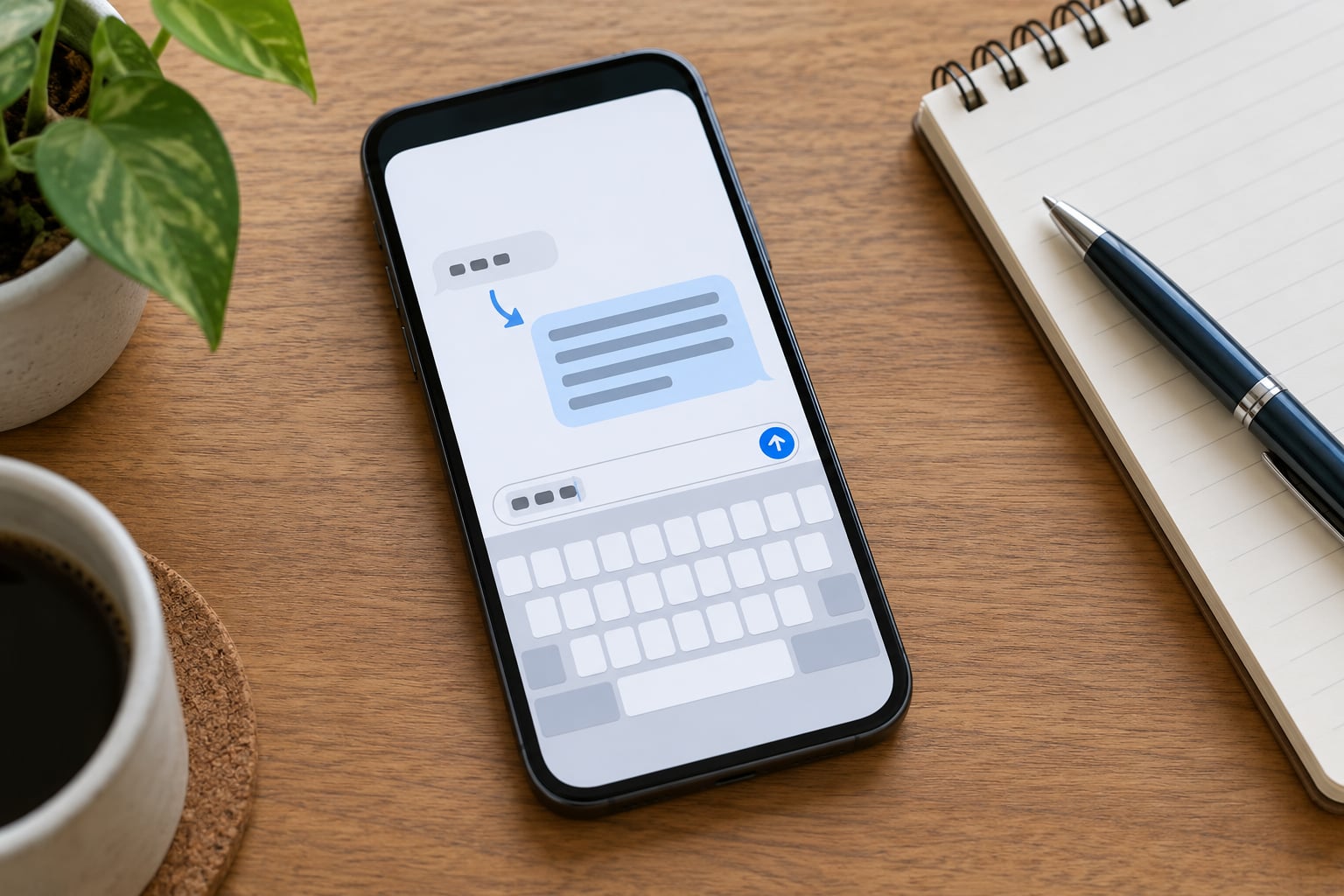
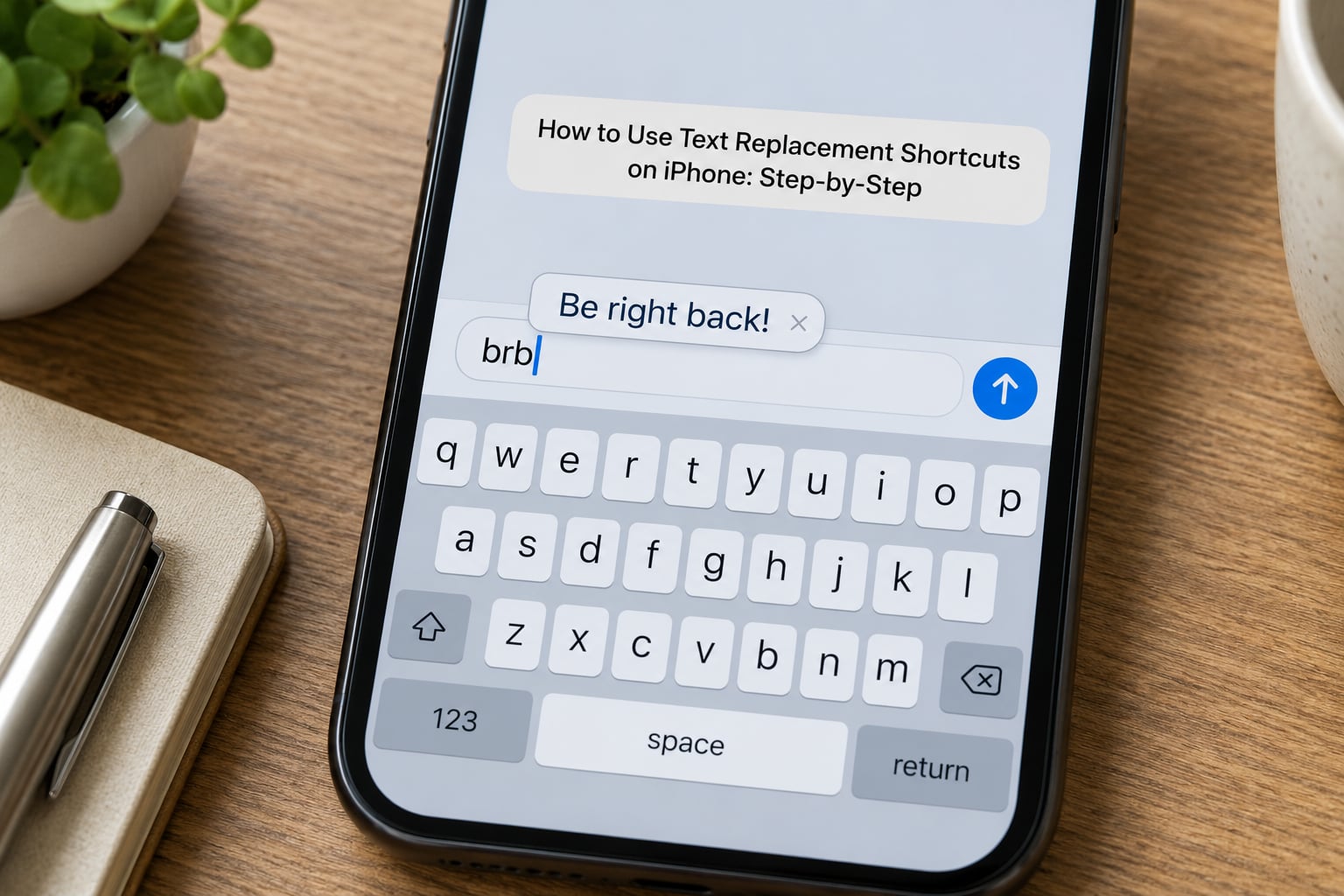
One thing most guides skip: the shortcut does not fire on its own. Type your code, then tap the phrase that appears on the bar above the keyboard. That tap is the whole mechanic, and it explains most of the not working complaints people post about this feature.
Last updated October 2026. Apple has kept this menu path stable across recent iOS versions, but the wording shifts a little between releases, so I give you three ways into the screen.
Table of Contents
- 1How to Use Text Replacement Shortcuts on iPhone: Step-by-Step
- 2Open the Text Replacement Settings
- 3Create a New Text Replacement Shortcut
- 4Choose a Reliable Shortcut That Will Not Collide
- 5Test the Shortcut in Messages or Another App
- 6Use and Edit Shortcuts Across Apps
- 7Common Mistakes
- 8Frequently Asked Questions
- 9Why won’t my text replacement work on my iPhone?
- 10How do I remove the default omw shortcut from my iPhone?
- 11Do text replacement shortcuts sync to my iPad and Mac?
- 12Why does my shortcut not expand with Grammarly or SwiftKey?
- 13Can text replacement stop autocorrect changing my words?
- 14What is the shortcut for replacing text on iPhone?
- 15Conclusion
How to Use Text Replacement Shortcuts on iPhone: Step-by-Step
Open the Text Replacement Settings
There are three routes in, and all of them land on the same list of saved phrases.
- Fastest: open Settings, swipe down to the search field at the top, type Text Replacement, and tap the result.
- Standard path: Settings > General > Keyboard > Text Replacement.
- From the keyboard: in any text field, press and hold the globe key, tap Keyboard Settings, then tap Text Replacement.
The third route is the one I use most, because the globe key is already under my thumb when I am typing. On some iOS versions the search result is labelled Keyboard rather than Text Replacement, so the search terms Keyboard or Text Replacements both work.
Create a New Text Replacement Shortcut
Tap the plus button in the top-right corner of the Text Replacement screen. An editor opens with a Phrase field and a Shortcut link underneath it.
- Tap + in the top-right corner to open the editor.
- Type the full text in the Phrase field. This is the text that gets inserted, exactly as you type it here, capitals included.
- Tap Shortcut below the Phrase field and type the short code you want to trigger it.
- Tap Save in the top-right corner.
The pair appears in the list straight away and is live immediately. There is no restart and no toggle to switch on.
Getting the two fields backwards is the most common beginner slip. Phrase holds the long text that appears in your message; Shortcut holds the abbreviation you type. If you type your address into Shortcut and the abbreviation into Phrase, the code will expand into the wrong thing.
Choose a Reliable Shortcut That Will Not Collide
Most shortcuts that fail never make it past this step, and the problem is always the code rather than the phone.
- Prefix it with punctuation. @@em, #addr or -sig cannot appear inside a normal word, so autocorrect has nothing to grab.
- Keep it under six characters. Long codes are easy to mistype, and a mistyped code fires nothing.
- Skip plain three-letter combos. Codes like teh or adn are exactly what the autocorrect dictionary is watching for.
- Never reuse a code. Two replacements sharing a code produce unpredictable results.
- Use capitals deliberately. iph and IPH are two different codes to iOS, which is handy for brand styling.
The punctuation convention comes from power users on r/apple and r/shortcuts, who tend to build sets like @@g for a Gmail address and @@y for a personal one. The reason is simple: once a code starts with a symbol it can never collide with a word you meant to type.
You can also save a Phrase with the Shortcut field empty. That adds the exact spelling to your custom dictionary, so autocorrect stops rewriting your surname or your brand name every time. It is the cleanest fix for a word your keyboard keeps mangling.
Test the Shortcut in Messages or Another App
Test in Notes first. It is the least demanding text field on the phone, so if the code fails there you know the problem is the code, not the app.
- Open Notes, start a new note and tap inside the body.
- Type your code, then type a space.
- Your full phrase appears as a suggestion on the bar above the keyboard.
- Tap the suggestion and the phrase drops into the note.
Step four is the one people miss. iOS never inserts the phrase on its own. Hitting space, then sending, leaves your code sitting there in plain text, which is where the majority of not working reports come from.
Use and Edit Shortcuts Across Apps
Once it works in Notes it works in Messages, Mail, WhatsApp and Safari address bars, because they all draw the same Apple keyboard.
Three limits are worth knowing before you build a whole set. Secure fields, including password boxes and some payment forms, never expand replacements. Some third-party keyboards such as Grammarly or SwiftKey pass codes through and others ignore them completely. And replacements reach your iPad and Mac through iCloud, but only when every device is signed into the same Apple Account.
Editing happens in place. Tap a saved replacement to change either field, then Save again. Deleting takes two routes: swipe across the row and tap Delete, or tap Edit in the top-right corner, tap the red minus beside the row you want gone, and confirm with Delete. That second route is how you clear out Apple built-ins such as omw, which expands into On my way and catches people out constantly.
One more comparison worth making. Text replacement swaps a fixed string for a fixed string, which makes it right for addresses, signatures and canned replies. The Shortcuts app is for anything with a variable in it, such as inserting the current date or a tracking number. If your phrase changes every time, that is the tool you want instead.
Common Mistakes
Nearly every text replacement problem lands in one of these. Work down the list in order, because the first two causes account for most of them.
- You type the code, hit space and nothing happens. The phrase sits on the suggestion bar above the keyboard and needs a tap. Look there before you type on.
- Your code turns into a different word as you type. Autocorrect claimed the abbreviation. Recreate it with a punctuation prefix such as @@em.
- It works everywhere except one app. A third-party keyboard is active there. Press and hold the globe key to switch back to the Apple keyboard.
- It is fine on iPhone but missing on iPad. iCloud is off, or a second Apple Account is signed in. Sign both devices into the same Apple Account with iCloud on.
- Nothing expands in a password or payment field. Secure fields block replacements entirely. Type the value by hand there.
- A word keeps getting corrected to something else. Your spelling is not in the custom dictionary yet. Save the word in Phrase with the Shortcut field left empty.
- A shortcut vanished after an iOS update. Replacements usually come back, but sync can lag. Check Settings > General > Keyboard > Text Replacement again after a few minutes.
Two smaller habits prevent most of these. Test a new code in Notes before you trust it in a message to a client, and keep your codes in one consistent style so you remember what you typed six months ago.
If you need text that changes rather than text that repeats, text replacement is the wrong tool. Anything with a date, a ticket number or a chosen option belongs in the Shortcuts app, where you can build a small phrase you trigger with a single tap.
Frequently Asked Questions
Why won’t my text replacement work on my iPhone?
Nine times out of ten you typed the code, hit space and expected the phrase to appear. It does not. iOS shows your phrase as a suggestion on the bar above the keyboard and waits for you to tap it. The other causes are a code autocorrect rewrites as you type, a third-party keyboard running instead of the Apple keyboard, or typing in a secure password field, where replacements never expand at all.
How do I remove the default omw shortcut from my iPhone?
Open Settings, then General, then Keyboard, then Text Replacement. Swipe across the omw row and tap Delete, or tap Edit in the top-right corner, tap the red minus beside omw, then tap Delete at the top to confirm. Apple ships a handful of these by default, and anything you added yourself comes out the same way.
Do text replacement shortcuts sync to my iPad and Mac?
Yes, as long as iCloud is signed in with the same Apple Account on every device. Your replacements show up on an iPad or Mac within a short while with nothing extra to configure. If a new shortcut appears on your iPhone but never on your iPad, check that iCloud Drive is switched on and that the iPad is not signed into a different Apple Account.
Why does my shortcut not expand with Grammarly or SwiftKey?
Text replacement belongs to the built-in Apple keyboard. Press and hold the globe key to switch back to it and test the code again. Some third-party keyboards do pass replacements through and others ignore them, so if your everyday keyboard never fires a code, keep the Apple keyboard for the phrases that matter and leave the rest to your typing.
Can text replacement stop autocorrect changing my words?
Yes, and it is the tidiest fix available. Open Settings, then General, then Keyboard, then Text Replacement, tap the plus button, type the exact spelling you want in the Phrase field and save without adding a Shortcut. That spelling is added to your custom dictionary, so autocorrect stops rewriting your surname, your brand or a technical term you use daily.
What is the shortcut for replacing text on iPhone?
There is no single built-in code, which is exactly why people search for one. You assign any abbreviation you like to any phrase. Go to Settings, then General, then Keyboard, then Text Replacement, tap the plus button, fill in the Phrase and Shortcut fields and tap Save. Typing your code then produces the full phrase as a suggestion you tap to insert.
Conclusion
Open Settings, then General, then Keyboard, then Text Replacement, and create one shortcut today. Give it a punctuation-prefixed code like @@em, paste in the text you retype most, then test it in Notes and remember the tap on the predictive bar. Build the rest of the set once that one works.