
Press Control + Command + Space bar on a Mac to open the Character Viewer, hold a letter key to open the accent menu, and hold the Option key (⌥) for symbols like ©, € and ∞. If you are searching for how to type special characters on a Mac, those three methods cover almost everything you will ever need.
Most of it works the same in Mail, Messages, Pages, Excel and any web form, because the shortcuts belong to macOS rather than to an individual app. The exception is worth knowing about, and I cover it in the troubleshooting section below.
Table of Contents
- 1What You Need
- 2Step-by-Step: How to Type Special Characters on a Mac
- 3Use Keyboard Shortcuts for Common Symbols
- 4Hold Option for Alternate Letters and Accents
- 5Open the Emoji and Symbols Picker
- 6Use Unicode Hex Input for Less-Common Characters
- 7Common Mistakes
- 8Frequently Asked Questions
- 9How do I type é on my keyboard on my Mac?
- 10How do I type special characters on a Mac keyboard?
- 11What is the symbol for the Option key on a Mac keyboard?
- 12How do I type ASCII or Unicode characters on a Mac?
- 13Why do special characters not work in Google Docs or Excel on Mac?
- 14How do I type special characters with a Windows keyboard on a Mac?
- 15Conclusion
What You Need
That is the short answer: a Mac and a keyboard. Every method in this guide is built into macOS, so there is nothing to download and no software to install.
Two optional pieces of setup make life easier. Adding the input menu to your menu bar, done in System Settings > Keyboard > Text Input > Edit, lets you see and switch input sources at a glance. And turning the key repeat rate up from Off to Fast restores the press-and-hold accent menu if it feels sluggish.
Apple renamed System Preferences to System Settings in macOS Ventura. On anything older, the settings live under System Preferences > Keyboard instead, with the same controls in roughly the same order.
Everything here applies to text fields: documents, notes, messages, spreadsheets, comments and search boxes. Apps that run inside a remote desktop session or inside a Windows virtual machine use the remote system’s keyboard rules, not macOS.
Step-by-Step: How to Type Special Characters on a Mac
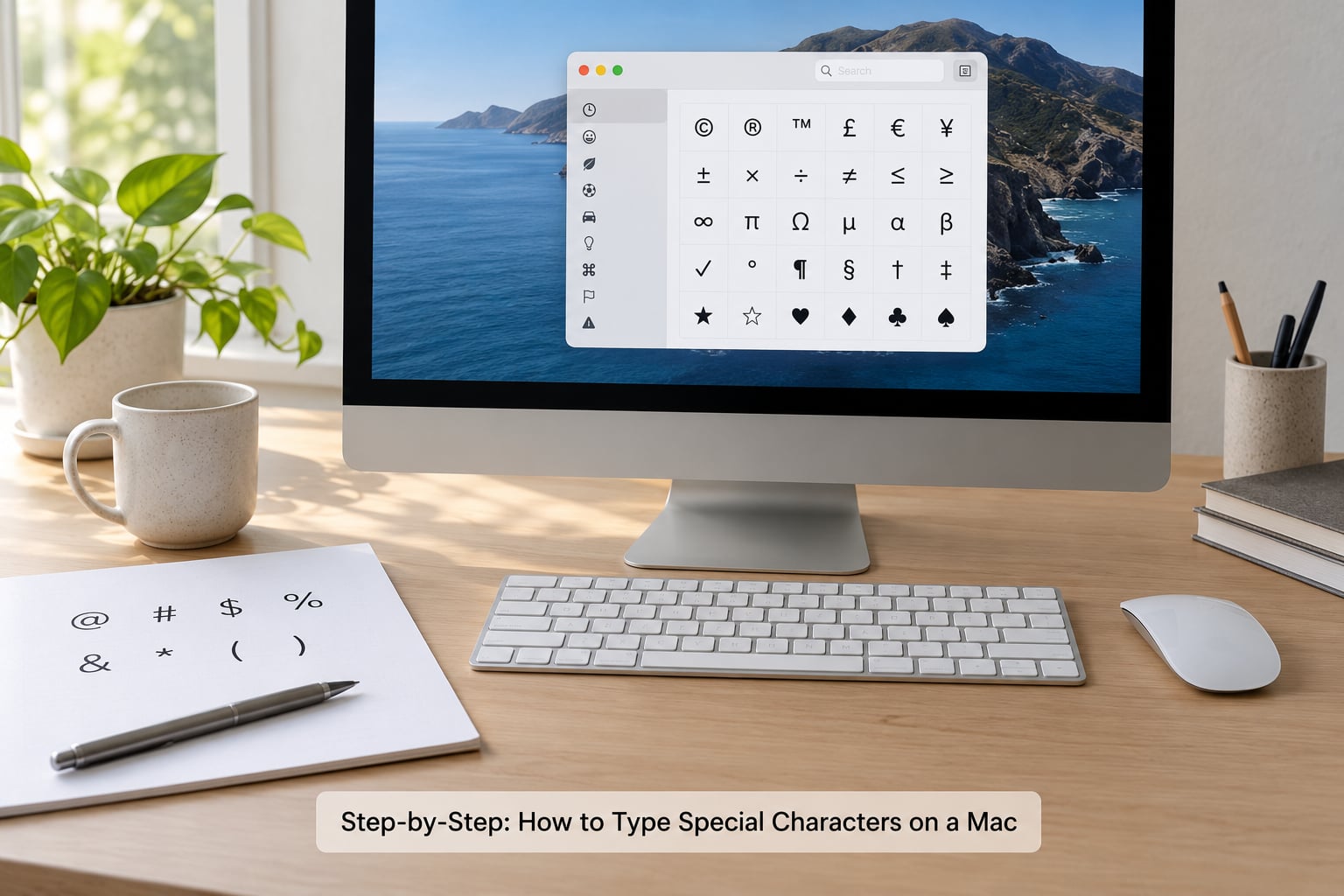
Use Keyboard Shortcuts for Common Symbols
Hold Option, tap the second key, and the character appears. On the standard US layout these are the ones you will reach for most:
| Keys | Character | Keys | Character |
|---|---|---|---|
| Option + G | © | Option + 3 | £ |
| Option + R | ® | Option + Shift + 2 | € |
| Option + 2 | ™ | Option + Y | ¥ |
| Option + 8 | ° | Option + 4 | ¢ |
| Option + 5 | ∞ | Option + 7 | ¶ |
| Option + P | π | Option + M | µ |
| Option + = | ≠ | Option + – | ÷ |
| Option + , | ≤ | Option + . | ≥ |
| Option + ` | ± | Option + B | √ |
A second layer sits above the number row, which is where the typographic characters live:
| Keys | Character | Keys | Character |
|---|---|---|---|
| Option + Shift + 9 | • | Option + Shift + ; | … |
| Option + – | – | Option + Shift + – | — |
| Option + ‘ | ’ | Option + “ | “ or ” |
| Option + W | ‹ | Option + Shift + W | « |
Then there are the characters hiding on keys you already use. @ is Shift + 2, # is Shift + 3, _ is Shift + -, a backslash is Option + Shift + /, and ? is Shift + /.
One warning worth repeating: these combinations assume the US or ABC layout. On AZERTY, QWERTZ or a non-US regional layout the same physical keys produce different characters, so check your layout before you assume something is broken.
Hold Option for Alternate Letters and Accents
Accented letters work in two stages. Tap Option plus the accent key, then tap the letter you want the accent on. Press and release each pair in turn.
| First keys | Accent | Then type | Result |
|---|---|---|---|
| Option + E | Acute | e, a, i, o, u | é, á, í, ó, ú |
| Option + I | Circumflex | a, e, o | â, ê, ô |
| Option + U | Umlaut | a, o, u | ä, ö, ü |
| Option + N | Tilde | n, a | ñ, ã |
| Option + ‘ | Grave | e, a | è, à |
| Option + C | Cedilla | c, o | ç, õ |
So é is Option, then E, then E. Add Shift at the end to get É, which is how you get uppercase accented letters for names like Éire or Ångström.
The single-press Option combinations handle the characters that are not accents at all: Option + A gives å, Option + Shift + A gives Å, Option + O gives ø, Option + S gives ß, and Option + Q gives œ.
Not sure what a key can produce? Open the Keyboard Viewer from the Input menu in the menu bar, then press and hold Option on your real keyboard. Every key that behaves as a dead key lights up with an orange outline in the on-screen layout.
The faster alternative is press and hold. Hold down the e key and a small menu appears with every version of that letter, accents included. Press the number shown underneath the character you want, or slide across and release the mouse over it.
Open the Emoji and Symbols Picker
Control + Command + Space bar opens a compact panel of emoji, and the expand button in its top right corner turns it into the full Character Viewer. That expanded window is the one that matters here, because it reaches symbols emoji never covered.
Type in the search field at the top and the list narrows as you go. Searching “degree”, “arrow”, “celsius” or “copyright” finds the character directly, and double-clicking inserts it into whatever you were typing in.
The window also has category tabs along the bottom, including arrows, math symbols, currency, punctuation and letterlike symbols. Drag a character you use often into Favourites, the small star section, and it will be waiting next time.
Many people expect this panel to only hold emoji and feel confused when a symbol is missing. It is a search index, not a fixed list, so a plain word like “integral” or “sharp” will surface the math symbol you are after.
Use Unicode Hex Input for Less-Common Characters
Every character on a Mac has a Unicode number attached to it, and you can type that number directly if nothing else reaches the character you need.
Go to System Settings > Keyboard > Text Input > Input Sources > Edit, click the plus button and choose Others > Unicode Hex Input. Add it, then switch to it from the input menu.
With Unicode Hex Input active, hold the Option key and type the hexadecimal code. Release Option and the character appears. For a copyright symbol the code is 00A9, for the degree sign it is 00B0, and for a pi sign it is 03C0.
Then switch back to your usual input source. This is the step people skip, and leaving Unicode Hex Input active means Option stops producing your normal symbols, because Option is now the AltGr-style hex modifier. The Keyboard tab in System Settings also lets you set up a quick shortcut for switching sources.
Common Mistakes
The wrong input source is active. Check the input menu in the menu bar first. Press and hold the 🌐 or Control + Space bar to cycle through sources, and make sure ABC is selected before blaming a shortcut. If you cannot find that menu, add it back in System Settings > Keyboard > Text Input > Edit.
The accent menu never appears. Open System Settings > Keyboard and look at Key repeat rate. If it sits at Off, long-pressing produces a string of repeated letters instead of the accent popup, which is the single most common complaint on Mac forums. Fast or Fastest restores it.
A shortcut does nothing in one app. Google Docs in a browser often ignores Option combinations and occasionally swallows the press-and-hold accent menu, producing a row of repeated letters. Several desktop apps behave the same way. Open the Character Viewer there instead, or copy the character in once and paste it as needed.
You pressed the wrong key for emoji. The globe or Fn key opens the emoji panel only when configured to. Control + Command + Space bar works regardless of that setting. Under System Settings > Keyboard > Keyboard Shortcuts, “Press 🌐 key to” controls what that key does, and the Fn key setting lives a few lines below it.
You want to stop accidental accented characters. Set the globe key action to Do Nothing, and under Keyboard Shortcuts > Input Sources you can turn off the dead key behaviour or remap which Option combinations act as accents.
You are typing into a remote machine. Characters coming through a remote desktop session or a virtual machine follow the remote operating system, so Windows Alt codes are what apply inside the window, not Mac Option combinations.
A couple of habits make the rest of this easier. Keep the input menu visible so you always know which source is active, and use the Keyboard Viewer to learn the dead keys rather than memorising a table.
Frequently Asked Questions
How do I type é on my keyboard on my Mac?
The fastest way is press and hold the e key. A small accent menu appears, and you press the number shown under é to select it. For a repeatable shortcut, press Option then E, then E again, and the two-step sequence produces é directly. Add Shift at the final keystroke for uppercase É.
How do I type special characters on a Mac keyboard?
Hold the Option key and press the letter or number paired with the symbol, so Option + G gives © and Option + 8 gives the degree sign. For anything without a shortcut, press Control + Command + Space bar to open the Character Viewer, search for the character and double-click it to insert it.
What is the symbol for the Option key on a Mac keyboard?
The Option key carries the ⌥ symbol and sits immediately to the right of the Command key (⌘) on Mac keyboards. It is often called Alt because it plays the same role as Alt on Windows keyboards, but the two behave differently. On Mac, Option produces alternate characters and symbols.
How do I type ASCII or Unicode characters on a Mac?
Use Unicode Hex Input. Add it in System Settings u0026gt; Keyboard u0026gt; Text Input u0026gt; Input Sources u0026gt; Edit under Others, select it from the input menu, then hold Option and type the hexadecimal code such as 00A9 for ©. Switch back to ABC afterwards so Option returns to producing your usual symbols.
Why do special characters not work in Google Docs or Excel on Mac?
Some apps capture Option combinations themselves, and the browser version of Google Docs is a frequent offender for both symbols and the press-and-hold accent menu. Excel and several third-party editors show the same behaviour. In those apps, insert the character with Control + Command + Space bar and the Character Viewer instead.
How do I type special characters with a Windows keyboard on a Mac?
A standard PC keyboard works, but Windows Alt codes do not carry over because Alt sends Command on macOS. Use the Mac Option combinations shown above, or set the keyboard type to PC in System Settings u0026gt; Keyboard if characters come out wrong. Non-US layouts like AZERTY and QWERTZ map differently too.
Conclusion
Start with the shortcut: Option plus one key for symbols like ©, ° and €, and the two-stage Option combinations for accented letters. Hold a letter key when you want the accent menu without remembering a sequence, and press Control + Command + Space bar whenever you are not certain a shortcut exists. Save Unicode Hex Input for the rare character nothing else reaches, and switch your input source back afterwards.
If something refuses to type, check your input source and key repeat rate before anything else. Those two settings account for most failures.