If you want to know how to find hidden apps on a phone, start with system search and then work outward: search by app name, check the iPhone App Library or the Android app drawer, look at folders and recently deleted items, then review Screen Time or Family Link restrictions and your store purchase history. Most missing apps turn up in one of those first four places.
The whole thing takes about ten minutes on your own phone. On someone else’s phone, you need their passcode, and if parental controls are set, the parent account too.
Table of Contents
- 1What You Need
- 2How to Find Hidden Apps on a Phone: Step by Step
- 3Step 1: Search for the App by Name
- 4Step 2: Check the App Library, Folders, and Hidden Pages
- 5Step 3: Look for Recently Deleted or Offloaded Apps
- 6Step 4: Check Screen Time or Family Link Restrictions
- 7Step 5: Check Disabled, Restricted, or Incompatible Apps
- 8Step 6: Use the Purchased or Installed App Records
- 9Step 7: Use Storage Tools and Support as a Last Check
- 10Common Mistakes
- 11Frequently Asked Questions
- 12Why does an app disappear after I download it?
- 13Where are hidden apps on an iPhone?
- 14Does Android have a Hidden Apps category?
- 15How can I see apps hidden by Screen Time or Family Link?
- 16Does deleting an app also delete its data?
- 17Conclusion
What You Need
Before you start, gather four things. Without them you’ll waste time searching an empty home screen for an app that is sitting behind a restriction.
- The phone itself, in your hand, unlocked.
- The device passcode. On iPhone, Screen Time reports and restricted app settings need it.
- Store access. On iPhone that’s your Apple ID; on Android it’s the Google account signed into Play Store.
- Screen Time or Family Link access, if the phone belongs to a child. Both report installed apps regardless of where the icons are.
Also worth noting which phone you’re working with. Menu paths differ between iPhone and Android, and Samsung’s One UI adds its own layer on top of Android.
How to Find Hidden Apps on a Phone: Step by Step
The steps below run in troubleshooting order, fastest and least intrusive first. Stop as soon as you find the app, because later steps involve passcodes and account settings.
Step 1: Search for the App by Name
Search is the fastest method, and it reaches apps buried in folders where scrolling the home screen never would.
iPhone: Swipe down from the middle of the screen to open Spotlight, type the app name, and tap the result. You can also swipe up from the lock screen and tap the Search field. If the app is installed anywhere on the phone, Spotlight finds it.
Android: Open the app drawer (swipe up from the bottom on most launchers, or tap the app grid icon), then tap the search bar or just start typing. Samsung phones put search in the search bar at the bottom of the drawer.
How to tell it worked: The app name appears in results with its real icon. If Spotlight finds it and no icon is visible, the app is hidden from the home screen rather than missing. It’s in the App Library, a folder, or a hidden page.
One catch worth knowing: a few third-party launchers on Android don’t index every installed app in search. If search comes up empty but you know the app is there, move to Step 2.
Step 2: Check the App Library, Folders, and Hidden Pages
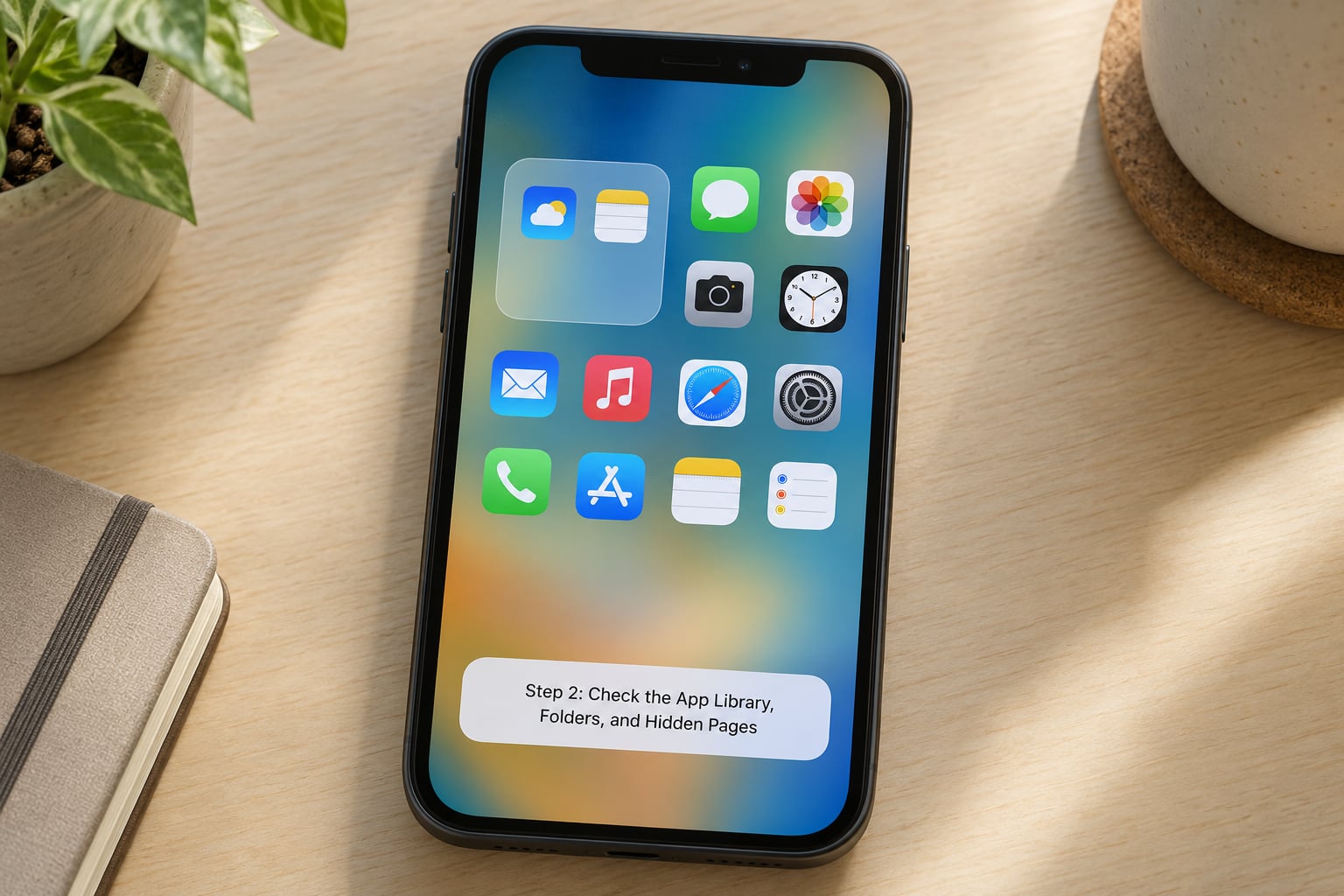
On iPhone, swiping past the last home screen page opens the App Library, a searchable grid of everything installed. It’s usually the answer, because hiding an app from the home screen never removes it from the App Library.
Open the App Library, tap the search field at the top, and type the app name. The Recently Added group at the top is worth scanning too, since a fresh install lands there.
Then check folders. Tap once to open a folder, then tap through any subfolders nested inside it. A folder inside a folder inside a page is a common hiding spot that people forget they made.
On iOS 18 and later, Apple added a Hidden Apps category in the App Library itself. When someone hides an app, it moves into a folder marked with a crossed-out circle icon. Long-press the app, tap Unhide, and confirm. The icon goes straight back to the home screen where it was.
On Android, open the app drawer and look for apps that aren’t on any home screen page. Then long-press an app icon to check for a Hide or Hide in App Drawer option. Samsung phones put this under One UI’s Hide Apps on Home Screen setting.
How to tell it worked: You tap the app and it opens. On iPhone, an unhidden app reappears as a normal icon you can drag anywhere.
Step 3: Look for Recently Deleted or Offloaded Apps
Deleted and offloaded look identical on the home screen, and the difference matters more than most people expect. An offloaded app keeps its documents and data and reinstalls itself the moment you tap the icon. A deleted app is gone until you reinstall it.
iPhone: Open the App Store, tap your profile picture in the top right, then tap Purchased. Recently purchased items sit near the top. Deleted apps can be reinstalled here with one tap.
Offloaded apps have another home. Swipe past your last home screen page to the App Library, tap the search field, then tap and hold the app’s name and tap Show All. Any offloaded app appears with a cloud icon next to it.
Android: Removed apps come back through the Play Store. Open Play Store, tap your profile icon, then Manage apps and device and choose Installed. Apps you uninstalled but whose data remains can be reinstalled from the same list.
Offloading is Android’s less common equivalent, mostly found on Samsung One UI under Settings, then Apps, then sort by frequently unused apps.
How to tell it worked: The app reopens with its previous content intact, which tells you it was offloaded rather than deleted.
Step 4: Check Screen Time or Family Link Restrictions
Parental controls don’t hide apps, they block them. The installed app still exists in full, just unavailable until a parent approves it. This is the step most guides skip and the one that explains a lot of missing icons on a child’s phone.
iPhone: Open Settings, then Screen Time, then App Limits. Under Always Allowed you’ll see the small set of apps that pass through. Below that, tap App Limits, then a limit like Adding Apps, and set a time or category limit to see which apps are restricted and when.
Android: Open the Google Family Link app to see what is limited, then check Settings, Apps, and Special app access. Apps with a permission you didn’t grant show up here, which is where a restricted app usually reveals itself.
How to tell it worked: The app name appears in a Screen Time or Family Link report but tapping the icon does nothing, or an approval prompt asks a parent to allow it. That’s a restriction, not a hiding.
Access to these reports needs the Screen Time passcode or the parent account. If you don’t have either, this method stops, and it should. Screen Time exists to keep one person out, and working around a parent’s settings on a child’s phone isn’t something this guide helps with.
Step 5: Check Disabled, Restricted, or Incompatible Apps
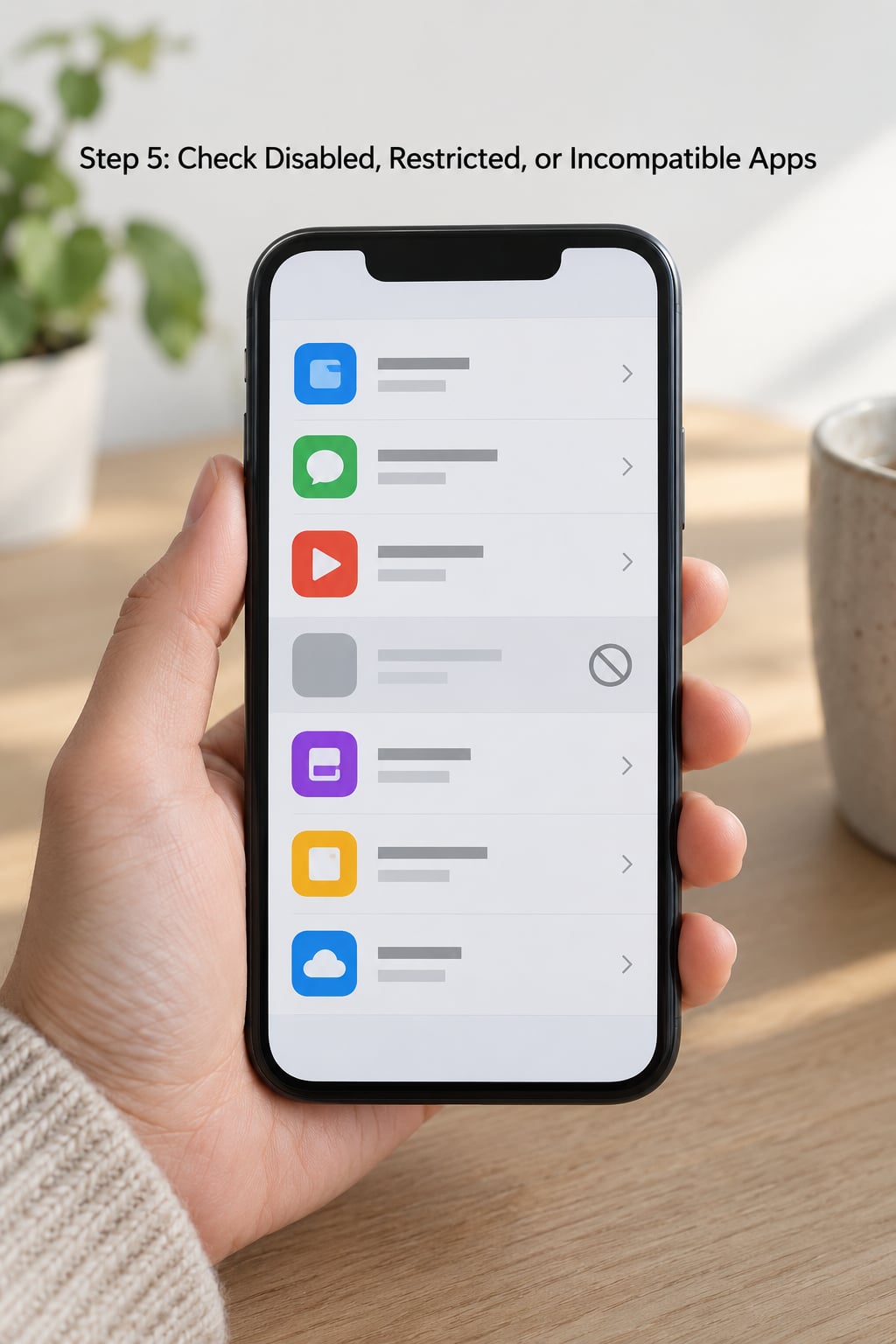
Sometimes an app isn’t hidden at all. It’s switched off, held back by a regional restriction, or unable to run on your hardware. Both phones keep a list of these where almost nobody looks.
iPhone: Open Settings, tap General, then VPN and Device Management. Profiles and configurations from installed apps appear here. Any app still needing to finish a setup or accept terms is listed until you tap it.
For app restrictions by country or carrier, check Settings, then Apps, then App Store, where the account and region settings live.
Android: Open Settings, then Apps, then See all apps. Tap the three-dot menu and choose Show system apps to include the ones your manufacturer preinstalled. Restricted or disabled entries stay listed even when their icons are gone.
How to tell it worked: The app is in the list, so it’s installed. If it refuses to launch, check the OS version requirement in the store listing against your phone’s system version under About phone or About.
Step 6: Use the Purchased or Installed App Records
This is the most reliable check on either platform because it comes from the store account rather than the phone’s launcher, so nothing on the device can hide from it.
iPhone: Open the App Store, tap your profile picture, then Purchased. That list covers apps you own on this Apple ID, including anything installed on your other devices through the same purchase record. Subscriptions appear under the same profile menu.
Android: Open Google Play, tap your profile icon, then Manage apps and device and Installed. This shows apps currently installed on the device and apps shared from your Google Play library that aren’t installed yet.
Open and install are different states. A button reading Open means the app is on the phone right now. A Download or Install button means it isn’t, which narrows your search considerably.
How to tell it worked: The store list confirms the app exists on the account. If the store says Open and you can’t launch it, the icon is hidden somewhere on the phone, so go back to Step 2.
Restore your Play Store library by opening Play Store and checking for a notification saying some apps are missing, or by tapping the profile icon and selecting the library option. The same idea applies to iOS with Find My and App Store purchases.
Step 7: Use Storage Tools and Support as a Last Check
If the app is missing everywhere else, look at what the system itself knows about your storage and networking. Free up space and account sync problems both cause apps to disappear from view.
iPhone: Open Settings, then General, then iPhone Storage. The list shows every app with its data size, and apps that have been offloaded show a cloud icon next to the name. Settings, then General, then Software Update shows the iOS version, which tells you whether an app’s minimum requirement is the problem.
Android: Open Settings, then Apps, then See all apps, and sort by size or by last used. Settings, then About phone shows the Android version. Settings, then System, then Reset options, then Reset Wi-Fi, mobile network and Bluetooth fixes a lot of missing app icons after a network change.
If the app is confirmed installed, unlocks fine elsewhere, and still won’t show up, contact Apple Support or your phone maker. If it’s absent from the store account too, it may have been removed from sale in your region or withdrawn by the developer.
How to tell it worked: Storage screens list every installed app regardless of where its icon lives, so anything present there has been located even if you still can’t see the icon.
Common Mistakes
Most failed searches come from a handful of predictable mix-ups. Here’s what usually went wrong and what fixes it.
Treating an offloaded app as deleted. The icon is grey with a cloud and looks gone, but the data is intact. Tap it and the app reinstalls itself from Apple’s servers.
Ignoring folders, including nested ones. People swipe through pages and declare victory without opening a single folder. Open every folder, then open the folders inside those.
Searching on the wrong phone. A shared family phone or a work profile can hold apps that are nowhere near the device you’re holding. Confirm which device you’re on before you start.
Skipping parental controls. If the icon does nothing when tapped and a Screen Time report lists the app, a restriction is the cause. Go to Step 4 with the parent account.
Reinstalling before checking purchase history. Downloading an app again pulls a clean copy with none of the local data, and it hides the original. Check the store record first, every time.
Only checking the home screen. Hidden on iPhone means hidden from the home screen, not from the App Library or search. Both of those still find the app.
One last habit: after any fix, reopen the app from search rather than the icon. It proves the app itself works, separate from wherever its icon was hiding.
Frequently Asked Questions
Why does an app disappear after I download it?
Usually one of three things. It landed in a folder or an extra home screen page, especially on Android launchers that auto-sort new icons. Or it went straight to the App Library because your iPhone home screen pages are full. Or Screen Time blocked it and it never finished installing. Check your store account for the app first: if it says Open, the install succeeded and the icon is just somewhere you are not looking.
Where are hidden apps on an iPhone?
Hidden apps on iPhone live in three spots: the App Library reached by swiping past the last home screen page, a folder marked with a crossed-out circle icon, and the search results in Spotlight. Since iOS 18 there is also a dedicated Hidden Apps category inside the App Library. Swiping left across your home screen pages can also reach a spare page used only for apps you moved off the main screen.
Does Android have a Hidden Apps category?
No built-in category like iPhone’s, but Android hides apps in comparable ways. Some launchers add a Hidden apps entry that asks for a PIN. Samsung phones use Secure Folder, and Android 15 and later offer Private Space, a separate profile you unlock with its own PIN. Apps moved off the home screen into the app drawer also count as hidden to most people looking for them.
How can I see apps hidden by Screen Time or Family Link?
On iPhone, open Settings, then Screen Time, then App Limits to see Always Allowed apps and any category limits in force. On Android, open the Family Link app for the limit overview. These reports list apps whether or not their icons appear anywhere, because restrictions block access rather than remove the app. You need the Screen Time passcode or the parent account to see the details.
Does deleting an app also delete its data?
Deleting an app removes its icon and its local documents, photos and account data stored on the phone. Photos and messages usually stay in the Photos and Messages apps, but anything the app saved only for itself is gone. Offloading is different: it frees space while keeping the documents, and the app comes back intact when you tap the icon. Check the store purchase record before either option.
Conclusion
To find hidden apps on a phone, work outward from the cheapest check to the most involved one. Search by name, then open the iPhone App Library or the Android app drawer and go through every folder inside. From there, check recently deleted and offloaded items, then Screen Time or Family Link restrictions, then disabled or incompatible apps in Settings. Finish with the store purchase record and your storage screens, which list everything installed no matter where its icon is. Restore or reinstall the app only after you know which of those places it was hiding in, so you do not wipe local data by accident.