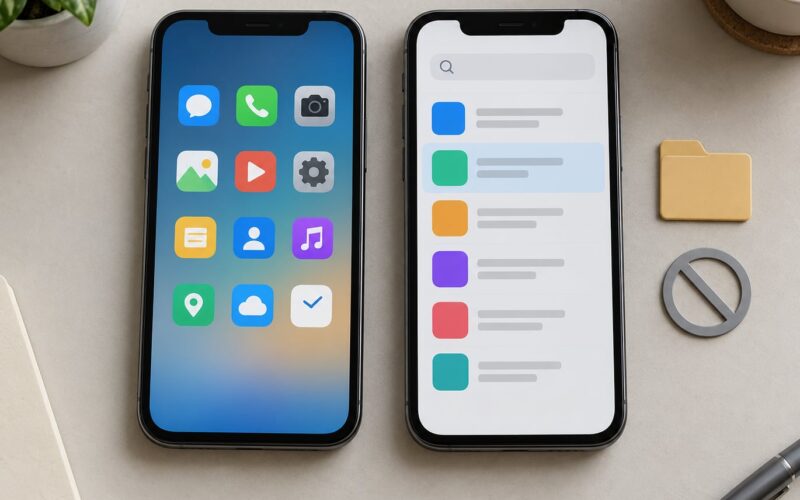
To limit screen time on an iPhone, everything happens inside Settings > Screen Time. Turn on App & Website Activity, add a daily limit to the apps that pull you in, schedule downtime for bedtime, then lock the whole thing with a passcode. About ten minutes of setup, and the phone enforces it from then on.
Table of Contents
- 1Quick start: a working daily limit in six steps
- 2What You Need
- 3Step-by-Step: how to limit screen time on an iPhone
- 4Step 1: Open the Screen Time controls
- 5Step 2: Set a daily limit on a single app
- 6Step 3: Cap whole categories instead of single apps
- 7Step 4: Schedule downtime and pick Always Allowed apps
- 8Step 5: Lock the settings with a passcode, then review weekly
- 9How kids get past Screen Time, and how to close each gap
- 10The one-hour override, used twice
- 11Guessing a four-digit passcode
- 12Changing the date
- 13A second device on the same Apple Account
- 14Knowing the Apple Account password
- 15Screen recording the passcode entry
- 16Safari and the web
- 17Expecting the wrong reset behaviour
- 18Common Mistakes and Quick Fixes
- 19Frequently Asked Questions
- 20Can someone bypass Screen Time on an iPhone?
- 21What should I do if I forgot the Screen Time passcode?
- 22Can I limit my own screen time as an adult?
- 23How do I temporarily turn off Screen Time without deleting the limits?
- 24How do I set Screen Time for my child’s iPhone with Family Sharing?
- 25Start With One Limit Tonight
Quick start: a working daily limit in six steps
- Open Settings and scroll down to Screen Time.
- Tap App & Website Activity and switch it on, then tap Continue.
- Choose a Daily Limit, Time Limit, or both, then set the hours and minutes.
- Back on the Screen Time screen, tap App Limits > Add Limit.
- Pick the app or an app category such as Social Networking or Games, set a daily time, and choose which days it applies.
- Go to Settings > Screen Time > Change Screen Time Passcode and set a code. Now the limits stick.
That list works whether the phone belongs to you or to a teenager. The differences show up in the details: a self-directed setup needs a passcode you genuinely do not know, and a child’s setup needs Family Sharing so the limits can be managed from your own phone.
What You Need
You need the device passcode. Screen Time will not turn on, or a passcode cannot be changed, until someone who knows the phone’s unlock code enters it. If the device has been set up and the passcode is unknown, that is a separate problem.
You also need a rough sense of what you want to change. Screen Time can cap total time, cap one app, cap a whole category, block apps during certain hours, restrict who the phone can contact, and cap age ratings. Trying to do all of it at once tends to end with nothing switched on.
For a child’s iPhone, add one more requirement: Family Sharing. It is what lets you set and change the limits remotely from your own device rather than only while holding theirs.
Two practical notes before you start. First, Apple has renamed parts of this menu in recent versions — newer systems talk about Time Allowances and Screen Time Schedules where older ones said App Limits and Downtime. The ideas are the same, only the labels moved. Second, set your Always Allowed list before you turn on an overnight schedule, or you will hand a child a phone that cannot make a call.
Step-by-Step: how to limit screen time on an iPhone
There are four different tools, and mixing them up is the most common reason a limit does not do what you expected.
| Control | What it limits | Use it for |
|---|---|---|
| App Limit | Minutes in one app, optionally varied by day | A single app that eats the evening |
| Category Limit | Total minutes across Games, Social Networking, Entertainment and the rest | Capping a habit rather than one icon |
| Downtime / schedule | Every app except Always Allowed, during set hours | Bedtime and school runs |
| Content & Privacy Restrictions | Age ratings, web content, purchases, app installs | Stopping installs and adult sites |
| Communication Limits | Who can call, message and FaceTime | Blocking unknown numbers |
Step 1: Open the Screen Time controls
Open the Settings app and scroll until you see Screen Time. The first time you enter it, the screen asks about your passcode and whether you own the device; answer the second question according to who will be held to the limits.
If App & Website Activity is already on, you can skip straight to the next step. Leave it on — several of the controls below do nothing while it is switched off. A weekly report and a chart of your most-used apps appear further down this same screen, and they are worth checking before you change anything.
Step 2: Set a daily limit on a single app
Tap App Limits, then Add Limit. The first row is App Limit; the second is a category such as Games or Social Networking.
Choose the app from the list, tap Set Time Limit, then Add Limit again under the daily limit screen. Pick the hours and minutes with the number wheels and tap Done.
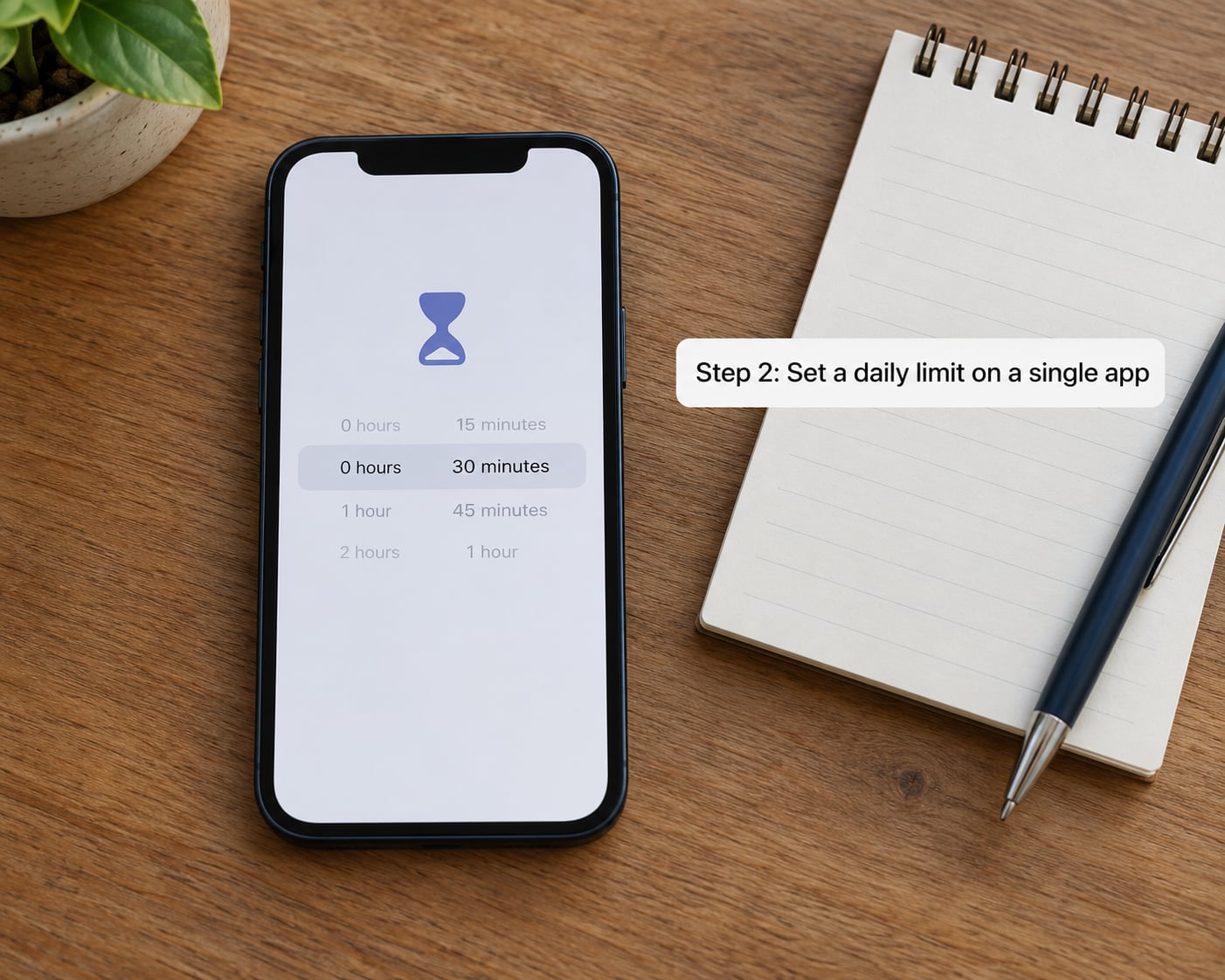
Before you tap Done, look at the day row at the top of that screen. Tap Customize to give weekdays a shorter window than weekends. The default is the same seven days, which is the reason a limit set on a Sunday surprises you on a Monday.
You can tell it worked by opening the app and watching the small remaining-time indicator on its icon, then by letting it run past the cap. The icon dims and a prompt offers a break or a short extension.
Step 3: Cap whole categories instead of single apps
A category limit is usually the better choice, because one app limit does nothing about the four other apps doing the same thing. Back on the App Limits screen, tap Add Limit and pick a category row instead of Apps.
Social Networking, Games and Entertainment are the three that move the number most. Set the category total first, then add individual app limits only for the one or two apps you genuinely want gone.
Two limits stacked on the same app do not add up. When a specific app and its category both have a cap, the smaller one applies, so check the category limit before you assume the app limit is being ignored.
Step 4: Schedule downtime and pick Always Allowed apps
Back on the Screen Time main screen, tap Downtime on older versions, or Screen Time Schedules on newer ones. Set a start and end time, for example 9:30 in the evening to 6:30 the morning, and choose whether the schedule repeats daily, on a weekly pattern, or only on a schedule you add by hand.
Tap Always Allowed and pick the apps that must keep working during the window. Phone, Messages and the emergency contact app are the sensible minimum. If a FaceTime call with a grandparent is part of the routine, add FaceTime too.
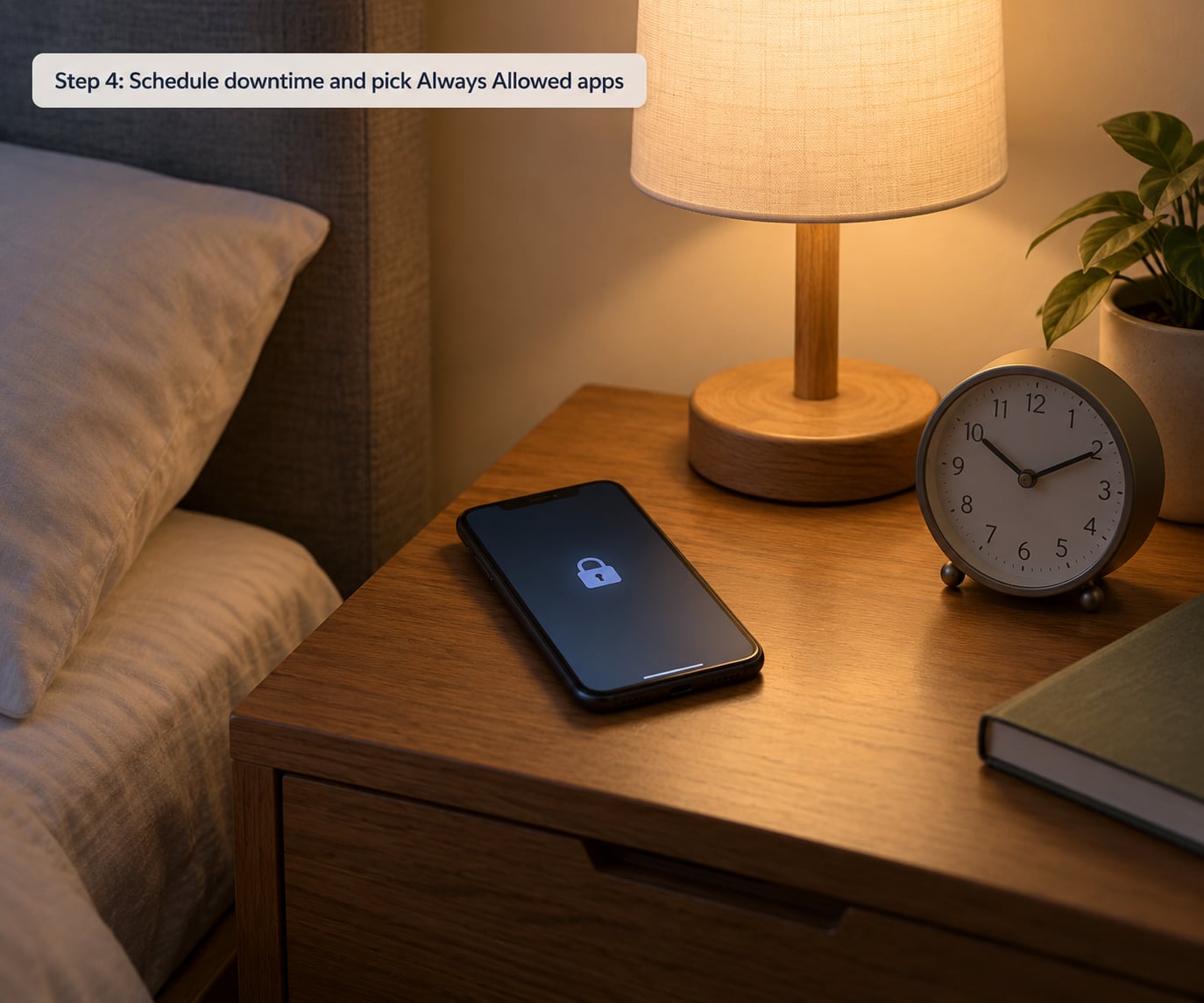
Verify it by setting the start time a few minutes ahead and waiting. When the window opens, every app except your Always Allowed list should show the same dimmed screen with the schedule times and a reason for ending it.
That reason line matters. A message explaining that the block runs until morning, plus the ability to request more time, settles arguments far better than a silent lockout.
Step 5: Lock the settings with a passcode, then review weekly
Return to Screen Time and tap Change Screen Time Passcode. Set a code you will remember and your child will not guess.
If you are limiting yourself, make it a code you cannot recall on your own — write it on paper and put it somewhere you will not look. Self-imposed limits with a passcode you can type from memory tend to last about a week.
For a child’s phone, a six-digit code beats the four-digit default, and most of the guessing happens against short numeric codes. Someone who knows the device Apple Account password can reset the Screen Time passcode, so do not let a child know it either.
Once a week, open Screen Time and look at the chart and the list of most-used apps. Adjust by minutes rather than by hours, and give a week or two for the change to settle before deciding it failed.
| Age group | A daily total that tends to work | Where to aim the limit |
|---|---|---|
| Under 5 | Shared use only, short and supervised | Categories, plus an overnight schedule |
| 6 to 8 | About 1 to 2 hours | Games and video categories |
| 9 to 12 | About 2 to 3 hours | Social Networking and Games |
| 13 to 17 | 3 to 5 hours, negotiated | Nighttime schedule more than daytime caps |
| Adults limiting themselves | Start 30 minutes below your current weekly average | The single app you open reflexively |
These are starting points, not rules. Pediatric guidance generally favours keeping recreational screen time consistent, avoiding use in the hour before bed, and keeping devices out of bedrooms overnight — treat any specific minute target as a family decision rather than a medical one.
How kids get past Screen Time, and how to close each gap
Screen Time is a set of agreements enforced by software. It stops the ordinary forgetfulness. It does not stop a determined person with the device in their hands, and pretending otherwise is how families get caught out.
These are the routes that actually come up in parent and owner forums, in rough order of how often they are reported.
The one-hour override, used twice
When a limit hits, the prompt offers a break, an extension of a few minutes, or Ignore for 1 Hour. Use it once and the timer resets for a full hour from that moment, which is how a 30-minute daily cap quietly becomes two hours.
Close it by pairing limits with a schedule. A schedule window does not offer the same override, so a bedtime block stops the chaining that a daily cap cannot.
Guessing a four-digit passcode
The default Screen Time passcode is short, and there are only 10,000 combinations. If several wrong attempts simply start the count over rather than erasing anything, a persistent child can work through them.
Set a six-digit or alphanumeric code instead. Many parents also smudge their fingerprints across the passcode keypad when setting it, so the same presses that set the code no longer line up for whoever tries it next.
Changing the date
Setting the device date forward moves the daily allowance to a fresh 24-hour window. On a locked phone this needs the device passcode, but on a phone handed over unlocked or with a weak passcode it is a genuine problem.
Keep the device passcode strong and never hand over an unlocked phone. Turn on Settings > General > Date & Time > Set Automatically so the clock cannot be moved by hand.
A second device on the same Apple Account
Children report this one constantly. A child signed into the same Apple Account on another iPhone or iPad can open Screen Time there and change or switch off the limits, because the settings travel with the account.
Give a child their own Apple Account and their own Family Sharing group entry as a child. Settings then follow the device rather than the account, and the Ask to Buy requests route to you.
Knowing the Apple Account password
Someone who knows the Apple Account password can reset a Screen Time passcode after verifying identity. That is by design, so it is the reason that password must stay with the adult.
Screen recording the passcode entry
If the code is typed on a device that is recording, the video keeps it. Type it with a hand over the screen, or set it on a device you keep control of.
Safari and the web
App limits do not block websites. Turn on Content & Privacy Restrictions, then Web Content, and choose Limit Adult Websites. In Safari on recent versions the same setting lives under Safari > Extensions or the settings menu, depending on the version.
Expecting the wrong reset behaviour
Daily limits reset at midnight rather than counting 24 hours from first use. A phone used from 11pm to 1am burns two different days’ allowances in one sitting, which surprises almost everyone the first week.
If limits look like they stopped counting, check that the phone’s date and time are automatic, then check the device is online and signed in. Settings can also take time to move between two iPhones on the same account; users report gaps of several hours, and a restart of both devices usually settles it.
Common Mistakes and Quick Fixes
Setting limits on the wrong phone. If you changed them on your own iPhone but the limits are for the child’s, the child’s phone has not received anything. Check the Apple Account at the top of both Settings apps, then set the limits while signed into the account that the child’s phone actually uses.
Confusing app time with pickups. The weekly chart includes notifications and pick-ups as well as foreground use. A day with 90 minutes of app time can still show 200 picks. Switch the chart to App & Website Activity if the pick-up number is distracting you.
Changing limits mid-argument. Adjusting a cap in the middle of an argument reads as a punishment and teaches the child to argue better. Agree changes at a set time, write down the new number, and hold it for two weeks.
Leaving Always Allowed empty. Then a schedule locks out calls and messages too, and the phone becomes useless in an emergency. Set Phone and Messages as exceptions before enabling any window.
Expecting Screen Time to survive a restore. Limits do not always come back after an update, an erase or a device swap. Re-check them after any major iOS update, and keep the passcode written down somewhere safe.
Trying to fix habits with caps alone. Screen Distance, a Focus mode during meals, or simply charging the phone outside the bedroom usually change more than a time limit does. The strongest combination is a schedule for sleep, a category cap for the worst hours, and a conversation about what the time is for.
Frequently Asked Questions
Can someone bypass Screen Time on an iPhone?
Yes, in the ways described above, so treat it as enforcement rather than a lock. The realistic routes are the one-hour override, a guessed short passcode, changing the device date, a second device on the same Apple Account, or someone who knows the Apple Account password. A six-digit passcode, automatic date and time, a separate Apple Account for each child, and schedules instead of daily caps close most of them.
What should I do if I forgot the Screen Time passcode?
If you still know the device passcode and the Apple Account password, use Change Screen Time Passcode on the Screen Time screen to set a new one. If neither is available, the limits cannot be removed from the phone as it stands. Back up first, then restoring through Finder or iCloud rebuilds the restrictions, though anything outside Family Sharing may need setting up again from scratch.
Can I limit my own screen time as an adult?
Yes, and every control works the same way with no Family Sharing required. Pick the app you open reflexively, set a daily limit slightly under your current average, and set a passcode you cannot type from memory. Grayscale in Accessibility and a Focus mode during meals are simple additions that make the cap easier to keep.
How do I temporarily turn off Screen Time without deleting the limits?
Turn off App and Website Activity under Screen Time with your passcode, and turn it back on when you want the limits enforced. This is the least destructive pause, and the settings stay in place. The one-hour option on the limit screen is a shorter pause for a single app. Deleting the limits means editing each one under App Limits and removing it.
How do I set Screen Time for my child’s iPhone with Family Sharing?
Add the child to your Family Sharing group with a dedicated Apple Account for them, then open Screen Time on their device with their device passcode and configure the limits. After that, Screen Time settings appear in your Settings app under your name, and you can change app limits, schedules, purchases and Ask to Buy requests remotely from your own phone.
Start With One Limit Tonight
Open Settings, pick the single app that costs you the most, and set a daily cap at thirty minutes under what you actually use. Add a passcode in the same sitting. Everything else — categories, schedules, purchase restrictions — can wait a week, once you know the first limit is holding.