Clearing cookies in Chrome, Firefox, Edge or Safari does not delete your saved passwords. Those live in a completely separate storage system from cookies, so the whole job is picking the cookie options while leaving the password and autofill options alone.
It takes about two minutes once you know which checkbox to avoid. On a desktop browser you can confirm your passwords are stored and synced first, clear only cookies and site data, then check that everything still autofills. I walk through the exact menu paths for each browser, plus what to do on a phone.
Table of Contents
- 1What You Need
- 2Step-by-Step
- 3Check Which Browser and Profile You Are Using
- 4Clear Cookies Without Deleting Saved Passwords
- 5Google Chrome on Windows and Mac
- 6Mozilla Firefox on Windows, Mac and Linux
- 7Microsoft Edge on Windows and Mac
- 8Apple Safari on macOS
- 9iPhone and iPad
- 10Android Chrome
- 11Clearing cookies for a single site instead
- 12Verify Your Passwords and Sign-ins Afterward
- 13Common Mistakes
- 14Frequently Asked Questions
- 15Will I lose my passwords if I clear cookies and cache?
- 16Does clearing cookies log me out of my websites?
- 17Is deleting cookies the same as clearing the cache?
- 18Should I clear all my cookies?
- 19How do I clear cookies on one website only?
- 20How do I recover passwords I deleted by accident?
- 21Conclusion
What You Need
Not much. You need the browser you actually use every day, and about five minutes of quiet time.
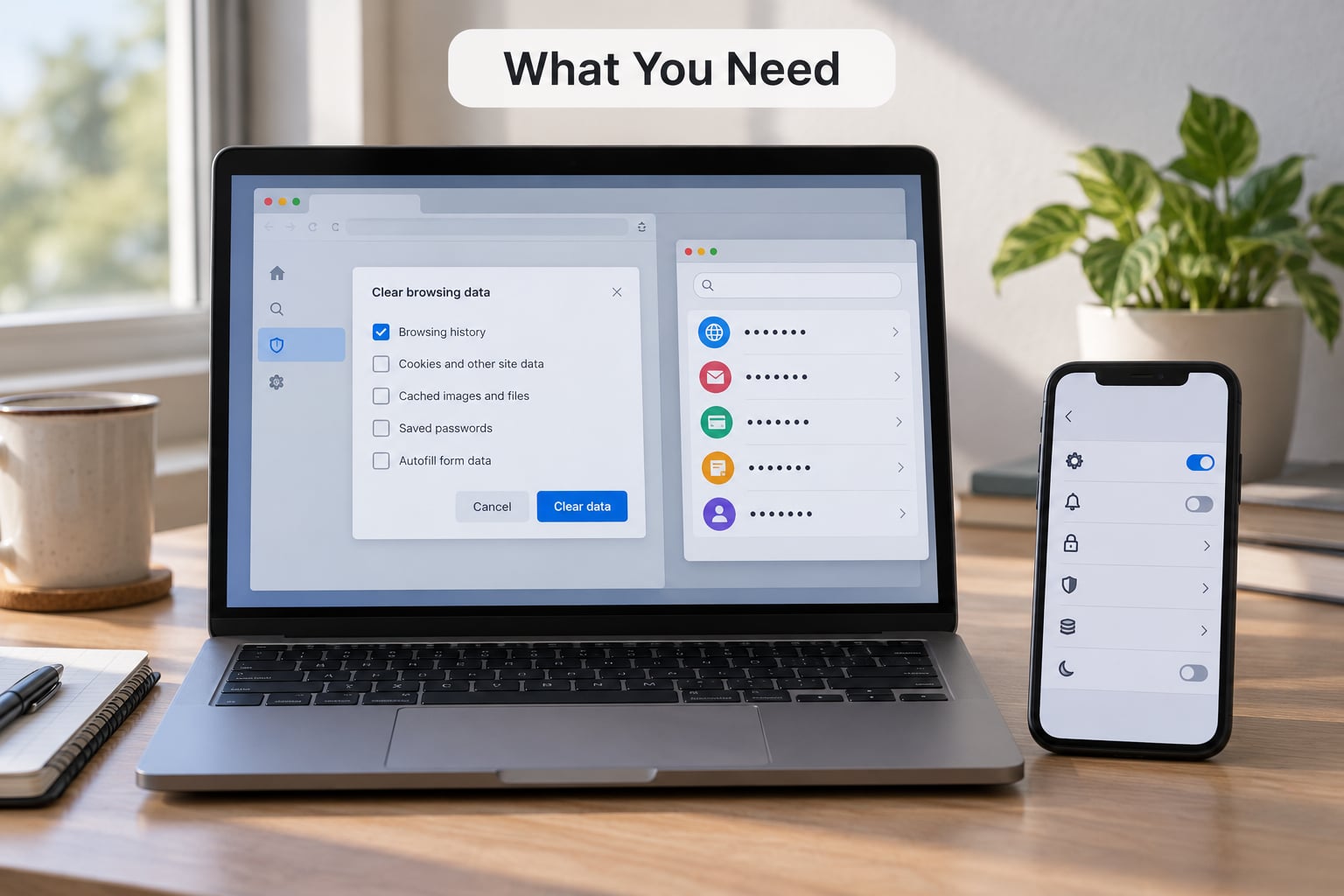
Before you clear anything, confirm three things:
- Which browser and profile you are in. Chrome, Edge, Firefox and Safari all store passwords separately, and each one keeps separate password lists per profile. If you have a work profile and a personal profile in the same browser, you are looking at two different vaults.
- Whether your passwords are stored in the browser at all. Open your browser’s password manager and look at the list. An empty list means the problem is something else.
- Whether that list is backed up. Synced passwords to a Google or Microsoft account can usually be restored. Passwords sitting only on one laptop, with sync off, cannot.
If you use a dedicated password manager such as Bitwarden, KeePass or 1Password rather than the built-in browser list, clearing cookies never touches your credentials. That is the permanent fix, and it takes an afternoon to move everything over.
Step-by-Step
Check Which Browser and Profile You Are Using
Start here, because most cookie-clearing mistakes happen in the wrong window. Look at the top-right corner of the browser for a profile avatar, a small initials circle, or a label like “Personal” or “Work 1”.
Chrome and Edge both support multiple profiles under the same install. Firefox uses containers and separate profiles, both reachable from the Firefox menu. Safari on macOS keeps one password list per Apple ID in iCloud Keychain, which is shared across your Mac, iPhone and iPad.
Once you know which profile holds your logins, open its password manager and count roughly how many entries it has. Ten entries or fifty, you want a number so you can tell afterwards whether anything went missing.
Look at the sync status too. In Chrome, the password manager page shows a sync banner when your passwords are uploaded to Google. In Firefox, the sync panel under Settings shows whether Saved Logins is included. In Edge, the same applies through your Microsoft account.
Clear Cookies Without Deleting Saved Passwords
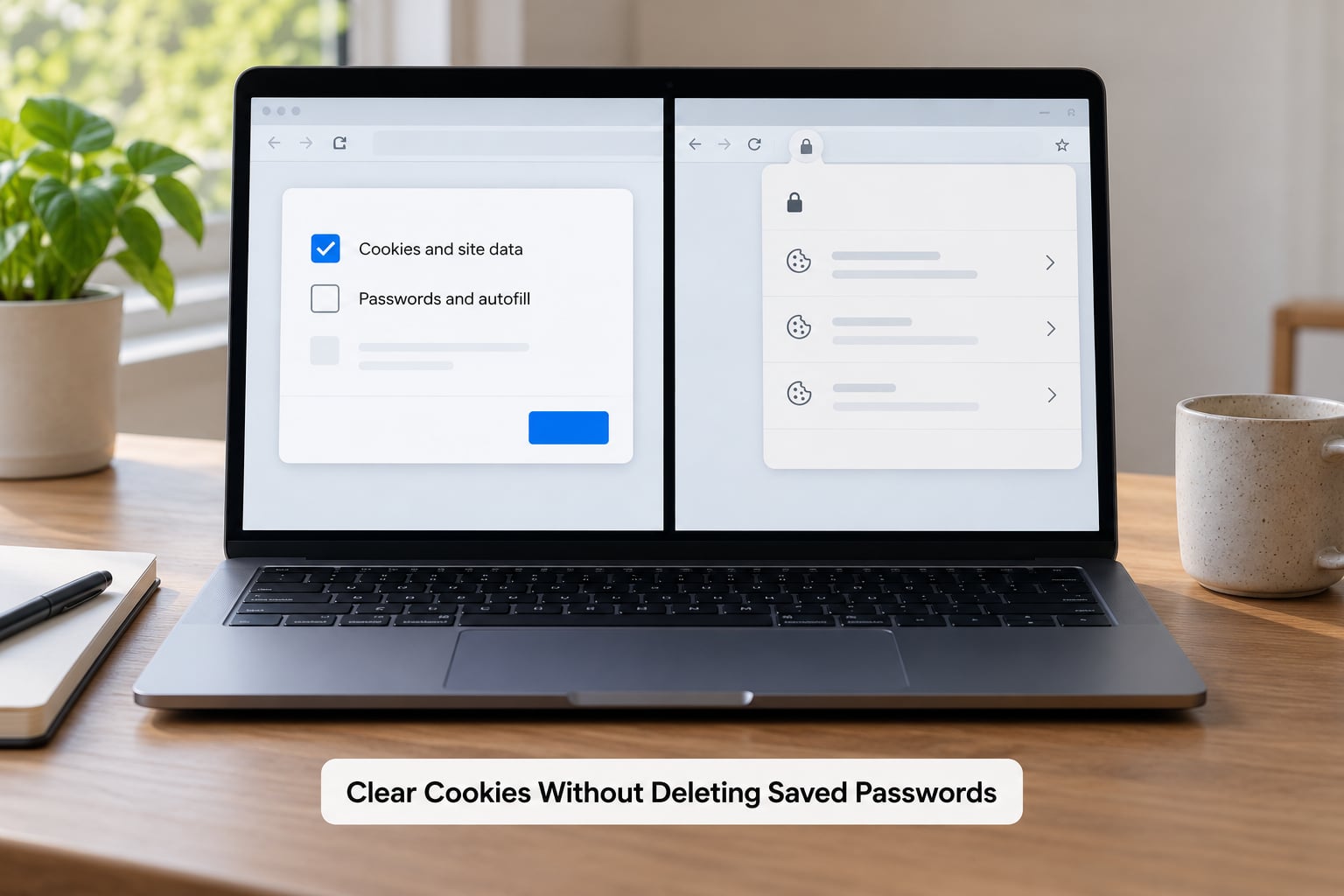
This is the whole procedure per browser. Each one takes four or five clicks once you find the menu.
Google Chrome on Windows and Mac
- Click the three-dot menu at the top right of Chrome and choose Delete browsing data. In recent Chrome versions the dialog may still be called Clear browsing data, depending on your version.
- Set the time range to Last hour for a quick fix or All time for a proper reset.
- Stay on the Basic tab. Tick Cookies and other site data. Add Cached images and files if a page is rendering badly.
- Do not open the Advanced tab unless you want it. That is where Passwords and other sign-in data and Autofill data live, and those two boxes are the only reason anyone loses logins this way.
- Click Delete data.
Mozilla Firefox on Windows, Mac and Linux
- Click the hamburger menu, then History, then Clear Recent History. You can also press Ctrl+Shift+Delete on Windows or Command+Shift+Delete on a Mac.
- Set Time range to clear to Last Hour or All Time.
- Tick Cookies and Site Data. Tick Cache if a site will not load correctly.
- Leave Active Logins and Site Permissions as they are. Active Logins holds only cookies for sites you are currently signed into, not stored credentials.
- Press Clear Now.
Firefox keeps Saved Logins in logins.json and its key file, entirely apart from cookies. That separation is exactly why unticking the password option matters less here than in Chrome, though it is still good practice.
Microsoft Edge on Windows and Mac
- Open the menu at the top right and choose Settings.
- Go to Privacy, search, and services, then scroll to Clear browsing data.
- Click Choose what to clear. The Basic list shows browsing history, cookies and other site data, and cached images and files. Tick those.
- Leave the password options alone. If you open the full data list instead of the basic one, it also shows Passwords and Autofill data — keep those unticked.
- Click Clear now.
Edge is the browser where the password loss posts are loudest. Almost every report of wiped Edge logins traces back to the Advanced view with Passwords ticked, not to cookies.
Apple Safari on macOS
- Open Safari and choose Settings from the menu bar. It was called Preferences in older versions.
- Open the Privacy tab.
- Click Manage Website Data to see every site holding cookies and caches.
- Select the rows you want and click Remove. Select all with Command+A if you want a full clear.
- Click Done, then close the panel.
Safari passwords are in the macOS Keychain, so this process cannot reach them. Safari autofill data is separate again, under Advanced then AutoFill.
iPhone and iPad
- Open Settings, then Apps, then Safari. On iOS 17 and earlier the path is Settings then Safari.
- Scroll to Clear History and Website Data and tap it. Confirm.
- Before or after, check Settings then Passwords to confirm your entries are there and visible.
- Check that iCloud Keychain is switched on under Settings, then your name, then iCloud.
When iCloud Keychain is on, deleted website data has no effect on stored passwords at all. The confusion on iOS comes from mixing up two separate screens that both mention passwords.
Android Chrome
- Tap the three-dot menu in Chrome, then History, then Clear browsing data.
- Choose Last hour, Last 24 hours, 7 days or All time.
- Tick Cookies and other site data, and Cached images and files if needed.
- Scroll down inside the dialog and make sure Passwords and other sign-in data and Autofill data are unticked. Android shows them lower down and they are easy to tick by accident.
- Tap Clear data.
If you use Samsung Internet or another Chromium-based Android browser, the labels are close enough that the same four settings work.
Clearing cookies for a single site instead
A full wipe is rarely what you want. If one site is misbehaving or you are logging out of one account, delete just that site’s data.
- Chrome: click the tune icon at the left of the address bar, then Cookies and site data, then Manage on-device site data. Click the bin icon next to the site.
- Edge: same path as Chrome, using the padlock or tune icon left of the address bar.
- Firefox: click the padlock icon in the address bar, then Clear cookies for this site.
- Safari: Settings, Privacy, Manage Website Data, then search for the domain and select it.
This is the option most people actually want. Nobody ends up logged out of their email, and the site that was broken gets a fresh start.
Verify Your Passwords and Sign-ins Afterward
Do not assume it worked. Check before you close the dialog window and wander off.
Open your password manager again and compare against your earlier count. In Chrome that is passwords.google.com or the three-dot menu, then Passwords. In Firefox, type about:logins into the address bar. In Edge it is edge://wallet/passwords. On iPhone and Mac, Settings then Passwords.
Then open a site you use daily and check that autofill offers your username on the login form. Autofill working is proof that the credential store is intact, even if you are now logged out and need to type the password once.
Expect to be signed out of everything. That is the cookie doing its job, not damage. Sign back into the accounts that matter: email first, then your password manager, then banking.
If you had exceptions or an allow-list set up, those sites may stay signed in. That is the point of an exception, and it is the closest thing to clearing cookies without logging out.
Common Mistakes
Using Clear browsing data and ticking everything. That is the whole problem in one sentence. Fix it by using the Basic view, or by unchecking Passwords and Autofill data in the Advanced view before you confirm.
Assuming cookies and passwords are the same thing. A cookie is a small text token a website hands you to prove you were already signed in. A saved password is a credential in a separate encrypted store, sometimes inside your browser profile, sometimes in the operating system keychain. Deleting the token does not delete the key.
Clearing in the wrong browser. More than a few people run a clear in Edge while their passwords live in Chrome. Check the browser icon in the toolbar before you start.
Clearing in the wrong profile. Personal profile cleared, work profile passwords never touched, and vice versa. Look for the avatar in the top corner.
Signing out of your password manager while you are in there. If you use a dedicated manager, its session token is a cookie too. Install or unlock it again before you finish, and if it is a browser extension, keep that extension pinned to the toolbar.
Using Firefox’s “Clear history when Firefox closes” with exceptions set. This option clears cookies at shutdown regardless of exceptions, which is a documented behaviour that surprises a lot of people. If you rely on exceptions, delete cookies manually instead of enabling that setting.
Turning on third-party cookie blocking as a troubleshooting step. It is a sensible privacy setting but a poor fix for a broken site, and it changes how every site behaves at once. Block the specific third party you dislike rather than resetting the whole category.
On a work or school device. Policy may reset the browser profile or block clearing entirely. If the change reverts by itself, that is your IT team enforcing policy, not a browser fault.
Frequently Asked Questions
Will I lose my passwords if I clear cookies and cache?
No, as long as you keep the password option unticked. Browsers store saved passwords in a separate encrypted credential store or in the operating system keychain, never in cookies or cached files. Clearing cookies logs you out of websites; it does not remove the login details your browser can autofill.
Does clearing cookies log me out of my websites?
Yes, from most of them. The cookie is what proves you were already signed in, so removing it ends that session. Per-site exceptions are the way around this, since a site on your allow-list keeps its cookies through a full clear. Signing back in is a few clicks once, not a lost account.
Is deleting cookies the same as clearing the cache?
No. Cookies are small text files a site uses for logins, preferences and tracking. Cache is a store of downloaded images, scripts and styles so pages load faster. Clearing cache changes nothing about being signed in, and clearing cookies touches no saved password. Only the cookie option logs you out.
Should I clear all my cookies?
Usually not. A blanket wipe signs you out of everything and resets ad personalisation across the web for a problem that often exists on one site. Delete cookies for the single site that misbehaves, or block that one third party. Reserve a full clear for a device you are handing over or a genuine security scare.
How do I clear cookies on one website only?
Use the site control icon at the left of the address bar. In Chrome and Edge it opens a panel with Cookies and site data, then Manage on-device site data, where you bin one entry. In Firefox click the padlock, then Clear cookies for this site. In Safari use Settings, Privacy, Manage Website Data and search for the domain.
How do I recover passwords I deleted by accident?
Check passwords.google.com for Chrome and Google Password Manager, or edge://wallet/passwords for Edge, and look for entries that came back through sync. On Apple devices open Settings then Passwords to see whether iCloud Keychain restored them. In Firefox there is no restore button, so export your logins from another signed-in device or your password manager and import them back.
Conclusion
Start with the cookie-only option, never the “clear all browsing data” shortcut. Leave Passwords and Autofill data unticked, confirm your password list and its sync status before you click, then check the list again afterwards.
If one site is the actual problem, delete its cookies on their own. It takes a quarter of the time and leaves you signed in everywhere else.
Menus in these browsers move around, so if a tutorial sends you to a Tools menu that no longer exists, trust the path in this guide instead. It reflects the current Chrome, Edge, Firefox and Safari layouts.