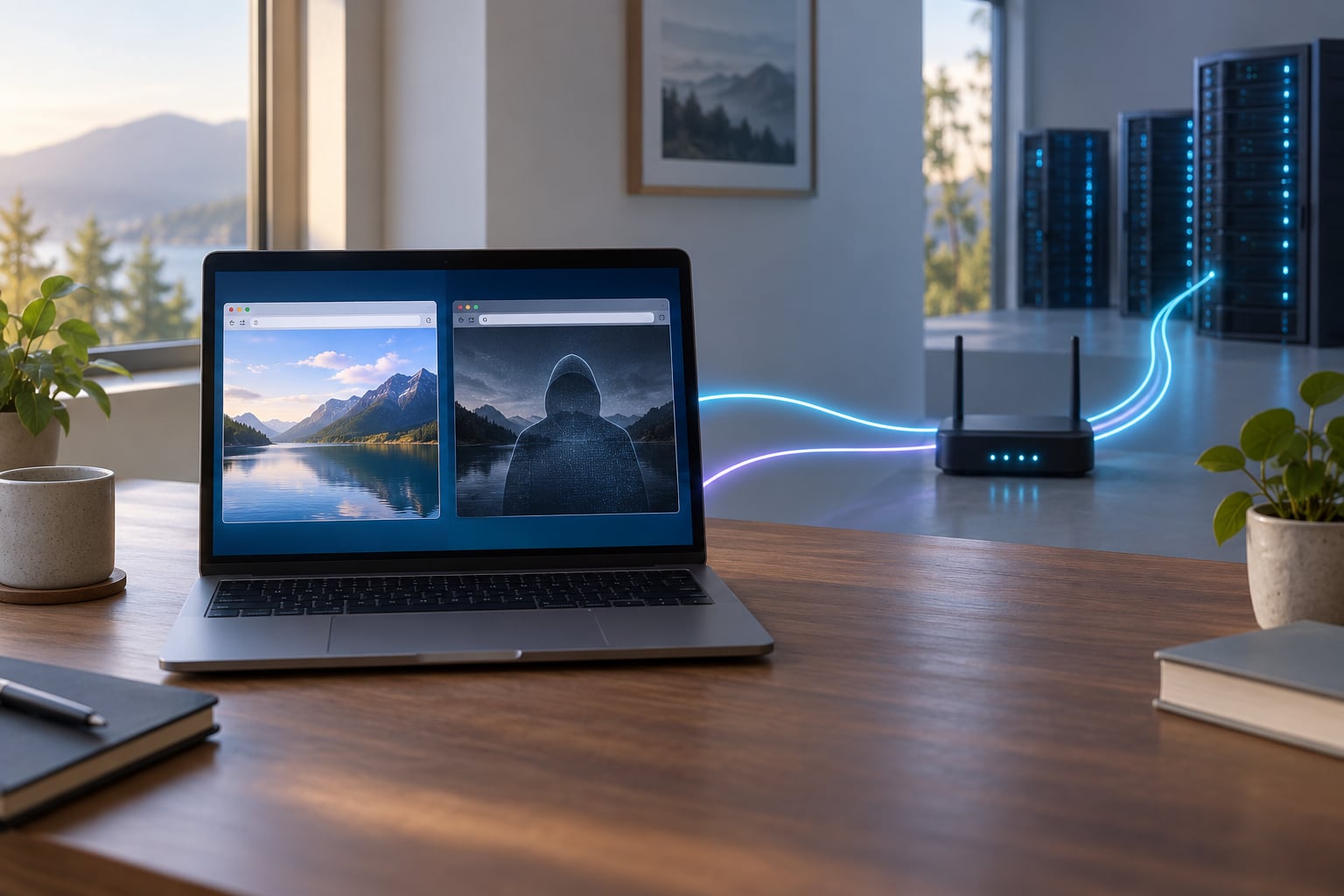
Incognito mode stops your browser from saving your history, cookies and site data on your own Mac. It does not hide you from the websites you visit, your internet service provider, your employer, or the accounts you are signed in to. Nothing you do in a private window travels anonymously, and the name promises far more than the feature delivers.
The gap between that expectation and reality is where most of the confusion lives. Search results for this question are full of the same story: someone searched for something in incognito, and a few days later an ad for it appeared somewhere in their household. Reddit threads about this fill the top results, and the recurring tone is not annoyance at the technology, it is feeling misled by the word “incognito.”
So here is the useful version. A private window is a short-lived, isolated session on one device. It keeps your browsing out of that device’s history list so the next person who opens the browser sees a clean slate. Everything that happens outside your Mac — at the network, at the site, and inside any account you are signed into — carries on exactly as it would in a normal window. This guide covers what a private session does, who can still observe you, and what actually reduces the trail. Menu paths are current as of 2026.
Table of Contents
- 1Why Incognito Mode Does Not Hide Your Activity
- 2What Incognito Mode Does and Does Not Hide
- 3Who Can Still See What You Do Online
- 4How Incognito Mode Works in Major Browsers
- 5Safari private browsing on Mac
- 6Google Chrome incognito on Mac
- 7Mozilla Firefox private browsing on Mac
- 8Microsoft Edge InPrivate on Mac
- 9On iPhone and Android
- 10Guest mode is not the same thing
- 11What Can Make Your Activity Visible
- 12Why incognito mode does not hide activity from websites
- 13Why a VPN and private browsing do not cover the same ground
- 14How to Reduce Your Digital Trail
- 15Frequently Asked Questions
- 16Does incognito mode hide browsing from my internet provider?
- 17Can my employer see what I do in incognito mode?
- 18Does private browsing delete my existing history?
- 19Can websites tell that I am using incognito mode?
- 20Is a VPN more private than incognito mode?
- 21Does incognito mode work the same way in Safari, Chrome, Firefox, and Edge?
- 22Conclusion
Why Incognito Mode Does Not Hide Your Activity
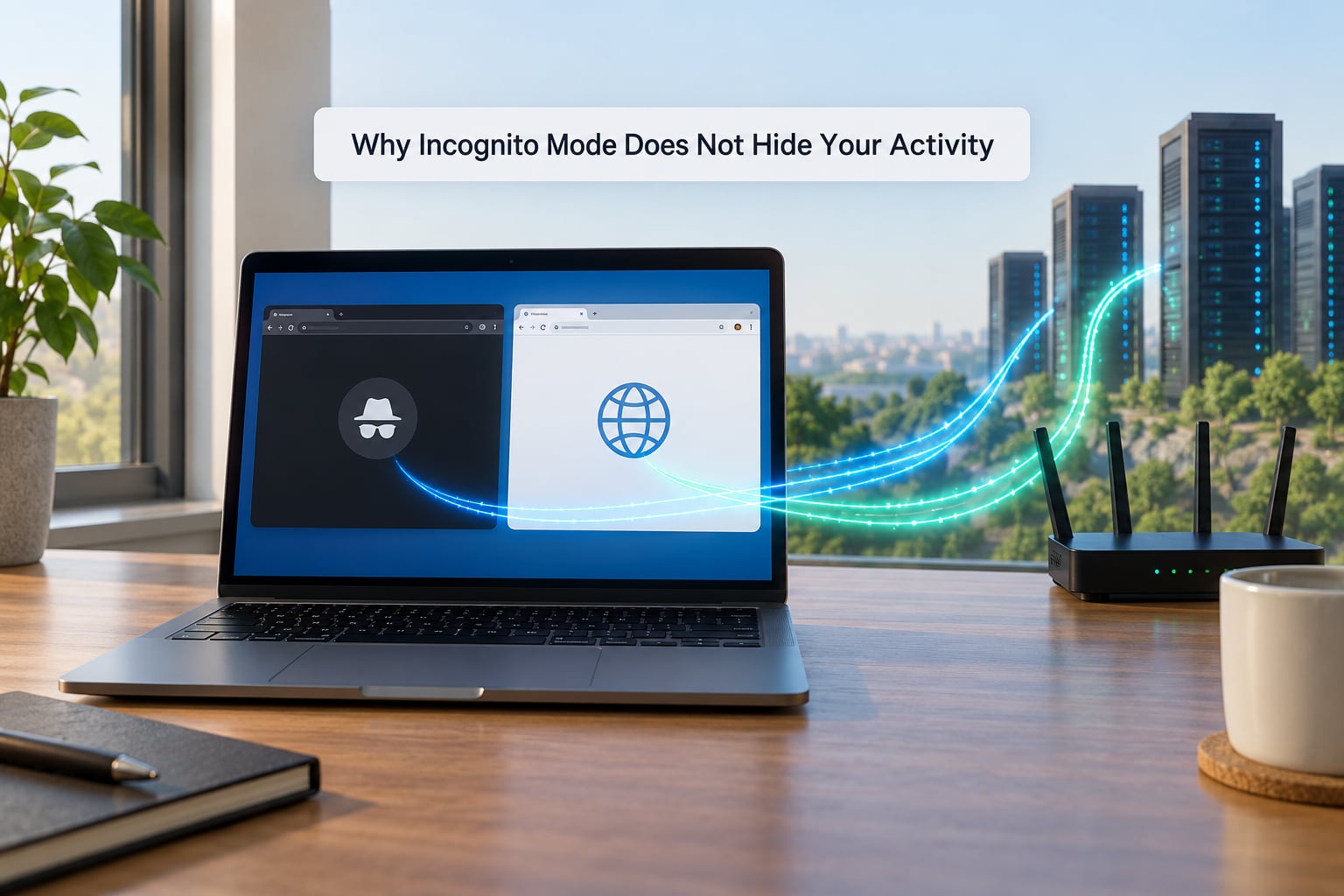
Because private browsing is a local feature, not an anonymity tool. It changes what your own browser writes to disk when the window closes. It does not change the network packets leaving your Mac, the log files written by the site you just loaded, or the activity record inside any account whose password is already saved in your keychain.
Think of it in three layers. Layer one is your device: history, cookies, cache, autofill. Incognito mode genuinely affects this layer, and it does it well for its narrow purpose. Layer two is the network in between: your router, your internet provider, and any workplace or school network administrator. Layer three is the far side: the website’s servers, ad exchanges, and your Google, Microsoft or Amazon account.
Incognito mode touches only layer one. Layers two and three need other tools, and even those tools have limits. That is the whole reason why incognito mode does not hide your activity from anyone except the person sitting next to you at the same Mac.
What Incognito Mode Does and Does Not Hide
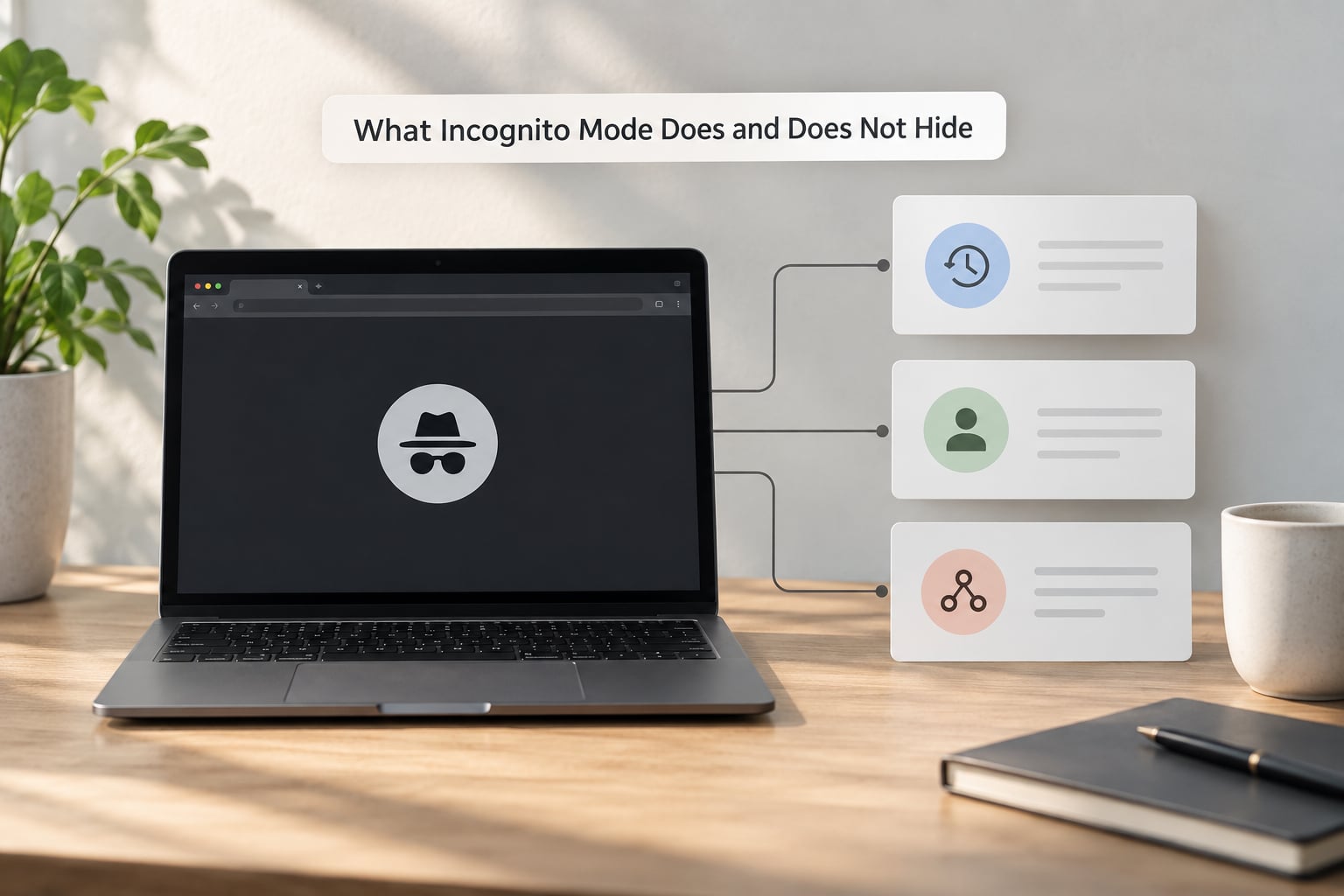
The practical answer to “what does incognito mode hide” is short: it hides the things listed in the left column below, and it leaves everything else alone. Read the two halves together, because most disappointment comes from assuming the left column is the whole list.
| Trace of your activity | Erased when the private window closes | Still visible afterwards |
|---|---|---|
| Pages you visited | Yes, the private session history is discarded | Website server logs, your ISP, any account history |
| Cookies and site data | Yes, session cookies go when the window closes | The site’s own first-party record of your visit |
| Autofill and form entries | Yes, entries are not written to the profile | Whatever the site stores about your form submission |
| Saved passwords | Nothing new is saved | Passwords already in your keychain still auto-fill |
| Bookmarks | No, they still save | They also sync to your account if you are signed in |
| Downloads | No, the file still lands in your Downloads folder | Your browser’s download list and your cloud sync |
| IP address and network path | No, it is unchanged | Every site you visit, plus your provider and network operator |
| Search history in your Google account | No, signing in still records it | Google account history, ad targeting, Search suggestions |
Google’s own Chrome Help page makes the boundary explicit. It describes incognito as providing “local privacy on your device” and states that it “doesn’t affect how your data is collected by websites you visit.” That sentence is the entire thesis of this article, written by the company that ships the feature.
There is a second, subtler point about cookies. Clearing cookies at the end of the session removes the identifier a site uses to recognise your browser. What it does not do is delete the record the site already made. A retailer can store a server-side row tied to your IP address and device fingerprint before the cookie ever disappears, and that row is unaffected by anything you do in a private window.
One more detail people miss: extensions. Chrome and Edge do not run most extensions in a private window unless you explicitly allow them. That blocks a lot of tracking by accident, which is helpful, but it also means the protection you have in normal browsing may quietly be off in private browsing. Firefox is the exception here, since it does carry extensions into private windows.
Who Can Still See What You Do Online
Follow one page load from your Mac outward and the observers line up in order. First your own device, then the local network, then your internet provider, then the site and its advertising partners, then any account you were signed into.
Your internet service provider sees the connection. With HTTPS, the page contents are encrypted, so a provider typically sees the domain you connected to and the timing and size of the traffic, not the specific pages you read or what you typed into a form. That distinction matters and is routinely overstated in both directions. DNS lookups are a common side channel that can reveal visited domains even when the page itself is encrypted.
Your workplace or school network operator sees traffic on their network. If you are on office Wi-Fi, any browsing at all, private or not, passes through equipment they administer. On a company-issued Mac, device management software can go further and report on activity directly from the endpoint, which is a separate path from the network entirely.
The website itself sees a request the same way it always does, and it can write whatever it likes to its own logs: your IP address, user agent, timestamp, pages requested, and a fingerprint built from screen size, installed fonts, time zone and language settings. Ad and analytics networks sit behind the site and see most of the same signals.
Your accounts see everything while you are signed in. This is the part that catches people out most often. If you are signed in to Google, Microsoft, Amazon, Meta or any large site inside a private window, your searches, views and activity are written to that account’s history. The private window only means your Mac does not keep a second copy.
| Observer | Private window only | Private window plus VPN | Tor Browser |
|---|---|---|---|
| Someone else using your Mac | Not shown | Not shown | Not shown |
| Your internet provider | Sees domains and timing | Sees encrypted traffic to the VPN | Sees only the Tor relay |
| Employer on their network | Sees domains and timing | Sees encrypted traffic to the VPN | Still sees a Tor connection |
| The website | Full request details | Sees VPN exit address instead | Sees relay address, blocks many sites |
| Your signed-in accounts | Records activity | Records activity | Records activity |
| Device fingerprinting | Still available | Still available | Hardened against it |
Notice the last two rows. A VPN changes what your provider and the site can attribute to you. It does not touch your account history, and it does not remove the fingerprint signals a browser gives away.
How Incognito Mode Works in Major Browsers
All four major browsers create a separate, throwaway session that does not write to your normal profile. The menu paths differ, and so do a couple of the built-in protections. On macOS, the paths below reflect current releases of each browser.
Safari private browsing on Mac
Choose File, then New Private Window, or press Command+Shift+N. Private tabs are marked in the tab group, and Safari blocks most cookies from sites you have not interacted with by default under Intelligent Tracking Prevention. If you are signed in to iCloud, Private Relay can route your unencrypted DNS and Safari traffic through Apple’s servers, which hides your destination from your provider but not from Apple.
Google Chrome incognito on Mac
Press Command+Shift+N, or pick New Incognito window from the three-dot menu. The window opens with a lighter shade and a short explanatory note. Extensions are off by default, so tracker blockers you rely on elsewhere do not apply. If you are signed in to a Google account, your searches still land in that account’s history at My Activity.
Mozilla Firefox private browsing on Mac
Press Command+Shift+P, or use the menu and choose New Private Window. Firefox is the strongest of the four out of the box because Standard Tracking Protection blocks third-party cookies and known trackers by default, and it can escalate to strict protection. Your extensions keep running, which is useful and also means the privacy of your session depends on what you have installed.
Microsoft Edge InPrivate on Mac
Press Command+Shift+N, or choose New InPrivate window from the menu. Edge is Chromium-based, so its behaviour matches Chrome closely, including disabled extensions. InPrivate is the same feature under a different name, not a different level of protection.
On iPhone and Android
On iPhone, tap the tab overview button and long-press the tab group, then choose Private. Safari sends a portion of traffic through Private Relay when you are signed in, which is separate from private browsing and helps even in normal mode. On Android, Chrome uses the three-dot menu and New Incognito tab, while Samsung Internet has its own private mode. Samsung devices also carry a second, separate private mode that keeps the tab off the recents screen entirely.
Guest mode is not the same thing
Guest mode drops you into a stripped profile with no access to your extensions, bookmarks or saved logins, and it leaves no trace on the profile when you close it. Guest mode is closer to how a stranger would see the web; incognito mode starts from your existing profile and simply stops recording. Neither one changes what the network or the site sees.
What Can Make Your Activity Visible
Several everyday habits quietly undo the protection people think they have. None of them is exotic, which is why they catch even careful users.
Staying signed in is the big one. If Google, Microsoft or any social site is already logged in, activity inside a private window is written straight to that account. Signing out, or using a separate browser profile with no accounts attached, closes the leak that produces most of the “my partner saw an ad” stories.
Bookmarks and downloads also survive. Bookmark a page in a private window and it appears in your normal bookmark bar on the next visit. Download a file and it stays in your Downloads folder, where anything with access to your account can find it.
Browser sync quietly reintroduces the session too. If sync is on and you close a private window, the history for that window is not uploaded, but anything the site saved server-side can still reach your other devices through your account.
Router and network records persist after the browser forgets. DNS caches on the machine, connection logs on the router, and the provider’s own records outlive the private window by hours or months.
Everyday apps outside the browser are also part of your activity record. An email client, a phone’s backup, a smart speaker, a car with connected services, and an assistant that learns from your signed-in account all carry traces that incognito mode has no relationship with.
Why incognito mode does not hide activity from websites
Because the request itself is unchanged. Private mode alters what your browser stores locally; it does not alter what you send. The site receives your IP address, your user agent, your language and time zone, and a fingerprint assembled from screen dimensions, installed fonts, canvas rendering and hardware quirks. It writes all of that to its own logs, where your closing the window has no effect.
Websites can also tell they are in a private window. A simple JavaScript check looks for whether cookies and local storage persist across a reload, and if they do not, the page knows. Several sites respond by blocking access, throwing a bot check, or serving a degraded version, which is why people sometimes see different pages in incognito mode.
Even when the cookie is gone, the fingerprint remains. That combination of signals is why clearing cookies in a private window does not mean starting from scratch as far as advertisers are concerned.
Why a VPN and private browsing do not cover the same ground
A VPN encrypts traffic between your device and the VPN server, so your internet provider sees an encrypted stream to one host instead of a list of domains. The site you visit sees the VPN exit address instead of yours. That is genuinely useful on hostile Wi-Fi such as a hotel or airport network.
It stops there. Your provider still knows you connected to a VPN, your employer can still see the connection on their network, your accounts still record what you do, and browser fingerprinting still works. A VPN also shifts trust from your internet provider to the VPN operator, which is a trade rather than a win. Tor pushes further by bouncing traffic through several relays, at the cost of speed and with many sites blocking access outright.
How to Reduce Your Digital Trail
You cannot get to zero, and anyone promising that is selling something. You can make the trail meaningfully smaller with a few settings that take about twenty minutes to sort out.
- Use a separate profile with no accounts signed in. A dedicated profile or browser for research keeps your Google or Microsoft identity out of the session entirely. This is the single highest-value change for the “spouse saw an ad” problem.
- Turn on tracking protection. Firefox with Enhanced Tracking Protection, Safari with Intelligent Tracking Prevention, and Brave’s built-in shields all block third-party cookies and known trackers by default. Chrome’s Tracking Protection does something narrower.
- Trim your extensions. Every extension you have installed can read the pages you open. Cut the ones you stopped using months ago and keep the set short.
- Sign out, or sign in deliberately. Long-term sessions with a Google account attached are what turn a private window into a logged one. Sign out when you are done, especially on a shared machine.
- Check whether your device is managed. On a work Mac, look for a Configuration Profile under System Settings, or ask IT. A managed device can report browsing activity regardless of the browser you use.
- Use a VPN on networks you do not control. It is a sensible default on hotel and airport Wi-Fi. Skip it if the extra trust in a VPN operator does not suit your threat model.
- Use unique passwords and a passkey or two-factor app. Privacy settings do nothing if an account is taken over. A password manager and an authenticator app take minutes to set up and prevent far more damage than any tracker block.
- Remember the split. Clearing local data handles what is on your Mac. Nothing you do in the browser handles what has already been collected server-side.
One clarification worth making: private browsing is not a security control. It does not block phishing pages, it does not scan downloads for malware, and it does not stop a malicious site from exploiting a browser flaw. Those jobs belong to a reputable ad and script blocker, Smart Screen or equivalent warnings, and kept-up-to-date software.
Frequently Asked Questions
Does incognito mode hide browsing from my internet provider?
No. Your provider still sees the connections you make, including which domains you resolve and when. Because sites use HTTPS, the contents of your pages and anything you type are encrypted in transit, so a provider typically sees the site rather than the exact page or form data. Using a VPN hides even the destination list from your provider, but shifts that trust to the VPN operator.
Can my employer see what I do in incognito mode?
On a company network, yes. Any traffic passing through workplace equipment can be logged regardless of browser mode, and managed Macs can report activity from the endpoint itself. On your own device and your own connection, your employer generally has no visibility unless monitoring software is installed. Signing into a work account inside a private window still creates a record on the company side.
Does private browsing delete my existing history?
No. Private mode only discards what happens during the session you are currently in. History from previous sessions stays in your profile until you clear it. Note that private windows also do not delete downloads, and bookmarks you create still save to your profile and may sync to your account.
Can websites tell that I am using incognito mode?
Often, yes. A page can run a short script that checks whether cookies and local storage survive a reload, and private windows fail that test. Sites may respond by blocking access, showing a bot check, or serving a different version of the page. Your IP address and browser fingerprint look normal, which is why detection depends on testing cookie and storage persistence rather than your request.
Is a VPN more private than incognito mode?
They solve different problems. A VPN hides your IP address and the sites you visit from your internet provider and the local network, which private browsing never does. Neither one stops account history, browser fingerprinting, or a website from logging your visit. Using both together covers more ground, but neither makes you anonymous.
Does incognito mode work the same way in Safari, Chrome, Firefox, and Edge?
The core behaviour is the same: a separate session that stops writing history and cookies to your normal profile. The differences are in extras. Safari adds Intelligent Tracking Prevention and Private Relay for iCloud users, Firefox blocks third-party trackers and runs your extensions, and Chrome and Edge leave extensions off in private mode. Safari on iPhone and Samsung Internet on Android have their own variants.
Conclusion
Incognito mode is a temporary browser-session tool, and it is a good one for the job it was built for: keeping your activity off a shared Mac. It is not anonymity, and it is not comprehensive privacy protection. Anything that happens past your own screen is logged by someone.
Start where the leak usually is. Check which accounts are signed in inside a private window, turn off sync you do not need, cut back your extensions, and confirm whether your work Mac carries a management profile. Those four checks close most of the real-world surprises. After that, treat a VPN and tracker blocking as the tools for the network and advertising layers, and keep your expectations honest about what any of them can promise.