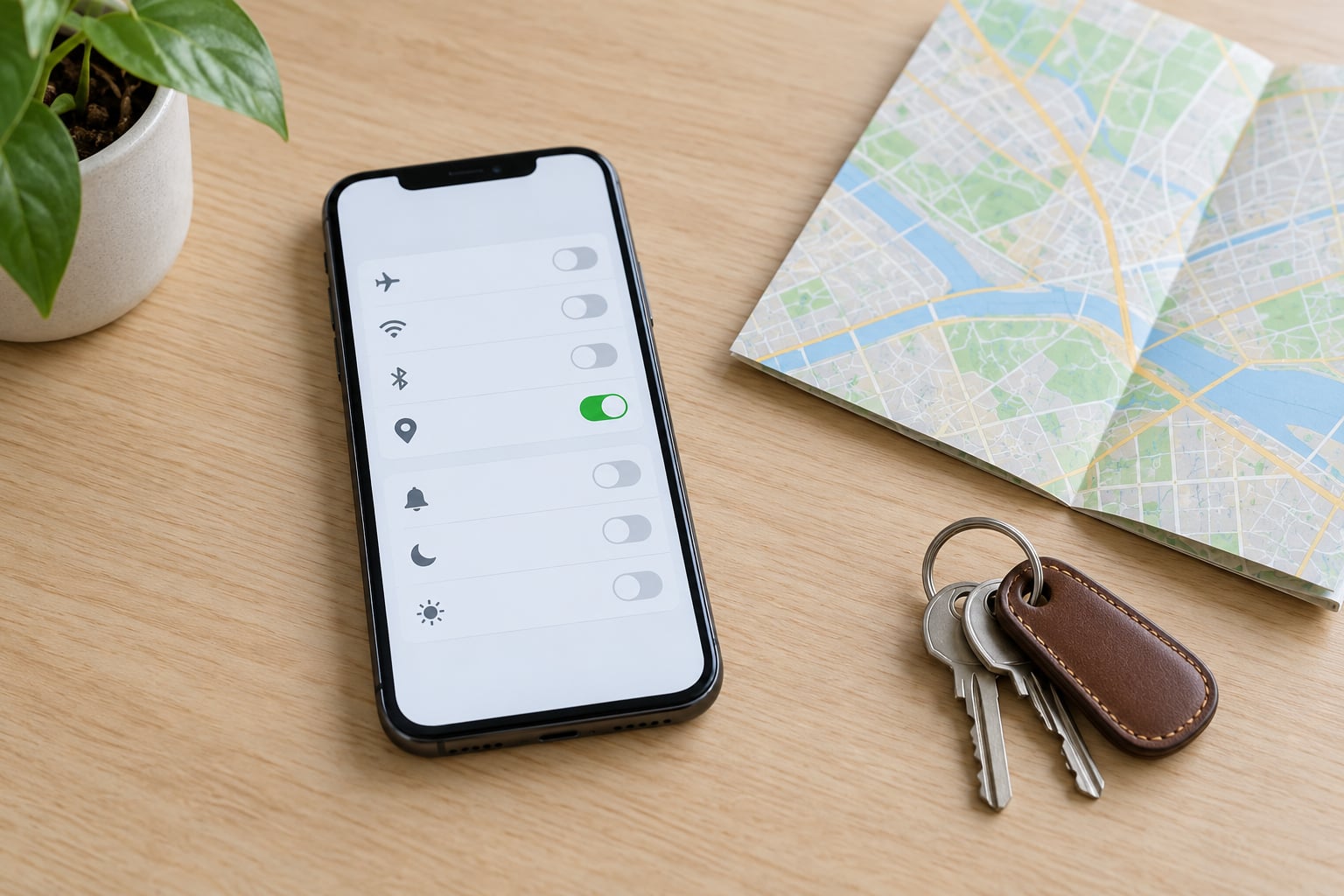
To turn off location tracking on an iPhone, open Settings, tap Privacy & Security, tap Location Services, and flip the top switch off. That single toggle stops GPS, Wi-Fi and Bluetooth positioning for every app at once, and it takes about ten seconds.
The catch is that the master switch is the least interesting part. It does not delete the years of movement history already stored on the phone, it does not stop a person who is sharing your location through Find My, and it does not stop your carrier pinning you to a cell tower. Those need three more passes through Settings, which is what the steps below cover.
The paths below match iOS 18 through iOS 26. Menu labels have barely moved across those versions, and where an older phone differs I have said so.
Table of Contents
- 1What You Need
- 2Step-by-Step
- 3How to Change iPhone Location Settings
- 4How to Control Location Access for Individual Apps
- 5How to Disable Location Sharing Features
- 6How to Verify Location Tracking Is Off
- 7Common Mistakes
- 8Frequently Asked Questions
- 9Should I turn off Find My on my iPhone?
- 10Can I limit location access without turning Location Services off completely?
- 11What happens to emergency features if I turn off Location Services?
- 12Will someone be notified if I stop sharing my location in Find My?
- 13Why are Location Services or Find My greyed out on my iPhone?
- 14How do I see which apps have been using my location on my iPhone?
What You Need
You need three things: an unlocked iPhone with its passcode, about five minutes, and nothing else. There is no third-party app to buy and no Mac required for any step in this guide.
A full pass takes five to ten minutes if you also review per-app permissions. The master switch on its own takes ten seconds. Longer if you have Screen Time restrictions in place, which is the single most common reason a toggle will not move.
Two version notes before you start. On iOS 14 and earlier, Find My lived at Settings and then your name at the top; on iOS 15 and later it sits in the combined Find My app. And on a phone managed for work or school, an administrator profile can lock location settings completely, so no amount of tapping will change them.
Step-by-Step
Work through these in order. Steps one and two handle the switches, step three handles the data that keeps accumulating after you switch things off, and step four is how you prove to yourself it worked.
How to Change iPhone Location Settings
This is the global kill switch. It takes ten seconds and it is reversible.
- Open Settings and scroll down until you see Privacy & Security. It sits below Accessibility, Health Data and Battery in most recent versions.
- Tap Location Services. It is the first item near the top of that screen.
- Tap the Location Services switch at the very top so it turns grey. Confirm with the system prompt if one appears.
- Tap Don’t Allow if iOS asks whether to allow the Settings app itself to use your location. Letting Settings locate you is what powers the arrow indicator and the place names in widgets.
How do you know it took? The arrow that appears in the top-right of the status bar or Control Center goes grey and stops responding, and any app that needed a position, including Maps, tells you to turn Location Services back on rather than showing a map.
One thing to know before you flip it: with the master switch off, the per-app list underneath is dimmed but not deleted. Turn Location Services back on and your per-app choices are still there, which makes this a safe experiment.
There is no separate GPS switch on modern iPhones, despite what plenty of guides claim. GPS, Wi-Fi positioning, Bluetooth beacons and cell-tower triangulation all hang off this one toggle plus the System Services list, which is why GPS-only advice does not do much.
How to Control Location Access for Individual Apps
For most people this is where the real improvement is, because leaving the master switch on and setting apps thoughtfully keeps navigation working while stopping background collection.
Tap Settings > Privacy & Security > Location Services, scroll to the app list and tap any app. You get four choices: Never, Ask Next Time, While Using the App and Always. While Using the App closes access the moment you switch away. Always keeps it running in the background, which is only worth it for something like turn-by-turn navigation that must keep guiding you with the screen locked.
Underneath that choice sits the Precise Location toggle. Switch it off and the app receives an approximate area instead of your exact street, which is usually all a weather app or a restaurant finder needs. Keep it on for Maps and ride-hailing pickup, where a few hundred metres of error means the wrong corner.
At the bottom of the Location Services screen, tap System Services. This is where the privacy settings that people miss tend to live, including Significant Locations, Status Bar Icon, Calibration and Geofence. More on Significant Locations in the next step, because it is the one worth your time.
Back at Privacy & Security there is a separate Tracking menu. Turn off Allow Apps to Request to Track and no app can even prompt you to follow it across other apps and websites. Limit Ad Tracking in the same screen limits how much your advertising identifier is used, and it is the closest thing iOS has to an ad-tracking opt-out.
To see what has already been collecting, tap Privacy & Security > App Privacy Report. It lists which domains contacted your apps and when they accessed sensitive resources like location, camera and microphone. Any app you do not recognise in there is worth setting to Never.
A suggested starting point for the apps most people have:
| App | Suggested setting | What you give up |
|---|---|---|
| Maps | While Using the App, Precise Location on | Nothing if you only need navigation |
| Weather | While Using the App, Precise Location off | Hyperlocal forecasts down to a few kilometres |
| Camera | Never | Location data on new photos and videos |
| Ride-hailing apps | While Using the App, Precise Location on | Automatic pickup detection |
| Social apps | Never | Location-tagged posts and local trending |
| Banking and shopping apps | Never | Fraud checks that use rough location |
Photo metadata is worth separating from this list, because it is easy to miss. Existing location data stays attached to photos already in your library. To strip it, select photos in the Photos app, tap Share, then tap Options and untick Location, or turn off Location under Settings > Privacy & Security > Photos for future shots.
How to Disable Location Sharing Features
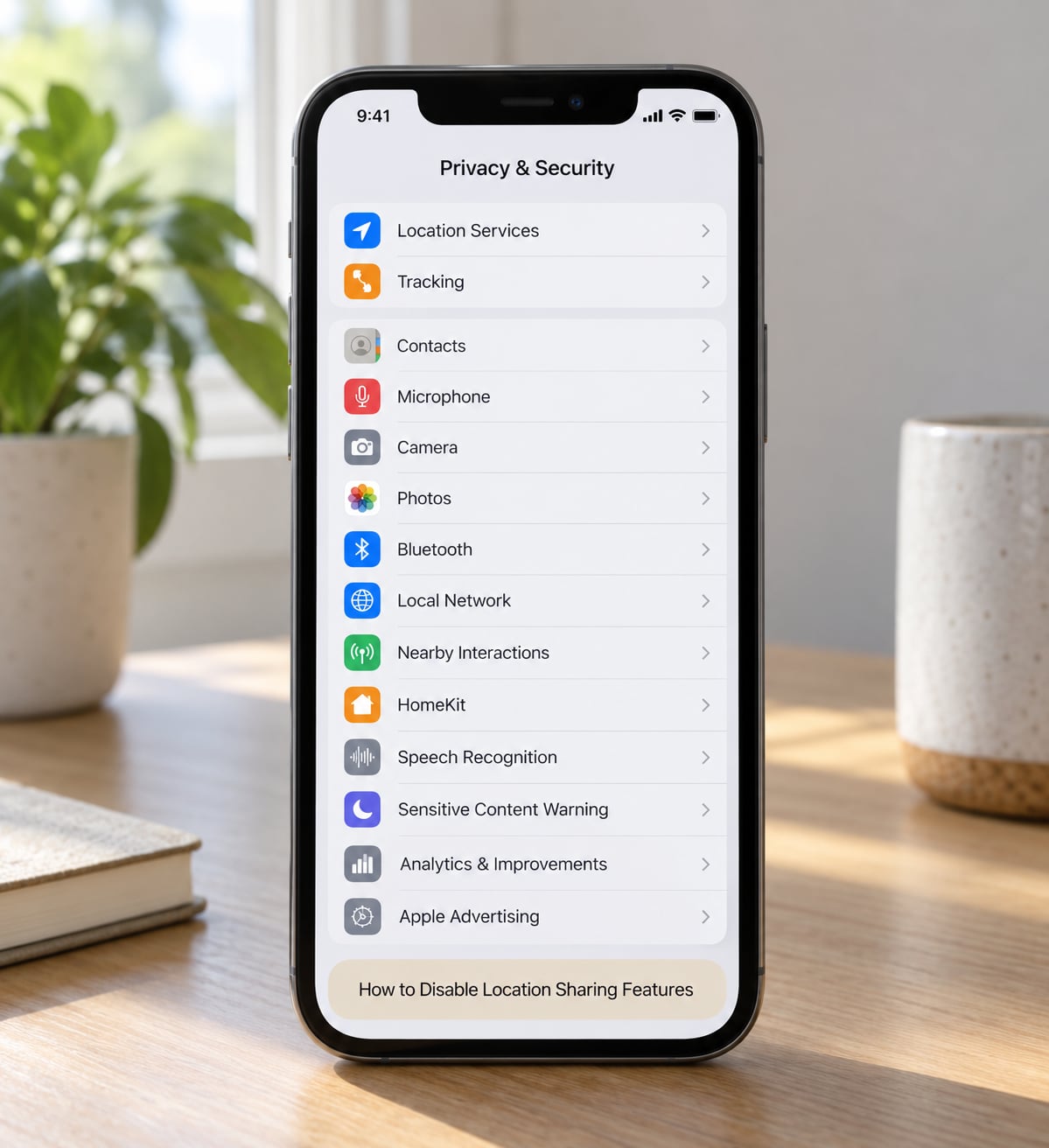
Turning off Location Services does not touch the channels other people watch. Those live in Find My, Messages and System Services.
To stop one person seeing you in Find My, open the Find My app, tap the person at the top, then tap Share My Location and change their entry to Nobody. The same control is at Settings and then your name and then Find My. They get no notification. Their view simply stops updating, showing either the last known position with a time stamp or a Not Sharing label.
That last-known position is not always fresh, so anyone checking your phone casually may not notice anything for a while. Someone monitoring closely will. If your reason for switching is an ex or a current partner, plan what you want to say rather than relying on silence, because a sudden stop after months of updates tends to start its own conversation.
Location sharing also runs through Messages. Open the conversation, tap the contact name at the top, scroll to Share Your Location and tap Stop Sharing Location. Until recently this switch was on by default for new contacts, which is why so many people discovered it was already live.
Now the setting most guides leave out. Go back to Settings > Privacy & Security > Location Services > System Services > Significant Locations and turn it off. This is the feature that has quietly recorded everywhere you have been and kept the history for years. Switch it off, then tap through the existing entries and delete them one by one, because turning the feature off does not clear what it already saved.
Deciding on the Find My network needs some thought. Under the same System Services menu, Find My Network uses other people’s Apple devices to spot yours even when it is offline. Turning it off means your lost phone is much harder to find, so I would leave it on unless you have a specific reason.
Two things no switch in iOS will stop. Your carrier can still narrow you to a cell tower, because that happens in the network rather than on the phone. And any website or app can estimate your region from your IP address. Airplane Mode is not a magic shield either: it pauses your own radios but does not erase queued location updates or stop other people reporting your device into the Find My network.
If you think someone is monitoring the phone itself rather than just your location, settings work is only half of it. Change your Apple Account password, sign out every device under Settings and then your name and then Sign Out of All Devices and Apple ID, turn on Two-Factor Authentication, and run Safety Check under Settings and then your name and then Sign In & Safety, which walks you through resetting sharing and reviewing what is signed in. In an emergency, contact your local support service before changing anything that might tip off the person monitoring you.
How to Verify Location Tracking Is Off
Do not assume. Four checks confirm the state of things, and the first one takes five seconds.
Pull down Control Center and look at the location arrow. Tapping it lists the apps that recently used your location, and tapping a name jumps straight to that app’s permission screen. If the arrow is grey and opens to an empty list, GPS access is genuinely closed.
Next, reopen Settings > Privacy & Security > Location Services and read the screen rather than trusting your memory. Check the master switch, then scroll the app list for anything set to Always that you did not choose, and check System Services for Significant Locations and Find My Network.
Third, open Maps. If it cannot place a dot on you and offers a search instead, the master switch is off. If Maps shows your street but you did not grant it access, something restored it, usually an app update or a profile reinstall.
Fourth, from another Apple device signed into the same account, open Find My > Devices. That list updates even when your phone is offline, so it is the most honest picture of what the account is still reporting.
Common Mistakes
Six mistakes account for nearly every case I hear about, and each has a fix.
Looking for a GPS-only switch. There is not one. GPS, Wi-Fi, Bluetooth and cell-tower data all follow Location Services and System Services, so any advice telling you to disable GPS alone is a decade out of date.
Switching off Location Services but leaving Find My running. Find My keeps reporting your device while Location Services is off, which is exactly the opposite of what readers assume. Turn off the specific person under Share My Location instead, and keep Find My on for lost-device recovery.
Toggling Significant Locations off but never deleting the history. The switch stops new recording. It does not touch entries already stored, which have to be deleted individually from the same screen.
Choosing Ask Next Time repeatedly. Every app that asks again is another dialog to dismiss, and most people tap through without reading. Pick Never or While Using the App once and move on.
Believing Airplane Mode equals no tracking. It silences your radios and stops most app updates, but it does not stop the Find My network reporting your device through other people’s hardware, and it does not change what is already stored.
And the one that blocks everything: a greyed-out toggle. If Location Services, Find My or Share My Location will not move, something above it has been locked. In order of likelihood, check Settings > Screen Time > Content & Privacy Restrictions > Location Services and see whether the restriction is on and set to Don’t Allow. Turn it off, authenticate, and the toggles come back. If that is not it, check Settings > General > VPN & Device Management for a configuration profile, which is what work and school devices install, and ask whoever manages it to change the profile. If the toggle is grey but Location Services works fine, Activation Lock on another device in the same Apple Account is the cause; remove that device from Find My on a second device or through iCloud on a computer, then try again.
One last privacy habit worth more than any single toggle: check the device list under your Apple Account every couple of months and sign out anything you do not recognise.
Frequently Asked Questions
Should I turn off Find My on my iPhone?
Usually no. Find My is what lets you locate, lock and erase a lost iPhone, and switching it off makes the device far easier to resell or steal. If your concern is another person seeing where you are, turn off Share My Location for that person instead and keep Find My switched on. Only disable Find My when the phone is being returned, sold or wiped.
Can I limit location access without turning Location Services off completely?
Yes, and most people are better off doing it that way. Leave the master switch on, then set individual apps to While Using the App or Never, and use the Precise Location toggle to hand out an approximate area instead of your exact spot. Navigation, weather and ride-hailing keep working while maps and social apps stop seeing where you go in the background.
What happens to emergency features if I turn off Location Services?
Emergency SOS, Medical ID and calling emergency services still work with Location Services off. What you lose is some automatic detail about where you are, so a responder may have less to work with in a critical situation. Keeping the master switch on and tightening individual app permissions protects your privacy without touching the safety features.
Will someone be notified if I stop sharing my location in Find My?
No notification is sent. When you switch Share My Location off for a contact, they simply stop receiving updates and their Find My view shows either the last known location with a time stamp or a Not Sharing label. That silence cuts both ways, and a sudden stop after months of updates can prompt questions, so decide what you want to say in advance.
Why are Location Services or Find My greyed out on my iPhone?
Usually one of four things: a Screen Time content restriction on Location Services, Screen Distance, an installed mobile device management profile, or Activation Lock. Check Settings, Screen Time, then Content and Privacy Restrictions for location limits, look for a profile under General and then VPN and Device Management, and check Find My under your name in the Apple Account screen. Removing the restriction restores the toggle.
How do I see which apps have been using my location on my iPhone?
The quickest check is the arrow in the top-right of Control Center or the status bar. Tap it and iOS lists the apps that recently used location, and tapping a name opens that app permission screen directly. For a longer record, use Settings, Privacy and Security, then Analytics and Improvements, and read the location entries in the Analytics Data file.
If you do one thing first, keep Find My on, switch Share My Location to Nobody for the person you are worried about, and turn off Significant Locations while deleting the history it already saved. That trio stops what other people see and erases what your phone remembers, without breaking navigation, and it all takes about two minutes. Once that is done, work down the per-app list and set the rest to While Using the App or Never.