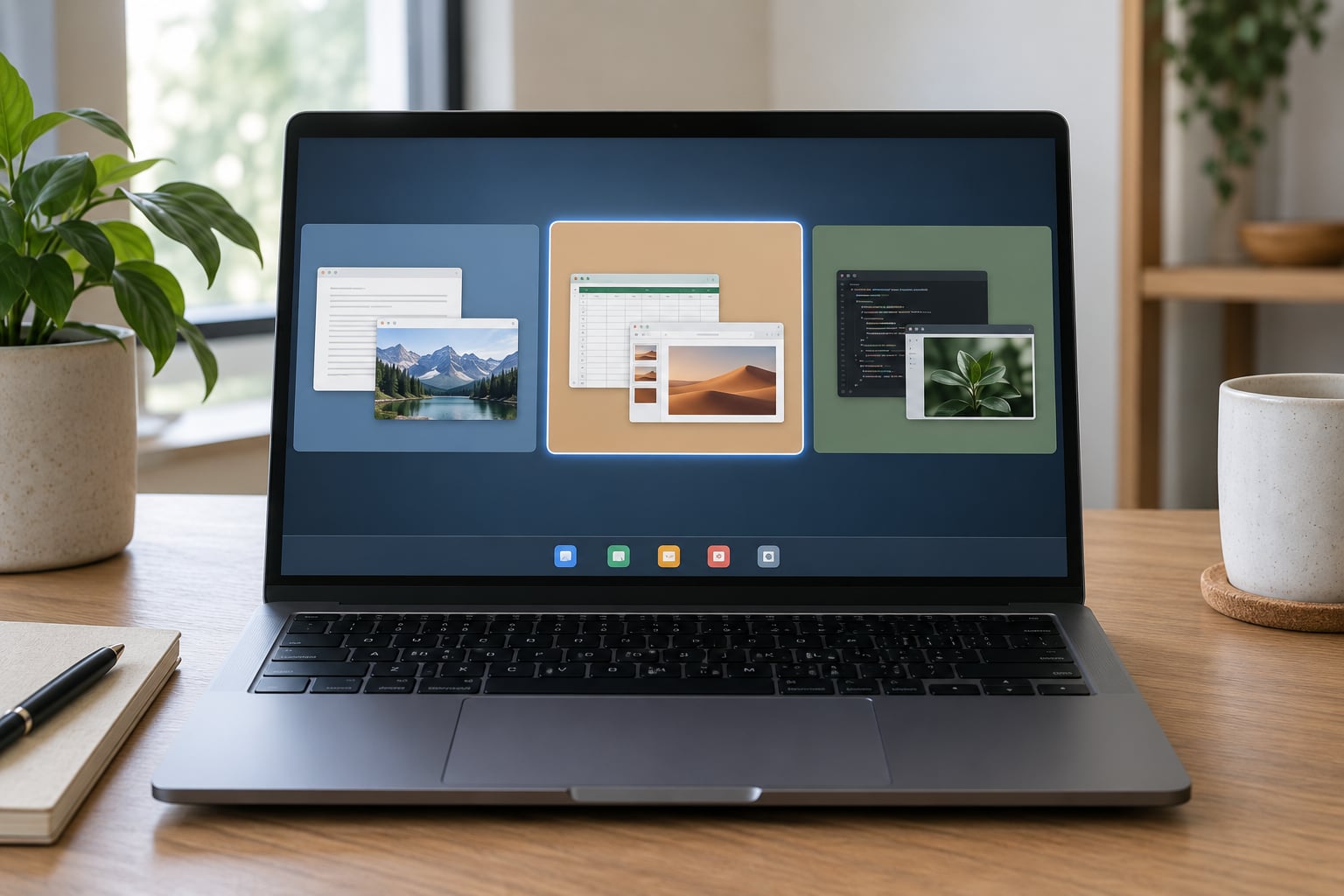
How to use multiple desktops on Windows 11 and Windows 10? Open Task View, add a desktop, name it, and move windows onto it. Press Win + Tab to see every desktop and window, Win + Ctrl + D to create a new one, and Ctrl + Win + Left/Right Arrow to move between them. A virtual desktop is a separate workspace that holds its own set of open app windows, so you can sort programs by task instead of stacking everything on one screen. The whole setup takes about two minutes and needs no extra hardware.
I ignored this feature for years and only started using it once I ran out of taskbar space. Now I keep three: Work, Writing, and a Personal one I switch to at 6pm so nothing from the day bleeds into the evening. That last bit is less about tidiness than about not answering a work chat by accident while playing something.
Below is the full walkthrough, including the mouse-only route, the shortcut table, and the fixes for the handful of things Windows gets wrong.
Table of Contents
- 1What You Need
- 2Step-by-Step
- 31. Open Virtual Desktops or Task View
- 42. Create and Name Your First Virtual Desktop
- 53. Create Desktops for Different Tasks
- 64. Switch Between Desktops and Move Windows
- 75. Close Desktops You No Longer Need
- 86. Make Multiple Desktops Part of Your Workflow
- 9Every virtual desktop shortcut worth memorising
- 10How to use multiple desktops on Windows 11 versus Windows 10
- 11What Windows 11 adds
- 12How to use multiple desktops on Windows 10
- 13Common Mistakes
- 14No Task View button and no desktops
- 15Expecting separate icons and files on each desktop
- 16Apps closing when a desktop closes
- 17Alt+Tab and the taskbar showing every desktop’s windows
- 18Backgrounds resetting or refusing to change
- 19Dozens of desktops piling up
- 20Shortcut conflicts and the missing jump key
- 21Frequently Asked Questions
- 22Are Windows virtual desktops the same as using two monitors?
- 23Why can’t I find virtual desktops or Task View in Windows?
- 24What happens to open applications when I close a virtual desktop?
- 25Can I use different wallpapers on each Windows virtual desktop?
- 26How many Windows virtual desktops should I create?
What You Need
Everything below works on Windows 11 and Windows 10, right back to the 1809-era builds that first shipped Task View. The feature is built into both, always switched on, and hidden behind a keyboard shortcut.
You do not need a Microsoft account, and you do not need a second monitor. What you do need is one of two ways to open Task View:
- Keyboard: the Windows key plus Tab. This works on every keyboard, including ones without dedicated Task View or virtual desktop keys.
- Mouse: the Task View button on the taskbar, the icon that looks like two overlapping rectangles. If it is not there, right-click an empty spot on the taskbar, open Taskbar settings, and turn on Task View. Windows 10 users find the same toggle under Settings > Personalization > Taskbar.
If Task View is not in Settings at all, you are on a Windows edition or a company build that removed it. Editing the registry to force it back is possible but fragile, and I would rather not recommend it — update Windows fully first, then check again.
One thing to clear up before you start: virtual desktops do not give you separate icons, separate folders, or separate files. Your desktop icons, your taskbar pins and your Documents folder are shared across all of them. What is separate is the windows and the background. That misconception causes more confusion than anything else about this feature, and the Microsoft support page on configuring multiple desktops states the behaviour plainly.
Step-by-Step
1. Open Virtual Desktops or Task View
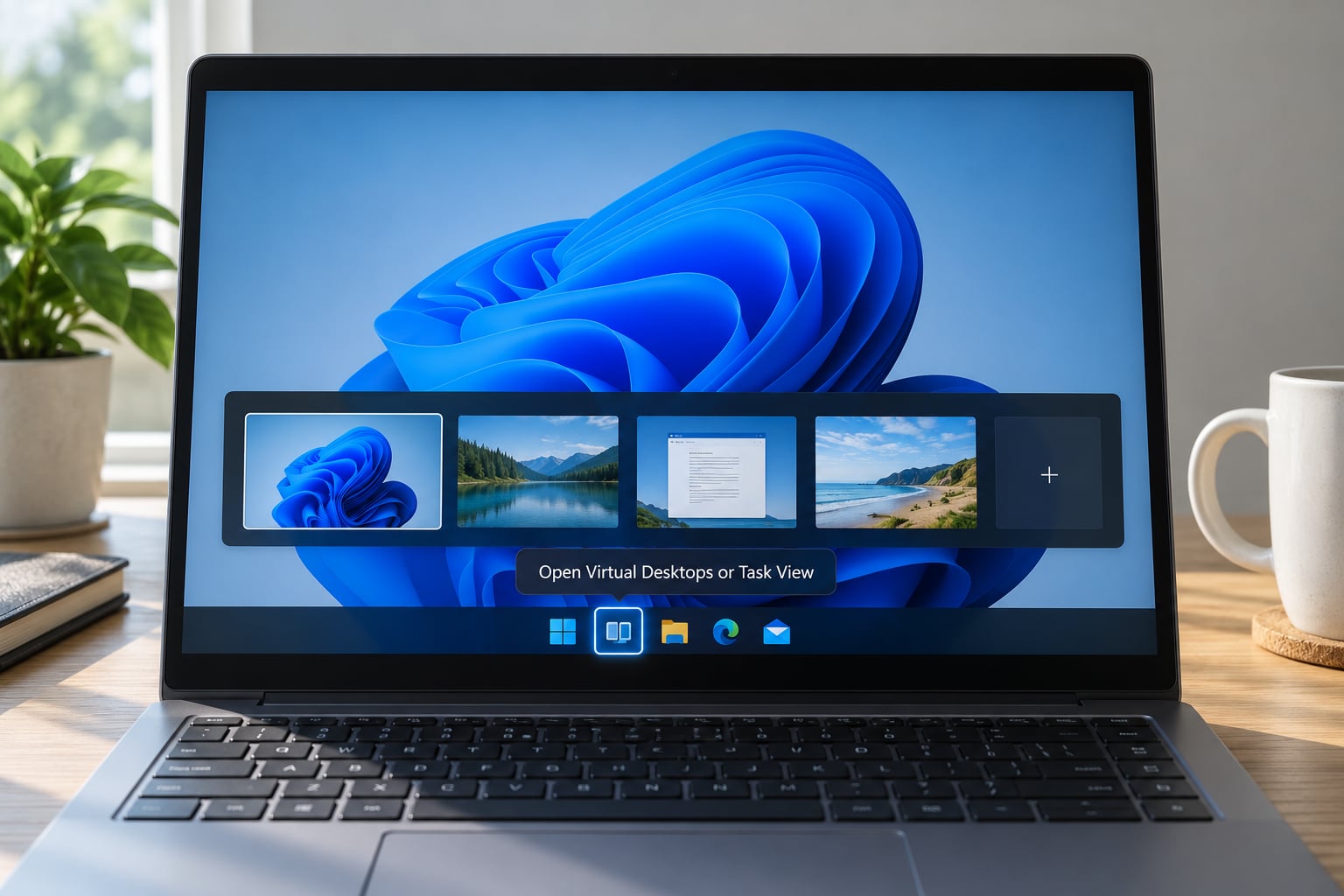
Hold the Windows key and press Tab. Task View opens full screen: a horizontal strip of desktop thumbnails runs along the top, the first one is highlighted, and a New desktop button sits at the far right end of the strip.
On Windows 11 you can hover over the Task View icon on the taskbar and get the same view without pressing anything. On Windows 10 the button is there by default unless you removed it.
How to tell it worked: the desktop you were on is outlined in the strip and has a slightly brighter thumbnail than the empty ones to its right.
2. Create and Name Your First Virtual Desktop
With Task View open, click New desktop at the right end of the strip, or press Win + Ctrl + D from anywhere on the desktop without opening Task View at all. Windows drops you straight onto a fresh, empty desktop.
Now name it. Press Win + Tab again, right-click the new thumbnail, choose Rename, and type something meaningful. “Desktop 2” tells you nothing at 4pm on a Friday; “Client — Acme rebuild” will.
How to tell it worked: the name shows under the thumbnail in the strip, and every window you had open is still sitting on your original desktop rather than following you.
3. Create Desktops for Different Tasks
Most people land on three and stop. Work for the job, one for a specific project with its own documents and terminals, and one for everything personal.
The temptation is to make eight. Resist it — a desktop you never visit is just clutter you have to skip past. I tried naming desktops after time of day and it fell apart within a week, because tasks do not respect a clock.
How to tell it worked: your taskbar is shorter. That is the honest test of whether desktops are earning their place.
4. Switch Between Desktops and Move Windows
Switching takes one shortcut: Ctrl + Win + Left Arrow for the desktop to the left, Ctrl + Win + Right Arrow for the one to the right. The desktops form a line, and the arrow keys slide along it. Swiping sideways with three or four fingers on a touchpad does the same thing.
To move the window you are looking at to the next desktop, hold Win and press Ctrl + Alt + Right Arrow. Swap Right for Left to move it the other way. The window slides across and lands there.
Prefer the mouse? In Task View, hover over a window thumbnail and a small button appears on it. Click that button and pick the desktop you want to send it to. Or drag the thumbnail straight onto the target desktop at the other end of the strip.
There is no native shortcut for jumping directly to Desktop 3. You cycle with the arrow keys. A decent workaround: assign a shortcut to launch a specific app, then use Settings > System > Multitasking or a small launcher to get you to the right desktop before it opens. Honestly, two or three desktops is where the cycling stops mattering.
How to tell it worked: your window count on the current desktop drops to zero when you move the last one away, and the destination desktop now shows that window in its thumbnail.
5. Close Desktops You No Longer Need
Open Task View, right-click the thumbnail of the desktop you want gone, and choose Close. The desktop and everything open on it shuts down — apps included. Unsaved work is the thing to watch for here.
If you want to keep the windows and drop the desktop, move them first: open the desktop, select the windows you care about, hold Win and press Ctrl + Alt + Left or Right Arrow to send them somewhere safe, then close the now-empty desktop.
You can also close desktops from the keyboard: Ctrl + Win + F4 closes the current one. Unlike Alt + F4, it does not warn you first, so treat it carefully.
How to tell it worked: the thumbnail disappears from the strip and everything to its right shifts one position left.
6. Make Multiple Desktops Part of Your Workflow
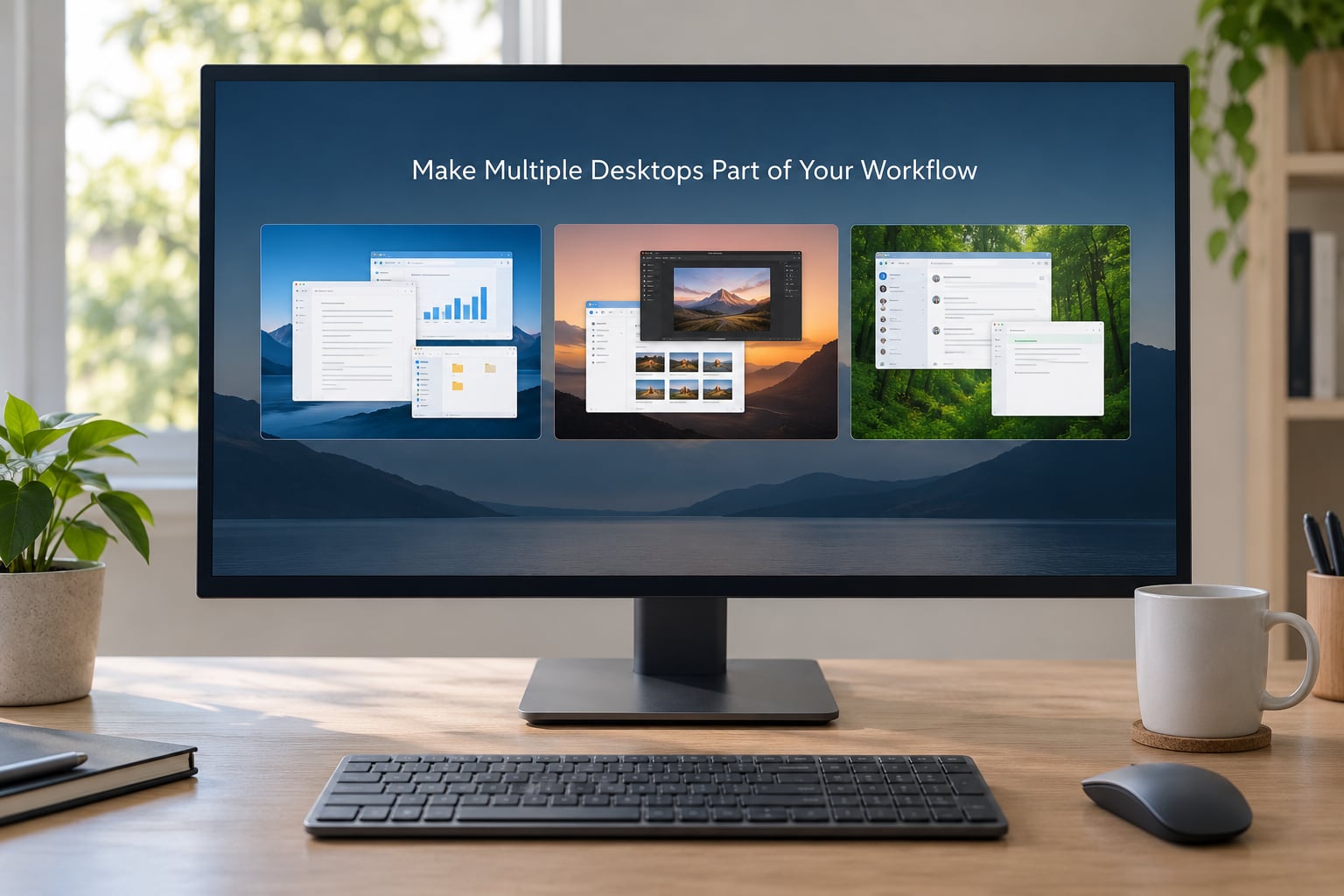
Two settings decide whether this feels like real separation or a gimmick. Open Settings > System > Multitasking and look at Desktops.
On the taskbar, show windows that are open — set it to Only on the desktop I am using. Same for On all desktops under Alt + Tab. Out of the box, both span every desktop, so your taskbar keeps listing apps that are not in front of you. This one change does more for the feeling of organization than anything else in this guide.
Then set the routine. Pick your three desktops, name them, and never re-shuffle them again. A stable layout is learnable; a layout you rebuild every morning is not. When you start work, you go to Work. When the day ends, you go to Personal and the work desktop stops existing until morning.
How to tell it worked: press Alt + Tab on any desktop and only that desktop’s windows appear.
Every virtual desktop shortcut worth memorising
| Shortcut | What it does |
|---|---|
| Win + Tab | Open Task View and show every desktop and window |
| Win + Ctrl + D | Create a new desktop and switch to it |
| Win + Ctrl + F4 | Close the current virtual desktop |
| Ctrl + Win + Left Arrow | Switch to the desktop on the left |
| Ctrl + Win + Right Arrow | Switch to the desktop on the right |
| Win + Ctrl + Left Arrow | Move the current desktop to the left in the order |
| Win + Ctrl + Right Arrow | Move the current desktop to the right in the order |
| Ctrl + Win + Alt + Left Arrow | Move the active window to the desktop on the left |
| Ctrl + Win + Alt + Right Arrow | Move the active window to the desktop on the right |
| Win + Ctrl + F2 | Open Task View and rename the current desktop |
How to use multiple desktops on Windows 11 versus Windows 10
The core feature is identical on both. The differences are around the edges, mostly in how Task View behaves and what the taskbar offers.
What Windows 11 adds
Windows 11 moved Task View into its own button that can be unhooked from the taskbar and turned into a separate always-visible panel, which behaves a little like a permanent desktop strip. Hovering over that button and clicking gives you the strip without holding a key. Snap Layouts also interact better with desktops, since you can drop a group of windows into a layout and then send the whole group across.
How to use multiple desktops on Windows 10
On Windows 10 the Task View button is the faster route because you can click it directly rather than hover. The virtual desktop settings live in the same place, Settings > System > Multitasking. Taskbar button toggling is under Settings > Personalization > Taskbar, and Task View is listed under Taskbar buttons.
Per-desktop backgrounds behave the same on both: you pick a different picture for each one, but a slideshow or a solid colour per desktop is not supported. Forum threads on r/Windows11 go back and forth about Windows 11 resetting backgrounds on switch — a real bug that has been reported since the early builds. If a background will not stick, set it once, switch away, switch back, and re-pick the image rather than the file path.
Common Mistakes
No Task View button and no desktops
Hit Win + Tab first — the feature exists even when the button does not. If Task View opens but you see no desktops, the toggle is off. Right-click the taskbar, choose Taskbar settings, and turn on Task View.
Expecting separate icons and files on each desktop
They are shared. Every desktop shows the same icons and the same taskbar pins. If you want genuinely separate desktop contents, you need a third-party tool such as Windows Virtual Desktop Helper or a tiling utility, and you trade some stability for the arrangement.
Apps closing when a desktop closes
That is by design. Closing a desktop shuts the windows on it. Move anything you want to keep with Ctrl + Win + Alt + Arrow first.
Alt+Tab and the taskbar showing every desktop’s windows
Expected on a fresh install. Go to Settings > System > Multitasking and change both the taskbar and Alt + Tab scope to Only on the desktop I am using.
Backgrounds resetting or refusing to change
Right-click the desktop, choose Personalize, then Background, and set the picture for that specific desktop. If it reverts, re-pick the image from your picture library instead of re-browsing to the folder.
Dozens of desktops piling up
Each one is cheap, so they accumulate. Close them from the strip. Three to four is the useful range for most people; past that, the arrow keys stop being a shortcut and start being a chore.
Shortcut conflicts and the missing jump key
Some laptops and external keyboards map virtual desktop functions onto dedicated keys, and some of those get intercepted by the manufacturer utility. The Windows key combinations still work regardless. If a shortcut does nothing, test Win + Tab to confirm the feature is responding before blaming the key.
Two habits make this stick. Move the window as soon as you open it rather than at the end of the session, and keep the desktop order fixed so the arrow keys always go the same direction.
Frequently Asked Questions
Are Windows virtual desktops the same as using two monitors?
No. A virtual desktop is a separate set of windows on the same screen, switched with a shortcut, and it uses the same GPU and RAM. Two monitors give you two physical screens you look at side by side at once. Virtual desktops help when you want to declutter one screen; a second monitor helps when you genuinely need two things visible simultaneously.
Why can’t I find virtual desktops or Task View in Windows?
Press Win + Tab. Task View is built into Windows 10 and 11 and is always on, even when the taskbar button is hidden. If you prefer the button, right-click the taskbar, open Taskbar settings, and switch Task View on. On Windows 10 the same toggle sits under Settings, Personalization, Taskbar. If Task View does not open at all, run Windows Update fully, since a partial update can leave the feature unavailable.
What happens to open applications when I close a virtual desktop?
They close. Closing a desktop shuts down every window open on it, and any unsaved document in those apps goes with it. To keep a window, send it to another desktop first using Ctrl + Win + Alt + Left or Right Arrow. You can also close the active desktop from the keyboard with Ctrl + Win + F4, though that shortcut gives no warning before it acts.
Can I use different wallpapers on each Windows virtual desktop?
Yes, one picture per desktop, set through Settings, Personalization, Background while you are on that desktop. Two limits worth knowing: a slideshow will not run separately per desktop, and you cannot assign a different solid colour to each one. Windows 11 has also had reports of the background reverting on switch, which usually clears by picking the image again from your picture library.
How many Windows virtual desktops should I create?
Three works for most people: one for work, one for a focused project, one for personal apps. Desktops are cheap, so the risk is creating so many that switching costs more attention than the clutter you removed. If you find yourself cycling through four or more arrow presses to reach anything, close a few. A layout you keep unchanged is learnable, one you rebuild daily is not.
Start with one desktop for the task that pulls at you most — usually the one that leaks into everything else. Press Win + Ctrl + D, rename it, and move two windows onto it. Once that feels normal, add the second and third.