To create a custom keyboard shortcut on a Mac, open the Apple menu, choose System Settings, pick Keyboard in the sidebar, then click Keyboard Shortcuts. Inside that pane you can rebind any built-in system action, and under App Shortcuts you can attach your own key combination to nearly any menu command in any installed app. No extra software needed.
The whole job takes about a minute once you know where the plus button is. What takes longer is working out why a new shortcut does nothing, which is what the second half of this guide is for.
Table of Contents
- 1What You Need
- 2Step-by-Step
- 3Step 1: Open the macOS Keyboard Shortcuts Settings
- 4Step 2: Choose an App, Service, or System Shortcut
- 5Step 3: Add the Command and Choose a Shortcut
- 6Step 4: Test and Save the Shortcut
- 7Step 5: Set Up Function-Key Shortcuts
- 8Common Mistakes
- 9Frequently Asked Questions
- 10Can I create custom keyboard shortcuts on any Mac?
- 11Why does my new Mac keyboard shortcut not work?
- 12How do I reset or remove a custom keyboard shortcut?
- 13Can I assign more than one shortcut to the same command?
- 14How do I use function keys for custom shortcuts?
- 15Can I create shortcuts for websites or third-party apps?
- 16Conclusion
What You Need
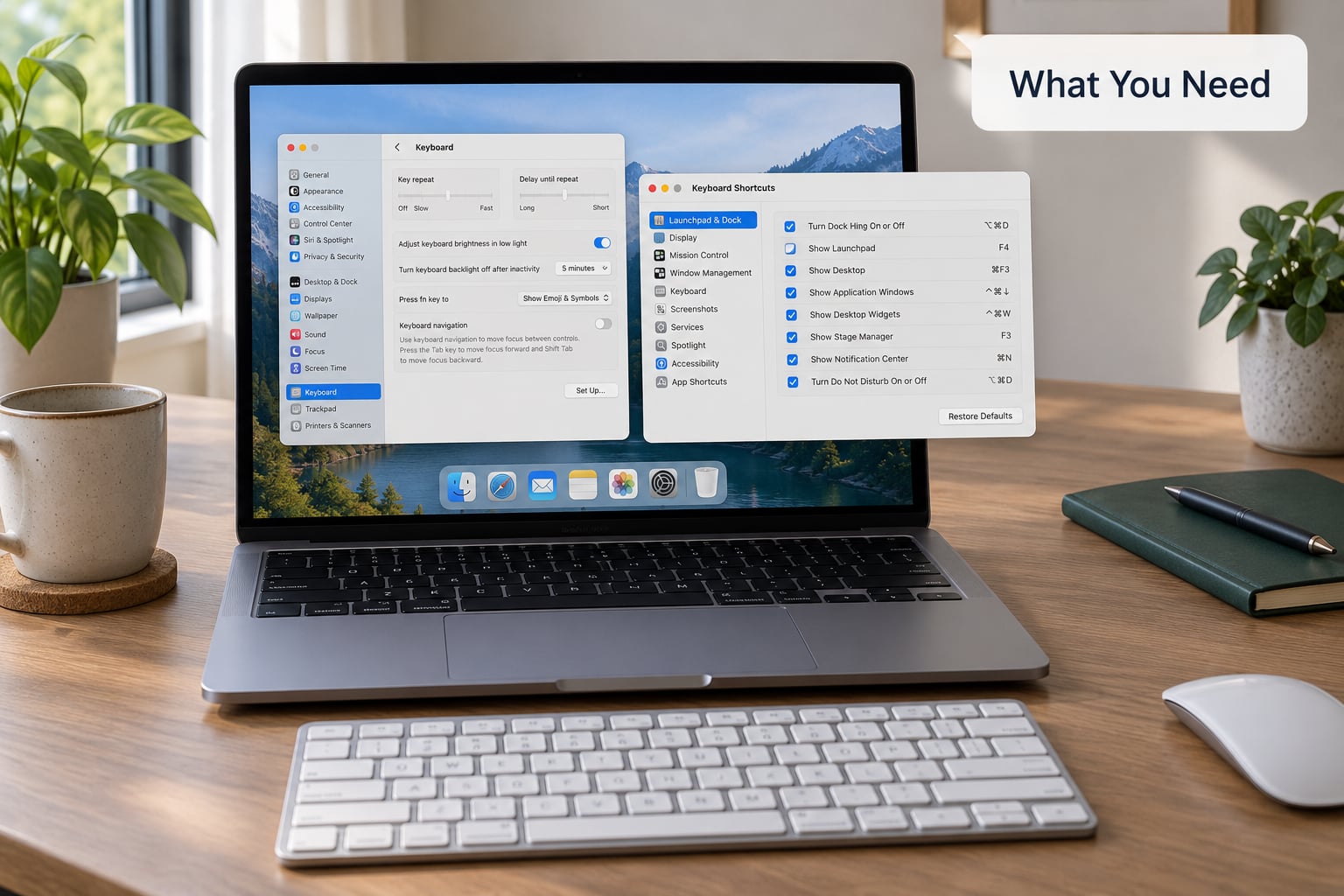
Any Mac will do. Every Mac ships with the shortcut editor built in, and the steps below work on macOS Monterey, Ventura, Sonoma, Sequoia and Tahoe.
The path changed once, and plenty of tutorials online still show the old one. On macOS Big Sur and earlier, open the Apple menu, choose System Preferences, click Keyboard, and use the Shortcuts tab. From Monterey onward it is System Settings, as described here.
Beyond that you need the app itself installed in your Applications folder. App Shortcuts builds its command list by reading the menus of installed apps, so an app you have never opened may take a moment to show up.
One more thing worth knowing before you start: the first time a shortcut runs a Service, an Automator workflow or a script, macOS asks for permission. That prompt is normal, and you can review or revoke those permissions later under System Settings, Privacy & Security, Automation.
A short glossary, since these words show up throughout the guide:
- Modifier keys — the keys you hold rather than type with: Command (⌘), Option (⌥), Shift (⇧) and Control (⌚). The fn or Globe key on newer laptops is a modifier too.
- Keyboard shortcut — a modifier plus a final key that triggers a command.
- Global shortcut — one assigned at the system level so it works no matter which app is in front.
- Menu command — the exact wording of a menu item, for example Show Sidebar. In App Shortcuts you type this text yourself and it has to match character for character.
- Input source — the language or layout your keyboard is currently typing in.
Step-by-Step
Step 1: Open the macOS Keyboard Shortcuts Settings
Open the Apple menu in the top corner, choose System Settings, click Keyboard in the sidebar, then click the Keyboard Shortcuts button in the middle of that pane. That opens the full shortcut editor, which is the only place shortcuts can be added, changed or removed.
You get a long list of categories running down the side, a table of commands in the main area, and three controls at the bottom: Restore Defaults, a plus button and a minus button. The plus button creates a new binding for the selected command, the minus button removes one, and Restore Defaults puts the visible category back the way macOS shipped it.
You can tell you are in the right place because every category shows at least one command with key symbols beside it, and none of them are editable until you select a row.
Step 2: Choose an App, Service, or System Shortcut
Pick the category that matches what you are trying to reach. Selecting a category filters the command list, so the fastest route is to skim the table below and click the right row before you touch the plus button.
| Category | What it controls |
|---|---|
| Launchpad and Dock | Opening Launchpad, switching Dock items with the keyboard |
| Display | Switching between connected monitors and changing display arrangement |
| Mission Control | Entering Mission Control and moving between desktops |
| Keyboard | Turn keyboard access and keyboard navigation on or off |
| Input Sources | Switching keyboard layouts and input languages |
| Screenshots | Save to Desktop, copy to Clipboard, screenshot region |
| Presenter Overlay | Screen sharing controls |
| Services | Right-click and menu bar Services, such as Look Up or Show in Finder |
| Spotlight | Opening Spotlight and its search results window |
| Accessibility | Zoom, VoiceOver, Sticky Keys and other accessibility features |
| App Shortcuts | Per-app menu commands, including commands with no default shortcut |
| Function Keys | What happens when you press F1 through F12 |
| Modifier Keys | Remapping Caps Lock, Control, Option or Command to a different key |
Use the system categories for anything macOS itself provides. Use App Shortcuts when the command lives inside a particular app, whether it already has a shortcut or ships with none at all.
Step 3: Add the Command and Choose a Shortcut
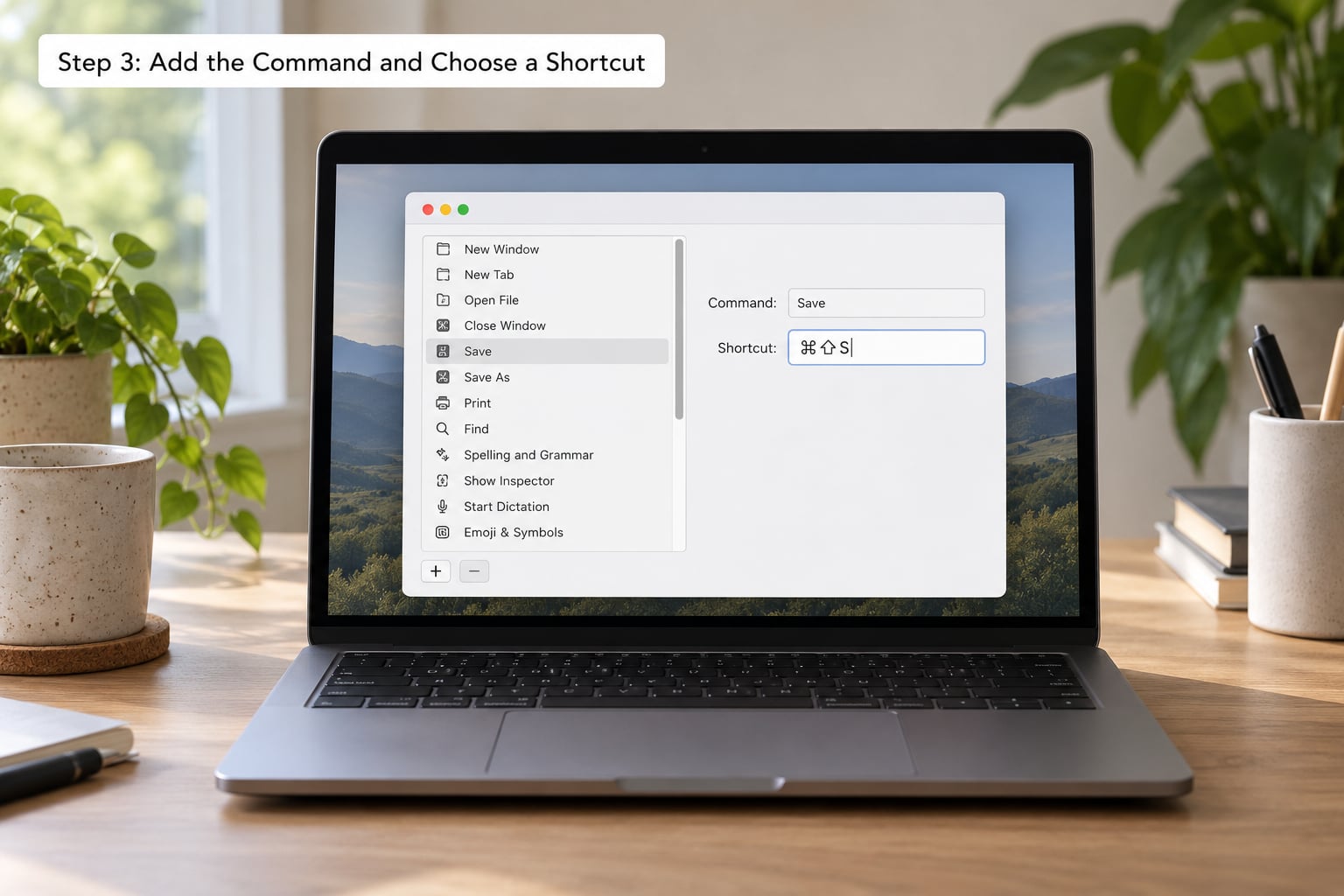
In a system category, select the command in the list, click the plus button, and a small row appears with the command name and an empty shortcut field. Click that field and press the combination you want.
The keys register as symbols rather than letters, so what you see is something like ⌘⌥⇧ followed by a letter. That is normal, not a garbled display. Click outside the field or press Return to confirm.
Two rules catch people out. Each key can only be used once in a combination, so Control plus Command is fine but Control plus Command plus Control is not. And a combination already spoken for by macOS will either refuse to save or quietly lose to the built-in binding.
For an app command, click App Shortcuts, then click the plus button, which opens a menu of installed apps. Pick the app, type the command’s menu title exactly as it appears in that app’s menus, then double-click the cell in the Shortcut column and press your combination. Get the menu title wrong and the row never binds, because macOS has nothing to match.
A practical example: open Finder, look at the View menu, note the item Show Sidebar, then add that exact text as a Menu Title under App Shortcuts with Finder selected. Command plus a letter you never use is a safe combination.
Step 4: Test and Save the Shortcut
There is no save button. Changes apply the moment you click away from the field, which is also why mistakes are easy to miss.
Quit the target app completely and reopen it. An app that was already running when you added the App Shortcut row often keeps its old menu bindings until then, and this is the single most common reason a correctly assigned shortcut appears to do nothing.
If the shortcut still misbehaves, check the checkbox column. Some rows ship enabled, some ship disabled, and adding a binding to a disabled row does not switch it back on. Tick the box, restart the app and try again.
If the combination is refused entirely, it is already taken. Undo with Control plus Command plus Z, which discards the last keyboard shortcut change, then pick a different combination.
Step 5: Set Up Function-Key Shortcuts
Function keys are the easiest keys to forget about because on a MacBook they usually control volume and brightness instead of sending F1 to F12. Under System Settings, Keyboard, the toggle Use F1, F2, etc. keys as standard function keys decides which of those two jobs wins.
With that toggle on, F1 through F12 behave like ordinary function keys and can be assigned like any other key. With it off, hold the fn or Globe key to reach them, and assign the media action instead.
Below that, the Press Globe key to menu decides whether the Globe key alone changes your input source, shows the emoji picker, starts dictation or does nothing. The Keyboard Shortcuts pane also carries a Function Keys category where each F key can be bound directly, and a Modifier Keys category for swapping Caps Lock, Control, Option or Command with each other or with a spare key.
Common Mistakes
Choosing a combination macOS already uses. Symbol keys like Command plus backslash are the usual trap, because browsers and Finder have claimed some of them for years. Use a modifier stack plus a letter nobody uses, and macOS will accept it.
Adding an app command to a system category. A Finder command cannot be created from the Mission Control category. Switch to App Shortcuts, pick the app from the plus menu, and the command will be listed for you.
Typing the menu title from memory. In App Shortcuts the Menu Title has to match the app’s own wording, including capitalisation. Copy it from the app’s menu bar rather than retyping it, then add the key combination.
Forgetting to quit and reopen the app. Apps read their shortcut bindings at launch. Press Command plus Q on the target app, reopen it, and test again before changing anything else.
Using a symbol key on a non-US layout. This is the most under-explained failure on Mac. A long-running r/MacOS thread describes a Command plus backslash shortcut for Back in Finder and a browser that worked flawlessly on Mojave across three MacBooks, then broke from Big Sur onward on an Italian QWERTY layout. On that layout the key left of the 1 is not read the same way, and Karabiner-Elements recorded it as a different character while the mapping was being edited. Practical fix: use a letter or number key instead of any symbol key, and check Input Sources to see which layout is active.
Confusing shortcut assignment with key remapping. Assigning a shortcut to a command does not change what a physical key types, and remapping a key does not trigger a command. Modifier Keys in the Keyboard Shortcuts pane covers swapping one key for another. For anything deeper, Karabiner-Elements is the tool people reach for, though Obsidian forum users have reported some MacBook Pro models refusing hotkey combinations outright regardless of the tool.
Third-party hotkey managers quietly taking over. Alfred, Raycast, Rectangle and similar tools install their own global hooks. When a new binding seems inert, quit those apps once and test again before assuming macOS dropped it. Apple built-in shortcut editors have also been reported ignoring custom mappings inside individual browsers, so test in Finder first to isolate the layer.
Leaving a shortcut unchecked. Disabling a shortcut is a checkbox, not a delete. The binding stays in the list, quietly doing nothing, until you tick it again.
A habit worth building: make one change, restart the app, confirm it, then move on. Adding four shortcuts at once and testing them together is how people end up convinced the feature is broken.
Frequently Asked Questions
Can I create custom keyboard shortcuts on any Mac?
Yes. Every Mac ships with the shortcut editor, and nothing needs installing. On macOS Monterey and newer the path is Apple menu, System Settings, Keyboard, then Keyboard Shortcuts. On Big Sur and earlier it is System Preferences, Keyboard, Shortcuts. What differs by Mac is app coverage: App Shortcuts can only bind commands that an installed app actually publishes in its menus, so some third-party apps offer nothing to bind.
Why does my new Mac keyboard shortcut not work?
Four causes account for almost every case. The app was already running, so quit it with Command Q and reopen it. The combination collides with an existing macOS binding, so pick a different one. The Menu Title in App Shortcuts does not match the app’s exact wording. Or a hotkey tool such as Alfred or Rectangle is intercepting the keys. Test the same combination in Finder first to see which layer is eating it.
How do I reset or remove a custom keyboard shortcut?
There are three levels. Untick the checkbox beside a command to disable it while keeping the binding. Select the command and click the minus button to remove that specific combination, which matters most in App Shortcuts where a command can have several rows. Click Restore Defaults at the bottom of the pane to reset the category you are viewing. Nothing here affects other categories.
Can I assign more than one shortcut to the same command?
You can. In a system category, select the command, click the plus button and record a second combination, and both will trigger it. In App Shortcuts, add another row with the same Menu Title and a different shortcut. macOS then shows both symbols next to that command in the app’s menus, which is handy when one hand position suits one layout and another suits a different keyboard.
How do I use function keys for custom shortcuts?
First decide which job F1 to F12 should do. Under System Settings, Keyboard, turn on Use F1, F2, etc. keys as standard function keys if you want them to behave like ordinary keys you can assign. Leave it off to keep brightness and volume on the top row, and hold fn or the Globe key to reach the function keys instead. Assign F keys to commands in the Function Keys category.
Can I create shortcuts for websites or third-party apps?
Third-party apps, yes, as long as they are installed and the command exists in their menus. Add it through App Shortcuts by picking the app from the plus menu and typing the menu title exactly. Websites have no system menu command of their own, so what you can shortcut is the browser action around them, such as opening a new tab or toggling the sidebar, rather than anything on the page itself.
Conclusion
The fastest route is Apple menu, System Settings, Keyboard, Keyboard Shortcuts. Choose the category that matches the command, select it, click the plus button, press an unused combination, then quit and reopen the app before you judge the result.
Start with one shortcut you will hit dozens of times a day, such as Show Sidebar or switching displays, and confirm it works for a week before adding more. Add the rest slowly, and use Restore Defaults whenever something behaves strangely and you are not sure what you changed.