How to set up a kids account on a Windows PC comes down to one thing: a child Microsoft account added to your family group through Microsoft Family Safety. That gives you screen time caps, app and website filtering, purchase blocks and weekly activity reports. It takes about ten minutes once you know the menu path, and almost all of it happens in the Settings app.
The catch is that Windows 11 and Windows 10 moved things around, and most guides online only cover one of them. I’ll walk through both, show you the settings worth turning on, and cover the errors that stop setup halfway.
Table of Contents
- 1What You Need Before You Start
- 2Step-by-Step
- 3How to Set Up a Kids Account on a Windows PC
- 4Choose the Right Family Safety Settings
- 5Add the Child to the PC and Test the Account
- 6Common Mistakes and How to Fix Them
- 7What This Does Not Protect Against
- 8Frequently Asked Questions
- 9Do I need a Microsoft account to set up a kids account on Windows 11?
- 10How do I create a kids account without a Microsoft account?
- 11Can a child change or bypass parental controls on Windows 11?
- 12Why are my parental controls not working after I add a child account?
- 13Can I set up separate accounts for multiple children on one PC?
- 14How do I remove a kids account or change its restrictions later?
What You Need Before You Start
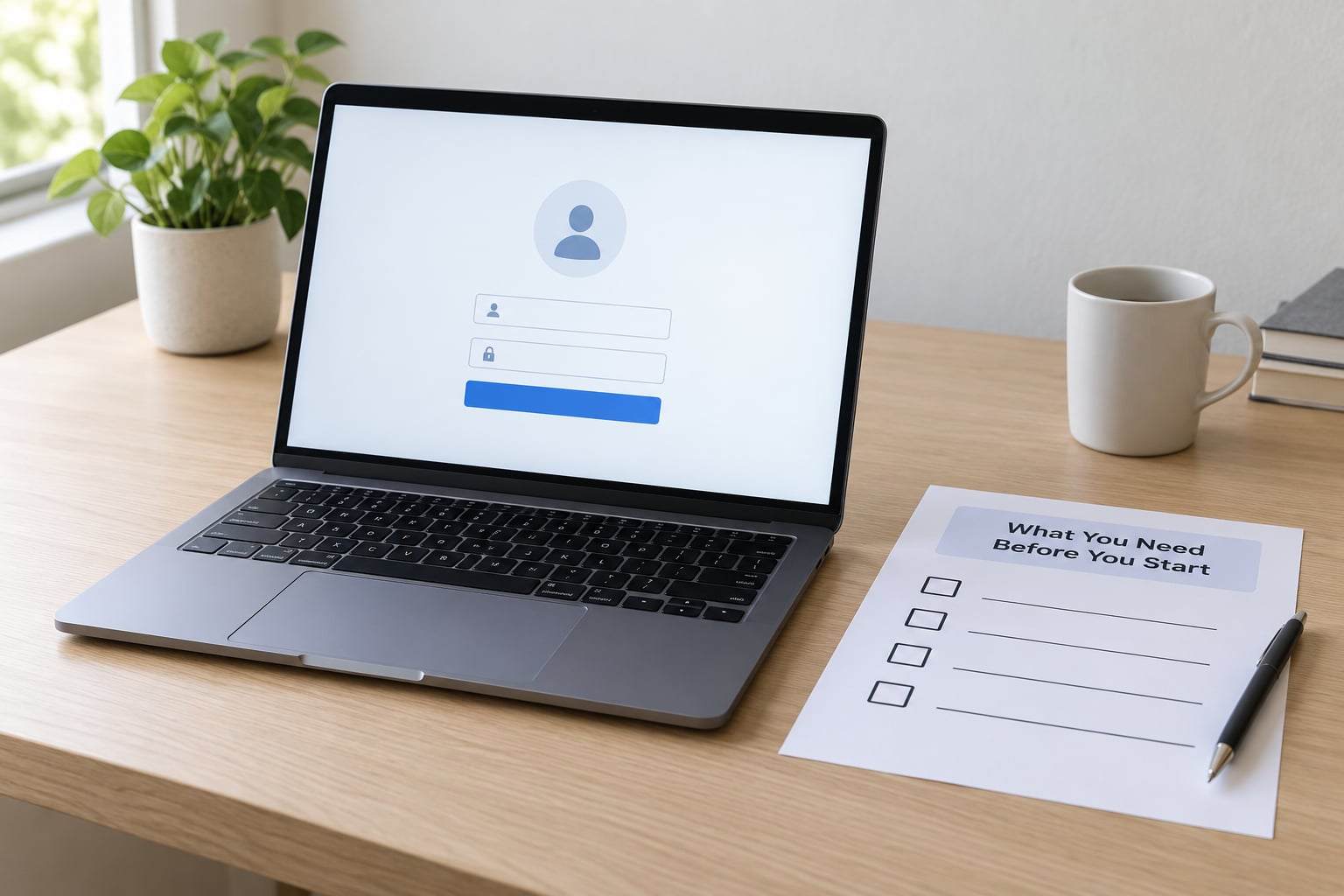
You need four things, and having them ready turns a twenty-minute session into a ten-minute one.
An adult Microsoft account to act as family organizer. This is the account that owns the family group and holds the rules. If your PC already runs on your own Microsoft account, you are done here. If you deliberately run a local account without one, there is a route for that, covered later.
Administrator rights on the PC. You cannot add a family member from a standard account. If you are signed in as a child or guest, sign out and back in as an administrator first.
The child’s first name and date of birth. Entering an accurate birthdate is what unlocks the right set of controls. Guessing here is the single most common reason setup stalls, and it is very hard to undo later.
An internet connection and ten minutes of quiet. Several parts of this flow out to Microsoft’s servers, so a spotty connection produces half-finished accounts that are painful to clean up.
One optional but useful item: a phone with the Microsoft Family Safety app installed. Once your rules are live, you approve time and purchase requests from that phone instead of walking back to the PC.
Step-by-Step
How to Set Up a Kids Account on a Windows PC
On Windows 11, the path is Start, then Settings, then Accounts, then Family & other users. On Windows 10, the label is Family & other users too, but it sits under Settings, then Accounts, and the layout is left-aligned rather than centered. That single difference is what trips people up.
Here is the Windows 11 route, in order.
- Open Start and select Settings, or press Windows key plus I.
- Select Accounts in the left column, then Family & other users.
- Under Other users, select Add a family member. Windows may sign you in to confirm it is you.
- Choose Add a new email if your child does not have an email address, or Add an existing email if they do.
- Enter the child’s name and date of birth, then select Add. Windows creates an Outlook address for them automatically.
- Add a display name and an account password. The child will need both to sign in, so agree on the password now rather than in the middle of a school night.
- Send the child an invitation. They accept it from a browser or the Family Safety app, and they can do that on a different device if the family PC is not their only one.
- Return to Family & other users and confirm the child now appears with the label Member of your family.
On Windows 10 the flow is identical apart from navigation. Go to the Start menu, click the gear icon, choose Accounts, then Family & other users in the left list, and follow the same Add a family member button. Some Windows 10 builds label the panel Family instead, so look for both.
If the button is missing or greyed out entirely, you are probably signed in with a standard account rather than an administrator. That is a permissions problem, not a bug, and the fix is in the mistakes section below.
Choose the Right Family Safety Settings
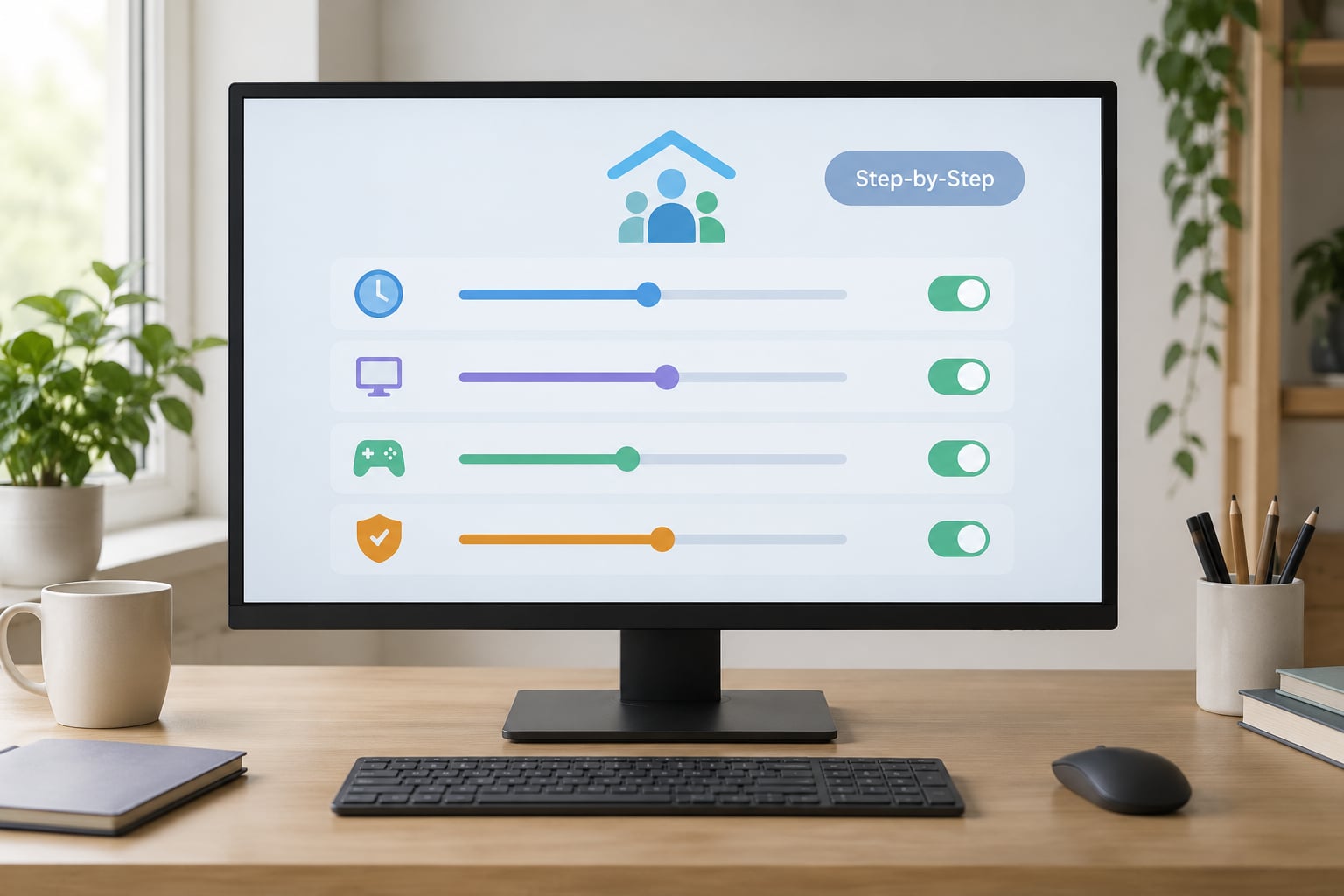
The account is created empty. What makes it a kids account is the rules you add next, and they live in Microsoft Family Safety, reachable online at family.microsoft.com or through the Family Safety app.
Screen time. You get a daily limit plus scheduled windows for school nights, weekends and any other day type you define separately. Set school nights first and weekends second. Parents who set one flat number end up arguing, because Saturday and Tuesday are not the same problem.
Apps and games. Family Safety blocks anything rated above a limit you choose, based on the store age rating attached to the app. It also blocks installs of new apps above that rating without your approval. Keep in mind that this rating system covers Microsoft Store apps and games, not every desktop program.
Web content. Turn on filtering of inappropriate websites and searches and set Bing SafeSearch to Strict. This is the single most useful toggle for most families, with one large exception I will come back to: it governs Microsoft Edge, not other browsers.
Purchases. Set Ask to buy so anything the child wants to spend money on needs your approval, and add a spending allowance with a limit if you use Xbox or in-app credit. Block the child from adding payment methods outright, otherwise approvals become decorative.
Activity reporting. Turn it on. It produces a weekly summary of sites visited, searches, app and game time, and money spent, delivered by email. It is also the fastest way to spot that your child is using a browser you have never heard of.
Start strict and relax deliberately. A 13-year-old and a 7-year-old should not share one settings page, and you can change any of this later without deleting the account.
Add the Child to the PC and Test the Account
Creating the account is not the same as proving it works. Test it while you still have your admin account open, because fixing a misconfigured child account is much easier before the child has stored things in it.
Sign out of your administrator account and sign in with the child’s credentials. Expect a first-run screen asking for a few privacy choices, then the normal desktop. Confirm the child sees a normal desktop rather than your files.
Then test three specific things.
- A blocked site. Open Edge and search for something you know you have filtered. You should land on a blocked page with a Get permission option that requires your adult credentials. If the page loads normally, web filtering is not on.
- The time limit. Temporarily set a five-minute screen time limit, browse past it, and watch what happens. Windows should block new activity and send you a notification.
- Permissions. Try opening Settings and reaching your family rules. The child should not be able to turn off what you set.
Two details worth knowing: limits can take a few minutes to apply after a change, particularly right after the invitation is accepted, and a blocked page in Edge offers a Get permission button that works smoothly without making you hunt for the password. That button is how most requests get approved in practice, so your child knows it exists.
Common Mistakes and How to Fix Them
Add a family member is greyed out or missing. You are signed in as a standard or child account. Sign out, sign back in as an administrator, and the button returns.
The account was created as an adult instead of a child. This happens when you choose Add someone else to this PC rather than Add a family member. Those are two different things: one makes a local Windows user, the other makes a Microsoft child account with rules attached. Open Settings, then Accounts, then Family & other users, click the account, choose Manage, and use Change account type to move it into your family.
Microsoft says the child is under 13. If the birthdate you entered puts them below 13, account creation is blocked by US children’s privacy rules and you are asked for a parent to complete it. Enter the real date. If you guessed wrong earlier, fix the child’s date of birth on their Microsoft account page at account.microsoft.com, then try again.
Your own adult account is labelled as a child. Plenty of parents hit this after a fresh Windows setup, then lock themselves out of their own settings. The fix is Change account type in the same Manage menu, moving the account to Adult. If the option is missing, that account is probably already a local one and nothing needs changing.
Controls are not applying yet. Almost always timing. The invitation has to be accepted, the device has to be online, and the rules sync through Microsoft’s servers. Sign the child in, leave the PC connected for a few minutes, and check again. If it still has not applied, remove the child from your family group at family.microsoft.com and re-add them.
Family Safety blocks Chrome or another browser. This is the most common complaint, and it is not a fault on your PC. Family Safety’s web filtering is enforced inside Edge. If your child uses Chrome or Firefox, use that browser’s own site settings alongside Family Safety rather than assuming the PC is protected.
You want controls without a Microsoft account. You can add a local Standard user instead: Settings, then Accounts, then Other users, then Add someone else, then I don’t have this person’s sign-in information. That gives you a separate desktop with no admin rights and no rules, so pair it with a folder for their files and accept that you are managing limits manually.
The child bought something. Turn on Ask to buy, remove any payment method stored on the child’s account, and check pending requests in the Family Safety app. In-app purchases inside games you already approved sit outside this control, so check the game’s own settings too.
What This Does Not Protect Against
Two honest limits are worth knowing before you assume you are covered.
Web filtering and SafeSearch apply to Microsoft Edge. On another browser, you are relying on that browser’s own content settings. Browsing history in the activity report is also incomplete when the child uses another browser or a second device.
App age ratings cover Microsoft Store apps and games. Desktop programs installed from the internet are not governed by a store rating, so a restricted account is what keeps those installs out of reach in the first place.
For a child aged roughly 5 to 12, Edge Kids Mode is a faster starting point than a full account. You open Edge, turn on Kids Mode from within the browser, pick an age band, and get a locked-down full-screen browser with large tiles and no account setup. It is narrower than Family Safety, and it only covers browsing, but it takes a minute rather than ten.
Frequently Asked Questions
Do I need a Microsoft account to set up a kids account on Windows 11?
No. You have two options. A child Microsoft account added to your family gives you screen time limits, app and game age ratings, web filtering, purchase approvals and weekly activity reports. A local Standard account needs no internet and no Microsoft account, but it comes with no rules at all, so you manage limits yourself.
How do I create a kids account without a Microsoft account?
Add a local Standard user instead. Go to Settings, then Accounts, then Other users, then Add someone else, then choose I don’t have this person’s sign-in information. Leave the password fields blank and finish. The child gets their own desktop and no administrator rights, and you stay in control of what gets installed.
Can a child change or bypass parental controls on Windows 11?
They cannot change the rules, because every change requires adult credentials. They can work around the intent in a few ways: use another browser where the web filter does not apply, wait out the short delay after a time limit expires, or ask for more time, which is the feature working as designed. Pair Edge usage with a restricted account.
Why are my parental controls not working after I add a child account?
Check four things in order. The child must have accepted the family invitation. The PC must be online so the rules can sync, and sync can take several minutes. The birthdate must be accurate, since the wrong one changes which controls apply. And the sign-in must be with the child account rather than your own.
Can I set up separate accounts for multiple children on one PC?
Yes. Add each child separately under Family u0026amp; other users and give each their own birthdate, and Microsoft applies age-appropriate defaults per child. Two useful tricks: set different schedules for school nights and weekends within each child’s account, and give every child their own profile so passwords do not become a household argument.
How do I remove a kids account or change its restrictions later?
To change restrictions, open Settings, then Accounts, then Family u0026amp; other users, click the child, choose Manage, and edit there, or go to family.microsoft.com for the full set of rules. To remove the child, use Remove from device. To turn the account into a normal adult one, use Change account type under Manage.
Start with the account itself: sign in as an administrator, go to Settings, then Accounts, then Family & other users, and add your child with a correct birthdate. That is the step that has to go right before anything else works. Then turn on screen time, web filtering, Ask to buy and activity reporting, and test one blocked page and one time limit while you still have your own account open. If you remember nothing else from how to set up a kids account on a Windows PC, remember that the account comes first and the rules come second, because none of the limits apply to a device the child cannot sign into yet.