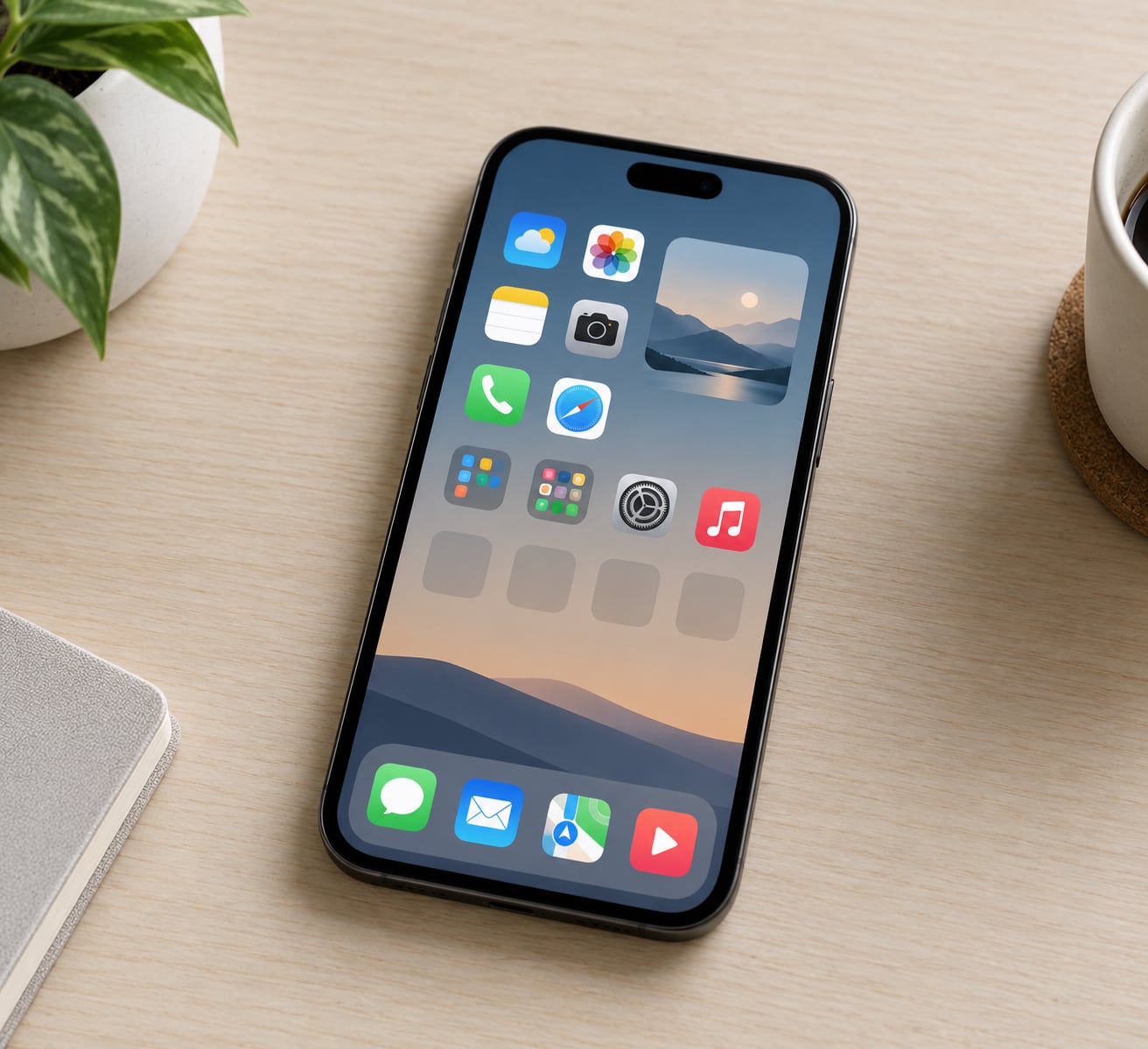
Press and hold any app icon until the screen enters jiggle mode, drag icons into the order you want, and tap Done. Folders, widgets and the dock do the heavy lifting after that. Most of the work takes about fifteen minutes once you decide what should stay visible.
That first minute of deciding is what separates a home screen you enjoy from one you scroll past. This guide walks through a seven-step process for how to organize the home screen on an iPhone, with the exact menu labels for the current version of iOS.
Table of Contents
- 1What You Need
- 2Step-by-Step: How to Organize the Home Screen on an iPhone
- 31. Decide What Belongs on the First Page
- 42. Remove Icons You Rarely Use
- 53. Create Folders for Related Apps
- 64. Add Widgets for Instant Access
- 75. Rearrange Pages and App Library Settings
- 86. Set Up the Dock for Daily Essentials
- 97. Test and Maintain the New Layout
- 10Common Mistakes
- 11Frequently Asked Questions
- 12What is the easiest way to organize an iPhone home screen?
- 13Should I use the App Library or keep apps on home screen pages?
- 14What happens if I remove an app icon from the home screen?
- 15Can I move an app into a folder on my iPhone?
- 16Why can I not find the App Library or widget controls on my iPhone?
- 17Start With the First Page
What You Need
Nothing physical. You need your iPhone, a few minutes, and roughly five spare on a screen you can still see.
Two honest notes before you start. Apple renames menu items between iOS releases, so if the wording on your phone differs slightly from what follows, the buttons still sit in the same order. And home screen widgets, hidden pages and page reordering are version-dependent features: widgets arrived in iOS 14, hidden pages came with iOS 14, and page reordering arrived in iOS 15.
If your layout is already working and you want to try a very different structure, make a backup first. Photos of each page take two minutes and give you a reference if you regret the reshuffle.
Step-by-Step: How to Organize the Home Screen on an iPhone
The process runs from what to keep, to what to group, to where the shortcuts live. Work in that order and each step makes the next one faster.
1. Decide What Belongs on the First Page
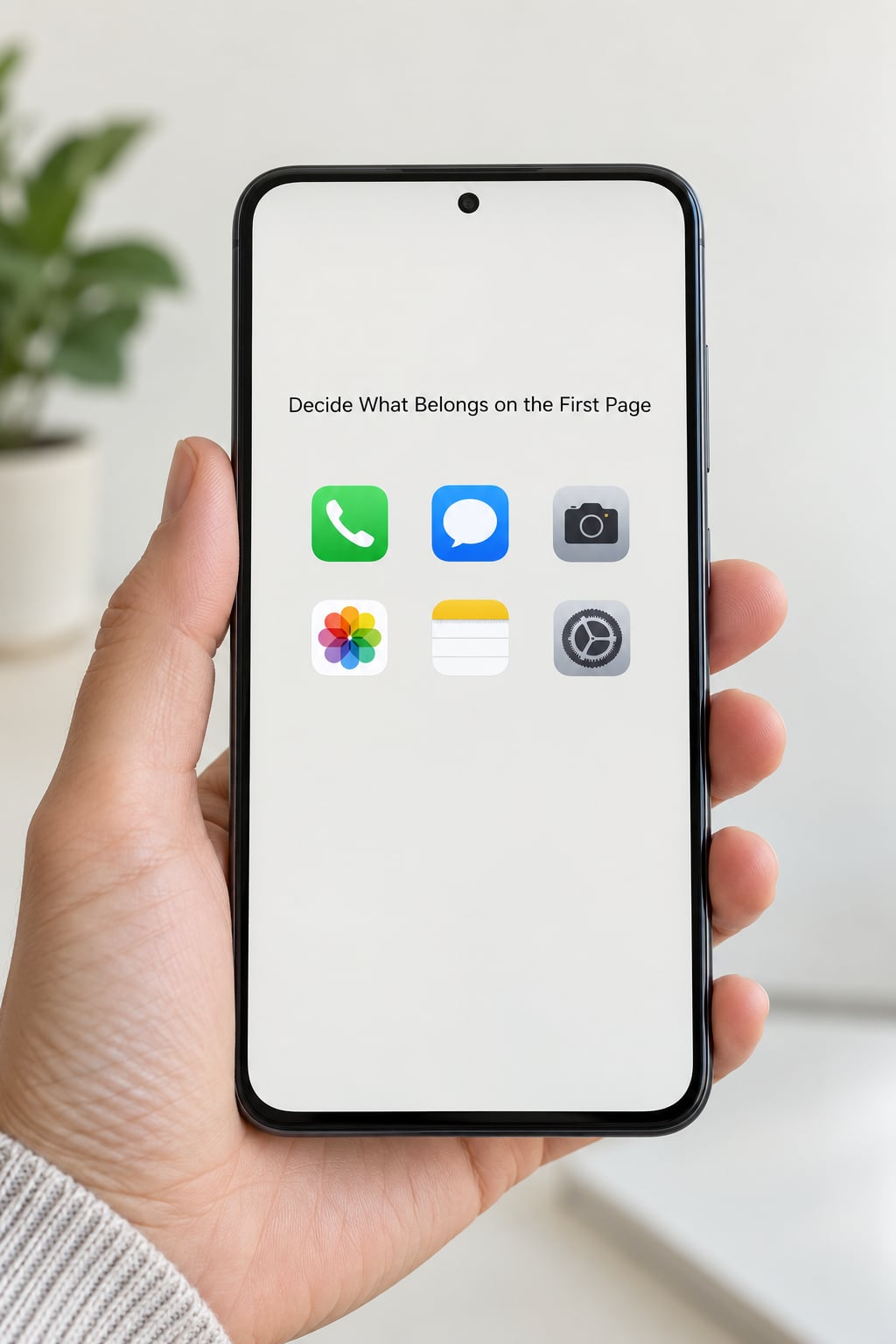
The first page should hold the apps you open on a normal day. Not the apps you might open, the ones you do open.
Open Screen Time under Settings, then App Activity, and look at your last seven days. That list is more honest than memory. Most people find roughly a dozen apps account for nearly all their launches, and everything past the second page gets opened through search anyway.
Keep the first page at twenty icons or fewer. Two full rows plus one widget leaves breathing room and reads better than a solid block of squares.
2. Remove Icons You Rarely Use
Removing an icon is not the same as deleting an app, and knowing which one you are doing saves a lot of reinstalling.
- Press and hold the app icon until it jiggles.
- Tap the app, then tap Remove App.
- Choose Remove from Home Screen to keep the app installed and findable in the App Library.
- Choose Delete App to remove the app and its data from the phone entirely.
- Tap Done when you finish.
Deleting is permanent. Photos, notes and game progress tied to that app go with it unless the developer synced them, so check before you tap.
For anything you want to keep, Remove from Home Screen is the right choice. To get it back, swipe right to the App Library and open its category, or swipe down from the middle of the screen and type the app name into Spotlight search.
3. Create Folders for Related Apps
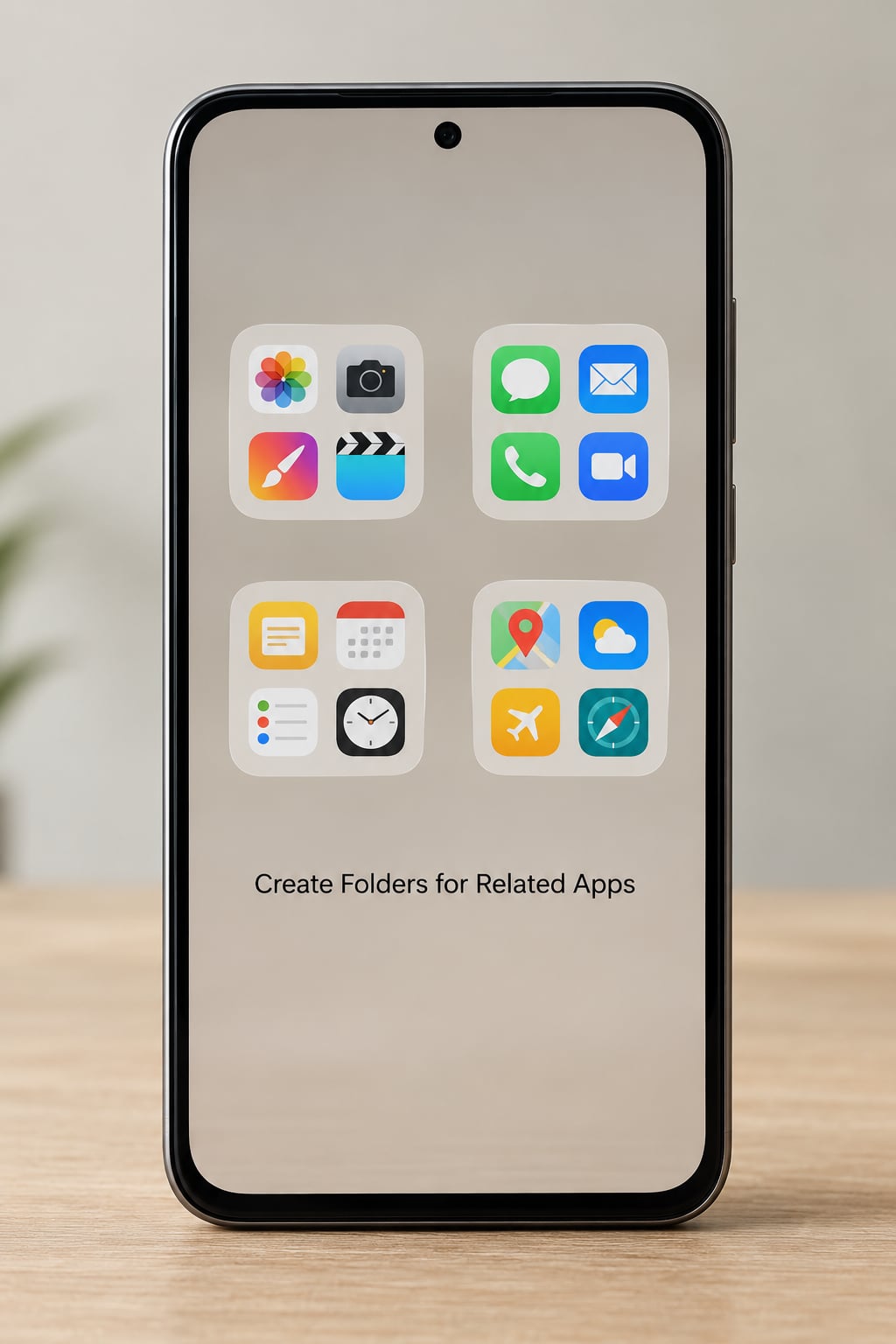
Folders work best when the group has a real reason to exist, not just because the icons looked related.
- Press and hold an app icon until it jiggles.
- Tap Edit Actions in the top-left corner of the menu.
- Select New Folder.
- Type a short name, two or three letters at most.
- Drag the remaining apps you want inside, then tap Done.
Categories that hold up in daily use are the boring ones: work and productivity, photography, finance and banking, travel and travel booking, utilities. A folder called Everything ends up being a slower version of the App Library.
One caveat from people who switch back and forth between phones: folders add taps. If you came from Android, the swipe-up launcher takes that tap away, and you may end up preferring fewer folders and more search.
4. Add Widgets for Instant Access
Widgets put a piece of an app on the home screen so you skip the launch entirely. Home Screen widgets have been available since iOS 14, which surprises a lot of people who assume they exist only on the Lock Screen.
- Press and hold an empty area of the home screen.
- Tap Edit at the top of the screen, then Add Widget.
- Swipe through the list or use the search field to jump to an app.
- Scroll the size selector between the small, medium and large options.
- Tap Add Widget, drag it into place, then tap Done.
Medium widgets are the sweet spot. A small widget gives you the current temperature but no useful detail, and a large one eats four icon slots for information you check once a day.
Several widgets can sit on top of each other as a stack. Swipe up or down through a stack to rotate between them, which is how people keep a calendar and a weather widget without losing two rows of icons.
Note that some interactive controls only work when the owning app is also installed. If a widget looks blank or greyed out, check that first.
5. Rearrange Pages and App Library Settings
Pages and the App Library are where most clutter actually goes.
In jiggle mode, drag a page thumbnail in the strip at the bottom to reorder pages. Tap the dots on a page to hide it, which keeps the page and its apps intact but takes it off the swipe path, or remove it entirely, which sends the apps to the App Library.
Hidden pages came with iOS 14 and page reordering with iOS 15, so an older phone may simply not show those options.
To decide where new downloads land, open Settings, then Home Screen and App Library, then tap Add to Home Screen. Choose App Library Only and nothing new will clutter your pages again. This is the setting that separates a home screen you arranged from one that slowly sprawls over a year.
In the App Library, swipe up on an app and tap Hide App to pull it out of the categories entirely. App Library Only and Hide App solve different problems, and you may want both.
6. Set Up the Dock for Daily Essentials
The dock holds up to four apps or folders and stays visible on every page. That makes it the most reliable four slots on the phone.
- Press and hold an app until it jiggles.
- Drag the icon down to the dock area at the bottom.
- Repeat until the dock holds your four essentials.
- Tap Done.
A dependable set is Phone, Messages, Maps and Camera, or swap Camera for Music if you use it constantly. Keep the dock to the things you open with one hand while walking, and nothing that also needs a second tap.
For everything past those four, search beats scrolling. Swipe down from the middle of the screen and start typing; after a few uses the top hit is usually what you wanted. On supported models the Action button or Camera Control can be pointed at the same search field.
7. Test and Maintain the New Layout
Live with it for a week before deciding it is finished.
After a few days, notice what you looked for and could not find. That gap is usually a folder buried too deep or an app you moved off the first page by mistake.
Do a quick unused-app audit monthly. Screen Time shows apps with no recent activity, and deleting three or four is easier than a big purge. Shortcuts sitting on Control Center and watch faces also free Dock slots for things you actually tap.
One warning worth repeating. Settings, then General, then Transfer or Reset iPhone, then Reset Home Screen Layout alphabetizes your apps in a single tap, and it also wipes any custom arrangement you already built. Nothing comes back on its own. Use it on a phone you have just finished setting up, not one you like.
Common Mistakes
Most unhappy home screens come from the same handful of decisions.
Keeping every app on a page. A home screen is a launch surface, not storage. If an app matters, it can live in the App Library and still be two taps away.
Burying daily apps in folders. A folder named Essentials with thirty apps inside defeats its own purpose. Keep the first page and the dock for the things you open daily.
Confusing Remove from Home Screen with Delete App. The first hides the icon and keeps the app. The second removes the app and its data. Read the menu carefully.
Letting the page count grow. Four pages with two icons each is harder to search than two well-organised ones. App Library Only stops new downloads from adding to the pile.
Adding oversized widgets. A large widget can replace six icons. Worth it for a calendar or a weather view you check constantly, rarely worth it otherwise.
Alphabetizing with Reset Home Screen Layout. It is a genuine shortcut and a genuinely destructive one. Know which layout you are giving up before you tap it.
Maintenance is the unglamorous half. A five-minute review each month keeps the layout honest, and deleting the apps you have not touched since spring does more for a cluttered screen than any arrangement strategy.
Frequently Asked Questions
What is the easiest way to organize an iPhone home screen?
Start by putting only your daily apps on the first page, then set new downloads to App Library Only under Settings, Home Screen and App Library. Add a dock with four essentials and use Spotlight for everything else. This takes about fifteen minutes and stops the screen from re-cluttering itself.
Should I use the App Library or keep apps on home screen pages?
Use both. Keep the ten to twenty apps you open daily on page one and four more in the dock, and let the App Library hold everything else, already sorted into categories. Readers on community forums converge on the same split: a small first page plus folders, with search covering the long tail.
What happens if I remove an app icon from the home screen?
Nothing is lost. Removing an app from the home screen only deletes its icon; the app stays installed and appears in the App Library, where you can drag it back whenever you want. Deleting the app is a separate menu option, and that one removes the app and its local data for good.
Can I move an app into a folder on my iPhone?
Yes. Press and hold the app until it jiggles, drag it on top of another app icon, and a folder opens. Add more apps by dragging them onto the folder, then rename it through the folder name field. A folder can hold several pages of apps, though keeping it to about nine makes it easier to scan.
Why can I not find the App Library or widget controls on my iPhone?
Swipe right past your last page to reach the App Library, and check Settings, App Library, Show to make sure it is visible. For widgets, press and hold an empty area of the home screen, tap Edit, then Add Widget. Widgets on the home screen need iOS 14 or later and at least one page of free space.
Start With the First Page
One page, twenty icons, no folders. Get that right first and the rest follows in order: move the remainder into named folders, add one or two medium widgets, hide or delete the pages you no longer need, and finish with four dock slots for the apps you open every single day.
That order matters because each step gives you a working screen. Stop when your common tasks take one tap instead of four, and leave the rest to search.