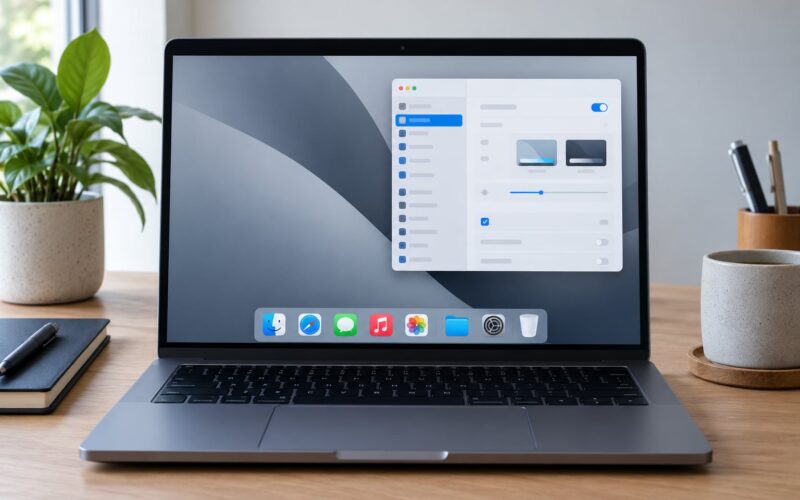
Stage Manager is the macOS window mode that stacks your open windows into one group along the screen edge so you can flip between apps without juggling Spaces or Mission Control. To turn it on, click the Apple menu, open System Settings, choose Desktop & Dock, and flip the Stage Manager switch on.
That one toggle takes about ten seconds. The rest of the work is learning how window groups behave, which Desktop & Dock options are worth changing, and what to do when windows start hiding themselves. This guide walks through all of it in plain steps, using the exact setting names Apple shows on screen.
Table of Contents
- 1What You Need Before Turning Stage Manager On
- 2Step-by-Step: How to Use Stage Manager on a Mac
- 31. Check Whether Stage Manager Is Available
- 42. Turn On Stage Manager
- 53. Organize Apps Into Window Groups
- 64. Switch Between App Groups: How to Use Stage Manager on a Mac
- 75. Manage Windows and Desktop Space
- 86. Adjust Stage Manager for Your Workflow
- 9Stage Manager Keyboard Shortcuts and Settings Reference
- 10Stage Manager vs Mission Control vs Spaces vs Window Tiling
- 11Common Mistakes and How to Fix Them
- 12The toggle is greyed out
- 13Windows keep minimizing on their own
- 14The strip does not appear over the screen edge
- 15Switching groups steals focus or interrupts playback
- 16Sluggish switching with heavy apps
- 17Full-screen apps behave strangely
- 18Screen reader users cannot use the strip
- 19Frequently Asked Questions
- 20Is there a keyboard shortcut for Stage Manager on a Mac?
- 21Why is the Stage Manager toggle greyed out on my Mac?
- 22Is Stage Manager better than Mission Control or Spaces?
- 23Does Stage Manager work with an external display and iPhone apps?
- 24How do I turn Stage Manager off completely?
- 25Conclusion
What You Need Before Turning Stage Manager On
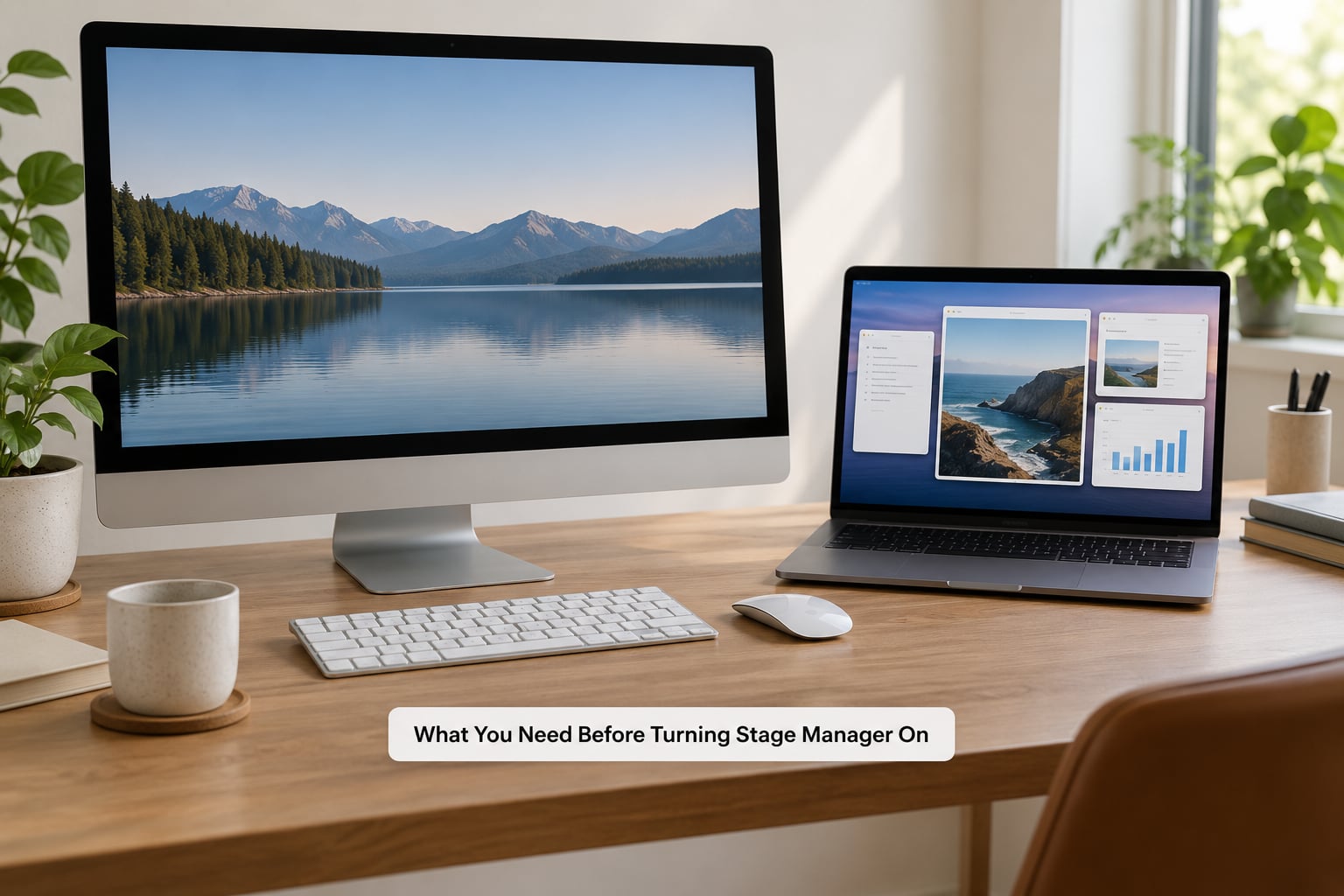
Stage Manager needs macOS Ventura 13 or later and a Mac from the supported list, which covers current MacBook Pro, MacBook Air, iMac, Mac mini, Mac Studio and Studio Display models. Intel Macs are supported as long as they run Ventura or a later release, so the older chip is not the deciding factor.
One prerequisite catches almost everyone out: the toggle stays dimmed until Displays have separate Spaces is switched on under Desktop & Dock. Apple turns that setting off in some multi-monitor arrangements, and a greyed-out Stage Manager switch almost always means it.
- macOS Ventura 13, Sonoma 14, Sequoia 15 or a later release
- A supported Mac with enough free storage for the feature to run smoothly
- Displays have separate Spaces turned on in Desktop & Dock
- No external display tricks required, though Stage Manager does work across multiple screens
If you would rather test it before changing system settings, click the Control Center icon in the menu bar and turn on the Stage Manager tile. That toggle switches the whole mode on or off, and it works even before you have visited System Settings.
Step-by-Step: How to Use Stage Manager on a Mac
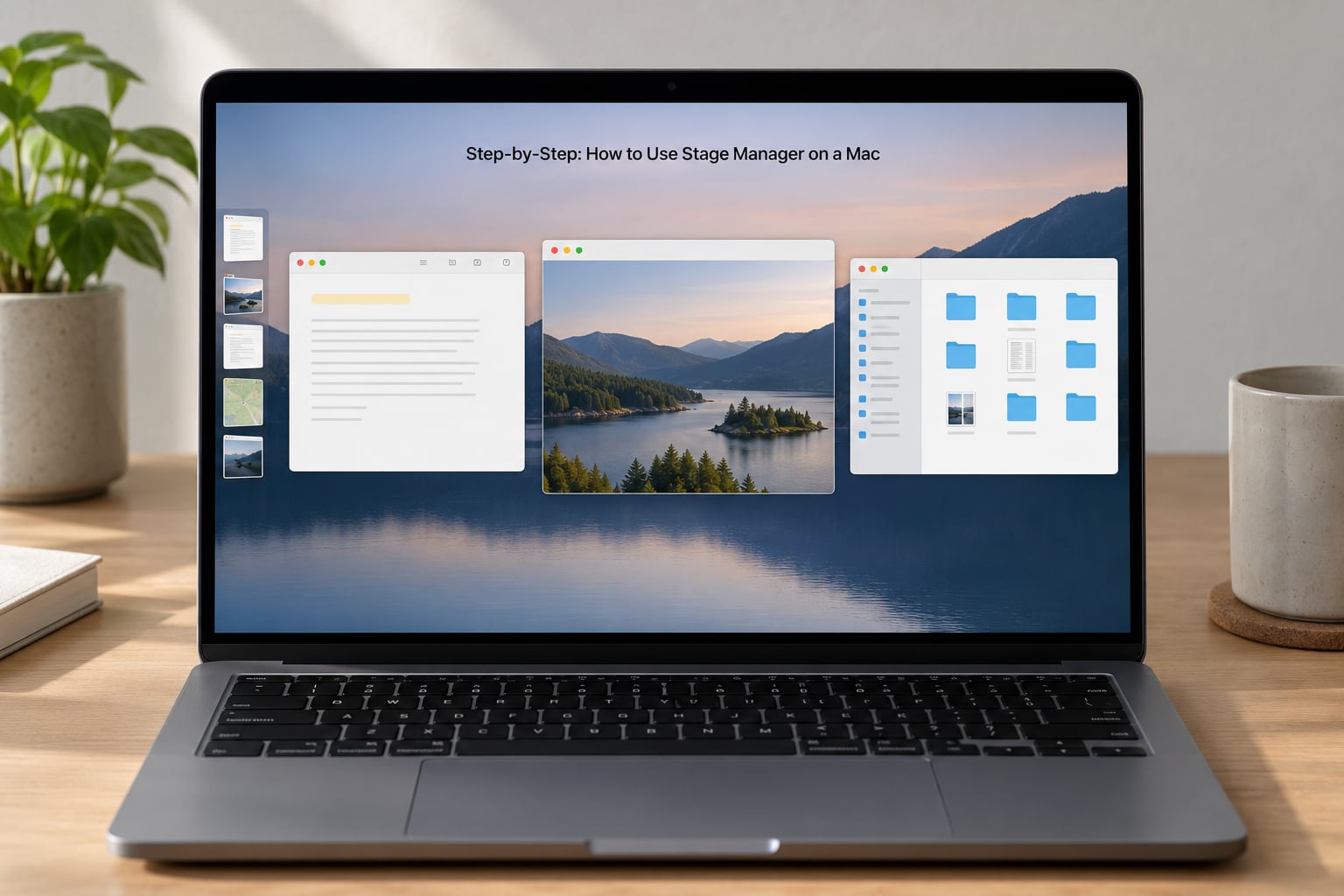
Six steps cover the whole workflow: confirm the feature exists on your Mac, switch it on, build your groups, move between them, keep the desktop tidy, and tune the settings. Work through them in order and the first ten minutes will tell you whether Stage Manager fits how you work.
1. Check Whether Stage Manager Is Available
Open System Settings from the Apple menu and select Desktop & Dock in the sidebar. Scroll to the Stage Manager section. If you see the switch and it responds to a click, you are all set.
If the switch is dimmed, look just above it for Desktop & Dock options and turn on Displays have separate Spaces. Then the Stage Manager switch becomes active immediately, with no restart needed. Some readers also report the switch missing entirely on machines where Stage Manager is unsupported, which points to an older macOS release rather than a broken setting.
2. Turn On Stage Manager
Click the Apple menu, choose System Settings, pick Desktop & Dock, then switch on Stage Manager. The desktop changes shape straight away: open windows move into a single overlapping group parked along the screen edge, and the wallpaper becomes visible behind them.
Your cursor no longer sits over the wallpaper with windows scattered underneath, which is the main everyday change. Clicking the wallpaper now pulls the whole group aside instead of just focusing Finder, so you get a clean desktop on demand.
3. Organize Apps Into Window Groups
A window group, sometimes called a stage, is one app’s set of windows sitting together in the group. Open three apps and each one becomes its own group in the strip, stacked so only the front window of each is fully visible.
The active group is the one in front, marked by the larger, brighter thumbnail. Every other group sits behind it in a dimmed state. Switching groups moves the active one to the front and pushes the others back rather than closing or minimizing anything.
You decide what lands in the foreground based on which app you last used, so the group order rearranges itself as you work. If you want a cleaner strip, close windows you no longer need instead of leaving them minimized in the background.
4. Switch Between App Groups: How to Use Stage Manager on a Mac
Move the pointer to the screen edge where the group is parked and the strip slides into view. Click a thumbnail to bring that app forward, or click its group to move every window it holds. That single gesture is the fastest way to jump between apps all day.
Command-Tab still works as usual for app switching. What changes is Command-H: in Stage Manager, pressing Command-H hides windows into the strip on the outer edge instead of sending them to the Dock, and clicking the thumbnail brings them straight back.
One thing trips people up. Command plus apostrophe cycles windows only inside the current group, which feels broken if you carried over muscle memory from before Stage Manager. Command-Tab moves between groups, so use that when you want to jump apps rather than windows.
5. Manage Windows and Desktop Space
You can resize any window in the group by dragging its edge, and the rest of the group shifts to make room. Windows overlap on purpose so several apps stay visible at once, and you can drag a window to a screen edge to tile it against that side instead of stacking it.
Holding the Option key while dragging a window snaps it into a tiled position, and tiled windows pick up a small margin around them so you can tell edges apart. You can also open a window in a clean full-screen space of its own, which takes it out of the group entirely and gives you an uncluttered view.
Click the wallpaper to send the group out of the way and see your desktop files. Move the pointer back to the edge and the group returns exactly where it was. That round trip is quicker than alt-tabbing through windows when you only need the desktop for a moment.
6. Adjust Stage Manager for Your Workflow
The Desktop & Dock pane holds the options that decide how the group behaves. Most people only need two of them, and both are worth a look on the first day.
- Show recent apps in Stage Manager controls the thumbnail strip along the screen edge. Turn it off for a completely bare desktop, which is handy when you are presenting or screen sharing.
- Show windows from an application decides whether all of an app’s windows appear together or one at a time. Researchers with many browser tabs generally prefer All at Once.
- Show Desktop decides whether clicking the wallpaper pulls the group aside or only works in Mission Control.
- Group windows by application keeps each app’s windows clustered together instead of one long mixed list.
Option names shift a little between macOS releases, so treat this as a map rather than a screenshot match. If a label is not there, look for the closest equivalent in the same section.
Stage Manager Keyboard Shortcuts and Settings Reference
These are the shortcuts and settings people actually reach for once Stage Manager is switched on. Print this page or keep the table nearby for the first week.
| Shortcut or gesture | What it does |
|---|---|
| Pointer to screen edge | Reveals the recent apps strip |
| Click a thumbnail | Brings that window to the front |
| Command-Tab | Switches between apps and window groups |
| Command plus apostrophe | Cycles windows inside the current group only |
| Command-H | Hides windows into the edge strip |
| Option-drag a window | Snaps it into a tiled position |
| Click the wallpaper | Pulls the group aside to reveal the desktop |
| Control Center Stage Manager tile | Turns the whole mode on or off quickly |
The Desktop & Dock options decide what the strip contains and how aggressively it takes over your screen.
| Setting | What it controls |
|---|---|
| Stage Manager | Turns the window grouping mode on or off |
| Displays have separate Spaces | Must be on for the Stage Manager switch to be active |
| Show recent apps in Stage Manager | The thumbnail strip along the screen edge |
| Show windows from an application | All at Once or One at a Time |
| Group windows by application | Clusters each app’s windows together |
| Show Desktop | How clicking the wallpaper reveals the desktop |
| Recently used applications in Switcher | Apps listed in Command-Tab |
Stage Manager vs Mission Control vs Spaces vs Window Tiling
Stage Manager wins when you juggle several apps at once and want them all visible. Mission Control stays better for a quick overview of everything open, Spaces suit people who want complete separation between projects, and tiling suits anyone who prefers fixed window positions over overlapping ones.
| Feature | Stage Manager | Mission Control | Spaces | Window tiling |
|---|---|---|---|---|
| Shows all apps at once | Yes, in one strip | Yes, as thumbnails | No | Yes, in fixed positions |
| Keeps the desktop visible | Yes | No | No | No |
| Separate desktops per project | No, use groups | No | Yes | No |
| Fixed window positions | No, free placement | No | No | Yes |
| Best for | Multi-app multitasking | Fast overview | Focused projects | Repeatable layouts |
Many people end up running two of these together. Spaces for deep work on one project, Stage Manager for the days when everything happens at once. They are not rivals in System Settings, so nothing stops you from using both.
Common Mistakes and How to Fix Them
Nearly every Stage Manager complaint comes down to a setting nobody had looked at yet. Work down this list before deciding the feature is not for you.
The toggle is greyed out
Turn on Displays have separate Spaces in Desktop & Dock. The Stage Manager switch lights up immediately, and the fix sticks across restarts.
Windows keep minimizing on their own
That is the group shrinking so the active app stays readable, and it happens when a new app takes focus. If it interrupts you while a call or a track is playing, set Show windows from an application to One at a Time so only a single window per app takes up room in the group.
The strip does not appear over the screen edge
Check that Show recent apps in Stage Manager is on, then move the pointer to the edge and pause for a second rather than swiping quickly. If the strip works in one Space and not another, close and reopen that app, since a window that has been moved to another Space can leave the group empty.
Switching groups steals focus or interrupts playback
This one comes from clicking a thumbnail while media is playing. Stop the click-through by switching with Command-Tab instead, which changes the front app without the strip appearing under your pointer.
Sluggish switching with heavy apps
Video editors and large project files take a moment to redraw an overlapping group. Trim the group down to the apps you actually use at once, and keep heavyweight tools in their own Space so they are not rendered alongside everything else.
Full-screen apps behave strangely
A window in full screen lives in its own Space and sits outside the group. That is expected behaviour rather than a bug, and it is the usual reason people think Stage Manager has lost a window.
Screen reader users cannot use the strip
Stage Manager is a visual feature. VoiceOver users generally get more from Command-Tab and the Dock, as raised in long-running discussions on the AppleVis forum. Anyone who relies on a screen reader may be better off leaving the mode off.
Frequently Asked Questions
Is there a keyboard shortcut for Stage Manager on a Mac?
No single keyboard shortcut toggles the whole mode. The Control Center tile and the Desktop and Dock switch are the quickest on and off controls. For day-to-day use, move the pointer to the screen edge to reveal the recent apps strip, then click a thumbnail. Command-Tab moves between app groups, and Command-H hides windows into the edge strip instead of the Dock.
Why is the Stage Manager toggle greyed out on my Mac?
Almost always because Displays have separate Spaces is turned off. Open System Settings, choose Desktop and Dock, and switch that option on. The Stage Manager control becomes active straight away and no restart is needed. A missing toggle altogether means the Mac is running a macOS release older than Ventura 13, since Stage Manager arrived with Ventura.
Is Stage Manager better than Mission Control or Spaces?
Stage Manager suits people who keep several apps open and want them visible without alt-tabbing. Mission Control is still the faster overview of everything you have running. Spaces are better when you want one project completely separated from another. Plenty of Mac users run Spaces for focused work and Stage Manager for busy days, since the two do not conflict in System Settings.
Does Stage Manager work with an external display and iPhone apps?
Yes to both. Stage Manager runs on each connected display, so you can keep a group of research windows on the laptop screen and a different group on the external monitor. Apps you install from the Mac App Store on your iPhone, including iPhone mirrors, open as normal macOS windows and join a group like any other app.
How do I turn Stage Manager off completely?
Open System Settings, choose Desktop and Dock, and switch off the Stage Manager toggle. You can also click the Stage Manager tile in Control Center. Turning it off returns windows to their usual positions on the desktop immediately, and nothing is deleted. If you want to keep it around but stop the strip taking screen space, turn off Show recent apps in Stage Manager instead.
Conclusion
Start with one action: open System Settings, choose Desktop & Dock, turn on Displays have separate Spaces if it is off, and switch Stage Manager on. Then open the three apps you use daily and let them form their own groups, which is enough to judge whether the mode earns a place on your screen.
Give it a week before deciding. Stage Manager pays off for researchers, writers, developers and traders juggling several apps and many windows at once, especially anyone on an external display. If your work is one app at a time, plain Command-Tab and Spaces will still serve you better. Updated for 2026, and the Desktop & Dock labels shift a little between macOS releases, so check the section name if one has moved.