To use focus modes on an iPhone, open Settings, tap Focus, and switch on Do Not Disturb or any preset from the list, then decide which contacts and apps are allowed to break through. You can also set a schedule so it turns on and off by itself. The whole basic setup takes about two minutes.
Focus arrived with iOS 15 and quietly replaced Do Not Disturb as the notification system Apple’s phones actually run on. Do Not Disturb still exists, and it is one of the focus modes. What changed is that you can now build several of them, set hours for each, and let them trigger on location or device activity.
The six steps below walk through turning a mode on, deciding what gets through, building your own, scheduling it, automating it, and switching it on in the moment you need it.
Table of Contents
- 1What You Need
- 2Step-by-Step
- 3Step 1: Turn On a Focus Mode
- 4Step 2: Choose Which Notifications Can Come Through
- 5Step 3: Create a Personal Focus Mode
- 6Step 4: Schedule Focus for Work and School
- 7Step 5: Automate Focus with Location or Device Triggers
- 8Step 6: Turn Focus On When You Need It
- 9Common Mistakes
- 10Frequently Asked Questions
- 11Does Focus mode work on the iPad, Mac, and Apple Watch?
- 12Can more than one Focus mode be on at the same time?
- 13How do I let important people reach me while a Focus is on?
- 14Should I leave Time Sensitive notifications turned on?
- 15How do I share a Focus mode with my family?
- 16What is the difference between Focus and Silent Mode?
What You Need
An iPhone or iPad running iOS 18 or later covers everything below, including Focus filters. Older hardware still runs Focus, it just won’t have the newer options, and the steps here hold on iOS 18 and later as of 2026.
You’ll also want the Apple Account you already sign in with, since focus modes sync across your iPhone, iPad, Mac, and Apple Watch through it. Turn on iCloud for anything beyond Apple devices if you use Gmail or Outlook, otherwise those alerts may not be filtered.
A few minutes is enough. Most of it goes into deciding who is allowed to reach you, which is the decision most people get wrong the first time and then spend a month undoing.
Exact labels drift a little between iOS versions. A setting called “Allow Time Sensitive Notifications” on one phone reads “Time Sensitive” on another, and the Action Button options only exist on iPhone 15 Pro and newer.
Step-by-Step
Step 1: Turn On a Focus Mode
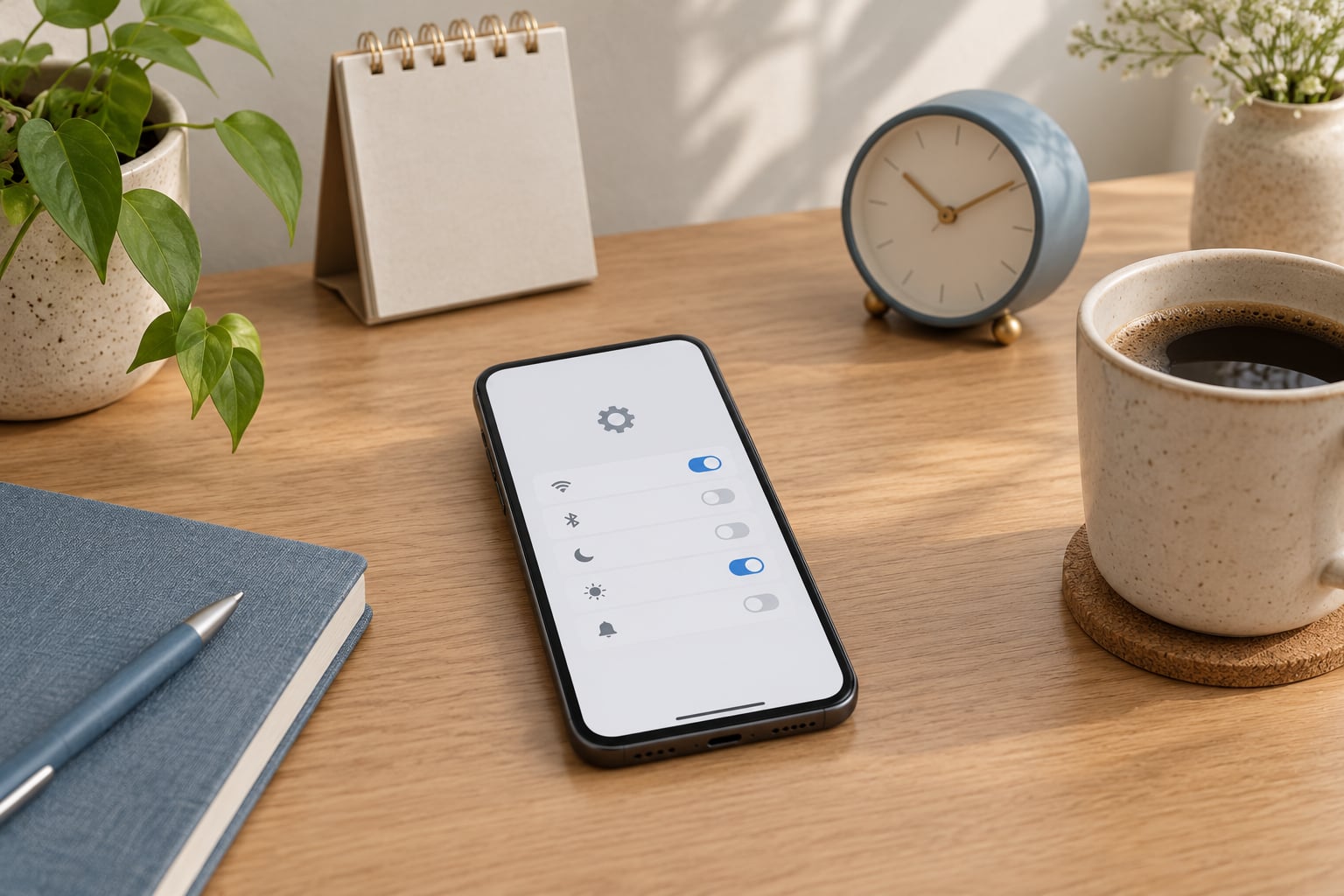
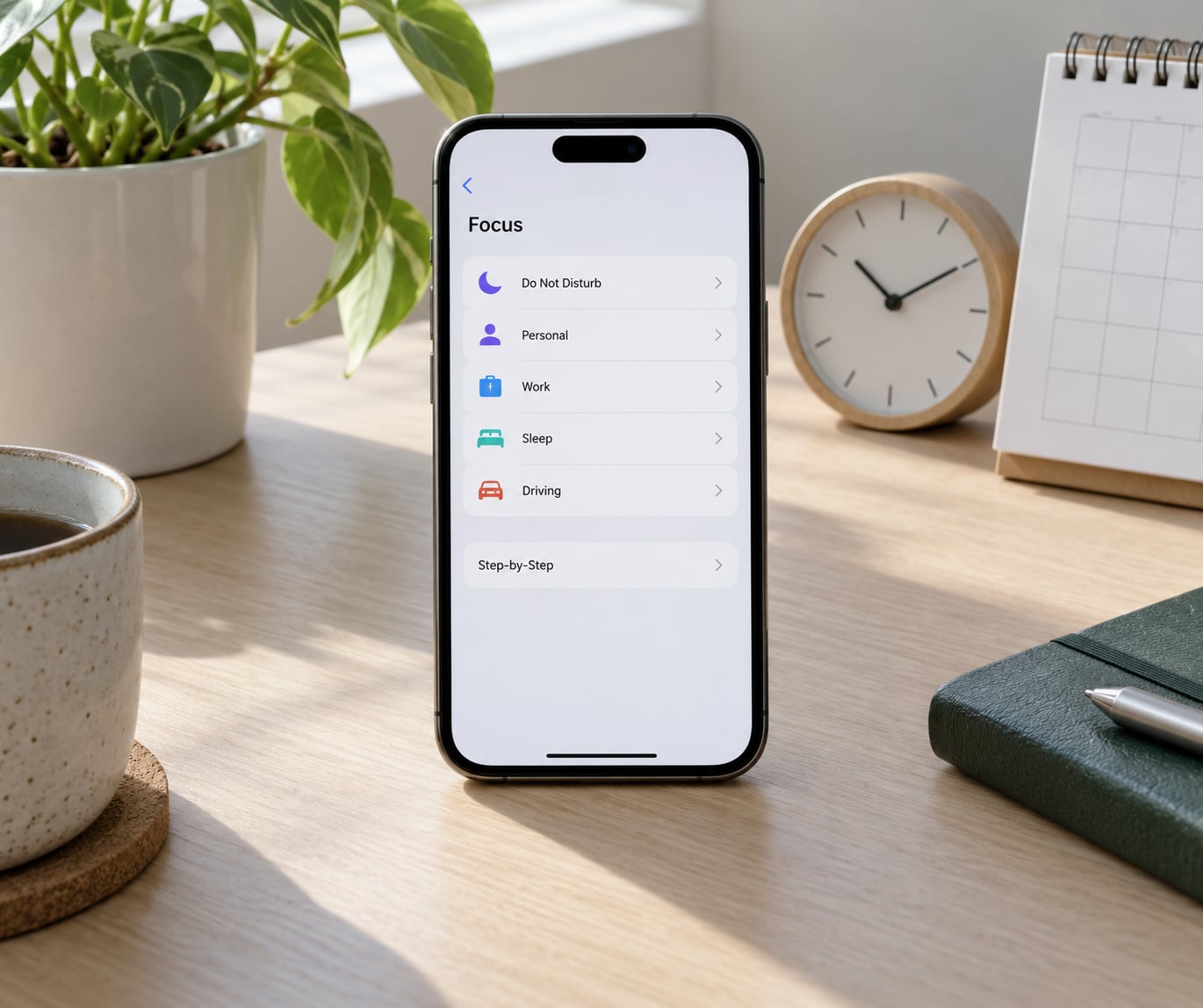
Open Settings, tap Focus, then tap the mode you want. Do Not Disturb is the default and the simplest one to start with. Switch the toggle beside it on and the crescent moon appears in the top-right corner of the status bar.
You can also switch a mode on from Control Center without opening Settings at all. Swipe down from the top-right corner, tap the Focus control, then tap the mode name. Long-pressing or pressing and holding on a mode gives you options like turning it on for an hour or until a calendar event ends.
You’ll know it worked by the moon in the status bar and by the fact that a notification banner no longer slides down over whatever you’re reading.
Step 2: Choose Which Notifications Can Come Through
Tap the name of your active mode in Settings, then tap Notifications. From here you decide what is allowed to interrupt you.
- Allow notifications: Off means nothing gets through. Most people leave this on and narrow it down instead.
- Allowed people: Add individual contacts, or pick a whole list you already made in the Phone app such as family or work. This covers calls, FaceTime, and Messages from those people.
- Allowed apps: Search and add specific apps, so a delivery tracker or a chat app can still alert you while everything else stays quiet.
- Time Sensitive: Leave this on if you want alerts marked as urgent by the sender, such as a delivery at the door or a family member’s alarm going off. Turn it off if you want the mode to be absolute.
A practical example: allow calls and Messages from your partner and your manager, allow nothing else, and turn Time Sensitive off during your writing hours. You’ll stop seeing group chat chatter without missing the two people who’d actually need you.
Step 3: Create a Personal Focus Mode
Open Settings, tap Focus, then tap the + button in the top right. Pick one of Apple’s presets or scroll down and tap Custom, then follow these steps.
- Name the mode. Something specific beats something generic. “Writing” tells you what it is every time you glance at Control Center.
- Tap Allowed People and choose who can break through.
- Tap Allowed Apps and choose which apps can notify you.
- Set the Time Sensitive toggle to match how strict this mode is.
- Choose whether the Lock Screen shows notification details at all. Hiding previews stops family members reading your messages off the screen.
- Optionally assign a custom Home Screen page, so opening the mode also changes what apps are in front of you.
- Optionally assign a custom Lock Screen wallpaper.
- Set an automatic text reply for senders who aren’t allowed through.
- Tap Add Schedule if you want it to run on a timetable, and turn on Smart Activation.
- Save, then name it in the list that appears.
That last schedule screen is also where you get Smart Activation, which switches the mode on when your iPhone detects you’re already using it and defers it when you’re not. Details on that in the mistakes section below, because it’s the setting behind most “my scheduled focus never turned on” complaints.
Step 4: Schedule Focus for Work and School
Open the focus mode, tap Add Schedule, then set the times and repeat days. Weekdays from 9:00 in the morning to 5:30 in the evening covers most office jobs, and for students a class block from 9:00 to noon plus an evening study block works better than one long window.
You can add as many schedules as you like to a single mode, so a Work focus can run mornings on weekdays and only mornings on Friday without you touching it again.
To confirm a schedule is live, turn the phone’s date display to 24-hour, or simply lock and unlock it during a scheduled window and watch the moon icon reappear. If it doesn’t, walk through the fixes below.
Step 5: Automate Focus with Location or Device Triggers
Inside the same schedule screen, tap Add Automation or Add Focus Trigger. You get four options: Time, Location, App, and Device. Time is the schedule you already made. The other three are worth setting up.
Location switches a mode on when you arrive at or leave a saved place, so a Fitness focus starts the moment you reach the gym, or a Personal focus ends when you pull into your driveway.
App ties the mode to opening an app, which is how people make a Reading focus start when they open their ebook reader and stop when they close it.
Device fires on a car system, a connected Bluetooth device, or a workout with Apple Watch, so Driving turns itself on when you connect to the car.
Location and App triggers both prompt for a permission dialog the first time. Read those prompts carefully and give only what you want, because an automation with permanent location access is more access than most people expect to hand over.
Step 6: Turn Focus On When You Need It
Swipe down from the top-right corner for Control Center and tap the Focus control. Pick the mode, then tap it again to switch it off. Tapping an already-active mode turns it off, which is faster than hunting through Settings when a meeting ends early.
If you have an iPhone 15 Pro or newer, press and hold the Action Button and choose a focus mode there. That gives you one-tap activation without touching the screen, which is the difference between a focus mode you actually use and one you set up and forget.
Switching a mode off never deletes the configuration. Everything you allowed, scheduled, and automated stays exactly where it was, so turning one off for a coffee shop is not starting over.
Common Mistakes
Most Focus complaints come down to six things, and each has a fix that takes under a minute.
Notifications still come through. Check the Time Sensitive toggle first, since it’s on by default and silently overrides your allowed-people list. After that, open Settings, tap Notifications, find the offending app, and check its Lock Screen permission. Some apps set their own Lock Screen override that wins over the Focus setting. If the app is third-party and old, it may simply not support Focus.
The schedule never fires. Smart Activation is usually why. It holds a scheduled mode back when you were already using the phone, on the theory that you didn’t need silencing. Open the mode’s schedule and turn Smart Activation off if you want it to switch on regardless.
A schedule doesn’t repeat. Go back into the schedule itself and check the day checkboxes. Editing a mode from the main Focus list doesn’t show you the repeat days, so this trips people up more than it should.
An allowed contact still can’t get through. The contact has to be listed under Allowed people, not just favourited. If you allowed a list, check which contacts are actually in that list, because adding a contact to the list afterwards doesn’t always apply to a schedule that already ran that morning.
The mode isn’t on my iPad or Mac. Focus modes sync through iCloud under the same Apple Account. If one device is signed into a different account, or iCloud Drive is off on that device, it keeps its own separate modes.
What is that crescent in the status bar? It’s the Focus status indicator, and it only appears while a mode is active. Nobody else can see it. It is a symbol on your screen and it isn’t sent to the person messaging you. You can hide it entirely by going to Settings, tapping Focus, then Screen Distance or the settings icon at the top, and switching off Show Focus Status.
Frequently Asked Questions
Does Focus mode work on the iPad, Mac, and Apple Watch?
Yes. A focus mode you create on your iPhone syncs to your other Apple devices signed into the same Apple Account, as long as iCloud is switched on. The Mac needs macOS Monterey or later, and the iPad needs iPadOS 15 or later. Each device keeps its own copy of your settings, so a change made on the phone arrives on the tablet the next time it connects.
Can more than one Focus mode be on at the same time?
No, only one focus mode is active at a time. Switching modes ends the previous one automatically, and your iPhone switches between them based on whatever schedule or automation applies at that moment. Overlapping schedules are resolved by timing, so a mode that runs 9 to 5 will override a personal mode you set for the evening once the earlier one ends.
How do I let important people reach me while a Focus is on?
Open the active mode, tap Notifications, then tap Allowed people and add the contacts or an existing list from your Phone app. They can reach you by phone, FaceTime, and Messages regardless of your Time Sensitive setting. If you want one specific person to always break through, add them individually rather than creating a list you’ll forget to update.
Should I leave Time Sensitive notifications turned on?
It depends on how strict you want the mode to be. Time Sensitive is on by default and lets alerts the sender marked as urgent, like a delivery or a safety alarm, come through even from people you haven’t allowed. That’s useful on a personal mode and annoying during deep work. Turn it off for study and writing blocks, leave it on for sleep and family modes.
How do I share a Focus mode with my family?
Open the mode, scroll to the bottom of its settings, and tap Share Focus, then choose the family members you want and send the invite. They can accept and use the same mode with the same allowed contacts and apps. You can switch off sharing later at any time from the same screen, and shared modes update on everyone’s devices when you change them.
What is the difference between Focus and Silent Mode?
Silent Mode mutes every sound an iPhone makes, including ringtones, keyboard clicks, and alerts. Focus is about notification filtering and decides which people and apps reach you at all. Many people run both at once, since Silent Mode stops the noise in a meeting while Focus stops the buzz of a group chat, but they solve different problems.
Start with one mode. Set up Do Not Disturb with a work-hours schedule, allow the two or three people who actually need to reach you, turn Time Sensitive off, and leave it alone for a week. Once that feels normal, add a Sleep mode for bedtime and a Personal one for evenings. Three modes with real schedules behind them beat fifteen you never turn on.