Sharing your phone’s connection costs roughly the same data as using it directly — the hotspot itself adds almost nothing. The drain comes from what the connected devices do: app updates, cloud sync, autoplaying video. So the way to use your phone as a hotspot without burning data is to cap it first, switch on data saving, then connect. Set aside about five minutes before the first session.
Updated for 2026. Menu names shift between iOS versions and Android skins, so I note where they differ.
Table of Contents
- 1What You Need
- 2How to Use Your Phone as a Hotspot Without Burning Data Step by Step
- 3Step 1: Check Your Data Allowance and Roaming Settings
- 4Step 2: Turn On the Hotspot
- 5Step 3: Set a Network Name and Strong Password
- 6Step 4: Connect Your Laptop or Tablet
- 7Step 5: Reduce Data Use While Connected
- 8Step 6: Turn Off the Hotspot and Review Usage
- 9Common Mistakes
- 10Frequently Asked Questions
- 11Does using your phone as a hotspot use a lot of data?
- 12Can I use my phone as a hotspot if I do not have unlimited data?
- 13How do I keep hotspot data usage down?
- 14Why is my computer connected to the hotspot but has no internet?
- 15Does using a phone hotspot drain the battery quickly?
- 16How do I stop someone else from using my phone hotspot?
- 17Conclusion
What You Need
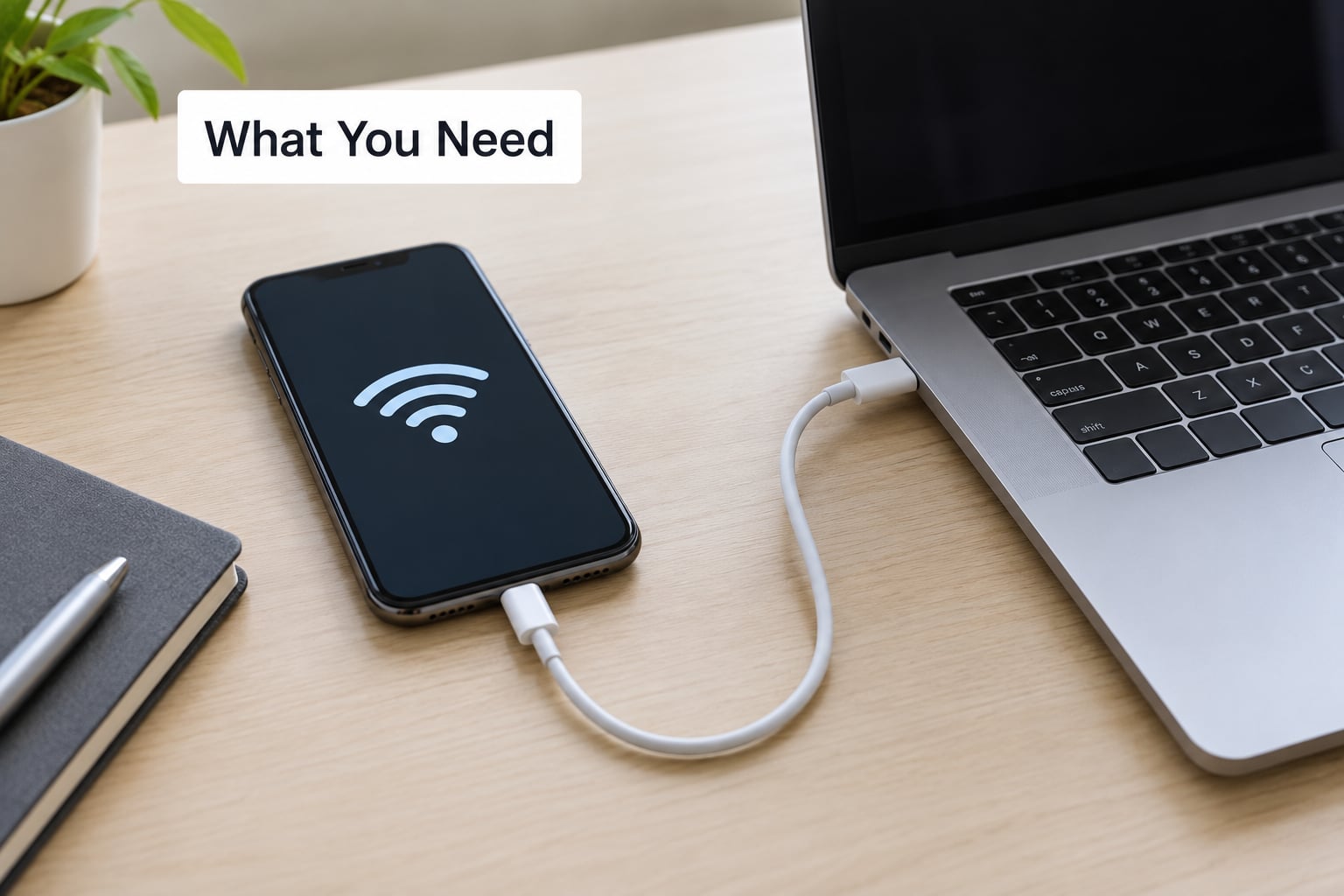
You need four things. A phone with an active SIM or eSIM carrying mobile data, the device that will share it, and enough of that data left in the current cycle to cover the session.
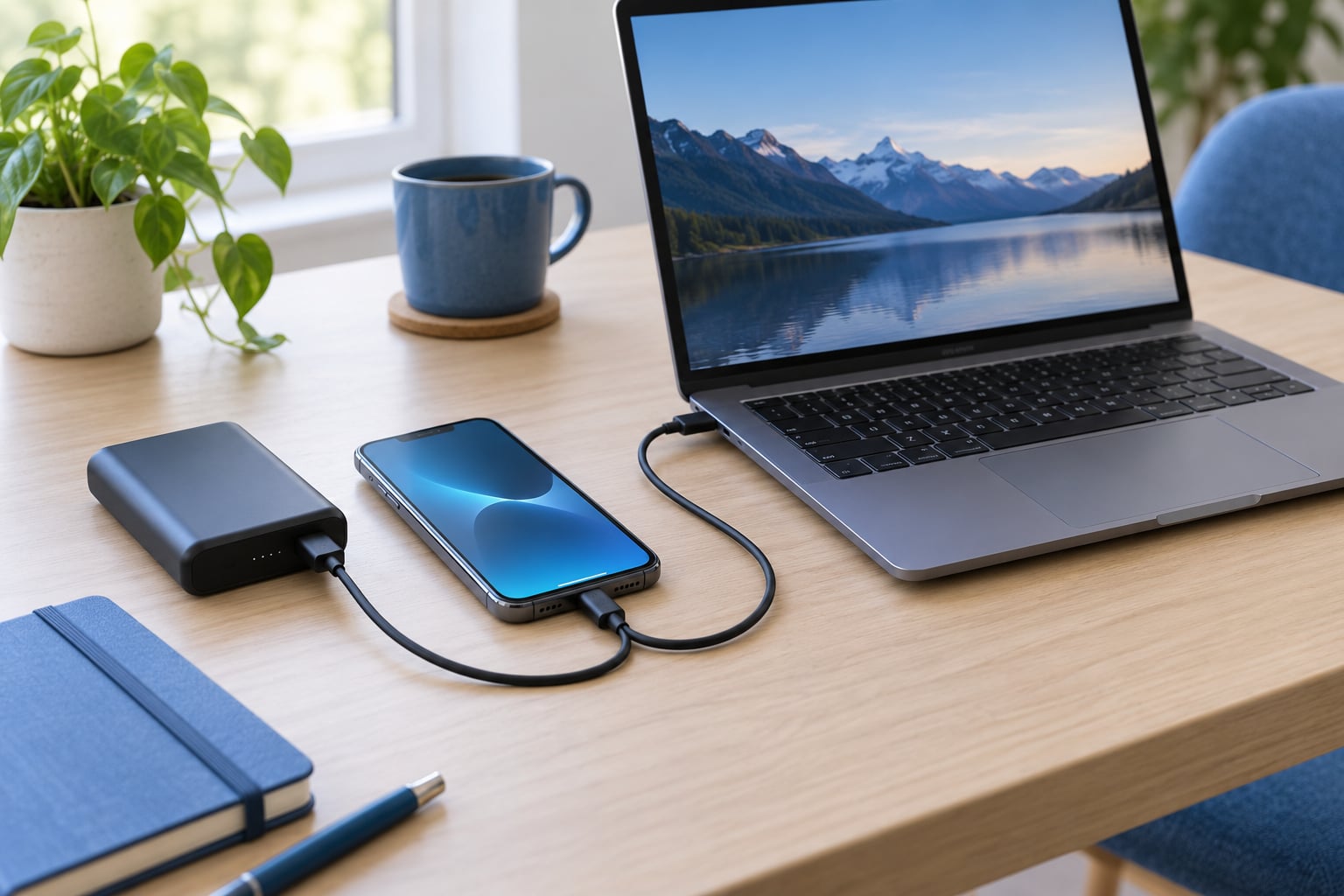
A power bank is optional but worth having. Hotspot use drains a battery faster than normal use because the phone is transmitting as well as receiving, and it also gets warm. My rule is that any session over an hour starts at 50 percent or more.
The steps below cover current iPhone and Android settings. Samsung’s One UI nests things differently from stock Android and Pixel, and I flag the differences where they matter.
How to Use Your Phone as a Hotspot Without Burning Data Step by Step
Step 1: Check Your Data Allowance and Roaming Settings
Open your carrier’s app or account page before you touch the hotspot toggle. You are looking for two things: how much data remains in this cycle, and whether tethering comes out of that same pool.
Many plans draw hotspot traffic from a separate, smaller allowance that runs out first. Once that pool is empty, your speed drops hard or tethering stops entirely — that behaviour is the carrier’s and nothing on the phone changes it.
Turn off data roaming before you leave home coverage. On iPhone it is Settings then Cellular then Cellular Data Options then Data Roaming. On Android it is Settings then Network and internet then SIMs then Roaming.
Warning signs to watch for: a message about tethering not being included, a much lower speed than your phone gets on its own, or a usage figure that jumps after you stopped using the phone directly.
Step 2: Turn On the Hotspot
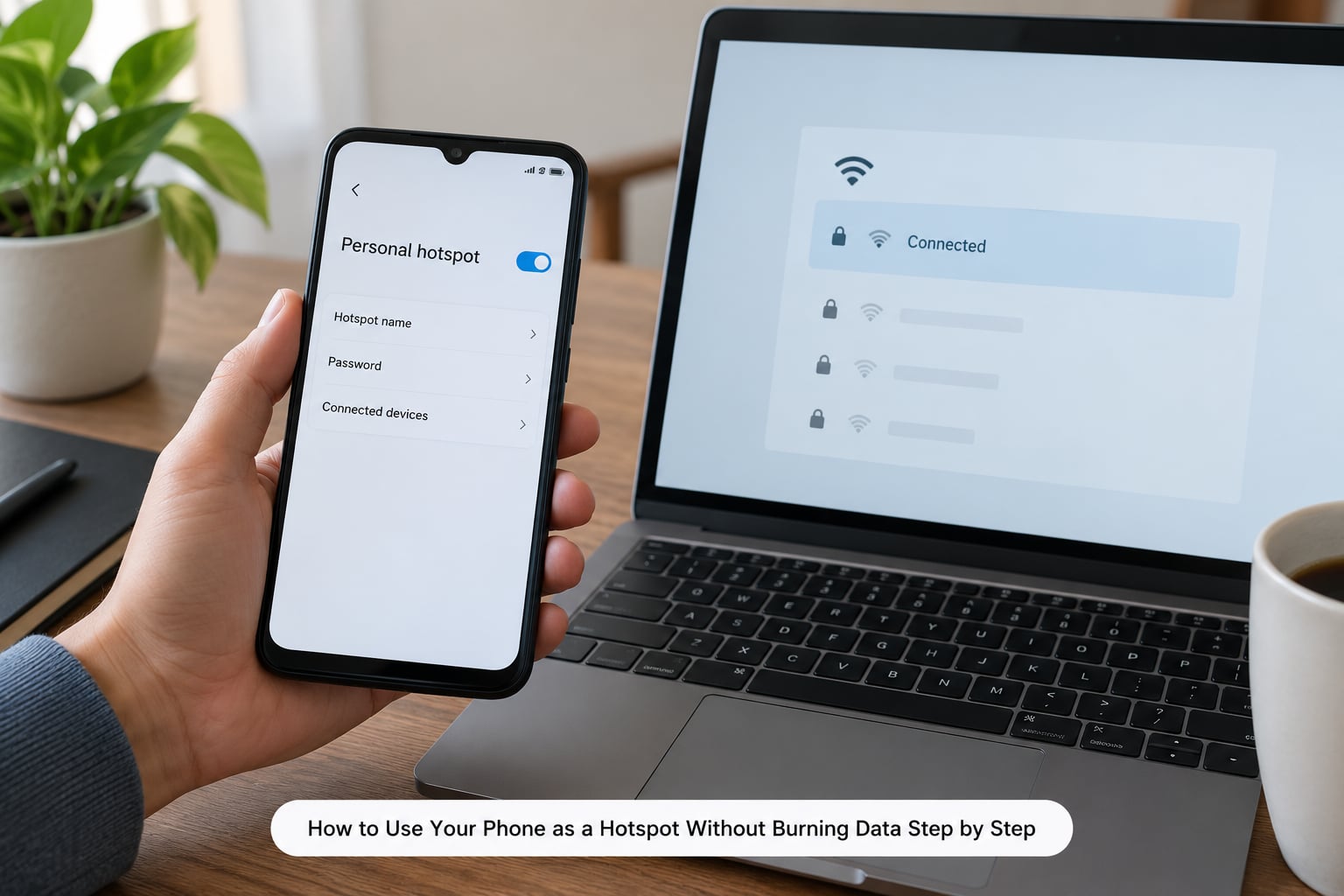
On iPhone: open Settings, tap Cellular, tap Personal Hotspot, then slide Allow Others to Join to on. The network name appears immediately under the toggle.
On stock Android and Pixel: swipe down twice for Quick Settings and tap Hotspot, or go to Settings then Network and internet then Hotspot and Tethering, then Mobile Hotspot.
On Samsung One UI: Settings then Connections then Mobile Hotspot and Internet Tethering, then Mobile Hotspot. Samsung keeps an extra switch for the Wi-Fi band and, on newer models, an auto-off option that turns the hotspot off when nothing stays connected.
You know it worked when your phone shows the network name and a client count of one or more devices. If the toggle turns itself off within seconds, another app or a battery saver is closing it.
Step 3: Set a Network Name and Strong Password
Tap the network name field and change it to something recognisable but harmless. “Workshop laptop” is more useful than a name carrying your surname or street.
The default password printed in the settings screen is often something like changeMe! and is the same on thousands of phones. Replace it with a long one — sixteen characters or more mixing letters, numbers and symbols.
The hotspot broadcasts with WPA2 or WPA3 encryption, which is what stops neighbours from joining. A shared network also means neighbours can see the name, so keep personal details out of it. Change the password again if you use the hotspot in places you visit regularly.
If you are in a hotel or airport and the traffic matters, run a VPN on the connected device. The password protects the link; it does not hide what you do on it.
Step 4: Connect Your Laptop or Tablet
Windows: open the network icon in the taskbar, pick the hotspot name from the list, enter the password. macOS: Apple menu then System Settings then Wi-Fi, choose the network, enter the password. iPad and other tablets: Settings then Wi-Fi, tap the network name, enter the password.
Verify the connection by opening a page, then check that data is actually moving through the phone. On Windows, open the network menu and look for the hotspot entry with the words metered or no internet access — that is expected and it is the setting that stops Windows downloading a large update over your phone. On macOS, hold Option and click the Wi-Fi icon to see the RSSI and transmit rate.
If your device supports it, USB tethering beats the Wi-Fi hotspot on both battery and consistency. Plug the phone into the laptop with a cable, then Android: Settings then Network and internet then Hotspot and Tethering then USB tethering. iPhone: Settings then Cellular then Personal Hotspot, then Allow Others to Join, and on desktop Macs choose Network from the menu bar. USB tethering also charges the phone.
Three ways to share, roughly in order of battery impact:
- Wi-Fi hotspot — tablets, consoles, anything wireless. Highest battery impact, negligible data overhead.
- USB tethering — laptops with a cable handy. Low battery impact, and it charges the phone while data overhead stays negligible.
- Bluetooth tethering — very slow browsing only. Lowest battery impact, negligible data overhead.
Step 5: Reduce Data Use While Connected
The biggest win is a hard cap. On Android, open Settings then Network and internet then Hotspot and Tethering then Mobile Hotspot, tap Set up Wi-Fi hotspot, set Wi-Fi bandwidth to 2.4 GHz, and on some models change Wi-Fi hotspot band. Where a Set data limit or Data warning option appears, switch it to Data limit and enter a number for the session — the hotspot then shuts itself off when you reach it.
On Samsung One UI, look for Data limit under Mobile Hotspot settings for the same purpose. On iPhone there is no native hotspot cap, so use Settings then Cellular then Cellular Data Options and turn on Low Data Mode. Low Data Mode pauses background syncing and drops quality on streaming apps, which is the closest iOS equivalent.
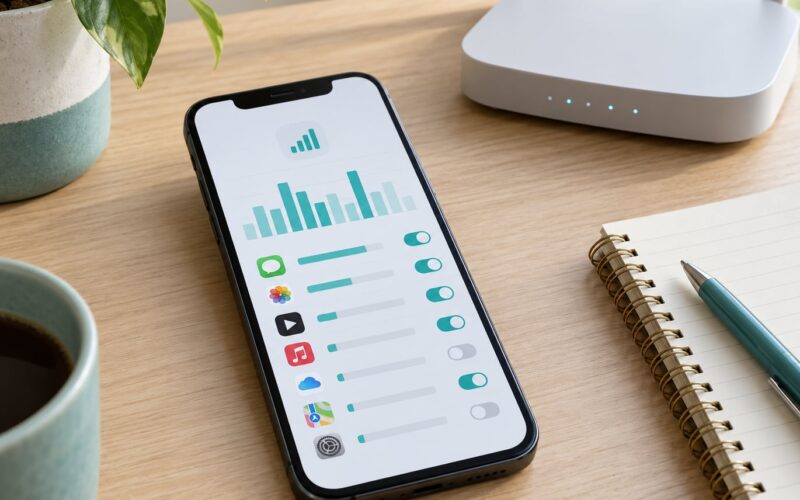
Turn on data saver mode before you connect: Android Settings then Network and internet then Data Saver; iOS uses Low Data Mode as above. This is the single change that stops most of the hidden traffic.
On the connected laptop, set the network to metered, pause large downloads, and turn off automatic updates for the app store and the operating system. Cloud sync is the other quiet drain — switch off background backup for one session, then turn it back on at home.
Rough hourly costs, so you can budget a session before you start it:
- Email and ordinary web pages — about 2 to 5 MB per minute
- Music streaming — 50 to 150 MB an hour
- Video call — 500 MB to 1 GB an hour
- HD video — around 3 GB an hour
- 4K video — 7 GB or more an hour
Video is the runaway cost. In YouTube, open the video, tap the gear icon and choose a lower quality; in Netflix, switch off High Quality under Manage Data Usage. These are the two settings that turn an afternoon session into a manageable one.
That surprise-usage pattern almost always points at app updates or image-heavy feeds rather than the pages themselves. If your carrier’s app shows a jump you cannot explain, check the connected device and the update settings on the laptop first — that is where it usually is.
Step 6: Turn Off the Hotspot and Review Usage
Disconnect devices first — forget the network on the laptop or tablet — then turn off Allow Others to Join. Switching off while a device is still attached can leave a client listed on your phone that no longer exists.
Go back to your carrier’s usage page and note the number for today. Knowing what one two-hour session costs is how you budget the next one. A rough example on a 20 GB plan: four hours of browsing, one video call and a short SD stream runs close to 2 GB, leaving plenty for normal phone use.
If you set a data limit, the hotspot turns itself off at that number. Leave it set. On Android, Samsung’s auto-off switch handles the reverse case — a hotspot left on with nothing connected still burns a trickle of data and battery, so let it shut down.
Common Mistakes
The hotspot is not showing up on the other device. Restart the toggle, then forget the network on the device and search again. Confirm the phone is on cellular data, not Wi-Fi, since some carriers disable the hotspot while connected to Wi-Fi calling.
The device connects but there is no internet. Check that cellular data is on and that you have not crossed the carrier’s tethering cap. Mark the connection as metered so the device does not stall on large background downloads.
Data disappears much faster than expected. Check the connected devices list, then disable app store auto-updates and cloud sync on the connected devices first. Those two account for most surprise usage.
The phone gets hot and flat. Move it away from direct sun, prop it so the air can move around it, and switch to USB tethering if you have a cable. Skip video calls on the Wi-Fi hotspot if heat becomes a problem.
An unexpected charge appears. Look at whether tethering draws from a separate pool. If it does, you cannot change it on the phone, only in your plan. On AT&T, T-Mobile and Verizon the split is visible on the plan details page.
Connections drop during a call. Wi-Fi calling and the hotspot can conflict on some networks. Turn Wi-Fi calling off before a long session if that is your pattern.
Frequently Asked Questions
Does using your phone as a hotspot use a lot of data?
No, the hotspot itself costs almost nothing extra. Every byte your phone sends or receives over Wi-Fi counts as normal mobile data, and the small protocol overhead is negligible. What drains a plan is what the connected devices do: video streaming, app store updates and cloud sync. A two-hour session of browsing and email costs a fraction of a GB; an afternoon of HD video costs several.
Can I use my phone as a hotspot if I do not have unlimited data?
Yes. Tethering works on any plan with mobile data, but many carriers cap hotspot traffic separately or draw it from a smaller pool than your main allowance. Check the plan details page before you rely on it. Some prepaid plans block tethering outright. Unlimited plans often throttle hotspot speeds after a set amount of shared data rather than charging you.
How do I keep hotspot data usage down?
Turn on data saver or Low Data Mode before connecting, set a hard data limit on the hotspot, mark the connection as metered on the laptop, pause downloads, and disable app store auto-updates and cloud sync. Force standard-definition quality in YouTube and Netflix. Above all, turn the hotspot off when you finish rather than leaving it running overnight.
Why is my computer connected to the hotspot but has no internet?
Usually the carrier’s tethering allowance is exhausted or roaming is off, so the phone has a network name but no working data path. Set the connection to metered as well, since Windows and macOS will otherwise stall on large background downloads. On Android, some versions of APN settings matter if you have recently switched SIMs; resetting the network configuration fixes a mismatch.
Does using a phone hotspot drain the battery quickly?
Yes, faster than normal use, because the phone transmits as a Wi-Fi access point while also running its own connection. Heat makes it worse. A power bank, USB tethering, which also charges the phone, and shorter sessions are the practical answers. Where your phone offers an option to turn the hotspot off when nothing connects, switch it on.
How do I stop someone else from using my phone hotspot?
Change the network name and password, and never leave the default one in place. Use WPA2 or WPA3 encryption, which is the default, and make the password long enough that guessing is pointless. Check the connected devices list periodically and forget anything you do not recognise. Turning off Allow Others to Join when you are done closes the network completely.
Conclusion
Start with your carrier’s usage page, not the hotspot toggle. Check what is left in this cycle and whether tethering draws from a separate pool, then turn on data saver or Low Data Mode and set a data limit before you connect. Give the network a proper password, mark the connection as metered, and shut the hotspot off when you finish.
None of this requires a better plan. The way to use your phone as a hotspot without burning data is simply to make the limits visible before you need them and keep the session short.