You can cut most of your iPhone’s mobile data usage in about five minutes by turning off Wi-Fi Assist, switching on Low Data Mode, and restricting Background App Refresh to Wi-Fi. Add per-app cellular switches for the handful of apps that actually burn through your allowance, and the runaway usage usually stops.
That matters because the two biggest drains on an iPhone are silent. Wi-Fi Assist quietly drops to cellular in dead spots, and background app refresh quietly syncs photos, mail and video while you watch none of it happen. Neither one shows a notification.
The steps below are written for iPhones on current supported iOS releases. Menu names drift a little between versions, so I have noted where older iOS uses a different label.
Table of Contents
- 1What You Need
- 2Step-by-Step: How to Reduce Mobile Data Usage on an iPhone
- 3Step 1: Find out what is actually using your data first
- 4Step 2: Turn off Wi-Fi Assist
- 5Step 3: Switch on Low Data Mode
- 6Step 4: Set Background App Refresh to Wi-Fi
- 7Step 5: Keep App Store downloads and app updates on Wi-Fi
- 8Step 6: Cut Cellular Data for the apps you do not need
- 9Step 7: Fix the actual top offenders
- 10Step 8: Trim email, navigation and background location
- 11Step 9: Verify the result
- 12Common Mistakes
- 13Frequently Asked Questions
- 14How do I check which apps use the most mobile data on my iPhone?
- 15Does Low Data Mode reduce cellular data on an iPhone?
- 16Will turning off background refresh stop apps from using mobile data?
- 17Can a VPN increase mobile data usage on an iPhone?
- 18How long does it take for iPhone cellular data usage to update after changing settings?
- 19Conclusion
What You Need
No purchases and no third-party apps. Everything lives inside the Settings app that already shipped on your phone.
What you do need:
- An iPhone running a currently supported iOS release
- Active cellular service from your carrier
- A few minutes with the phone, ideally on Wi-Fi before you start
Menu names do differ slightly between iOS releases. The App Store settings live under Settings > Apps on current iOS and were called Settings > iTunes & App Store on iOS 16 and earlier. If you follow an old guide and cannot find a menu, that rename is usually why.
One more thing worth knowing: there is no Android-style Data Saver switch on iOS. What people mean by that is the per-app Cellular Data list plus Low Data Mode, and this guide covers both.
Step-by-Step: How to Reduce Mobile Data Usage on an iPhone
Step 1: Find out what is actually using your data first
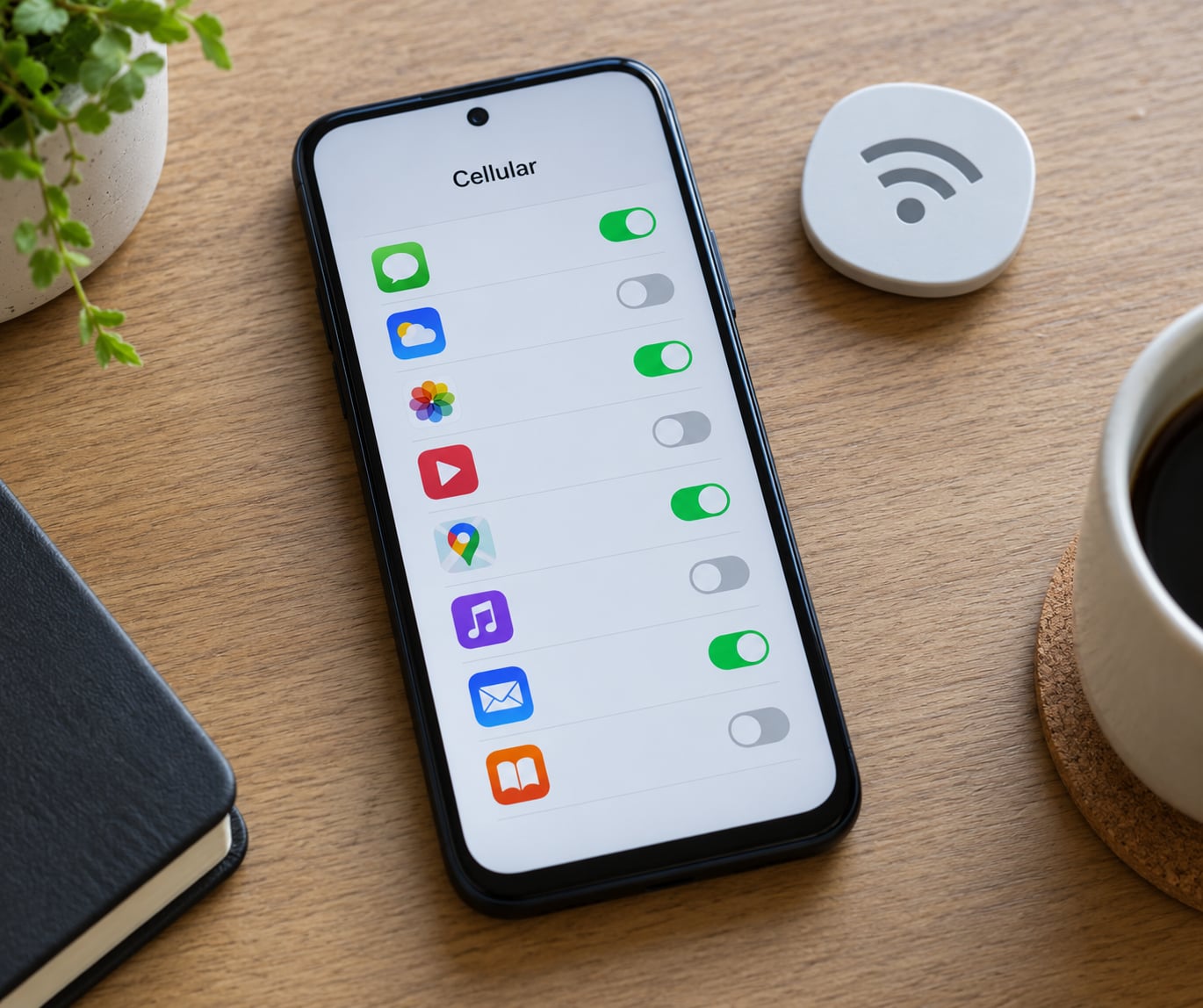
Settings > Cellular
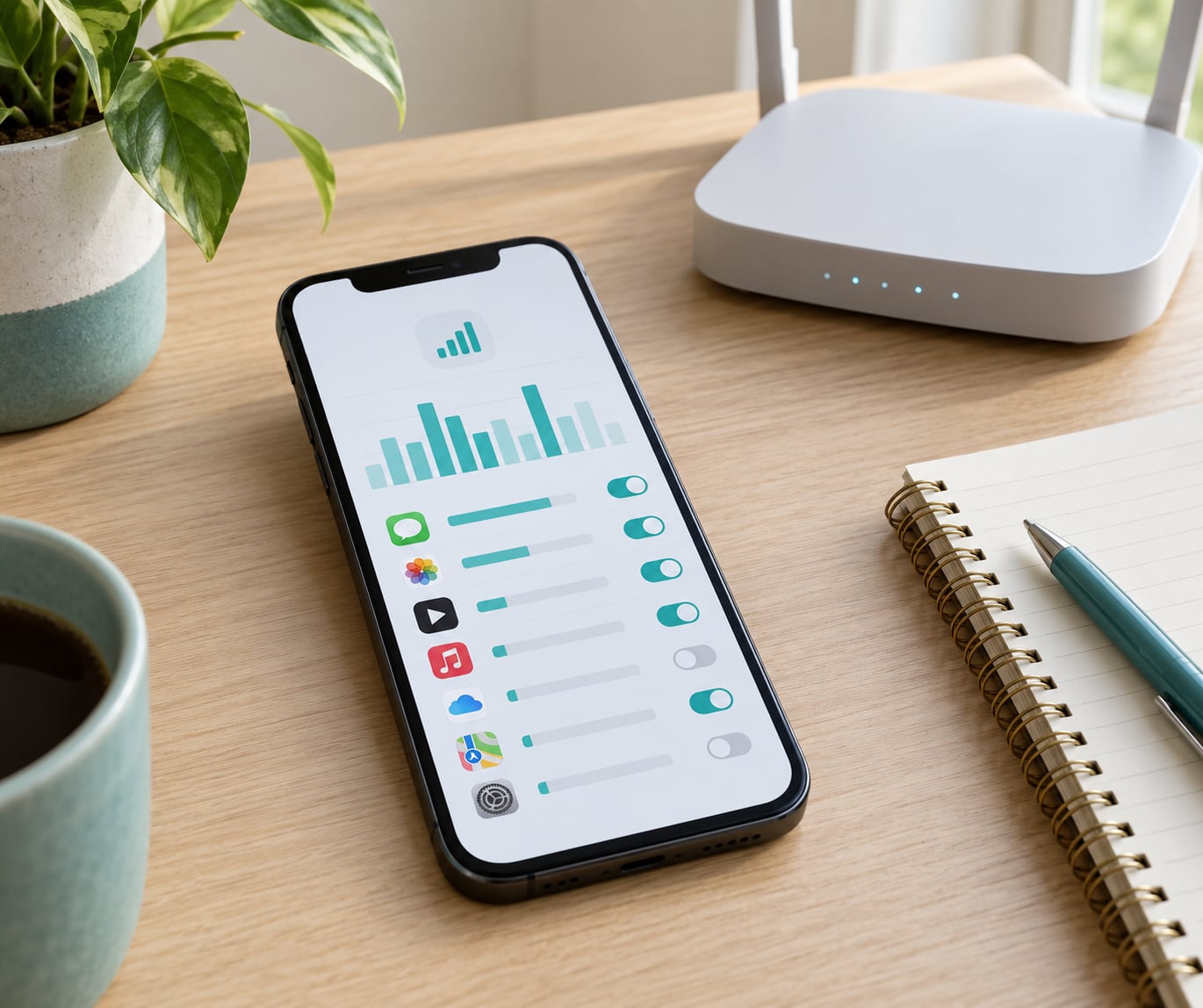
Before changing anything, read the number at the top of that screen under Current Period. It is the running cellular total for your current billing cycle, and below it is a per-app list sorted by usage. Scroll that list and the offenders are almost always video, social, music and photo apps, not the ones you suspect.
Now find the Reset Statistics button at the bottom of the same screen and understand what it does before you press it. Resetting zeroes the Current Period figures and starts a fresh count from that moment. It does not change your plan, cancel anything, or reset anything on your carrier’s side. Use it on the first day of a billing cycle so your per-app numbers line up with the bill, which is the whole point of the list.
What you lose by resetting: the history of your past usage, which iOS does not keep anywhere else. That history is the only way to compare this month with last month.
Success check: the Current Period total matches the approximate figure your carrier shows, within a few hundred MB. A big gap usually means the counter has never been reset or you are reading a different line or SIM.
Step 2: Turn off Wi-Fi Assist
Settings > Cellular > Wi-Fi Assist > Off
Wi-Fi Assist is the setting most often blamed for mystery data use, and people on r/iphone and r/ios keep confirming it as the fix for unexpected usage at home and at work. It works like this: when a connected Wi-Fi network drops out or gets too weak, iOS quietly switches to cellular to keep your browsing alive. One weak spot in an office or a basement at home is enough.
What you lose: you will not get automatic cellular fallback on weak Wi-Fi, so pages may simply stall until you are back on a strong network. Plenty of people prefer the stall to the silent spend.
Success check: leave Wi-Fi Assist off, walk into the spot that usually triggers the switch, and nothing happens. No banner, no handover.
Step 3: Switch on Low Data Mode
Settings > Cellular > Cellular Data Options > Low Data Mode > On
Low Data Mode is the single highest-impact switch, and on a cellular iPad the path is identical, which is why the iPad version of this question ranks on the same results page. When it is on, iOS applies a blanket policy across most apps at once: automatic downloads stop, background activity throttles or pauses, iCloud Photos syncs over Wi-Fi only, and streaming services such as Apple Music, Apple TV, Podcasts and News drop to lower quality or stop refreshing their feeds. App Store updates pause. FaceTime and calls are unaffected.
What you lose: lower audio and video quality on cellular, podcast feeds that do not refresh until you are on Wi-Fi, and no photo backup while you are out. If you only travel once in a while, switch it on when you leave and off when you get home.
Success check: open a music app on cellular. You will see a Low Data Mode label, and the quality indicator drops from High to Standard or Lossless-to-Standard depending on the app.
Step 4: Set Background App Refresh to Wi-Fi
Settings > General > Background App Refresh > Wi-Fi
This one gets recommended constantly in forums, and it is the second biggest cut for most heavy users. Background app refresh is how mail, messaging, social feeds and photo libraries quietly sync in the background. Set to Wi-Fi, none of that runs on cellular.
What you lose: you will not see push notifications for those apps while you are off Wi-Fi until you open them, and chat apps may deliver messages late.
Success check: leave the phone on cellular, lock it, and walk away. The per-app number under Cellular should barely move over a couple of hours.
Step 5: Keep App Store downloads and app updates on Wi-Fi
Settings > Apps > App Store (called iTunes & App Store on iOS 16 and earlier)
Turn off Use Cellular Data, or set App Downloads to Always Ask and Automatic Downloads to Don’t Install. A single app update or a game download can quietly cost more than every streaming hour combined, and it happens at the worst possible time, usually over a hotel Wi-Fi network that gave up halfway.
What you lose: you cannot install or update anything while off Wi-Fi, so start that update before you leave the house.
Success check: the App Store should show a network warning when you try to download something on cellular.
Step 6: Cut Cellular Data for the apps you do not need
Settings > Cellular > scroll to the app list > toggle off Cellular Data per app
The list is long and buried, which is exactly the problem people complain about. Scroll it once and flip the switch for apps that do not need to work away from Wi-Fi.
Know the trade-off before you flip it. Turning off cellular for Mail means no push email away from Wi-Fi, so you would need to fetch manually. Turning it off for a banking app can block security codes. Turning it off for Maps or a ride-share app leaves you without navigation in a dead spot, which is a bad idea in an unfamiliar place. Messaging apps still send and receive texts over Wi-Fi and cellular alike; the one exception is MMS and iMessage activation, which need the cellular network even when the Wi-Fi switch is off.
What you lose: whatever the app can only do on a mobile network. That is different for every app, so check before you batch-switch.
Success check: the chosen apps show no data added to their row at the bottom of the Cellular screen over the next day.
Step 7: Fix the actual top offenders
The per-app list gives you names; this is what to change inside the ones that show up most.
- Video apps and social feeds: download on Wi-Fi and play offline, and set the in-app quality or data saver to Low or Standard. Autoplay of the next clip in a feed is a large share of casual usage.
- Music and podcasts: download playlists and episodes on Wi-Fi instead of streaming them, and switch off High Quality on Cellular in the music app’s settings. Streaming a track at 320 kbps costs roughly 2.4 MB a minute, so an hour of a playlist is around 140 MB.
- Photos: in Settings > Photos, set iCloud Photos to Optimise iPhone Storage and turn on Transfer to iPhone or iPad over Wi-Fi only. A library syncing originals to iCloud on a mobile connection is the quietest large drain there is.
- Cloud storage and backups: iCloud Drive and app backups both have per-service cellular switches under Settings > Apple Account > iCloud, worth a look if you are seeing steady growth every day.
Here is roughly what a few common activities cost on a mobile connection. Actual use varies a lot with quality settings and signal strength, so treat these as orders of magnitude, not bills.
| Activity | Approximate data used |
|---|---|
| 1 hour of video streaming, standard quality | 700 MB to 1 GB |
| 1 hour of music streamed at 320 kbps | about 140 MB |
| 1 podcast episode (about 30 to 60 minutes) | 25 MB to 60 MB |
| 1 FaceTime or video call | about 100 MB for 5 minutes |
| 1 photo taken and uploaded | 3 MB to 8 MB |
| 1 hour of navigation with maps downloaded | 5 MB to 25 MB |
Success check: come back to Settings > Cellular in a few days and confirm the top app is no longer climbing at its old rate.
Step 8: Trim email, navigation and background location
Three smaller ones worth a look:
- Mail: Settings > Apps > Mail > Fetch New Data. Set Push off and Fetch to Hourly or Manually, and limit which accounts fetch. Corporate Exchange accounts are a known exception, and some keep pulling data on cellular even when you disable cellular for Mail. This has confused people on Apple Discussions threads for years.
- Navigation: download offline maps for your usual routes on Wi-Fi in Apple Maps, Google Maps or Waze. Routes started on Wi-Fi are cached in all three, so a detour with no signal will not blank the map.
- Location services: Settings > Privacy & Security > Location Services, and switch fitness and social apps to While Using the App. A live-location feature can keep transmitting for hours with the app closed.
Success check: restart the phone after the changes. Live location and background fetches stop cleanly on a restart.
Step 9: Verify the result
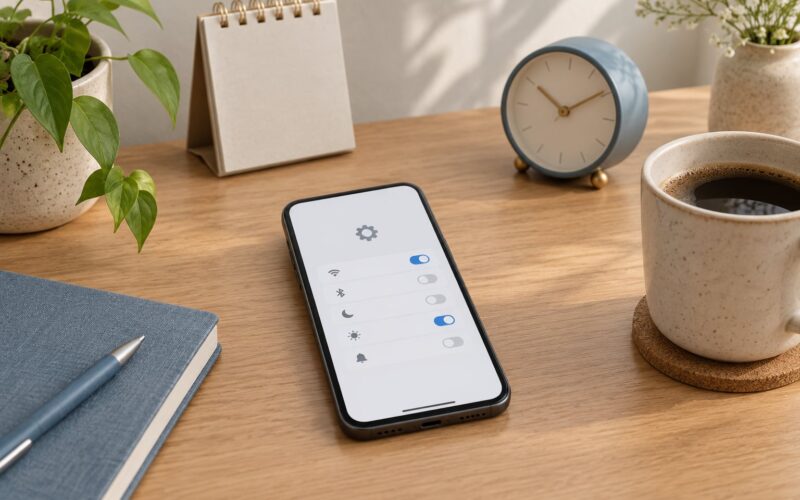
Two more levers if you still need more. Control Center gives you a cellular toggle, one swipe down from the top right on a Face ID iPhone or up from the bottom on a home-button iPhone, so you can cut the connection entirely for a flight or a meeting. And on a 5G iPhone, Settings > Cellular > Cellular Data Options > Voice & Data lets you pick the network generation, where turning off 5G Auto-Switch keeps the phone on 5G rather than hopping to LTE constantly.
Then check Settings > Cellular again after 48 hours and compare the pace of growth with the week before. The number to trust is the slope, not a single day’s total. Back it up on a longer window by taking a screenshot of the Current Period figure today and comparing it to the same screen next month.
Success check: the total grows at a visibly slower rate, and the top of the per-app list is no longer dominated by one runaway app.
Common Mistakes
Assuming Wi-Fi Assistant or Wi-Fi Calling saves data. Neither one does. Wi-Fi Assistant is the opposite: it moves you onto cellular. Wi-Fi Calling only decides which network carries your voice calls, and a voice call costs very little data either way.
Deleting apps instead of restricting them. Uninstalling clears storage, not usage. The right move is the per-app Cellular Data switch, so you keep the app and lose the drain.
Turning off all Background App Refresh instead of limiting it to Wi-Fi. Off breaks push notifications for everything. Wi-Fi keeps them working whenever you are home or at the office.
Treating Low Data Mode as a hard cap. It is a quality and background policy, not a limit. It lowers video and audio bitrates and pauses some syncs, but it does not promise a ceiling on your usage, and a FaceTime call or a big download will still go through.
Changing settings on the wrong line. On a dual-SIM iPhone, Settings > Cellular shows a list of lines at the top. Make sure you are on the line that is actually sending data before you read the per-app numbers, or you will be checking an idle SIM.
Forgetting roaming and the personal hotspot. Data Roaming off under Settings > Cellular prevents a very expensive surprise abroad, and Airplane Mode until you land is safer still. If you tether to a laptop, the hotspot does not show up as a separate line in the per-app list, so check the carrier’s tethering figure too.
Clearing the Safari cache to save data. It does nothing for cellular usage. It slows the first page load, if anything, because the cache has to be rebuilt over cellular.
Two optional extras if you like automation. Screen Time can set an app limit or require Wi-Fi for a chosen app, and a Shortcuts automation using the Cellular Connection trigger can switch Low Data Mode on by itself the moment you leave Wi-Fi. Power users call that set-and-forget.
Frequently Asked Questions
How do I check which apps use the most mobile data on my iPhone?
Open Settings and tap Cellular. The figure under Current Period is your cellular total for this billing cycle, and the list below it ranks every app by usage, largest first. Scroll to the bottom for Reset Statistics if the numbers look stale. Reading this list before changing anything is the fastest way to find the real drain.
Does Low Data Mode reduce cellular data on an iPhone?
Yes, and it is the single biggest reduction most people get. Low Data Mode stops automatic downloads, throttles background activity, syncs iCloud Photos over Wi-Fi only, and drops streaming services to lower quality. It is a quality and background policy rather than a hard cap, so large downloads and calls still use data normally.
Will turning off background refresh stop apps from using mobile data?
Partly. Background App Refresh off stops background syncing, which is where a lot of the quiet usage comes from. Apps still use cellular while open, and any app you use in the foreground will spend data as usual. Setting it to Wi-Fi rather than off keeps push notifications working whenever you are connected.
Can a VPN increase mobile data usage on an iPhone?
Yes, usually a little. A VPN wraps your traffic in encryption, so every byte you send costs extra overhead, and some VPNs add their own tunnel traffic on top. The increase is normally modest rather than dramatic, but it is another good reason to switch on Low Data Mode before you connect, especially on a metered mobile network.
How long does it take for iPhone cellular data usage to update after changing settings?
The per-app numbers update in near real time as apps send and receive data, so a restriction should show up within a few hours of use. The Current Period total is the same, but it only grows, so a change in rate is easier to see than a change in the number. Give it 48 hours and compare the pace of growth rather than a single day reading.
Conclusion
Start on the Settings > Cellular screen and do four things: switch on Low Data Mode, read the per-app list to see what is really using your allowance, turn off cellular for the apps that only need Wi-Fi, and set Background App Refresh to Wi-Fi rather than off. Then check the Current Period figure again in a few days and once more at the end of the billing cycle to confirm the change held.
Skip the third-party cleanup apps. Every lever that matters is already built into iOS, and none of the extra tools can do anything the Settings app does not already do on its own.