If a Safari page on your iPhone loads slowly, shows an old version of a site, or refuses to open at all, clearing the cache takes about thirty seconds. Open Settings, find Safari, tap Clear History and Website Data, choose a timeframe, and confirm. The catch is knowing which version of iOS you are running, because Apple moved the Safari menu in iOS 18 and most tutorials still show the old path.
I have cleared this on my own phone and on family devices more times than I can count, and the two mistakes people make are the same every time: tapping the wrong menu, and being surprised when every site signs them out afterward. Both are covered below.
Table of Contents
- 1What You Need
- 2Step-by-Step: Clear the Safari Cache on Your iPhone
- 31. Open the iPhone Settings App
- 42. Find Safari in Settings to Clear the Cache
- 53. Clear Safari Cache and Website Data
- 64. Reopen Safari and Check the Result
- 75. Clear Website Data but Keep Your Browsing History
- 86. Clear Data for a Single Website Only
- 9Common Mistakes When Clearing the Safari Cache on iPhone
- 10Frequently Asked Questions
- 11Does clearing the Safari cache on an iPhone delete my bookmarks or passwords?
- 12Is it better to clear cookies or cache on Safari?
- 13How do I clear the cache of just one website in Safari on an iPhone?
- 14Why is Clear History and Website Data greyed out on my iPhone?
- 15How often should I clear the Safari cache on an iPhone?
- 16Why is Safari not showing up in my Settings app?
- 17Quick Summary
What You Need
Nothing special. You need an iPhone or iPad running a recent version of iOS, the built-in Settings app, and about a minute. No computer, no cable, no paid cleaner app.
The only thing worth checking first is your iOS version, because where Safari lives in Settings depends on it. Open Settings, tap General, then About, and read the version number at the top. If it begins with 18 or higher, the menu is under Apps. Anything older keeps Safari in its own top-level entry.
One warning before you begin. Clearing website data signs you out of every site you are logged into, and many of them will ask for a two-factor code you do not have in front of you. Shopping carts go empty too. Close any half-finished checkout first.
Step-by-Step: Clear the Safari Cache on Your iPhone
1. Open the iPhone Settings App
Find the grey gear icon named Settings on your home screen or in your app library and open it. The grey gear is the one to tap, not Safari itself, which looks similar from a distance on some wallpapers.
2. Find Safari in Settings to Clear the Cache
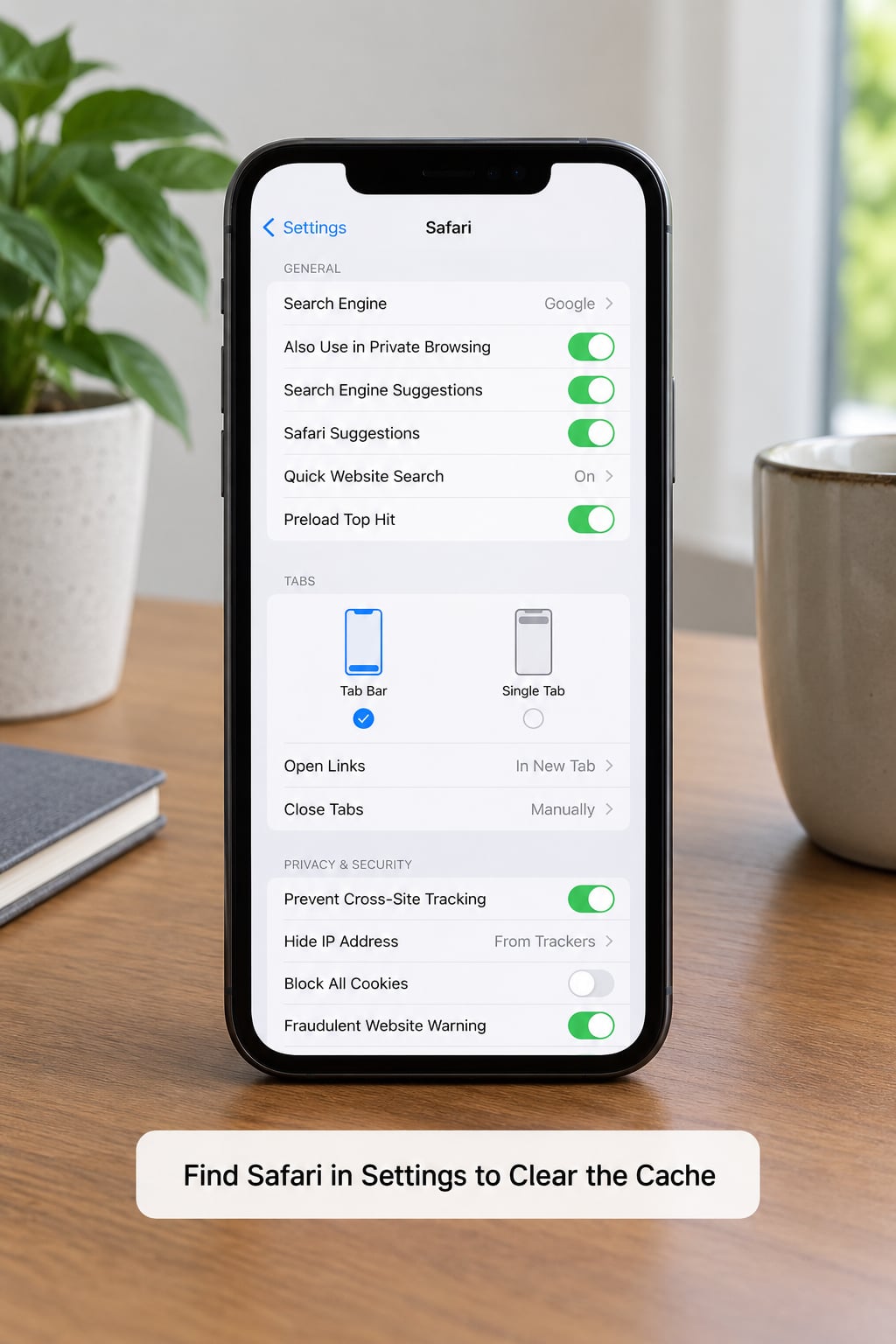
On iOS 18 and later, scroll down to the list of apps, tap Apps, then tap Safari in the alphabetical list that follows. On older versions, Safari is its own entry near the bottom of the main Settings list, so you tap Safari directly and skip a step.
If you cannot find Safari under Apps, scroll rather than hunting. The list is long and the entries are in alphabetical order, so Safari sits between Safari Extensions and Screen Time on current versions.
3. Clear Safari Cache and Website Data
Scroll to the bottom of the Safari settings page and tap Clear History and Website Data. A panel appears with four timeframe choices: Last hour, Today, Today and yesterday, and All history. Pick the range you need, tap the Clear button at the bottom of the panel, and confirm Clear when the prompt asks.
Apple bundles three separate things under this one button: cached files that speed up page loads, cookies that keep you signed in and track you across sites, and your browsing history list. All three go at once. Nothing else does.
If you would rather clear cookies and cache but keep your history list intact, stop here and use the next step instead.
4. Reopen Safari and Check the Result
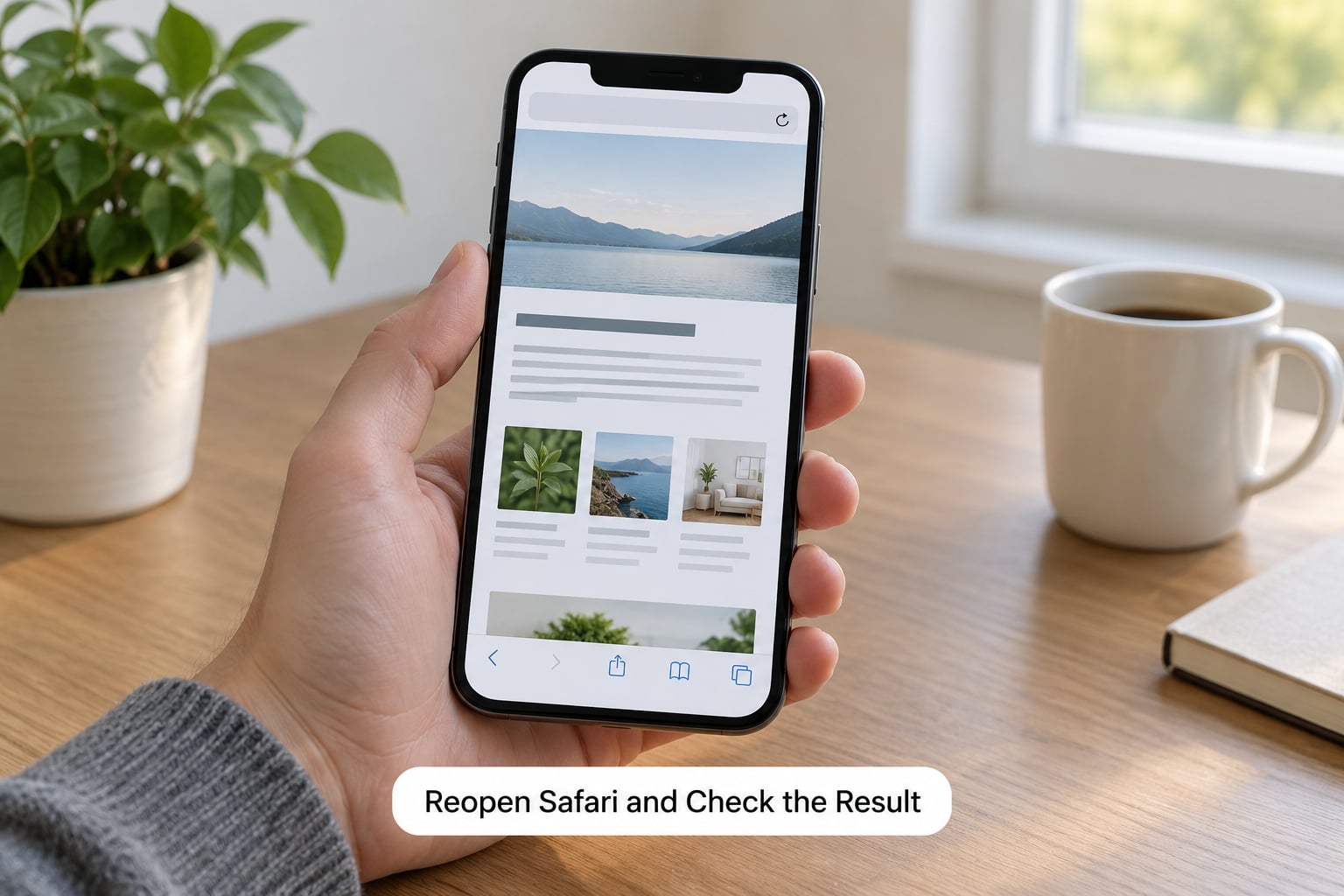
Close Safari completely by swiping up from the bottom of the screen and reopening it. Visit the page that was misbehaving. If it loads correctly, the clear fixed the problem.
Do not be alarmed if the first few pages feel slower than usual. Safari is downloading fresh copies of files it had cached, and things settle within a minute or two.
5. Clear Website Data but Keep Your Browsing History
From the Safari settings page, tap Advanced, then tap Website Data. You will see a list of every site Safari has stored information for. Tap Remove All Website Data at the bottom, then confirm with Remove Now.
This wipes cookies and cached files across all sites, so expect to sign in again, but your browsing history list stays where it is. It is the better choice when you are chasing a cookie-related problem and have no reason to lose the history list.
6. Clear Data for a Single Website Only
If one site is broken and the rest of Safari is fine, there is no need to clear anything else. Go back to the Website Data list from Step 5, find that domain, and swipe across its row to expose the Delete button. Tap Delete and confirm.
That removes the stored data for that site alone. Useful when a checkout page hangs or a login loop keeps appearing, and a blunt full clear would cost you every other sign-in for nothing.
Common Mistakes When Clearing the Safari Cache on iPhone
Looking for a separate cache option. There is no standalone cache button on iPhone. Cache, cookies, and website data are grouped under Clear History and Website Data, or under Website Data for the more surgical route.
Following a tutorial written for the wrong iOS version. Instructions that say Settings, then Safari, then Advanced describe iOS 17 and earlier. On iOS 18 and later, tap Apps first. This is the single most common reason people cannot find the setting.
Confusing website data with iPhone storage. Settings, then General, then iPhone Storage is a completely different screen for apps, photos, and messages. Clearing Safari website data frees a relatively small amount of space. If storage is your real problem, you need the storage screen instead.
Signing out of everything without expecting it. Cookies are what keep you logged in. Remove them and every site asks for your password again, and the worst offenders are the ones with two-factor codes.
Expecting a website to forget you. Clearing Safari data removes what your phone stored. It does not remove browsing records held by search engines, advertisers, or the sites themselves.
The Clear History and Website Data button is greyed out. This is a restriction, not a fault. Go to Settings, tap Screen Time, then Content & Privacy Restrictions, then Content Restrictions, tap Web Content, and choose Unrestricted. Return to Safari settings and the button works again. On a work or school iPhone managed by your employer or school, that option is locked on purpose and you will need their administrator to change it.
Frequently Asked Questions
Does clearing the Safari cache on an iPhone delete my bookmarks or passwords?
No. Bookmarks, saved pages, reading lists, AutoFill data, and passwords stored in iCloud Keychain are untouched by Clear History and Website Data. What you lose is your browsing history list, cached files, and the cookies that keep you signed in, so expect to sign in again on your sites. Downloads and files you saved from Safari also stay put. The one thing worth doing first is finishing any checkout or form you have open.
Is it better to clear cookies or cache on Safari?
They fix different problems, so start with the one matching your symptom. Cached files are pictures, scripts, and page layouts Safari stores to load pages faster, and clearing them helps with slow or stale pages. Cookies are the small files that keep you logged in and follow you across sites, and clearing them helps with tracking, odd login loops, or a site that insists on signing you in again. If you are not sure, clear both with Clear History and Website Data.
How do I clear the cache of just one website in Safari on an iPhone?
Open Settings, tap Apps, then Safari, and choose Advanced followed by Website Data. You will see a list of every site with stored data. Find the one causing the trouble and swipe across its row until the Delete button appears, then confirm. That single site is cleared and your other sign-ins and history stay untouched. This is the route to use when one page will not load and everything else works fine.
Why is Clear History and Website Data greyed out on my iPhone?
Something is restricting it, almost always Screen Time content restrictions. Open Settings, tap Screen Time, then Content u0026amp; Privacy Restrictions, tap Content Restrictions, choose Web Content, and set it to Unrestricted. Come back to the Safari settings page and the button is active again. If the iPhone belongs to your employer or school, or runs in kiosk mode, the restriction is locked by their administrator and only they can change it.
How often should I clear the Safari cache on an iPhone?
Only when something is wrong, or about once a month if you want to keep storage tight. Safari manages its own cache well, and clearing it on a schedule buys you little and costs you a round of sign-ins each time. The exceptions are worth clearing for: before selling or recycling the phone, on a device you share with family, or whenever a site loads incorrectly. Clearing in Safari also signs you out of that site on your iPad and Mac if they share your Apple Account and iCloud.
Why is Safari not showing up in my Settings app?
On iOS 18 and later, Safari is no longer a top-level entry. Scroll down in the main Settings list to the section of apps, tap Apps, and you will find Safari in the alphabetical list that opens. On iOS 17 and earlier, Safari sits directly in the main Settings list near the bottom. If neither location has it, check for a pending software update in Settings, then General, then Software Update, since Apple has reshuffled this menu more than once.
Quick Summary
Open Settings, then Apps, then Safari, then Clear History and Website Data. Choose your timeframe, confirm, and reopen Safari to check the page that was broken. If you would rather keep your history list, use Advanced, then Website Data, then Remove All Website Data instead. And if the clear button is greyed out, loosen the Web Content restriction in Screen Time first.
That is the whole job. Thirty seconds, one menu, no third-party cleaner required.