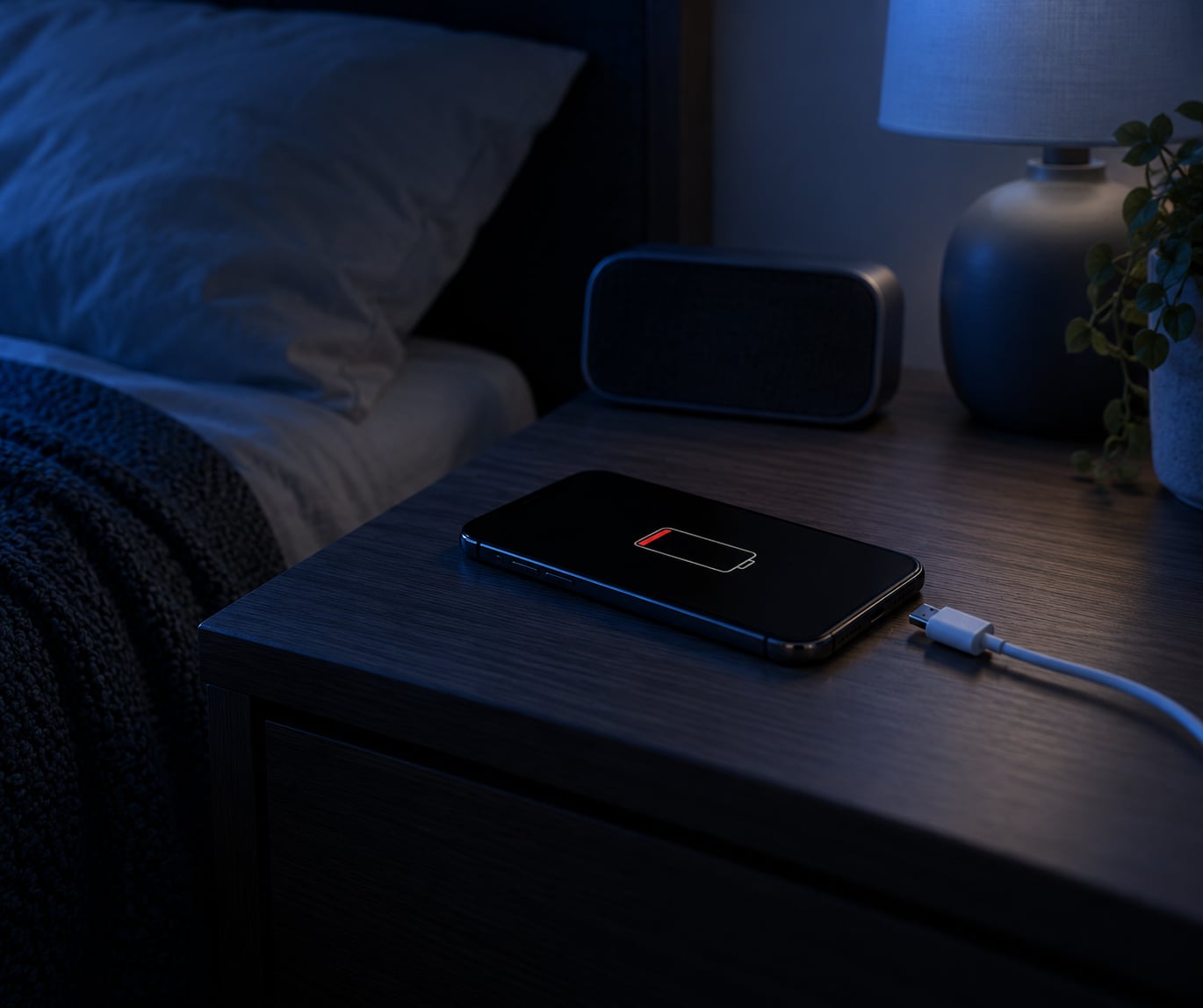
If you’re searching for why does my iPhone battery drain so fast overnight, the answer is almost always software, not a dead battery. An iPhone never truly sleeps: apps keep syncing, location services keep hunting for a fix, notifications keep lighting the screen, and weak cellular signal makes the modem work overtime.
That means the fix is usually a settings change you can make in about ten minutes, and you’ll find it in the Battery screen on your own phone rather than guessing from a list online. This guide walks through reading the usage chart, the background settings worth turning off, and the point where a battery genuinely does need replacing.
Menu names shift a little between iOS releases, so I’ve written the paths as they appear on recent versions and flagged the older names where they differ.
Table of Contents
- 1What You Need
- 2Step-by-Step: How to Find and Stop Overnight Battery Drain
- 3Check Battery Usage and Identify Overnight Activity
- 4Turn Off Location, Background Refresh, and Sleep Causes
- 5Check Low Power Mode, Notifications, and Scheduled Activity
- 6Test the Battery and Know When to Stop Troubleshooting
- 7Common Mistakes
- 8Frequently Asked Questions
- 9How do I stop my iPhone battery from draining overnight?
- 10How much battery drain is normal overnight?
- 11What apps are draining my battery in the background?
- 12What does background app refresh mean?
- 13Why does my iPhone always say optimized battery charging?
- 14When should I replace an iPhone battery?
What You Need
You don’t need any tools for the first pass, just your iPhone and about ten minutes before bed.
- An iPhone charged to 100% so you have a clean starting point.
- A charger and cable you trust, for the later test that rules out a faulty cable.
- Access to Settings, specifically the Battery and Screen Time menus.
- One night’s sleep between the change and the check, because the only way to confirm a fix is to see the next morning’s number.
Nothing here requires a Mac, an account change, or a factory reset. If someone tells you to erase your phone to fix overnight drain, skip the rest of this page.
Step-by-Step: How to Find and Stop Overnight Battery Drain
Work through this in order. Changing settings before you read the usage chart destroys the evidence you need, which is why so many people fix the wrong thing and then wonder why nothing changed.
Check Battery Usage and Identify Overnight Activity
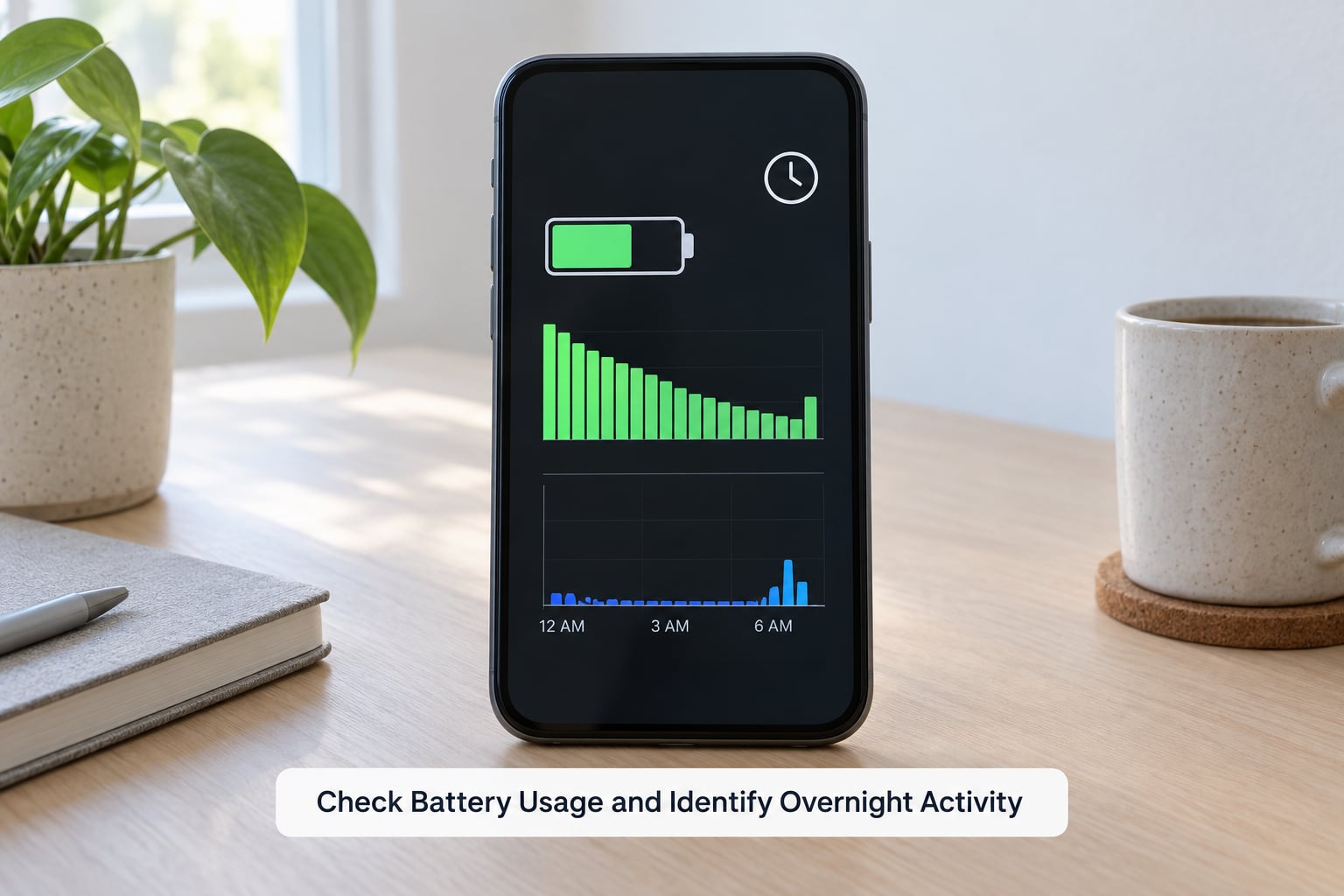
Open Settings, then Battery. The first thing you see is a graph of your charge level across the last 24 hours or the last few days, with a tab to switch between them. Read that graph before the per-app list: it shows the shape of the night, and a drop between two points usually lines up with something specific.
Under the graph, iOS breaks your usage into categories. On Screen is time the display was actually lit. Background is time apps used power with the screen off, which is the number that matters overnight. Notifications covers wake-ups triggered by incoming alerts. Cellular Coverage appears when the phone is straining to hold a signal.
Scroll below the graph and you get a per-app list with the percentage of power each one used, plus the average time each app was active in the air. The usual overnight offenders are navigation and ride-hailing apps, camera and editing apps, VPN clients, fitness trackers with continuous sensors, and anything syncing photos or a large mailbox.
Look for the words Ongoing or iOS update or Device Setup near the top of the list. If one of those is running, your phone is indexing and installing in the background, and the drain is temporary and expected.
Settings, then Screen Time, then App Limits and See App Activity, shows you how long each app was genuinely running versus how long it was just held in memory. That distinction matters when someone tells you to close everything, which we’ll get to.
Here is the range to judge your number against, measured from 100% to the morning:
| Overnight loss | What it usually means | What to do |
|---|---|---|
| 0-5% | Normal. Idle radio, alarms, a few push notifications. | Nothing. Your phone is healthy. |
| 5-10% | Normal for most phones, especially older models or weak signal homes. | Nothing, unless it bothers you. A focus mode overnight is plenty. |
| 10-20% | Something ran all night. Check the top three apps and location permissions. | Work through the steps below. |
| 20% and up | Not normal. Location, network searching, an update in progress, or an aging battery. | Diagnose tonight, and check Battery Health tomorrow. |
If you see 10% or more, the graph is worth a second look before you touch anything. A steady downward slope all night means background work. A flat line that suddenly plunges in a straight vertical drop usually means the phone was awake, often from a stream of notifications, or the battery is failing.
Turn Off Location, Background Refresh, and Sleep Causes
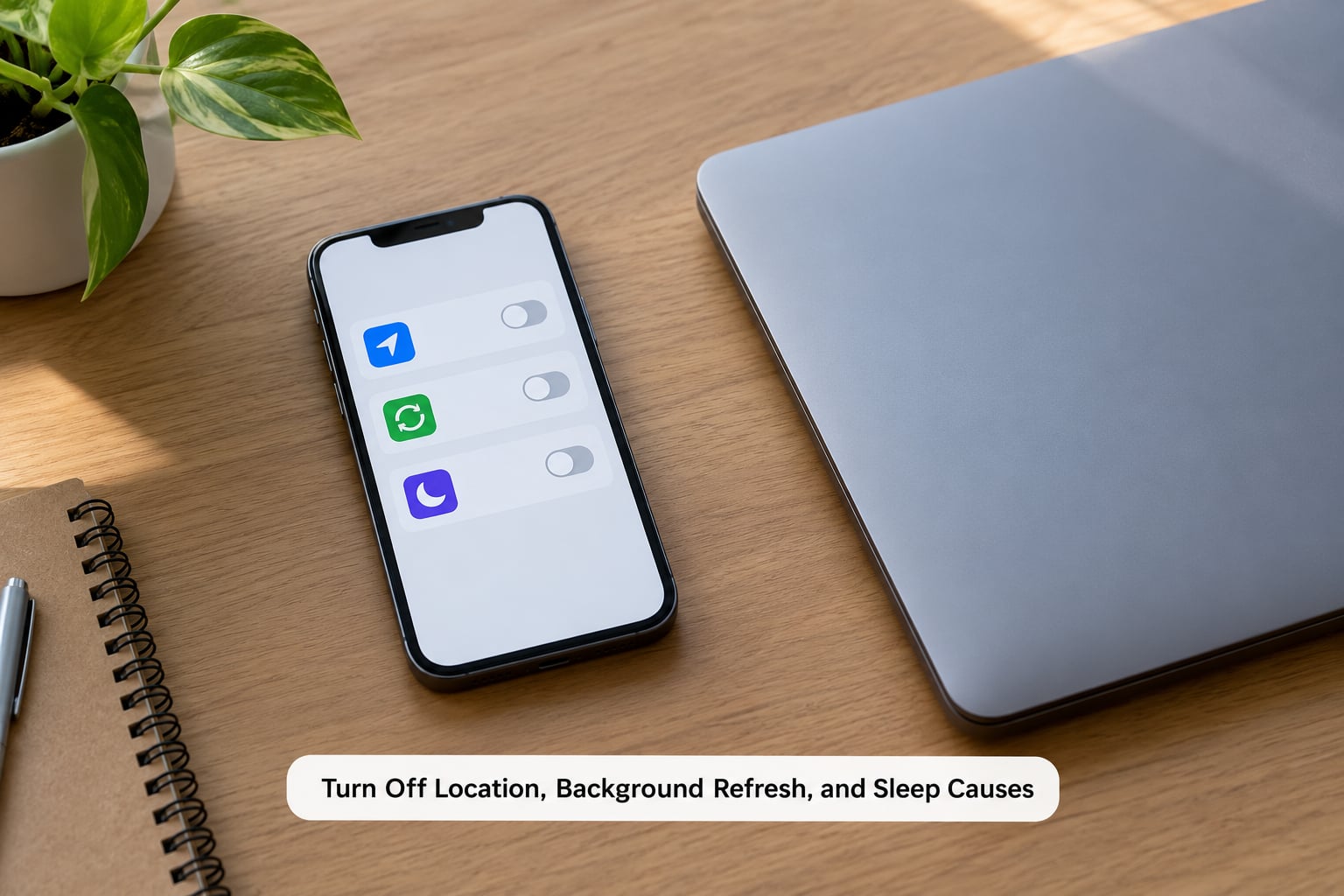
Location is the single most reported cause of overnight drain, and it makes sense once you picture it: an app with Always access wakes the phone, gets a fix, and repeats. On a phone sitting on a bedside table, that cycle can run all night.
Go to Settings, then Privacy and Security, then Location Services, then System Services, and look at Location Services and Significant Location Change. Turn off significant change, which is the one that triggers repeated wake-ups. Then scroll back up and check every app in the list. Anything you don’t use for navigation or fitness can sit at Never, and Find My can go to While Using the App.
For background refresh, the path is Settings, then General, then Background App Refresh. On recent versions you may find it under Settings, then Apps, then App Store style per-app pages instead. Either way, you can switch the whole feature off or set it to Wi-Fi only, and you can override individual apps on the same screen.
On the Apple Community and MacRumors threads, the combination that worked for most people was turning off background refresh for the heavy hitters rather than globally, so push notifications keep arriving and you don’t lose the apps you rely on.
Find My under Settings, then your name at the top, then Find My is worth leaving on. It is close to free when idle, and turning it off costs you theft protection. Bluetooth under Settings, then Bluetooth is the same story: the radio idles at almost no cost, and many guides that tell you to switch it off every night are solving nothing.
AirDrop is worth a check though, because Anyone for 10 Minutes left on overnight does hand out your name to strangers nearby. Control Center, then the AirDrop tile, then Off closes that off.
How you know a change worked: note the time you made it, then look at the top of the Battery list the next morning. The app you changed should have moved down the list, and the overnight total should drop by roughly the amount it was costing.
Check Low Power Mode, Notifications, and Scheduled Activity
Some overnight drain is the phone doing exactly what you asked. Alarms, scheduled syncs, and notifications all wake it, and Low Power Mode or Adaptive Power is the setting that changes how hard it works while asleep.
Low Power Mode sits at Settings, then Battery, then Low Power Mode, and you can turn it on overnight permanently or schedule it. On recent iOS versions and supported models, Adaptive Power does a gentler version of the same job, learning from your routine and trimming background work without throttling everything. Adaptive Power is generally the better long-term choice; Low Power Mode is the blunt one you reach for tonight. Apple’s guidance is not to keep Low Power Mode on permanently, because it disables Background App Refresh and some mail features by design.
Notifications are the most visible cause. Settings, then Notifications, then each app, lets you turn off Allow Notifications entirely for anything that does not need to reach you at 3am. A notification that lights the display turns a black phone into an active one, and one notification can undo a whole night of careful settings. Do Not Disturb, or Sleep Focus on newer versions, is one switch that silences the lot; you can schedule it from 10pm to 6am so you stop thinking about it.
Check your alarms in the Clock app, and check alarms on your other devices too. An alarm set on an Apple Watch, a HomePod, or an iPad can ring through and wake the iPhone at 4am for no visible reason. Hearing aids and Bluetooth audio devices behave the same way when they reconnect overnight.
Mail is another quiet one. Settings, then Apps, then Mail, then Accounts, then Fetch New Data is where you decide how often mail checks for new messages. Set it to Push so mail arrives instantly instead of polling on a schedule all night, and turn off Fetch for any account you no longer use.
Finally, look at iCloud. Settings, then your name, then iCloud, then iCloud Drive and Photos will show sync progress. A large photo library or a backup can legitimately run for hours, and if you have a backup set to run overnight that is your answer right there. Apple also runs device setup and update indexing shortly after an iOS update, usually inside the first day, and that shows up in the Battery list as ongoing activity.
Test the Battery and Know When to Stop Troubleshooting
If you have done the settings work and the morning number has not moved, the problem is probably not settings. This is where to check the hardware.
Settings, then Battery, then Battery Health and Charging shows Maximum Capacity, which is a percentage of the original factory capacity, plus a cycle count. On older iOS versions the same information sits under Battery Health, where the setting is called Battery Health instead. Apple treats anything below 80% as a battery that has reached the end of its useful life, and the same screen will show a Service message when it thinks a replacement is due.
Maximum Capacity and overnight drain are different measurements, and readers mix them up constantly. You can sit at 100% health and still lose 20% overnight if software is the culprit, and you can sit at 84% and lose 6% on a quiet night. Health predicts long-term behaviour, not last night’s graph.
The cleanest way to separate the two is an A/B test. Turn on Airplane Mode before bed one night, turn it off the next night, and change nothing else. If the Airplane Mode night drops by 15 points or more, the drain is radio and app activity. If both nights are identical, software settings are not your problem and the battery itself is the likely cause.
Recent iOS releases added a built-in battery diagnostics feature that watches your use over a couple of days and then tells you which setting or feature was behind the drain, with a switch to change it. Check Settings, then Battery, then Battery Health and Charging for anything new on your phone. On Apple Intelligence devices, Siri and Apple Intelligence add their own background overhead too, and you can review or switch those off per app in Settings, then Apple Intelligence and Siri.
Rule out the charger before you rule out the battery. Test overnight with a cable and adapter you know are good, away from a pillow or a warm surface, because charging while hot is hard on the cells. A weak or failing battery draws more current than a healthy one, and it gets warm in a way a new one does not.
Two rarer causes worth knowing about. If your phone is in a basement, a lift, or a rural area, the modem boosts transmit power hunting for a signal, and that alone can cost a lot. And if the drain started with no software change and no update, an unfamiliar app with permissions you did not grant, or a profile you did not add, is worth removing.
Stop tweaking and get service when any of these are true: Maximum Capacity is under 80%, the Service message is showing, the A/B test came back identical on both nights, or the phone is swelling, hot to the touch, or dropping to flat within hours of being unplugged. Apple stores and Apple-authorized service can handle battery replacement, and on iPhone models the cost is a flat service rather than a quote you negotiate.
Common Mistakes
Most of the bad advice floating around this topic fails in one of six predictable ways.
Judging the battery from a single night. One bad night tells you almost nothing, because an update, a sync, or a hot room can double your drain on its own. Fix: run at least two ordinary nights at 100% before you decide anything, and treat the first 24 to 48 hours after an iOS update as a grace period rather than evidence.
Closing every app constantly. Swiping apps away doesn’t reduce overnight drain, because a closed app is not running. It also removes the warm state iOS keeps apps in, so the next launch is slower and draws more power. Fix: leave your apps alone and read the Battery chart instead. The Screen Time report tells you which apps were actually active.
Turning off Bluetooth, Wi-Fi, and Find My permanently. These are near-free when idle, and two of them protect you. Disabling them creates a false sense of progress while costing you AirPods, handoff, and theft protection. Fix: switch off the radios you do not need, like mobile data when the signal is poor, and leave the rest on.
Disabling location services without reading the list. Turning off everything including Find My and Emergency Location is a blunt fix that breaks navigation, delivery, and emergency calling. Fix: set individual apps to Never or While Using the App, and turn off Significant Location Change, which is the setting that actually causes the repeated wake-ups.
Skipping iOS updates to avoid drain. Staying behind keeps known background bugs in place, and the indexing hit returns every time you do update. Fix: update, then leave the phone plugged in on Wi-Fi for a couple of hours and let the post-update work finish before you judge anything.
Ignoring heat and battery age. A phone charging under a pillow, in a car, or in a warm bedroom burns power on cooling and ages the cells faster. Fix: charge on a hard, cool surface, and check Maximum Capacity before you start changing settings again.
Frequently Asked Questions
How do I stop my iPhone battery from draining overnight?
Start with Settings, then Battery, and read the last 24 hours of the graph and the per-app list. Turn off Significant Location Change and move heavy apps off Always in Location Services. Schedule Do Not Disturb from bedtime to morning, switch Background App Refresh to Wi-Fi only, and check whether an iOS update is still installing. If the morning loss stays high two nights in a row, check Battery Health and maximum capacity before changing anything else.
How much battery drain is normal overnight?
Losing 5 to 10 percent between bedtime and morning is normal for most iPhones, and under 5 percent is excellent. Anything above 10 percent means something ran all night and is worth investigating, usually location services, a weak signal, or an update finishing in the background. 20 percent or more is not normal on a healthy phone. Judge from a full charge to full morning, and ignore a single night that followed an iOS update.
What apps are draining my battery in the background?
Open Settings, then Battery, and scroll past the graph to the per-app list, which shows the percentage of power each app used. Navigation, ride-hailing, camera, VPN, and fitness apps with always-on sensors are the usual suspects. Look for Ongoing entries too, because an iOS update or device setup appears there and is temporary. If an app is near the top every morning, set its location to Never or While Using the App and limit Background App Refresh for it.
What does background app refresh mean?
Background App Refresh lets apps fetch new content and run small tasks while your iPhone is idle, so mail, news, and chat apps stay current without you opening them. It lives at Settings, then General, then Background App Refresh, and you can limit it to Wi-Fi or switch it off per app. Turning it off globally also stops push mail working properly, so limiting the heavy apps is usually the better compromise.
Why does my iPhone always say optimized battery charging?
Optimized Battery Charging learns your daily routine and holds the charge near 80 percent overnight, finishing the last stretch shortly before you usually wake up, so the phone spends less time sitting full. It appears in Settings, then Battery as a status line when the feature is waiting. If you need 100 percent first thing, use a charge limit higher than 80 percent or turn the feature off for that night, and expect the full charge to be less battery-wear over time.
When should I replace an iPhone battery?
Replace it when Settings, then Battery, then Battery Health and Charging shows a Service message, or when maximum capacity drops below 80 percent, which is Apple’s own threshold for a worn-out cell. Also stop troubleshooting when an overnight test with Airplane Mode still shows heavy drain, or when the phone gets hot or swells while charging. A healthy battery should hold 5 to 10 percent overnight and last a full day of normal use without dropping sharply after being unplugged.
Do one thing tonight: read the last 24 hours of your Battery graph before you change anything. Whatever sits at the top of that list is your answer, and one night with it limited will tell you more than a week of guessing.