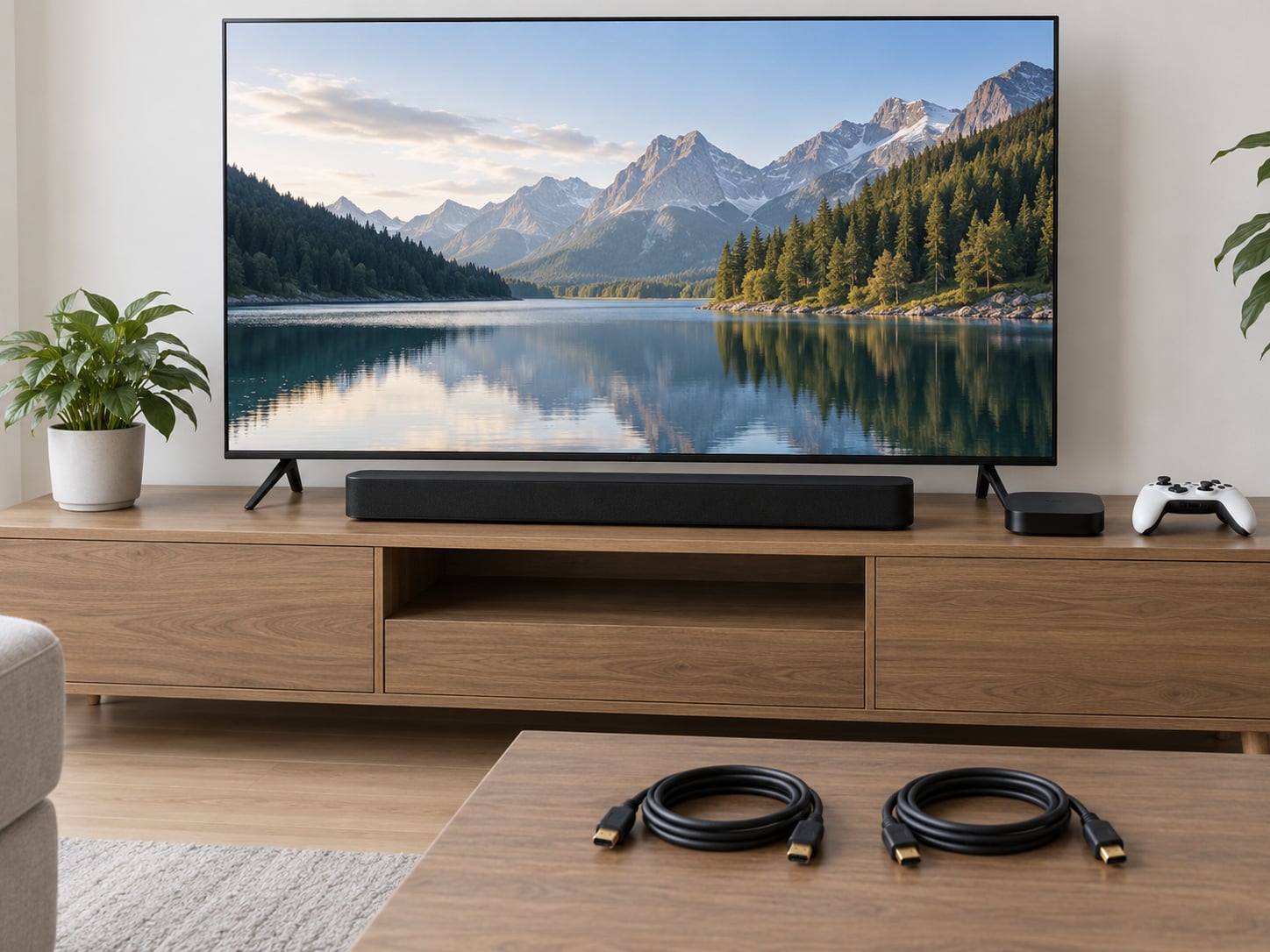
How to fix lip sync delay between TV and audio: most of the time it takes one setting. Power-cycle the TV and source, switch the TV’s Digital Audio Output from Bitstream to PCM, then use the audio delay or lip sync slider in one place only. If the sound runs late, your audio chain is adding processing the video path doesn’t have.
The delay almost never comes from the picture itself. Video runs through upscaling, motion smoothing, and game mode on the TV, while audio runs through a decoder and often a soundbar or receiver before you hear it. When the audio side buffers a little longer, dialogue arrives after the mouth has already moved.
Budget about ten minutes for the common cases, and twenty if the soundbar sits between the source and the TV. Nobody has to open anything or pull a wall mount off the bracket.
Table of Contents
- 1What You Need
- 2Step-by-Step: How to Fix Lip Sync Delay Between TV and Audio
- 31. Check the Obvious Audio and Video Settings
- 42. Reconnect HDMI, Optical, or Digital Cables
- 53. Fix Delay Caused by Bluetooth Speakers or Headphones
- 64. How to Fix Lip Sync Delay on Streaming Apps and Smart TVs
- 75. Check Audio Formats, Receivers, and Processing Features
- 86. Test a Different Source or Reset the Setup
- 9Common Mistakes
- 10Frequently Asked Questions
- 11Why is the sound late on my TV when I use Bluetooth speakers?
- 12Can I fix lip sync delay on a smart TV without touching every device?
- 13How do I adjust lip sync on a Samsung, LG, Sony, TCL, Hisense, or Vizio TV?
- 14Does HDMI ARC cause audio sync delay between the TV and sound?
- 15Why is the delay different in Netflix, YouTube TV, or a game console?
- 16How can I tell whether the problem is the TV or the soundbar?
- 17Conclusion
What You Need
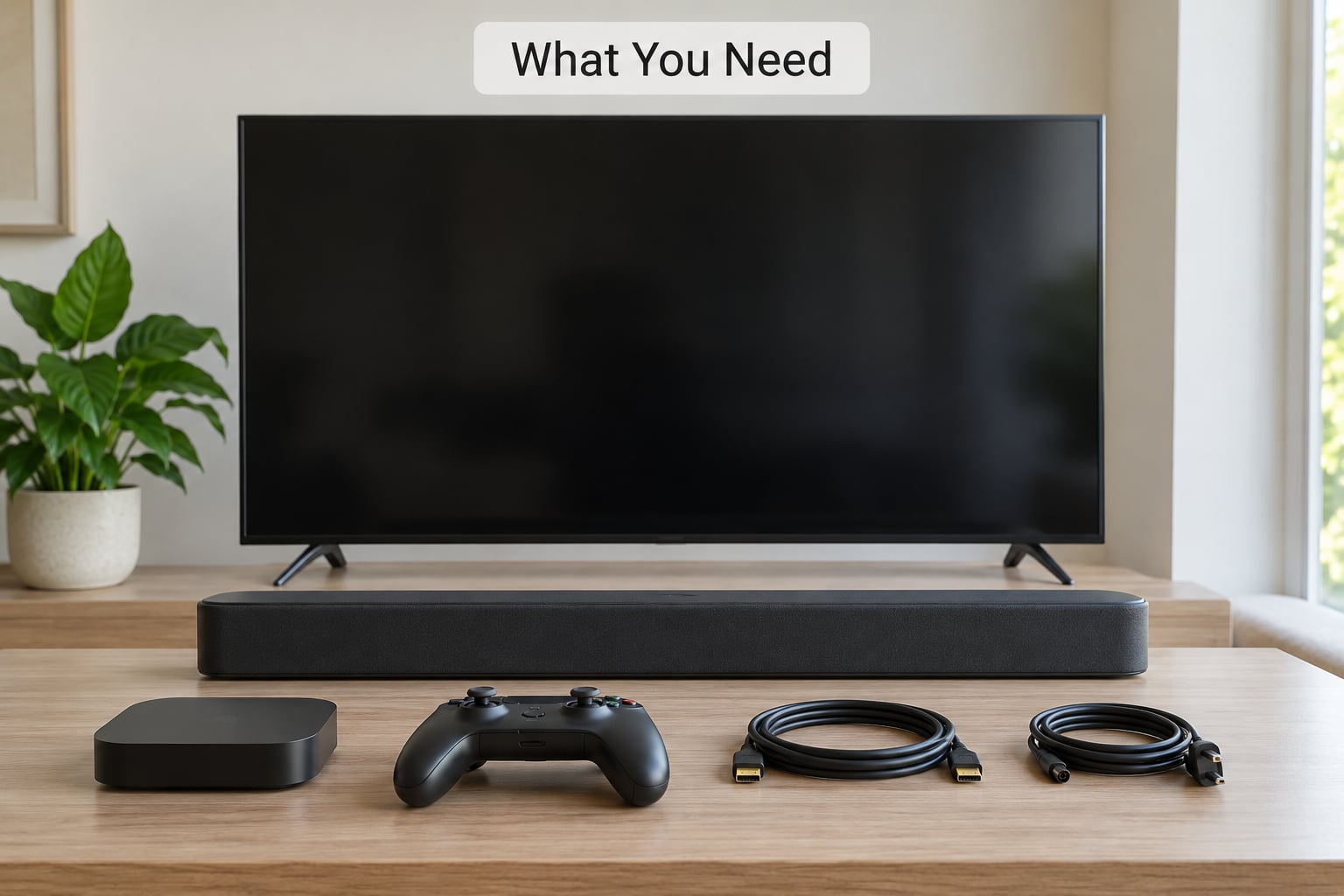
You do not need tools, but you do need access to every remote in the chain. That means the TV remote, the remote for your streaming stick, game console, or cable box, and the remote or app for your soundbar or receiver.
- The original HDMI, optical, or digital audio cables your setup came with
- One spare HDMI cable, known to work, to swap in for testing
- A phone with a stopwatch app, if you want to measure the delay in milliseconds
- A clip with clear speech and visible mouth movement, so you can judge sync by eye and ear
Pick that test clip before you start changing anything. Sync problems show up most clearly in close-up dialogue, and a film scene will tell you more than a nature documentary with narration over wide shots.
Step-by-Step: How to Fix Lip Sync Delay Between TV and Audio
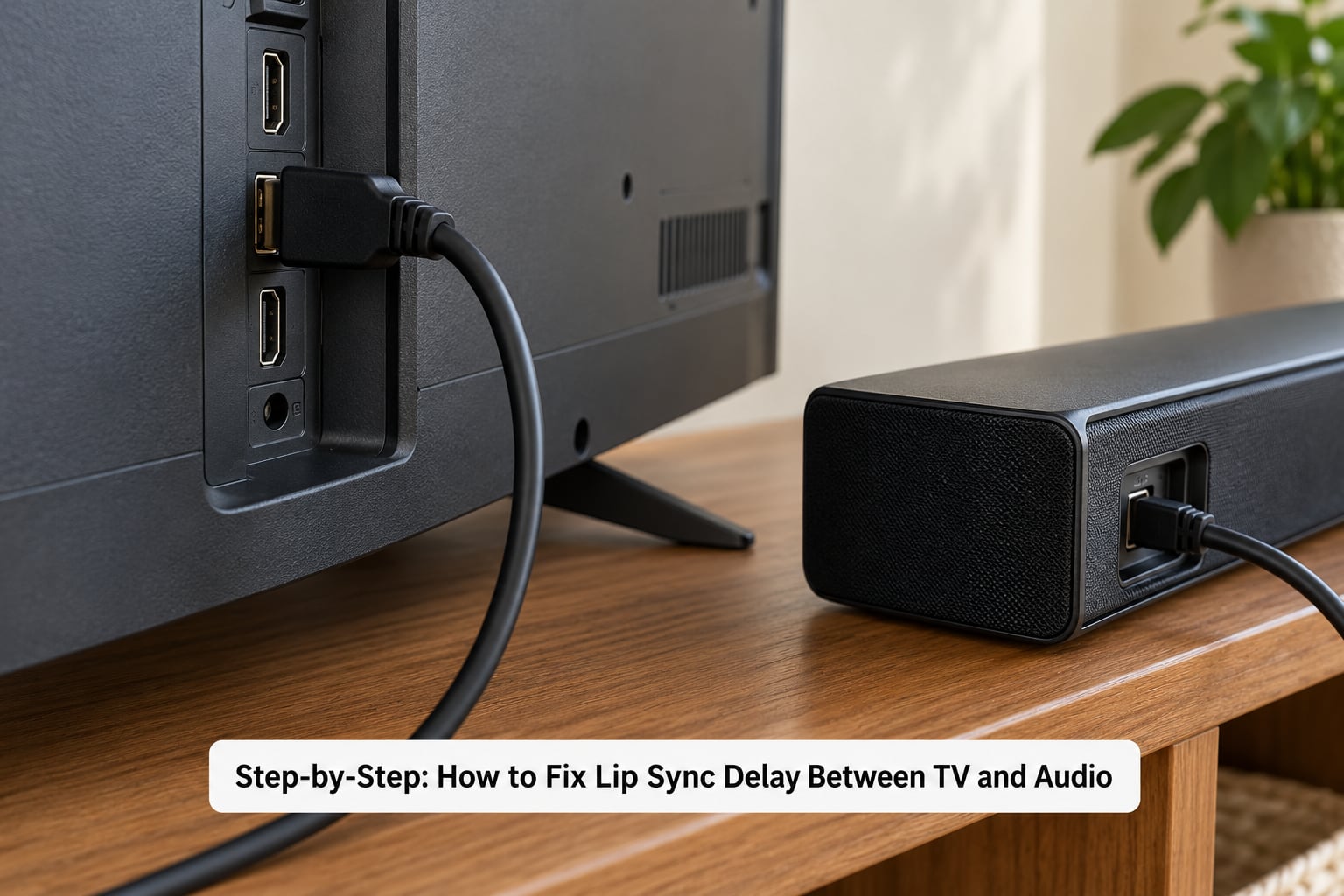
Work in order. Each step below tells you what to do and what result proves it worked before you move to the next one. Stop as soon as the delay disappears, because later steps trade sound quality for sync and you may not want that trade.
1. Check the Obvious Audio and Video Settings
Open your TV’s sound settings and look for anything named Lip Sync, AV Sync, Audio Delay, or Sound Offset. On Sony Bravia models it sits under Settings and then Sound and Picture, where it’s labeled Post Process Setting. On Samsung it’s Sound and then Output and Additional Audio Output, with a Digital Audio Delay slider. On LG and Vizio look under Sound or Audio Output for Lip Sync or AV Sync.
Labels differ by model and software version, so search the TV’s own settings search box for “sync” or “delay” before digging through menus.
Also check Game Mode and motion smoothing on the picture side. Both add frame processing, and turning Game Mode off is worth testing if you only notice the problem during games.
How to tell it worked: the mouths on screen line up with the dialogue on your test clip, and you have not touched any other setting yet.
2. Reconnect HDMI, Optical, or Digital Cables
Turn everything off and reseat both ends of each cable. Optical cables in particular are easy to kink at the connector, and a partially seated HDMI cable can drop audio formats without looking obviously wrong.
Swap in your known-good spare HDMI cable for the run between the soundbar and the TV, then run the test again. This is also where the bypass test happens: connect the source straight to the TV’s speakers for five minutes with the soundbar disconnected. If sync is perfect with TV speakers, the problem lives in the soundbar or its connection, not your streaming box.
How to tell it worked: the delay appears on one cable and disappears on another, or it vanishes the moment you unplug the soundbar.
3. Fix Delay Caused by Bluetooth Speakers or Headphones
Bluetooth is the single most common cause of a bad lag that no menu slider fully fixes. Wireless codecs buffer differently depending on signal strength, so the delay can drift from ten milliseconds to a couple hundred and back.
Turn Bluetooth off on the TV, or forget the speaker and headphones from its device list, then reconnect using a wired connection if you have one. If you must stay wireless, keep the receiver within a few feet of the TV, move it off the same shelf as any Wi-Fi router, and try a low-latency codec switch in your speaker’s companion app if it offers one.
Viewers posting in r/hometheater and r/Soundbars report the same pattern: Bluetooth delay that wanders, disappears when they hardwire the soundbar with optical or HDMI, and never comes back on the wired connection.
How to tell it worked: sync holds steady for a full scene with no drift, which wired connections almost always give you.
4. How to Fix Lip Sync Delay on Streaming Apps and Smart TVs
Some apps do their own sync handling and ignore the TV’s delay slider, which is why YouTube TV or Netflix can be out of step while the cable box feeding the same TV is fine. Reboot the streaming device separately from the TV, since a quick TV restart leaves the stick running with its old state.
On a Roku, Apple TV, or Fire TV, sign out of the app and back in, and confirm the device’s own audio format setting is set to Auto or Stereo unless you have a specific reason to change it. Some apps also cache a stale audio setting that only clears after a restart of the app itself.
If you have calibrated sync through your streaming platform’s own settings, note that it usually calibrates separately for standard dynamic range content and for Dolby Vision or HDR, so one calibration does not cover everything you watch.
How to tell it worked: the delay shows up on one app and not the others, and correcting the delay on that app leaves other sources unchanged.
5. Check Audio Formats, Receivers, and Processing Features
Here is where most setups get fixed permanently. Change the TV’s Digital Audio Output from Bitstream to PCM, sometimes labeled LPCM or Stereo. When the TV sends raw PCM, the soundbar skips its own decoding step, and that decoder is frequently the source of the extra latency. Forum consensus across AVForums and the r/hometheater crowd is that this single change fixes more cases than any other.
The trade-off is real: you lose surround sound and object-based audio such as Dolby Atmos, and the TV does the mixing instead. On an AV receiver, do the same thing by choosing PCM or LPCM for the HDMI input rather than Bitstream, or turn off the receiver’s surround processing and let the TV send plain stereo.
Check the soundbar’s own app for a dialogue or lip sync slider too. Sonos owners use the TV Dialog Sync slider inside the Sonos app, which adds delay when audio plays ahead of the video.
How to tell it worked: dialogue lines up and you can hear it plainly, but Atmos badge or surround indicators have disappeared. That is the expected cost.
6. Test a Different Source or Reset the Setup
The diagnostic shortcut: if only one input is out of sync, the source device owns the problem. If every input is out of sync on that one TV, the culprit is the TV, the soundbar, or the connection between them. That rule alone cuts the search in half.
When no step has worked, update the firmware on the TV, the source, and the soundbar. Users on Samsung, Sony, and LG report that firmware changes either resolve a stubborn delay or introduce a new one, so it is worth checking for a pending update before anything more drastic.
Last resort is a full reset order: unplug everything for a full minute, then power the modem, the soundbar, the TV, and the source in that order. Users across AV forums report that this ordering resolves intermittent sync that plain restarts don’t touch.
How to tell it worked: sync holds across several different clips and inputs rather than just the one scene you happened to test.
Common Mistakes
Setting delay on both the TV and the soundbar. This is the most common mistake and it makes things worse, because the two delays stack. Pick one device and set it back to zero on the other.
Changing five settings in one sitting. You lose track of which change helped and which hurt. Change one thing, test, and write down the result.
Ignoring the cable type. A cheap HDMI cable is fine for video but can struggle with higher bandwidth audio formats. Test with a known-good cable before blaming the soundbar.
Staying on Bluetooth because the wires are inconvenient. Wireless audio delay is variable by design. Any amount of slider tweaking will only partly compensate for it.
Assuming every brand has the same menu path. Samsung’s Digital Audio Delay and Sony’s Post Process Setting do the same job under different names, and owners regularly waste twenty minutes hunting for a setting that sits somewhere unexpected on their model.
Two extra checks worth your time: switch the audio format to PCM only as a test to confirm the decoder is the cause, since it changes what you hear permanently. And if the delay stays past roughly 250 milliseconds no matter what you adjust, it may be worth contacting the manufacturer about a repair or warranty claim rather than continuing to chase it with menus.
Frequently Asked Questions
Why is the sound late on my TV when I use Bluetooth speakers?
Bluetooth audio buffers in the speaker before playback, and how much it buffers changes with signal strength, distance, and interference. That makes the delay drift instead of staying at one fixed number. Users in r/hometheater and r/Soundbars report the delay appearing and disappearing as the connection changes. Connecting the soundbar with HDMI or optical removes the wireless buffer entirely, which is the reliable fix.
Can I fix lip sync delay on a smart TV without touching every device?
Usually yes. Start on the TV itself: set the digital audio output to PCM and use the built-in audio delay slider. Only move to the soundbar or source device if the TV has no adjustment available, and only when one input is out of sync. Forum advice is consistent on this: pick a single device to adjust and leave the others at zero, or the delays stack and the problem gets worse.
How do I adjust lip sync on a Samsung, LG, Sony, TCL, Hisense, or Vizio TV?
On Samsung, look under Sound and then Output and Additional Audio Output for Digital Audio Delay. On Sony Bravia, it is Post Process Setting under Sound and Picture. LG and Vizio place Lip Sync or AV Sync under Sound or Audio Output. TCL and Hisense usually put Audio Delay in the sound menu on their Google TV or Roku TV builds. Names shift between models and software versions, so use the TV’s settings search for sync or delay.
Does HDMI ARC cause audio sync delay between the TV and sound?
HDMI itself adds essentially no delay. ARC is more prone to sync trouble than eARC because eARC requires lip sync correction as part of the HDMI specification, while standard ARC leaves it optional and manufacturers implement it inconsistently. Forum reports describe eARC holding sync far more reliably. If your TV and soundbar both support eARC and you use ARC today, switching the port to the eARC input is a quick test.
Why is the delay different in Netflix, YouTube TV, or a game console?
Each source handles sync on its own, and some apps calibrate or adjust audio without consulting the TV’s delay setting. That is why one app can be off while another feeding the same television is fine. Game consoles add another layer because Game Mode and VRR change how the picture is processed. The practical check: if only one source is out of sync, fix that source. If every source is affected, look at the TV and the audio device.
How can I tell whether the problem is the TV or the soundbar?
Disconnect the soundbar and play through the TV’s built-in speakers for a few minutes. If sync is correct with TV speakers and wrong with the soundbar, the delay is being added by the soundbar or its connection. Then try the source straight into the TV with a different HDMI port. If the delay follows the source to any input, it belongs to the source device. This three-way test narrows it down quickly.
Conclusion
Start with the reversible checks, in this order: inspect the audio and picture settings, reseat and swap the cables, and get Bluetooth out of the signal path. If the delay survives all three, change the TV’s digital audio output to PCM and adjust the audio delay slider on one device only.
Remember the diagnostic shortcut. One bad input means the source owns the problem; every bad input means the TV, soundbar, or connection does. Hold off on factory resets until you have narrowed it to a single component, and update firmware before you declare the hardware at fault. Updated for 2026.